Author

Sumit Bahl

Browsing

Here we share How to Register Complaint with DoT against Offensive WhatsApp Messages. WhatsApp has emerged as one of the most important modes of communication for most. Billions of peoples use WhatsApp daily to communicate with friends and family or for Business purposes. Many people receiving abusive or offensive messages but upon complaint, WhatsApp banned the number. Now it’s DOT (Department of Telecom) who steps forward accept a complaint against offensive WhatsApp Messages.

Recently lots of journalists and public figures receiving abusive, offensive and life-threatening messages on WhatsApp. Upon considering recent activities on WhatsApp DOT taken this decision and People can now file a complaint with the DOT against offensive messages received on WhatsApp.

“If anyone is receiving abusive/offensive/death threats/ vulgar WhatsApp messages, please send screenshots of the message along with the mobile numbers at [email protected].” telecom department’s controller of communications Ashish Joshi said in a tweet.  “We will take it up with the telecom operators and police heads for necessary action.” He added.

In an order on February 19, DOT said that license conditions bar carriage of objectionable, obscene or unauthorized content in any form on the network. The order directed all telecom service providers to take immediate action against their customers for sending such messages as it is also a violation of customer declaration in the customer application form

They also suggested telecom operators to open a helpline or dedicated call center to receive complaints against such messages.

How to Register Complaint with DoT against Offensive WhatsApp Messages

To Register DOT Complaint against WhatsApp Messages, the victim just needs to provide a screenshot of the message along with the mobile number and e-mail it to [email protected]. After sending the mail to DOT, they verify and take the necessary action against the offender.

We appreciate the decision and users who frequently get threats or abuse should definitely Register Complaint with DoT against Offensive WhatsApp Messages. Let me know what you think about the decision in the comment section.

Magisk is one of the most trusted solutions to gain Root access without modifying the system partition. Magisk not only provides root access but also lets you access the banking apps without tripping the SafetyNet and let you install different modules to customize your device. There are different modules for different needs. With plenty of options to choose from, here we share the 20 best Magisk modules to get you started.

Magisk Modules are designed to tweak, enhance, or add some functionality to your device. Some modules focus to enhance your device performance and some of them are on customizing the ROM. We share all essential Magisk Modules from small tweaks like changing the emojis or Gboard themes to installing high-level audio mods or Xposed Framework.

20 Best Magisk Modules to Use

There are plenty of modules available but we share the 20 must-have Magisk Modules for you. To Install these Magisk Modules your device must be rooted with Magisk. Also, check How to Install Magisk Modules on your device. Here are the Best Magisk Modules.

1) Pix3lify (Pixel Experience)

pix3lify

Pixel Experience or Pix3lify module brings Google Pixel looks, feel, and functionality to any Android device. Most of the files are extracted from Pixel 3 XL Factory images and compiled in a single Magisk module. This module works on any device running on Nougat and above.

Pix3lify Magisk Module brings Different Pixel Launcher choices, Digital Wellbeing in the Settings app, Google Sans Font, Pixel alarms/media/ringtones/UI sounds, Google Assistant Enabler, EIS Support, Camera2API, Support, Night Light Support, Pixel Accent Colors, and Google Live Earth + Live Data and Pixel exclusive wallpapers.

[su_button url=”https://github.com/Magisk-Modules-Repo/Pix3lify” target=”blank” style=”soft” background=”#dc5e49″ size=”7″ center=”yes” rel=”nofollow”]Download Pix3lify Magisk Module[/su_button]

2) Google Framework

Google Framework Magisk

Some of the Google Apps like a Phone app or Dialer apps are exclusive for Google Pixel devices. Google Framework Magisk Module injects Google’s Core Framework on your device which allows you to download and install the Google Apps on your device. Google Framework Module also adds Google Face Unlock to any ARM64 device.

[su_button url=”https://github.com/Magisk-Modules-Repo/google-framework” target=”blank” style=”soft” background=”#dc5e49″ size=”7″ center=”yes” rel=”nofollow”]Download Google Framework Magisk Module[/su_button]

3) App Systemizer

App Systemizer

App Systemizer Magisk Module allows the installation of third-party applications as system apps. The system app won’t be uninstalled easily so you get an extra layer of protection for security apps by converting the app to a system app. These apps will update automatically as usual through the Play Store. Another benefit of systemizing the user-installed apps is that if you uninstall magisk, your settings for the apps will be retained.

[su_button url=”https://github.com/stangri/AppSystemizer” target=”blank” style=”soft” background=”#dc5e49″ size=”7″ center=”yes” rel=”nofollow”]Download App Systemizer Magisk Module[/su_button]

4) Greenify4Magisk

Greenify4Magisk

The Greenify4Magisk Magisk Module adds Greenify as a privileged app to achieve a faster and better hibernation performance systemlessly. Greenify maximizes your battery life by hibernating the background apps automatically when you aren’t using them.

The app works on both rooted and non-rooted devices, but the rooted phones get some advanced features and better hibernation. If you are concern about your device’s battery life, you must try the Greenify4Magisk module.

[su_button url=”https://github.com/Magisk-Modules-Repo/Greenify4Magisk” target=”blank” style=”soft” background=”#dc5e49″ size=”7″ center=”yes” rel=”nofollow”]Download Greenify4Magisk Magisk Module[/su_button]

5) Viper4Android

Viper4Android Magisk Module

Viper4Android is one of the best sound equalizers or mods available for Android devices. It lets you increase your phone’s maximum volume and improve the audio performance of your device’s speaker, Bluetooth speaker, or headset and even let you create your own profile.

The Viper4Android Magisk Module enhances the audio performance even more and gives a user full control over their audio outputs, boosts the bass, and adding clarity with features such as ViPER Clarity and XHiFi technology.

[su_button url=”https://github.com/Magisk-Modules-Repo/ViPER4AndroidFX” target=”blank” style=”soft” background=”#dc5e49″ size=”7″ center=”yes” rel=”nofollow”]Download Viper4Android Magisk Module [/su_button]

6) Camer2API Enabler

Camer2API Enabler

Camer2API Enabler is one of the best Magisk Modules available out there. Google’s modded camera app brings some awesome features like HDR+ mode, Night mode, and Portrait mode. To make the modded Google camera works, you need Camera2API on your device.

Camer2API Enabler Magisk Module is the easiest way to enable the Camer2API on your device. The modded Google Camera app differs from the play store version and you won’t find it in Play Store.

[su_button url=”https://github.com/jhangyu/magisk-Camera2-API” target=”blank” style=”soft” background=”#dc5e49″ size=”7″ center=”yes” rel=”nofollow”]Download Camer2API Enabler Magisk Module[/su_button]

7) Volume Steps Increase

Volume Steps Increase

By default, there are 15 steps to control the volume on your device between silent and maximum loudness. With Volume Steps Increase Magisk Module you can doubles the number of steps to 30 in volume adjustment for both media and in-call volume.

[su_button url=”https://github.com/pvdstel/volume-steps-increase” target=”blank” style=”soft” background=”#dc5e49″ size=”7″ center=”yes” rel=”nofollow”]Download Volume Steps Increase Magisk Module[/su_button]

8) iOS Emojis

iOS Emojis

iOS Emojis Magisk Module is a simple module that replaces the built-in emoji TTF file with the iOS Emojis TTF file. The developer extracted the pngs from the latest AppleColorEmoji.TTF file and has built a font that works on Android and compiles them to create Unicode 11 based iOS emojis.

[su_button url=”https://forum.xda-developers.com/general/general/mod-ios-12-1-emojis-emojione-4emojis-t3853416″ target=”blank” style=”soft” background=”#dc5e49″ size=”7″ center=”yes” rel=”nofollow”]Download iOS Emojis Magisk Module[/su_button]

9) Google DNS

Google DNS Magisk Module

Google DNS Magisk Module makes your device use Google’s DNS servers instead of the one provided by the ISP. Google Public DNS over TLS now available on Android 9 Pie and can be found Private DNS setting in network settings. For the older device, you use this magisk module to Enable Google DNS instead of default ISP.

[su_button url=”https://github.com/Magisk-Modules-Repo/magisk-google-dns” target=”blank” style=”soft” background=”#dc5e49″ size=”7″ center=”yes” rel=”nofollow”]Download Google DNS Magisk Module[/su_button]

10) GBoard Themes

Gboard Themes Magisk Module

The themes available for Gboard are very limited and seem to be more focused on color variations than anything else. With Gboard Themes Magisk Module, a user can add lots of different themes from a different device and make the keyboard look like the keyboards used on the Poco F1, Razer Phone, and more.

[su_button url=”https://github.com/Magisk-Modules-Repo/gboard-themes” target=”blank” style=”soft” background=”#dc5e49″ size=”7″ center=”yes” rel=”nofollow”]Download Gboard Themes Magisk Module[/su_button]

11) YouTube Vanced

YouTube Vanced Magisk

YouTube Vanced is the most popular modded version of YouTube. It contains a lot of features like Ad Blocking, Background Playback, and many more. The app also includes functionality not seen in the official Youtube app, such as PiP (Picture in Picture) mode and background video playback while the screen is locked.YouTube Vanced Magisk Module replaces the Official Youtube app with Youtube Vanced.

[su_button url=”https://github.com/Magisk-Modules-Repo/iYTBP-Vanced-Magisk-Repo” target=”blank” style=”soft” background=”#dc5e49″ size=”7″ center=”yes” rel=”nofollow”]Download YouTube Vanced Magisk Module[/su_button]

12) Xposed Framework

Xposed Framework Magisk Module

Xposed is a very popular modding tool that brings small mods to customize your device. It brings all customization and features you found on a custom ROM to your Stock ROM. Xposed Framework Magisk Module brings the unified systemless Xposed Framework to Android devices.

[su_button url=”https://guidegeekz.com/install-xposed-framework-on-android-pie/” target=”blank” style=”soft” background=”#dc5e49″ size=”7″ center=”yes” rel=”nofollow”]Download Xposed Framework Magisk Module[/su_button]

13) GPU Turbo Boost

GPU Turbo Boost

GPU Turbo Boost Magisk Module increases the phone’s GPU power by up to 75% but at the same time reduces power consumption by up to 25% seamlessly. Also, this module increases gaming experience, video acceleration, performance tuning, graphics boost, and triggers GPU/CPU to boost your device to the highest level. If you are a gamer you must try the GPU Turbo Boost Magisk Module.

[su_button url=”https://github.com/EmperorEye1993/GPU-Turbo-Boost” target=”blank” style=”soft” background=”#dc5e49″ size=”7″ center=”yes” rel=”nofollow”]Download GPU Turbo Boost Magisk Module[/su_button]

14) Tethering enabler

Tethering enabler

Tethering enabler Magisk Module enables tethering on phones where it’s been disabled by the manufacturer/provider. Some OEMs or carriers in the US or other countries block the Tethering option to share your mobile data with other devices and users. Tethering enabler Magisk Module enables USB as well as WiFi tethering on their devices.

[su_button url=”https://github.com/stangri/Tethering_Enabler” target=”blank” style=”soft” background=”#dc5e49″ size=”7″ center=”yes” rel=”nofollow”]Download Tethering enabler Magisk Module[/su_button]

15) Debloater

Debloater

Debloater Magisk Module lets you Debloat your phone Systemlessly. Most OEMs include a slew of bloatware or useless system apps that are useless and cannot be removed. Debloater creates a UI in Terminal emulator within the Magisk module to Customize the uninstallation of a system app.

[su_button url=”https://github.com/Magisk-Modules-Repo/terminal_debloater” target=”blank” style=”soft” background=”#dc5e49″ size=”7″ center=”yes” rel=”nofollow”]Download Debloater Magisk Module[/su_button]

16) Android Mic Fix

Android Mic Fix

Android Mic Fix Magisk Module Fixes in call low volume mic issues for various Android devices. It can also fix the “Ok Google” detection. The module uses the tool “resetprop” to modify the build. prop default values. This can be useful if you are facing low volume or mic issues on your device.

[su_button url=”https://github.com/Magisk-Modules-Repo/baconmicfix” target=”blank” style=”soft” background=”#dc5e49″ size=”7″ center=”yes” rel=”nofollow”]Download Android Mic Fix Magisk Module[/su_button]

17) QuickSwitch

QuickSwitch

QuickSwitch Magisk Module enables Android Pie recent apps on supported third-party launchers. The module allows the user to choose which launcher has access to quickstep (Pie recent) and detects which installed launchers are capable of being the recent provider.

[su_button url=”https://github.com/skittles9823/QuickSwitch/releases” target=”blank” style=”soft” background=”#dc5e49″ size=”7″ center=”yes” rel=”nofollow”]Download QuickSwitch Magisk Module[/su_button]

18) G-VisualMod

G-VisualMod

G-Visualmod allows you to adjust the UI roundness, the height of the status bar, padding, notification padding, pill thickness, color, and transparency. You can also change the immersive mode and full-screen mode, as well as use the Notchkiller feature. It also includes the option to adjust the MIUI status bar bottom padding, which has been a source of annoyance for many Xiaomi users for a long time.

[su_button url=”https://github.com/Magisk-Modules-Repo/G-VisualMod#g-visual-mod” target=”blank” style=”soft” background=”#dc5e49″ size=”7″ center=”yes” rel=”nofollow”]Download G-VisualMod Magisk Module[/su_button]

19) Energized Protection

Energized Protection

Do you get annoyed when you visit websites or use low-quality apps and see a lot of terrible adverts, spyware, and other things? Energized Protection will eliminate any adware and spyware from your device, ensuring that you will not see any annoying advertisements. Ads of poor quality degrade the user experience; never allow this to happen again.

[su_button url=”https://github.com/EnergizedProtection/block/blob/master/README.md#package-details” target=”blank” style=”soft” background=”#dc5e49″ size=”7″ center=”yes” rel=”nofollow”]Download Energized Protection Magisk Module[/su_button]

20) L Speed

L Speed

This module will provide you with excellent battery life and performance, particularly if you are a gamer. It provides your rooted smartphone with a plethora of additional performance options. While gaming, you will notice a significant increase in performance. You can also experiment with the profile, which allows you to select between Power Saving, Balanced, or Performance mode depending on your requirements.

[su_button url=”https://github.com/Paget96/lspeed_magisk/archive/master.zip” target=”blank” style=”soft” background=”#dc5e49″ size=”7″ center=”yes” rel=”nofollow”]Download L Speed Magisk Module[/su_button]

How to Install Magisk Modules via Magisk Manager

Once you successfully root your device, you can Install Magisk Modules to customize or improve the performance of your device. Installing a Magisk Module is easy, all you need a rooted device with magisk and Magisk manager app installed on your device.

[su_button url=”https://guidegeekz.com/install-magisk-modules/” target=”blank” style=”soft” background=”#dc5e49″ size=”7″ center=”yes” rel=”nofollow”]How to Install Magisk Modules using Magisk Manager app[/su_button]

Wrapping Up: Best Magisk Modules

These are the best Magisk Module you should try. You can try them out and let us know which one is your favorite and if know any other module which you think fits in the list tell us in the comment section.

Magisk is one of the most trusted rooting solutions for Android devices. It provides the root access systemless-ly by modifying the boot image file without tampering with the existing system. One of the most beneficial features of the Magisk is the availability of modules which can be installed via Magisk Manager app. Follow below steps to check How to Install Magisk Modules using Magisk Manager app.

Just like Xposed, Magisk has its own repositories of Modules that allow you to modify or customize your Android phone. Magisk Module can be installed via Magisk Manager app and provide root-level tweaks without modifying the system partition.

The modules allow you to install a number of helpful modifications which enhance the overall functionality of your device. Some module comes with the apps that allow you to adjust the functionality while others are mods that focused on performance, appearance or customization of your device.

Before we proceed make sure you have Magisk installed on your phone. If not check this guide to Install Magisk to Root Android device.

How to Install Magisk Modules using Magisk Manager app

There are two methods to install Magisk modules on your device. The first one is to install the modules from the official repository other one is Download Magisk Module zip file from trusted source and use Magisk manager app to manually flash Magisk module zip files.

Install Modules from the Official Magisk Repo

Installing the Magisk Modules from the official repo is quite simple. All you have to do is open the module repository from the slide-out menu in the Manager app and browse through the list or do a search for your desired module.

  1. Open the Magisk Manager app on your device.
  2. Tap on the Menu icon in the top left corner.
  3. Tap on Downloads.
  4. Browse the desired module through the list or use the search function.
  5. Once you find the desired module, tap on the Download icon at the right corner.
  6. A popup box appears with an option No Thanks, Download, and Install. Click on Install to install the module on your device.
  7. The installation process will begin. Once complete, Reboot your device.

Install Magisk Modules Manually (Unofficial Module)

It’s also possible to download Magisk Modules zip outside of the Manager app. The only difference with the unofficial modules is that they’re not hosted on the Magisk repo. The best place to find unofficial modules is this XDA thread. After downloading Magisk module from this XDA thread, you can simply head over to Magisk Manager app and Flash Magisk Module zip from it.

  1. Download the Magisk module zip file from a trusted source and save it on your device.
  2. Open the Magisk Manager app.
  3. Tap on the Menu icon in the top left corner.
  4. Tap on Modules.
  5. Tap the big yellow + button at the bottom of the screen.
  6. Select the module zip file using your phone’s built-in file picker.
  7. Tap Open and then press Install.
  8. The above step will flash Magisk module zip on your device.
  9. Once the installation process complete, Reboot your device.

Already know How to Installed the Magisk Module, Try these must have Magisk Modules for your device.

Wrapping Up:

These are the easiest ways to Install Magisk Modules using Magisk Manager app. You can use any of the above methods to flash magisk module on your device. Just make sure if you are using the unofficial module, download it from the trusted source like XDA.

Magisk is the best tool to modify the Android software systemless-ly. Magisk is currently the best alternative to SuperSU which is slowly becoming obsolete. It provides the root access systemless-ly by modifying the boot image file and writing contents to the /data and cache partition without tampering with the existing system. Currently, Magisk is the best tool available to Root Android devices. Download and Install Magisk on Android from below.

You need root access to customizing, modding, tweaking, or installing other modifications for Android. The best way to Root your device is Magisk which also provides dozens of modules to customize your phone. The most important benefit to Install Magisk to Root Android devices is its ability to hide root access from specific apps.

What is Magisk?

Magisk is a Universal Systemless Interface developed by XDA Recognized Developer topjohnwu that altered the boot partition to Root Android device without tampering with the existing system. It works systemless-ly i.e. you can still install official OTA updates even with root.

Magisk not only passes the Google SafetyNet on a rooted device but also gives you the ability to hide the root of a particular app. Magisk also provides the modules to bring the extra tweaks and features into the Android OS.

What is Magisk Manager?

Magisk Manager is the app that helps you manage the root apps and allow you to install, update or delete the modules. It can also hide root access from specific apps and gives you the ability to install, update or uninstall the Magisk within the app.

Advantages of Magisk

  • MagiskSU: It manages your root apps and gives you the option to Grant or Deny the permission of any application.
  • Magic Mount: It will Modify the system/vendor without tampering with the partitions.
  • Magisk Hide: Magisk will let your device pass the Google SafetyNet and let you hide the certain app which allows you to access banking apps without any issue.
  • Magisk Modules Repo: Just like Xposed, magisk has a vast directory of modules to customize your device.
  • OTA Updates: You can install system OTA updates on rooted phones without any problem.
  • Magisk Manager: Magisk Manager helps you to manage the root apps and allows you to install the modules.

Download Magisk zip and Magisk Manager

There are two ways to Download the Magisk zip. If you have Magisk Manager installed, you can download the latest Magisk zip file within the app or you can Magisk zip and Magisk Manager from below. It’s important to take a complete Backup before installing the Magisk.

  • Download Magisk Zip latest version – Download
  • Download Magisk Manager apk latest version –Download
  • Magisk Official Support Thread – XDA

How to Install Magisk to Root Android devices

There are a few different methods to install the Magisk which we share here. You can Install Magisk by flashing the latest Magisk installer zip using TWRP or by patching the stock boot image. Follow the below steps to Install Magisk to Root Android devices.

Install magisk using TWRP:

If you are already rooted your device, you can install Magisk installer via TWRP Recovery. You need to download the Magisk zip from and above and flash it via TWRP.

  1. Download Magisk zip from above and save it on your device.
  2. Boot your device into Recovery mode.
  3. In recovery mode, select the Install button.
  4. Find the folder where you download the Magisk zip file.
  5. Select the zip file
  6. Swipe the slider to install Magisk
  7. Tap Reboot System

Install Magisk using Boot Image Patching:

You can use this method if your device does not have proper custom recoveries available or your device is using the A/B partition scheme and you don’t want to mix recovery and boot images. But for using this method you need a stock boot image of your device which can obtain by extracting the factory images or OTA update zips.

  1. Download and move the Stock Boot image to your phone’s internal storage.
  2. Open Magisk Manager and select INSTALL and choose to install again.
  3. Tap on Patch Boot Image File and select your stock boot image file.
  4. Magisk Manager will install Magisk to your boot image, and store it in Internal Storage.
  5. Download and Install ADB and Fastboot on your PC.
  6. Copy the patched_boot.img from the internal storage to your PC inside the adb and fastboot directory.
  7. In the ADB and Fastboot folder, hold the SHIFT key and right-click on an empty space, and select “Open PowerShell window here”.
  8. Now boot your device into Fastboot Mode and connect it to PC.
  9. Type the below command in the command window to install Magisk and root your Android device.
    fastboot flash boot patched_boot.img
  10. Devices with an A/B partition system, use the below commands.
    fastboot flash boot_a patched_boot.img
    fastboot flash boot_b patched_boot.img
  11. Reboot your device.

How to Verify Root and SafetyNet Status

Once you installed Magisk, you can verify your Root and SafetyNet Status. When you open the Magisk Manager app you will see “MAGISKSU (topjohnwu)” with a green checkmark next to it, which means your device is successfully rooted with Magisk.

To verify that your phone still passes Google’s SafetyNet check, Tap the button “Tap to start SafetyNet Check” on the Magisk Manager app. If your device passes the SafetyNet you will see two extra green checkmarks in SafetNet Check Status.

How to Install Magisk Modules via Magisk Manager

Once you successfully root your device, you can Install Magisk Modules to customize or improve the performance of your device. Installing a Magisk Module is easy, all you need a rooted device with magisk and Magisk manager app installed on your device.

[su_button url=”https://guidegeekz.com/install-magisk-modules/” target=”blank” style=”soft” background=”#dc5e49″ size=”7″ center=”yes” rel=”nofollow”]How to Install Magisk Modules using Magisk Manager app[/su_button]

Best Magisk Modules to Try

Already Rooted your device and Installed Magisk Manager on your device, it’s time to Install Magisk Modules on your device. To starts with we list the 20 Best Magisk Modules to try.

[su_button url=”https://guidegeekz.com/best-magisk-modules/” target=”blank” style=”soft” background=”#dc5e49″ size=”7″ center=”yes” rel=”nofollow”]Best Magisk Modules[/su_button]

How to Uninstall Magisk and Unroot Android

You can easily Uninstall Magisk and Unroot your Android device anytime. The easiest way to Remove Magisk from your Android device is to simply uninstall it from within the Magisk manager app.

  1. Open Magisk Manager app.
  2. Tap on the Uninstall option on the main screen.
  3. The Uninstall prompt should show up on your screen.
  4. Select Complete Uninstall to uninstall Magisk.
  5. Once the uninstallation process is complete, reboot your device.
  6. Alternatively, you can Flash the Magisk Uninstaller zip file from TWRP Recovery to remove Magisk from your device.

Wrapping Up: Install Magisk on Android

If you decided to Root your device then Magisk is the best option for you. It will not only pass your device from Google Safety net but also let you Hide root from the specific app. The method we share above is the easiest way to Download and Install Magisk to Root Android devices. Let me know if you have any queries regarding the post.

Google Play Store is the most trusted and official app store that comes preloaded on the Android device. There are more than billions of Android apps available on Google Play, but not all apps available in play store because they violate some of Google’s terms. Google won’t accept any apps or Remove an app that violates Play Store Policy. There are many useful banned Android apps that you won’t find in Playstore and here we share a list of 20 Best Android Apps not in Play Store.

Some of the apps we share need Root access and some of them need special permissions. As these apps are not available in the Google Play Store, you need to sideload them. Its a less secure way to download these apps and will harm your device if you download them from the wrong place. Check out the Useful Android Apps Which You Won’t Find in the Google Play Store with their download links from below.

20 Best Android Apps not in Play Store

Before installing these apps, make sure to allow installation from unknown sources in your device’s Security Settings. Remember that you won’t receive update notifications, so it’s a good idea to visit the download location time to time to grab the latest version. Check the Best Banned Android Apps not available in Google Play Store from below.

1) Google Camera

Google Camera

One of the best Android app you won’t find in Play Store is modded version of Google Camera app. One version of Google Camera available on Play Store but that only works on recent Nexus and Pixel devices on Android 7.1.1 and missing some features.

The modded Google camera app works on Non-Pixel device which brings a feature like a better AI supported portrait mode for both front and back camera, an HDR+ mode, and Night sight feature. You can download the Google Camera app for your device from the dedicated XDA thread.

[su_button url=”https://www.xda-developers.com/google-camera-port-hub/” target=”blank” style=”soft” background=”#dc5e49″ size=”7″ center=”yes” rel=”nofollow”]Download Modded Google Camera App[/su_button]

2) Fortnite

fortnite

Fortnite one of best the battle royale game by Epic game released on Android, but not through the Google Play Store. Google takes a 30 percent cut of all Play Store sales, so Epic has decided to skip the Play Store released and decided to tie up with Samsung.

Initially, the game was distributed through Samsung’s app store, but now Android users can download a Fortnite Installer program from official Fortnite website to install the game on compatible devices.

[su_button url=”https://www.epicgames.com/fortnite/en-US/buy-now/battle-royale” target=”blank” style=”soft” background=”#dc5e49″ size=”7″ center=”yes” rel=”nofollow”]Download Fortnite for Android[/su_button]

3) YouTube Vanced

youtube vanced

YouTube Vanced is a popular modded version of YouTube. YouTube Vanced contains a lot of features like Ad Blocking, Background Playback and many more. Also, the app offers features you won’t find in Official Youtube app like PiP (Picture in Picture) mode and play videos in the background while the screen locked.

There are three versions available, for Non-Rooted Devices, for Rooted Devices, and for Magisk Root Devices. Features are same in all versions. For the Non-Root version, you need to install MicroG for Vanced, in order to log in. This is my favorite and one of the Best Android Apps not in Play Store.

[su_button url=”https://youtubevanced.com/” target=”blank” style=”soft” background=”#dc5e49″ size=”7″ center=”yes” rel=”nofollow”]Download Youtube Vanced for Android[/su_button]

4) NewPipe

NewPipe

NewPipe is a free lightweight open source Youtube client which brings the original YouTube experience on your smartphone without annoying ads and unwanted permissions. NewPipe does not use any Google framework libraries and can be used on devices without Google Services installed.

In NewPipe you can select the default video quality, download videos, select the audio format, play videos in an external player, and more. The app also supports for higher resolutions like 2K and 4K, background play and PIP mode.

[su_button url=”https://newpipe.schabi.org/” target=”blank” style=”soft” background=”#dc5e49″ size=”7″ center=”yes” rel=”nofollow”]Download NewPipe for Android[/su_button]

5) Videoder

Videoder

Videoder is the most popular YouTube video downloader and converter app for Android. The app not only allows you to download music and videos from YouTube but also supports 1000+ sites including Facebook, Instagram, Dailymotion, and many others. Videoder is available for both Android and PC.

The Videoder app is ad-free and lets you Download any music/video in MP3 or 144p to 4k resolution. The app has many great features including pause/resume downloads, multiple downloads, background download, inbuilt player and much more.

[su_button url=”https://www.videoder.com/” target=”blank” style=”soft” background=”#dc5e49″ size=”7″ center=”yes” rel=”nofollow”]Download Videoder for Android[/su_button]

6) F-Droid

F-Droid

F-droid is the Free and Open Source Software market for Android software which hosts only open source apps. F-Droid allows developers to upload their apps on the marketplace if their apps do not meet the Play Store policies. Unlike other marketplaces, you won’t find any pirated or modded apps on the F-Droid.

[su_button url=”https://f-droid.org/en/” target=”blank” style=”soft” background=”#dc5e49″ size=”7″ center=”yes” rel=”nofollow”]Download F-Droid for Android[/su_button]

7) ApkMirror

ApkMirror

ApkMirror is one of the best Play Store alternatives which provide official apps without play store. If you don’t have Google Play Store available in your country, you can use Apkmirror as an alternative. You can find the direct download link of the apps and their beta versions.

Unlike other Marketplaces like Aptoide or uptodown, Apkmirror is totally safe and does not provide paid or modded version of the apps. Each APK that’s uploaded on the site is checked by their team and upload only if the app’s signature matches with the original.

[su_button url=”https://f-droid.org/en/packages/taco.apkmirror/” target=”blank” style=”soft” background=”#dc5e49″ size=”7″ center=”yes” rel=”nofollow”]Download ApkMirror for Android[/su_button]

8) Popcorn Time

Popcorn Time

Popcorn Time is an online streaming app that allows you to play hundreds of movies and episodes from TV series directly on your Android device. Popcorn Time allows you to watch recently released or old movies and TV shows online for free, in HD or SD with subtitles. “Downloading copyrighted material may be illegal in your country. Use at your own risk,”

[su_button url=”https://popcorntime.sh/android” target=”blank” style=”soft” background=”#dc5e49″ size=”7″ center=”yes” rel=”nofollow”]Download Popcorn Time for Android[/su_button]

9) Transdroid

Transdroid

Transdroid is a stylish torrent management client which provides a way to manage your torrents remotely. It allows users to manage the torrents they run on your home server or seedbox. You can add torrents, start/stop them, assign labels, view trackers and individual files, set priorities and much more!

It supports all the big torrent clients out there, including µTorrent, Transmission, rTorrent, Vuze, Deluge, BitTorrent 6, qBittorrent and many more.

[su_button url=”https://www.transdroid.org/download/” target=”blank” style=”soft” background=”#dc5e49″ size=”7″ center=”yes” rel=”nofollow”]Download Transdroid for android[/su_button]

10) Xposed Framework

Xposed Framework

The Xposed Framework is one of the best tools for modding or customizing an Android device. Xposed framework brings all customization and features you found on a custom ROM to your Stock ROM.

It uses Modules to let you tweak your device or give you total control over the look and feel of your phone. The modules have the ability to make system-level changes to your device. To install Xposed on your device you need a rooted device.

[su_button url=”https://forum.xda-developers.com/showthread.php?t=3034811″ target=”blank” style=”soft” background=”#dc5e49″ size=”7″ center=”yes” rel=”nofollow”]Check out Dedicated Xposed thread from XDA[/su_button]

11) Magisk Manager

Magisk Manager

Magisk Manager allows users to root their Android device systemless-ly. Just like the Xposed Module, Magisk has its own modules repositories where you can find many useful modules to customize your phone. You can use Magisk to tweak or customize your device. Also, with Magisk Manager you can easily hide your root status from the apps. Magisk manager is the best Android Apps not in Play Store for rooted users.

[su_button url=”https://forum.xda-developers.com/apps/magisk/official-magisk-v7-universal-systemless-t3473445″ target=”blank” style=”soft” background=”#dc5e49″ size=”7″ center=”yes” rel=”nofollow”]Download Magisk for Android[/su_button]

12) VideoMix

VideoMix

VideoMix is one of the best apps that will let you stream videos, TV shows and movies for free of cost. All of the content on VideoMix is properly organized into different categories. The app also integrates the IMDB button into the app so you can view the cast and find related torrents.

The app doesn’t need you to Sign up to access the content and lets you watch as well as download your favorite movies or video to your device. All the content is streamed from external servers so you can even watch or check the content before downloading it.

[su_button url=”https://www.facebook.com/videomix.droid/” target=”blank” style=”soft” background=”#dc5e49″ size=”7″ center=”yes” rel=”nofollow”]Download VideoMix for Android[/su_button]

13) MobDro

MobDro

MobDro is the best android app which lets you watch the latest movies and TV shows and stream live TV on your Android device. The app has more than 200 channels and comes with Chromecast support which means you can easily cast it to a supported device. This is the best streaming app that you won’t find in Google Play store.

The App categorizes channels into various genres namely, Movies, Entertainment, Sports, Music, Tech, Animals, gaming, anime and spiritual. Mobdro has two versions: Freemium and Premium. Freemium is completely free, the Premium version has extras features, like capturing streams and ChromeCast support, and is free of ads

[su_button url=”https://www.mobdro.sc/index” target=”blank” style=”soft” background=”#dc5e49″ size=”7″ center=”yes” rel=”nofollow”]Download MobDro for Android[/su_button]

14) MiXPlorer

MiXPlorer

MiXPlorer is one of the best file managers available for Android with a neat material designed interface and lots of useful features. MiXPlorer has no ads and supports root access for advanced operations and advanced search functions.

The MiXPlorer integrates with 19 cloud providers and has a built-in image and media players. Also, it has a text editor, full root capabilities, and lots more. Overall MiXPlorer is one of the best android apps outside google play.

[su_button url=”https://forum.xda-developers.com/showthread.php?t=1523691″ target=”blank” style=”soft” background=”#dc5e49″ size=”7″ center=”yes” rel=”nofollow”]Download MiXPlorer for Android[/su_button]

15) Adaway

Adaway

Ads are everywhere, you can see ads while using an app, while playing games and even while surfing the internet. Adaway is one of the best adblocker for Android that helps you remove all unwanted ads from your device. The app uses the host’s file to block the ads from every Android app or browser. To install Adaway on your device you will need root access.

[su_button url=”https://f-droid.org/packages/org.adaway/” target=”blank” style=”soft” background=”#dc5e49″ size=”7″ center=”yes” rel=”nofollow”]Download Adaway for Android[/su_button]

16) Adguard

AdGuard is the best no root ad blocker for Android that removes ads in apps and browsers, protects your privacy. The app is similar to Adaway but unlike Adaway it works on both rooted and non-rooted devices. You can also customize its blocking to create exceptions or block manually.

[su_button url=”https://adguard.com/en/adguard-android/overview.html” target=”blank” style=”soft” background=”#dc5e49″ size=”7″ center=”yes” rel=”nofollow”]Download Adguard for Android[/su_button]

17) Tasker (Extended Trial)

Tasker

Tasker is one of the most powerful apps available for Android which performs tasks (sets of actions) based on contexts (application, time, date, location, event, gesture) in user-defined profiles or in clickable or timer home screen widgets.

Tasker paid app is available through the Play Store. However, before you choose to buy it, you can grab the trial version from the official website to test it for seven days.

[su_button url=”https://tasker.joaoapps.com/” target=”blank” style=”soft” background=”#dc5e49″ size=”7″ center=”yes” rel=”nofollow”]Download Tasker Trial for Android[/su_button]

18) Happy Chick

Happy Chick

Happy Chick Emulator is a totally free emulator, which supports PSP/ NDS/ N64/ PS1/ WS/ Arcade (CPS1, CPS2, CPS3, IGS)/ GBA/ GBC/ MD/ SFC(SNES), and more. It provides a large number of classical games include Super Mario, Street Fighter 97, Monster Hunter, Pokemon, and more.

Happy Chick is compatible with a game controller on Android devices. The app makes it simple to backup games at any time, and synchronize multiple devices to share the very progress of your games.

[su_button url=”http://www.happychick.hk/” target=”blank” style=”soft” background=”#dc5e49″ size=”7″ center=”yes” rel=”nofollow”]Download Happy Chick for Android[/su_button]

19) Live NetTV

Live NetTV

Live NetTV is the best Live TV streaming app which provides 800+ live TV channels in 9 categories which are: Sports, Entertainment, News, Movies, Documentary, Cooking, Music, Kids and Religious. The app is completely free no signups or subscriptions required.

The app has built-in support for famous media players including Android Player, MX player, XMTV player, and its own XYZ Player. Also, it provides Chromecast support and Cast live channels to your TV using LocalCast, WebVideoCast, and Bubble UPnP Players!

[su_button url=”https://www.livenettv.to/” target=”blank” style=”soft” background=”#dc5e49″ size=”7″ center=”yes” rel=”nofollow”]Download Live NetTV for Android[/su_button]

20) Humble Bundle

Humble Bundle

Humble Bundle is an app to get paid games on the cheap price. It offers regular bundles of games at a price that you set yourself. The money you pay gets divided up between charities, the developers and the website.

[su_button url=”https://humblebundle.com/getapp” target=”blank” style=”soft” background=”#dc5e49″ size=”7″ center=”yes” rel=”nofollow”]Download Humble Bundle app for Android[/su_button]

Wrapping Up:

These are the 20 Best Android Apps not in Play Store (Banned Android Apps). Most of these apps are very useful but didn’t make it to the Play Store for one reason or another. You can always use these apps just make sure that download the third-party app from a trusted source. If we miss any apps, let us know in the comment box below.

The Xposed Framework is one of the best tools for modding or customizing an Android device. Xposed framework brings all customization and features you found on a custom ROM to your Stock ROM. It uses Modules to let you tweak your device or give you total control over the look and feel of your phone. Unfortunately, Xposed Framework was not updated to support Android Pie but there is a way to Download and Install Xposed Framework on Android Pie.

Xposed not update since the release of Android Oreo and many users shifted their attention to the Magisk but still there are many people who are eagerly waiting for the release of the Xposed Framework for Android Pie. Currently, Xposed is not officially available for Android Pie However third-party developers successfully port Xposed to Android Pie device rooted with Magisk.

To Install Xposed Framework on Android Pie you need a Magisk Module called EdXposed and Riru Core Magisk Module. The developer already tested the process with Magisk 18.0 on a Google Pixel 3 XL and OnePlus 6 and it should be working with a lower version of Magisk and any other device running on Android Pie. Follow below steps to Download and Install Xposed Framework on Android Pie.

Note:

  • Your device should be running on Android Pie.
  • The device must be Rooted with Magisk.
  • Your data will not be wiped but still, recommend you to take complete Backup of your Data.
  • It is an unofficial Port and not fully open source it may be risky to install it on your device. We are not responsible if anything goes wrong using the Xposed Framework on Android Pie.

How to Download and Install Xposed Framework on Android Pie

To install Xposed Framework on Android 9.0 Pie, your device must be rooted with Magisk. Other than that you need Magisk Module called EdXposed and Riru Core. All the file provided the developer Riru which is noticed by Reddit user /u/theperfectwatermelon over on the /r/Xposed subreddit. Download Xposed Framework for Android Pie from below.

  1. Make sure you have latest Magisk version installed.
  2. Download and install the Riru Core Magisk Module.
  3. Download and install the EdXposed Magisk Module.
  4. Reboot your phone.
  5. Install the Xposed Installer APK.
  6. Done.

List of Xposed Modules for Android Pie working with Ed Xposed Framework

Modules are the most important part of the whole process. Once you Install EdXposed on Android Pie device, you need to install modules for modification. There are only a few Xposed modules out that are compatible with Android 9.0 Pie now.

Using an incompatible Xposed module can lead to stability and performance issues. Make sure you install modules that are compatible with Android pie. Some modules like Greenify (Don’t enable xposed features it breaks systemui), Amplify, Exi for SwiftKey, Xinsta, God mode, Gboard tweaker etc are already working with EdXposed. For a complete list of modules to choose from you should check out this thread in the XDA forums.

How to Enable Xposed Modules

Modules are the apk file and can be installed just like any other app. Once the module installed, you need to enable it from the Module section of the Xposed.

  1. First, download the compatible module on your device from above mentioned XDA thread.
  2. Install the module apk file on your device.
  3. Open Xposed Installer and enter the Modules section.
  4. Go to Modules and tick the box next to the box to activate it.
  5. Reboot the device to submit the changes.

Wrapping Up:

Many users shifted their attention to the Magisk and that’s our recommendation too. Magisk supports a bunch of modules of its own with a great developers support. Still, there are lots of users who like to Install Xposed on their device can check the above steps to Install Xposed Framework on Android Pie devices.

If you feel that you no longer want Xposed Framework on your Android device, you can simply remove EdXposed and Riru Core module from the magisk module list and uninstall the Xposed installer app just like any other app. If you have any queries regarding the post, leave the message in the comment box below.

Source

PUBG Mobile has released the most-awaited Zombie Mode update in collaboration with Resident Evil 2. Other than Zombie mode, PUBG Mobile beta 0.11.0 also brings the moonlight mode for Vikendi map and added Sanhok in Arcade mode. The game is in beta stage and not officially released to everyone. However, if you don’t want to wait you can follow below steps to Download and Play PUBG Mobile Zombie Mode Right Now.

PUBG Mobile Beta 0.11.0 update with zombie mode brings new game mode called RE2: Sunset, in which players will have to fight to survive on Erangel map with zombies and other Resident Evil 2 bosses spawning around them, and killing them will grant players resources and items. Also, the main menu has also been updated with the Resident Evil 2 theme and music.

The last release of PUBG brings new features like the Vikendi snow map, Snowmobile vehicle, cross-server matchmaking, and many more features. Developers of PUBG also announced that they will released the PUBG Mobile Lite version for low-end devices. Download PUBG Mobile Zombie Mode from below and install it on your device.

PUBG Mobile 0.11.0 beta update Features

  • Added RE2: Sunset, a new time-limited event mode. Fight to survive as usual on Erangel, but Zombies and Bosses from Resident Evil 2 will also spawn on the map! Kill them to get resources and items.
  • Added Resident Evil 2 main menu theme and music.
  • Added weather: Moonlight to Vikendi.
  • Added Personal Spaces, where player information and Connections are displayed. Select a friend with Synergy 400 or above as Partner to stand by your side in your Space!
  • Added push-to-talk chat in matches.
  • Sanhok is now available in Arcade – Quick Match.
  • Added a PC feature: damage stacking outside of safe zone. The further away players are from the safe zone, the more damage they take.
  • Added feature form our PC counterpart: Air raid adjustment. In Sanhok and Vinkendi, the size of the air raid area is reduced as the safe zone reduces in size.

How To Download and Play PUBG Mobile Zombie Mode Right Now

Currently, Zombie mode in PUBG is available on the beta version and you need to sideload the apk. The global stable release of the update should take place before February 10. To Play PUBG Mobile Zombie mode right now, you need to download PUBG Beta v0.11.0 apk file. The size of the apk file is 1.9 GB. Once you download the apk, you have to install it on your smartphone just like any other app.

  • Download PUBG Mobile 0.11.0 beta APK file – Download
  • Go to the file location and tap on the APK file to install it on your device.
  • Once the game is installed, Restart your phone.
  • Launch the game and you’ll see the version 0.11.0 on the launch screen. (Social logins may not work on the Beta, so you have to play as guests)

Wrapping Up:

It would be better if you would wait for the global release of the PUBG Mobile which most possibly released in February.  However you are excited to test the Zombie mode right now, you can Download PUBG Mobile 0.11.0 Beta from above and play Zombies mode, before the actual release. If you have any queries regarding the post, leave the message in the comment box below.

PUBG is the most popular battle royale game which is installed over 100 million smartphones. Till now PUBG supports only high-end smartphones but you don’t have to worry about playing it in the low-end device as Game Developers announced the lighter version of the app PUBG Mobile Lite which is compatible with even more devices and optimized for devices with less RAM without compromising the gameplay experience

PUBG Lite developed with Unreal Engine 4 to run on lower-end hardware. The game weighs just 30MB in size and supports devices with 1 GB RAM and devices running on Android 4.0.3 Ice Cream Sandwich and later. The game comes with a smaller map made for 40 players. Check Download and Install PUBG Lite in India Before Official Launch.

The Lite version is currently available for download in the Philippines for now. However, Tencent said in a statement. “We are currently testing out the LITE version of PUBG Mobile and optimizing it for Indian networks and devices, post successful testing we will release it in India in the near future.”

PUBG Vs PUBG LITE (Requirement and Changes)

  • The maximum number of players in a battle royale match has been reduced to 40 from 100 in PUBG Mobile Lite
  • PUBG Mobile Lite weighs just 30MB initially (and 250MB of game data) as compared to the 2GB file size of the PUBG Mobile
  • The lite version works on smartphones running Android 4.0.3+, the older version needs minimum Android 5.1
  • The PUBG Mobile Lite supports devices with 1 GB RAM instead of 2 GB RAM
  • In PUBG Mobile Lite Arcade mode isn’t added.
  • In PUBG Lite maps are now a bit smaller only 2×2 KM’s

Download and Install PUBG Lite in India Before Official Launch

The lite version of the game is available for download only in the Philippines but there is a way to Play PUBG Lite in India or any other Country even before It launch. You need to Download PUBG Lite apk and a VPN app. If you Install PUBG Mobile Lite on your device, it will force stop. So, for it to work properly, you will have to install a VPN app and set the location to the Philippines.

  1. Download PUBG Mobile Lite Play Store Link – Download (Works only in the Philippines)
  2. Download PUBG Lite apk – Download (apk+obb)
  3. Either Download APKPure app to install xapk file or downloaded the above xapk file and rename the “xapk” extension into “zip” after that, extract the zip file and you’ll have both apk file and obb file.
  4. Now Install PUBG Mobile Lite APK on your smartphone
  5. Download any VPN that has a server in Philippines location from playstore. [Try Hola Free VPN or PowerVPN (free) or UFO VPN or  X-VPN (Paid)]
  6. Once a VPN app installed, connect it Philippines server location.
  7. Launch PUBG Mobile Lite after selecting the appropriate location.

Currently PUBG suspended the registration process of PUBG Mobile Lite for new accounts temporarily. But registrations might be open again soon.

Wrapping Up:

This is the easiest way to Play PUBG Mobile Lite on any Android phone before it launches in your country. If you are using a low-end smartphone and want to enjoy a Battle Royale experience then follow the above steps to Download and Install PUBG Lite in India Before Official Launch.  If you have any queries regarding the post, leave the message in the comment box below.

Google Play Store is the official app store comes preloaded on the Android device. It is the most trusted source of downloading the apps and games for your device. There is an app for everything some are kid-friendly, some are not. If you let your child play with your Android device, you must Setup Parental Controls in Google Play Store.

When you turn on parental controls, you can restrict what apps/games can be purchased or downloaded from Google Play based on maturity level. There are apps and games with adult content like violence, jokes, and images. To make sure that your kids stay away from restricted content, you should set up Parental Controls in Google Play Store.

Parental controls only apply to the Android device you added them on. It will not remember the settings on another device even if they’re all on the same Google account. You’ll need to repeat the following steps if you want to activate the Parental controls across multiple devices.

Parental control makes sure that the apps/games that does not match with the saved settings will not be visible in the Google play store search and cannot be downloaded. If you access content via a search result or through a direct link, it will show the restricted content but won’t let you download the content. Check How to Setup Parental Controls in Google Play Store from below.

How to Setup Parental Controls in Google Play Store

Setting up Parental Controls in Google Play Store is very simple, Just open up the Play Store Settings and look for Content filtering under user controls. Check the maturity level you prefer to use and set the password to make purchases. You can also select the best option between never, every 30 minutes, or all purchases. Check How to Setup Parental Controls in Google Play Store from below.

Setup Parental Controls for Apps and Games

There are apps and games with adult and offensive content like violence, jokes, and images which can distract children’s mind. There are even dating apps which have a rating of 18+ and not suitable for kids. You must filter those apps and games so your children access safer version of Play Store.

  1. Open the Google Play Store App.
  2. Tap on the hamburger Menu icon on the top left corner.
  3. Scroll down and open Settings.
  4. Under Settings, you will find Parental controls under User controls.
  5. By default, it is turned off. Toggle parental controls ON to set it up.
  6. Create a four-digit PIN to prevents people from changing your parental control settings.
  7. Click on Apps & games which is set to Allow all, including unrated by default.
  8. Change it from 3+ years to 18+ years depending on your kid’s age.
  9. Click on Save to apply the filter.

Setup Parental Controls for Movies and Music

When it comes to Movies and Music, Play Store tons of content. Some of the movies contain Adult, drugs, and violence related movies which is not suitable for children. Same is goes for Music, some songs use F-words and abusive language. Applying filter will restrict kids to access those content.

  1. Open the Google Play Store App.
  2. Tap on the hamburger Menu icon on the top left corner.
  3. Scroll down and open Settings.
  4. Under Settings, you will find Parental controls under User controls.
  5. By default, it is turned off. Toggle parental controls ON to set it up.
  6. Create a four-digit PIN to prevents people from changing your parental control settings.
  7. Click on Movies which is set to Allow all, including unrated by default.
  8. Change it to U or UA (I recommended U).
  9. Click on Save to apply the filter.
  10. Now Click on Music and enable Restrict music marked as explicit by the content providers.
  11. Click on Save to apply the filter.

Restrict Purchases for Apps and Games

Applying filter is one thing but there are apps on the Play Store with in-app purchases and when children surf the app or game they accidentally or intentionally click on the buy button. This can be controlled by changing the authentication for purchases option. Once enabled kids will have to enter a password every time they need to purchase something.

  1. Open the Google Play Store App.
  2. Tap on the hamburger Menu icon on the top left corner.
  3. Scroll down and open Settings.
  4. Tap on Require authentication for purchases under User controls.
  5.  Select the first option For all purchases through Google Play on this device.

How to Turn Off Parental Controls on Android

If you changed your mind or don’t want the parental controls anymore, you can easily disable the option from settings. To Turn Off Parental Controls on Google Play Store, go to Settings and then Tap on Parental controls under User controls. Toggle parental controls to OFF to Disable Parental Controls.

  1. Open the Google Play Store App.
  2. Tap on the hamburger Menu icon on the top left corner.
  3. Scroll down and open Settings.
  4. Under Settings, you will find Parental controls under User controls.
  5. Toggle parental controls to OFF to remove Parental Controls.

Wrapping Up

If your children access your device then you must Setup Parental Controls in Google Play Store. This will let your kid access safe and useful contents only on play store. Let me know if you have any queries related to post.

Whatsapp is the most popular instant messenger in the world where millions of users chat, message and share images/videos every day. Users share lots of personal information on WhatsApp. Although WhatsApp keeps your chats secure with the outside world but what about someone take your phone read your private WhatsApp conversations. In that situation, you can use app lock or even there is a way with that you can Lock Particular Chat on WhatsApp with Password.

WhatsApp already working on adding a layer of extra security which lock the app with Fingerprint. That will be a native feature built inside the app and will be way safer than using the third-party fingerprint lock to keep your WhatsApp chats safe. For now, we share three ways to To hide or lock personal chat on Whatsapp.

There are few apps like WhatLock or Locker for Whats Chat that will help you Lock Particular Chat on WhatsApp. These apps enable users to lock their selected WhatsApp conversations with a password or Fingerprint without locking the entire application. You can also Lock status of friends in WhatsApp. In order to Lock Particular Chat on WhatsApp, you need to lock the app in memory.

How to Hide or Lock Particular Chat on WhatsApp

Here we share three methods, one is to Hide particular chat on WhatsApp and two methods to Lock personal chat on WhatsApp. We also share a fix to solve the issue if the above method won’t work.

Hide Particular Chat on WhatsApp

If you don’t want to lock an app and want to simply hide it from your conversation screen then you don’t need any third party app. You can simply hide a chat on WhatsApp by long press on a chat and archive that chat. Once archived the chat will hide and you can find it at the bottom of the conversation screen in the Archive folder.

  1. Open WhatsApp.
  2. Long press on a chat and tap on the Archive icon given at the top.
  3. Once clicked chat will be archived or hidden.
  4. You can now check the archived chat at the bottom of the chat window.
  5. Tap on Archived chats to show your chats.
  6. To unarchive or unhide a chat, long press on it and tap on archive icon.

Lock Particular Chat on WhatsApp using WhatLock App

WhatLock is one of the best apps to lock WhatsApp chats. This app helps you lock selected WhatsApp chat or status with a password without locking the entire application. Fingerprint authentication is also supported for devices with a fingerprint sensor.

  1. Download and install Lock for Whatsapp – WhatLock app from Play Store.
  2. Launch the app.
  3. Create a password of your choice.
  4. It will ask for Contacts permission, Allow it.
  5. Next, Grant accessibility permissions and Notification Access.
  6. Now, tap on the lock icon next to contacts or click on ‘+’ icon to add the chat you need to lock.
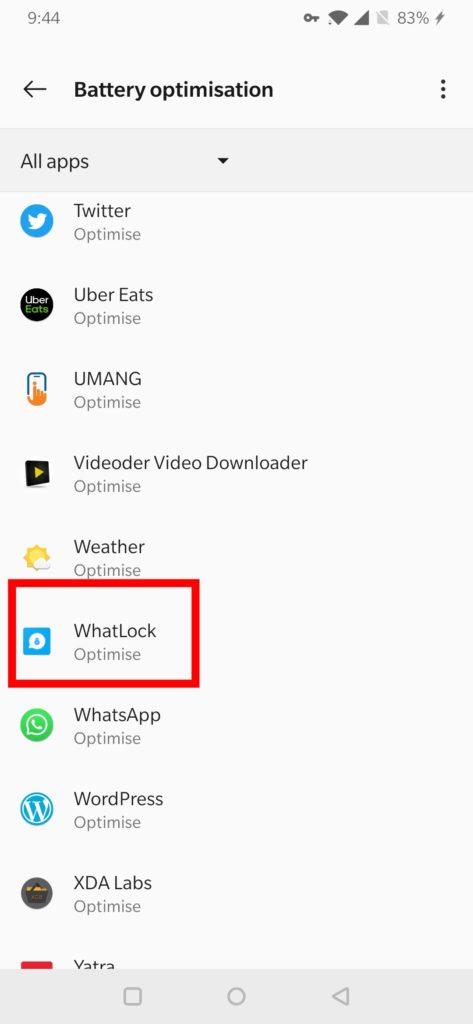
  7. You also need to remove the app from battery optimization or lock the app in the background. We will discuss this later on this post.

Lock WhatsApp Chat using Locker for Whats Chat App

Like WhatLock, this app will also help you lock selected WhatsApp chat with a fingerprint or password without locking the entire application. Both the apps have a clean design and serve there purpose perfectly.

  1. Download and install Locker for Whats Chat App from Play Store.
  2. Launch the app.
  3. Create a password of your choice.
  4. Provide a recovery e-mail address, to retrieve your password in case you forget it.
  5. Next, Grant accessibility permissions.
  6. Now, tap on  ‘+’ icon to add the chat you need to lock.
  7. You also need to remove the app from battery optimization or lock the app in the background. We will discuss this later on this post.

Disable App Battery Optimization and Lock App in Background

Try these only if the above apps won’t lock your chat. Battery optimization helps conserve battery power on your device and by default, it’s ON for all apps. But some apps need to run on background in order to work correctly. You can easily Disable App Battery Optimization and Lock the App in Background by following below steps.

Disable App Battery Optimization

  1. Open the Settings app and tap Battery
  2. Tap the Options menu button (the three dots in the upper right)
  3. Tap Battery optimization.
  4. Click on the app and tap Don’t optimize.

Lock App in Background

  1. Press the options or Recent Key.
  2. It will Open all your Recent Apps.
  3. Just swipe down on the app you wanted to run in the background.
  4. Or click on three dots on the top right of the app and click Lock.
  5. Now a lock symbol will be displayed on the app.

Wrapping Up:

If you are concern about your privacy and don’t want someone to take your phone read your private WhatsApp conversations, you should try above apps. Both apps not only serve there purpose and Lock Particular Chat on WhatsApp but also has intuitive design and easy to use interface. If you have any queries regarding the post, leave the message in the comment box below.