Author

Sumit Bahl

Browsing

The latest Android 11 based MIUI 12.0.2.0 update for Redmi Note 8 starts rolling out via OTA. The update is based on Android 11 and brings new features along with July 2021 security patch. Follow the below guide to Download MIUI 12.0.2.0 Global Stable ROM for Redmi Note 8.

MIUI 12.0.2.0 Global Stable ROM for Redmi Note 8 is a stable version and can be flashed via Recovery or via Fastboot. You can wait for the OTA or download MIUI 12.0.2.0 for Redmi Note 8 from below.

You can Download Redmi Note 8 MIUI 12.0.2.0.RCOMIXM ROM from below and also manually check for the update by going to Settings -> About Phone -> System updates -> Check for update.

Changelog –

[System]

  • Stable MIUI based on Android 11
  • Updated Android Security Patch to July 2021. Increased system security.

Note:-

  • This Firmware file is only for Redmi Note 8. Don’t try this on any other device.
  • Follow the steps correctly otherwise you may brick your device. We are not responsible for any damage to your phone.
  • It may erase your data, so it is advisable to take a complete backup of your phone for a safer side.
  • Ensure that your phone has at least 50-60% charged to prevent the accidental shutdown in-between the process.

Download MIUI 12.0.2.0 Global Stable ROM for Redmi Note 8

  • MIUI 12.0.2.0 OTA for Redmi Note 8 – Download
  • MIUI 12.0.2.0 Recovery ROM for Redmi Note 8 – Download (Mi Pilot Only)
  • MIUI 12.0.2.0 Fastboot ROM for Redmi Note 8 – Download

How to Install MIUI 12.0.2.0 Global Stable ROM on Redmi Note 8 –

To install MIUI 12.0.2.0 update for Redmi Note 8 download either Recovery ROM or Fastboot ROM from above and use the below method to install this on your device.

Method 1 – Recovery Mode

Recovery Mode

  1. Download Android 11 ROM for Redmi Note 8 from above and save it on your device.
  2. Now launch the ‘Updater‘ app on your device.
  3. Click on the three-dot menu (‘…’ icon) at the top-right corner, and select the ‘choose update package‘.
  4. Browse through the files and select the package ending with .zip extension.
  5. Done. Your device will reboot on the latest version.

Method 2 – Fastboot Mode

1) First, Download Mi Flash Tool, extract it and install it on your PC.

2) Now download fastboot ROM for Redmi Note 8 for your device.

3) Now boot your device into Fastboot mode by pressing the ‘Volume Down + Power‘ button.

4) Connect your device to the PC via a micro USB cable.

5) Now extract the Fastboot ROM and copy its path on the PC.

6) Now open MI Flash Tool and Paste the address bar of the ROM file folder path copied from above.
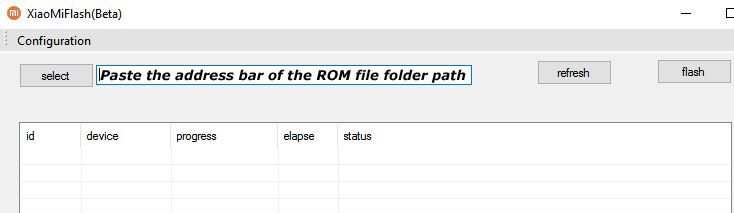
Mi Flash

7) First, click on the ‘Refresh‘ button (It will automatically recognize your device) and then click on the ‘Flash‘ button to flash MIUI 12 ROM on your Devices.
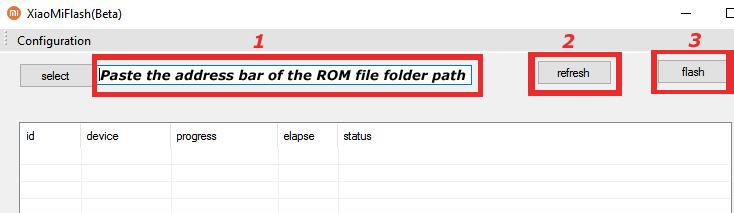
Mi Flash

8) Wait for some time to complete the process.

9) Done. Your device will boot on the latest version.

Wrapping Up:

Download MIUI 12.0.2.0 Global Stable ROM for Redmi Note 8 and flash it to update it manually. Comment below if you have any doubts.

Have any questions? Do let us know that in the comments below. Stay connected with us via Facebook and Twitter to read more such helpful posts.

The latest MIUI 12.0.7.0 update for POCO M3 starts rolling out via OTA. The update improves system stability. Follow the below guide to Download MIUI 12.0.7.0 India Stable ROM for POCO M3.

MIUI 12.0.7.0 India Stable ROM for POCO M3 is a stable version and can be flashed via Recovery or via Fastboot. You can download MIUI 12.0.7.0 for POCO M3 from below.

You can Download POCO M3 MIUI 12.0.7.0.QJFINXM ROM from below and also manually check for the update by going to Settings -> About Phone -> System updates -> Check for update. Download MIUI 12.0.7.0 Stable ROM for POCO M3 from below.

Changelog:

[Other]

  • Optimization: Increased system stability
  • Optimization: Reduced system lag

Note:-

  • This Firmware file is only for POCO M3. Don’t try this on any other device.
  • Follow the steps correctly otherwise you may brick your device. We are not responsible for any damage to your phone.
  • It may erase your data, so it is advisable to take a complete backup of your phone for a safer side.
  • Ensure that your phone has at least 50-60% charged to prevent the accidental shutdown in-between the process.

Download MIUI 12.0.7.0 India Stable ROM for POCO M3

  • POCO M3 MIUI 12.0.7.0 OTA update – Download
  • MIUI 12.0.7.0 Recovery ROM for POCO M3 – Download
  • MIUI 12.0.7.0 Fastboot ROM for POCO M3 – Coming Soon

How to Install MIUI 12.0.7.0 India Stable ROM on POCO M3 –

To install MIUI 12.0.7.0 update for POCO M3 download either Recovery ROM or Fastboot ROM from above and use the below method to install this on your device.

Method 1 – Recovery Mode

Recovery Mode

  1. Download Recovery ROM for POCO M3 from above and save it on your device.
  2. Now launch the ‘Updater‘ app on your device.
  3. Click on the three-dot menu (‘…’ icon) at the top-right corner, and select the ‘choose update package‘.
  4. Browse through the files and select the package ending with .zip extension.
  5. Done. Your device will reboot on the latest version.

Method 2 – Fastboot Mode

1) First, Download Mi Flash Tool, extract it, and install it on your PC.

2) Now download Fastboot ROM for POCO M3 for your device.

3) Now boot your device into Fastboot mode by pressing the ‘Volume Down + Power‘ button.

4) Connect your device to the PC via a micro USB cable.

5) Now extract the Fastboot ROM and copy its path on the PC.

6) Now open MI Flash Tool and Paste the address bar of the ROM file folder path copied from above.

Mi Flash

7) First, click on the ‘Refresh‘ button (It will automatically recognize your device) and then click on the ‘Flash‘ button to flash MIUI 12 ROM on your Devices.

Mi Flash

8) Wait for some time to complete the process.

9) Done. Your device will boot on the latest version.

Wrapping Up:

Download MIUI 12.0.7.0 India Stable ROM for POCO M3 and flash it to update it manually. Comment below if you have any doubts.

The latest MIUI 12.5.6.0 update for Redmi Note 8 (2021) starts rolling out via OTA. The update brings the August 2021 security patch. Follow the below guide to Download MIUI 12.5.6.0 Global Stable ROM for Redmi Note 8 (2021).

MIUI 12.5.6.0 Global Stable ROM for Redmi Note 8 (2021) is a stable version and can be flashed via Recovery or via Fastboot. You can wait for the OTA or download MIUI 12.5.6.0 for Redmi Note 8 (2021) from below.

You can Download Redmi Note 8 (2021) MIUI 12.5.6.0.RCUMIXM ROM from below and also manually check for the update by going to Settings -> About Phone -> System updates -> Check for update. Download MIUI 12.5.6.0 ROM for Redmi Note 8 (2021) from below.

Note:-

  • This Firmware file is only for Redmi Note 8 (2021). Don’t try this on any other device.
  • Follow the steps correctly otherwise you may brick your device. We are not responsible for any damage to your phone.
  • It may erase your data, so it is advisable to take a complete backup of your phone for a safer side.
  • Ensure that your phone has at least 50-60% charged to prevent the accidental shutdown in-between the process.

Download MIUI 12.5.6.0 Global Stable ROM for Redmi Note 8 (2021)

  • MIUI 12.5.6.0 OTA for Redmi Note 8 (2021) – Download
  • MIUI 12.5.6.0 Recovery ROM for Redmi Note 8 (2021) – Download
  • MIUI 12.5.6.0 Fastboot ROM for Redmi Note 8 (2021) – Download

How to Install MIUI 12.5.6.0 Global Stable ROM on Redmi Note 8 (2021) –

To install MIUI 12.5.6.0 update for Redmi Note 8 (2021) download either Recovery ROM or Fastboot ROM from above and use the below method to install this on your device.

Method 1 – Recovery Mode

Recovery Mode

  1. Download MIUI 12.5 Recovery ROM for Redmi Note 8 (2021) from above and save it on your device.
  2. Now launch the ‘Updater‘ app on your device.
  3. Click on the three-dot menu (‘…’ icon) at the top-right corner, and select the ‘choose update package‘.
  4. Browse through the files and select the package ending with .zip extension.
  5. Done. Your device will reboot on the latest version.

Method 2 – Fastboot Mode

1) First, Download Mi Flash Tool, extract it, and install it on your PC.

2) Now download MIUI 12.5 Fastboot ROM for Redmi Note 8 (2021) for your device.

3) Now boot your device into Fastboot mode by pressing the ‘Volume Down + Power‘ button.

4) Connect your device to the PC via a micro USB cable.

5) Now extract the Fastboot ROM and copy its path on the PC.

6) Now open MI Flash Tool and Paste the address bar of the ROM file folder path copied from above.

Mi Flash

7) First, click on the ‘Refresh‘ button (It will automatically recognize your device) and then click on the ‘Flash‘ button to flash MIUI 12 ROM on your Devices.

Mi Flash

8) Wait for some time to complete the process.

9) Done. Your device will boot on the latest version.

Wrapping Up:

Download MIUI 12.5.6.0 Global Stable ROM for Redmi Note 8 (2021) and flash it to update it manually. Comment below if you have any doubts.

Have any questions? Do let us know that in the comments below. Stay connected with us via Facebook and Twitter to read more such helpful posts.

The latest MIUI 12.0.15.0 update for Redmi 9T starts rolling out via OTA. The update brings a few improvements and fixes bugs. Follow the below guide to Download MIUI 12.0.15.0 Global Stable ROM for Redmi 9T.

MIUI 12.0.15.0 Global Stable ROM for Redmi 9T is a stable version and can be flashed via Recovery or via Fastboot. You can download MIUI 12.0.15.0 for Redmi 9T from below.

You can Download Redmi 9T MIUI 12.0.15.0.QJQMIXM ROM from below and also manually check for the update by going to Settings -> About Phone -> System updates -> Check for update. Download MIUI 12.0.15.0 Stable ROM for Redmi 9T from below.

Changelog:

[Other]

  • Optimization: Increased system stability
  • Optimization: Reduced system lag

Note:-

  • This Firmware file is only for Redmi 9T. Don’t try this on any other device.
  • Follow the steps correctly otherwise you may brick your device. We are not responsible for any damage to your phone.
  • It may erase your data, so it is advisable to take a complete backup of your phone for a safer side.
  • Ensure that your phone has at least 50-60% charged to prevent the accidental shutdown in between the process.

Download MIUI 12.0.15.0 Global Stable ROM for Redmi 9T

  • Redmi 9T MIUI 12.0.15.0 OTA update – Download
  • MIUI 12.0.15.0 Recovery ROM for Redmi 9T – Download
  • MIUI 12.0.15.0 Fastboot ROM for Redmi 9T – Download

How to Install MIUI 12.0.15.0 Global Stable ROM on Redmi 9T –

To install MIUI 12.0.15.0 update for Redmi 9T download either Recovery ROM or Fastboot ROM from above and use the below method to install this on your device.

Method 1 – Recovery Mode

Recovery Mode

  1. Download Recovery ROM for Redmi 9T from above and save it on your device.
  2. Now launch the ‘Updater‘ app on your device.
  3. Click on the three-dot menu (‘…’ icon) at the top-right corner, and select the ‘choose update package‘.
  4. Browse through the files and select the package ending with .zip extension.
  5. Done. Your device will reboot on the latest version.

Method 2 – Fastboot Mode

1) First, Download Mi Flash Tool, extract it and install it on your PC.

2) Now download Fastboot ROM for Redmi 9T for your device.

3) Now boot your device into Fastboot mode by pressing the ‘Volume Down + Power‘ button.

4) Connect your device to the PC via a micro USB cable.

5) Now extract the Fastboot ROM and copy its path on the PC.

6) Now open MI Flash Tool and Paste the address bar of the ROM file folder path copied from above.

Mi Flash

7) First, click on the ‘Refresh‘ button (It will automatically recognize your device) and then click on the ‘Flash‘ button to flash MIUI 12 ROM on your Devices.

Mi Flash

8) Wait for some time to complete the process.

9) Done. Your device will boot on the latest version.

Wrapping Up:

Download MIUI 12.0.15.0 Global Stable ROM for Redmi 9T and flash it to update it manually. Comment below if you have any doubts.

The latest MIUI 12.0.18.0 update for Redmi 9A starts rolling out via OTA. The update brings the August 2021 security patch. Follow the below guide to Download MIUI 12.0.18.0 India Stable ROM for Redmi 9A.

MIUI 12.0.18.0 India Stable ROM for Redmi 9A is a stable version and can be flashed via Recovery or via Fastboot. You can wait for the OTA or download MIUI 12.0.18.0 for Redmi 9A from below.

You can Download Redmi 9A MIUI 12.0.18.0.QCDMIXM ROM from below and also manually check for the update by going to Settings -> About Phone -> System updates -> Check for update. Download MIUI 12.0.18.0 Stable ROM for Redmi 9A from below.

Changelog

[System]

  • Updated Android Security Patch to August 2021. Increased system security.

Note:-

  • This Firmware file is only for Redmi 9A. Don’t try this on any other device.
  • Follow the steps correctly otherwise you may brick your device. We are not responsible for any damage to your phone.
  • It may erase your data, so it is advisable to take a complete backup of your phone for a safer side.
  • Ensure that your phone has at least 50-60% charged to prevent the accidental shutdown in-between the process.

Download MIUI 12.0.18.0 India Stable ROM for Redmi 9A

  • MIUI 12.0.18.0 OTA for Redmi 9A – Download
  • MIUI 12.0.18.0 Recovery ROM for Redmi 9A – Download
  • MIUI 12.0.18.0 Fastboot ROM for Redmi 9A – Coming Soon

How to Install MIUI 12.0.18.0 India Stable ROM on Redmi 9A –

To install MIUI 12.0.18.0 update for Redmi 9A download either Recovery ROM or Fastboot ROM from above and use the below method to install this on your device.

Method 1 – Recovery Mode

Recovery Mode

  1. Download MIUI 12 Recovery ROM for Redmi 9A from above and save it on your device.
  2. Now launch the ‘Updater‘ app on your device.
  3. Click on the three-dot menu (‘…’ icon) at the top-right corner, and select the ‘choose update package‘.
  4. Browse through the files and select the package ending with .zip extension.
  5. Done. Your device will reboot on the latest version.

Method 2 – Fastboot Mode

1) First, Download Mi Flash Tool, extract it and install it on your PC.

2) Now download MIUI 12 Fastboot ROM for Redmi 9A for your device.

3) Now boot your device into Fastboot mode by pressing the ‘Volume Down + Power‘ button.

4) Connect your device to PC via micro USB cable.

5) Now extract the Fastboot ROM and copy its path on the PC.

6) Now open MI Flash Tool and Paste the address bar of the ROM file folder path copied from above.

Mi Flash

7) First, click on the ‘Refresh‘ button (It will automatically recognize your device) and then click on the ‘Flash‘ button to flash MIUI 12 ROM on your Devices.

Mi Flash

8) Wait for some time to complete the process.

9) Done. Your device will boot on the latest version.

Wrapping Up:

Download MIUI 12.0.18.0 India Stable ROM for Redmi 9A and flash it to update it manually. Comment below if you have any doubts.

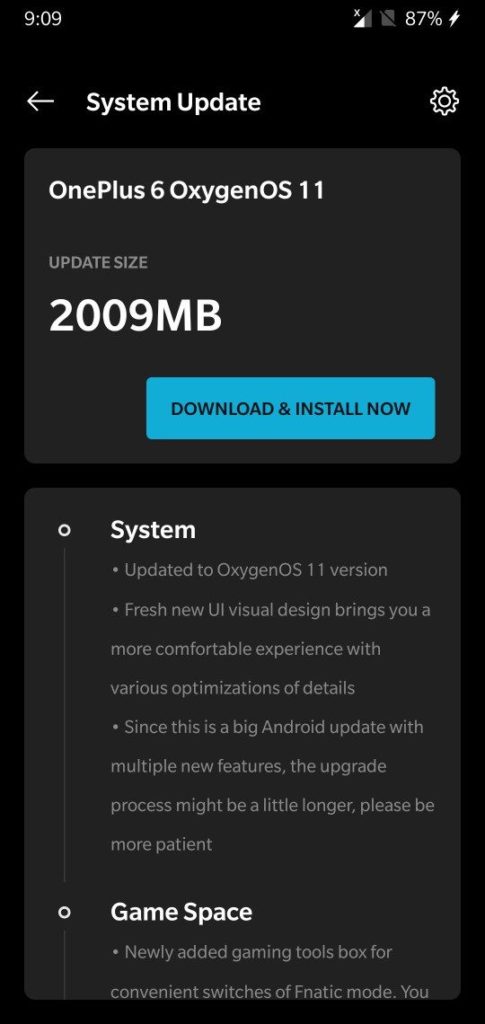
The latest stable Android 11 based OxygenOS 11 update for OnePlus 6/6T starts rolling out. The new Android 11 update for the OnePlus 6/6T brings an improved user interface and several new features like wireframe picture-based ambient display, newly shelf interface design, updated camera UI, and improved game space. Download OxygenOS 11 for OnePlus 6/6T from below.

The OxygenOS 11 for OnePlus 6/6T is rolling out via OTA (over-the-air) in a phase-wise manner and many users already getting the update. You can wait for the OTA updates, or you can Update the OnePlus 6/6T to Android 11 manually with the below method.

The new Android 11 update for the OnePlus 6/6T brings many changes (Check the complete changelogs from below). We provide you the OxygenOS 11 OTA file which you can flash on your device. So if you want to update your OnePlus to the latest version then Download OxygenOS 11 for the OnePlus 6/6T from below. Check below what’s new in OxygenOS 11.

Changelogs –

  • System
    • Updated to OxygenOS 11 version
    • Fresh new UI visual design brings you a more comfortable experience with various optimizations of details
    • Since this is a big Android update with multiple new features, the upgrade process might be a little longer, please be more patient
  • Game Space
    • Newly added gaming tools box for convenient switches of Fnatic mode. You can now choose three ways of notifications: text-only heads up and block, just for your immersive gaming experience
    • Newly added quick reply feature in a small window for Instagram, WhatsApp and Telegram (Enable it by swiping down from upper right/left corners of the screen in gaming mode)
    • Newly added mis-touch prevention feature. Enable it, swipe down from the top of the screen, click and the notification bar will pop out
  • Camera
    • Updated the camera UI and optimized some of the function paths to offer more convenient operation
  • Ambient Display
    • Newly added Insight clock style, a joint creation with Parsons School of Design. It will change according to the phone usage data (To set: Settings > Customization > Clock on ambient display)
    • Newly added Canvas feature that can automatically draw a wireframe picture based on a lock screen photo on your phone (Path: Settings – Customization – Wallpaper – Canvas – Choose photo preview and it can be generated automatically)
  • Dark Mode
    • Added a shortcut for Dark Mode, you can pull down the Quick Settings panel and find it
    • Supported automatically enable by time range (path: Settings – Display – Dark Mode – Turn on automatically – Automatically enable from sunset to sunrise / Custom time range)
  • Shelf
    • Newly shelf interface design, the interface is clearer
    • Added weather widget, animation effect smarter

Note:-

  • This method is only for the OnePlus 6/6T.
  • Full ROM can be flashed via TWRP as well.
  • Follow the steps correctly otherwise, you may brick your device. We Guidegeekz.com is not responsible for any damage to your phone.
  • Charge your device to 60- 70% to prevent it from an accidental shutdown.
  • Take a complete backup of everything important.

Download OxygenOS 11 for OnePlus 6/6T

  • OxygenOS 11 update for OnePlus 6 – OTA, Full ROM
  • OxygenOS 11 update for OnePlus 6T– OTA, Full ROM

How to Install Android 11 Update on OnePlus 6/6T

For Non-Rooted Users

Method 1

  1. First, enable the USB debugging option from the setting ->developer option. To enable Developer Options, go to About phone and tap the Build Number 7 times.
  2. Download ADB and Fastboot and install them on your PC.
  3. Download Android 11 OTA for Oneplus 6/6T from above Copy ROM to a folder where adb installed.
  4. Now Turn Off your phone and boot into recovery mode.
  5. Choose Apply update from ADB
  6. Now Connect your phone to your Laptop/PC
  7. On ROM folder press shift+right click and click on the open command here.
  8. Now check your connection status by typing the below command
    adb devices
    if your device is listed, you’re ready to flash the ROM
  9. Now Install OxygenOS 11 OTA on the OnePlus 6/6T by typing the below command
    adb sideload File-Name.zip 
  10. Now, wait until the process completes, and then Reboot the phone.
  11. Done!

Method 2

  1. Download OxygenOS 11 OTA zip file from above and save it on your internal phone memory.
  2. Now Switch off your device and boot into the Recovery mode.
  3. To boot the OnePlus 6/6T into recovery mode press and hold ‘Power + Volume Down’ button.
  4. Now your phone boot into the Stock recovery.
  5. Now Select ‘Apply Update’ and select ‘Choose from Internal Storage
  6. Browse the OTA zip file which you download and save on your phone before.
  7. Select the zip file, and it will Install OxygenOS 11 OTA update file on your device.
  8. Now wait until the process complete and then reboot your device.
  9. Done.

For Rooted Users

  1. First Unlock your device bootloader and Install TWRP on your Device. Skip this step if already installed TWRP.
  2. Reboot your device into Recovery mode and create a Nandroid backup (Recommended) of your device for the safer side, if anything goes wrong.
  3. Now wipe your cache files from Goto Wipe>Advanced Wipe>Select Wipe cache and Dalvik cache and swipe to confirm it.
  4. Now, Go to Install and locate the OOS 11 Full Rom Zip & swipe to Install the ROM file
  5. Now Flash the Magisk again to maintain the root (Optional).
  6. Wipe Dalvik & Cache again.
  7. Done! Reboot System and Enjoy.

Wrapping Up:

That’s all this is the complete guide to Download OxygenOS 11 for OnePlus 6/6T (OTA + Full ROM). Have any questions? Do let us know that in the comments below. Stay connected with us via Facebook and Twitter to read more such helpful posts.

Source

The latest Android 11 based OxygenOS open beta 3 update for the OnePlus 6/6T starts rolling out. The update improves the smoothness of YouTube videos, fixes a bug related to the Work-Life Balance feature, and optimizes background process management for improved battery life. Download OxygenOS Open Beta 3 for OnePlus 6/6T from below.

The OxygenOS Open Beta 3 for OnePlus 6/6T is rolling out via OTA only for users who are still on OBT builds. You can Update Oneplus 6/6T to Android 11 manually with the below method.

The new Android 11 based OxygenOS Open Beta 3 for OnePlus 6/6T brings many changes (Check the complete changelogs from below). We provide you the Open Beta 3 OTA file which you can flash on your device. So if you want to update your OnePlus to the latest version then Download Android 11 Open Beta 3 for OnePlus 6/6T from below.

Changelogs –

  • System
    • Optimized background process management mechanism to improve battery life
    • Improved the smoothness of YouTube playing videos
    • Improved system stability and fixed known issues
  • Network
    • Fixed the failed issue of enabling VoWiFi
  • Work-Life Balance
    • Fixed the issue that the feature doesn’t work when the screen is locked

Note:-

  • This method is only for the OnePlus 6/6T.
  • Full ROM can be flashed via TWRP as well.
  • Follow the steps correctly otherwise, you may brick your device. We Guidegeekz.com is not responsible for any damage to your phone.
  • Charge your device to 60- 70% to prevent it from accidental shutdown.
  • Take a complete backup of everything important.

Download OxygenOS Open Beta 3 for OnePlus 6/6T

  • OxygenOS Open beta 3 update for OnePlus 6 – Full ROMOTA
  • OxygenOS Open Beta 3 ROM for OnePlus 6T – Full ROMOTA

How to Install Android 11 Open Beta 3 for OnePlus 6/6T

For Non-Rooted Users

Method 1

  1. First, enable the USB debugging option from the setting ->developer option. To enable Developer Options, go to About phone and tap the Build Number 7 times.
  2. Download ADB and Fastboot and install them on your PC.
  3. Download OxygenOS open beta OTA from above Copy ROM to a folder where adb installed.
  4. Now Turn Off your phone and boot into recovery mode.
  5. Choose Apply update from ADB
  6. Now Connect your phone to your Laptop/PC
  7. On ROM folder press shift+right click and click on the open command here.
  8. Now check your connection status by typing the below command
    adb devices
    if your device is listed, you’re ready to flash the ROM
  9. Now Install OxygenOS open beta 3 OTA on the OnePlus 6 series by typing the below command
    adb sideload File-Name.zip 
  10. Now, wait until the process completes, and then Reboot the phone.
  11. Done!

Method 2

  1. Download OxygenOS open beta 3 OTA zip file from above and save it on your internal phone memory.
  2. Now Switch off your device and boot into the Recovery mode.
  3. To boot the OnePlus 6 into recovery mode press and hold ‘Power + Volume Down’ button.
  4. Now your phone boot into the Stock recovery.
  5. Now Select ‘Apply Update’ and select ‘Choose from Internal Storage
  6. Browse the OTA zip file which you download and save on your phone before.
  7. Select the zip file, and it will Install the OTA update file on your OnePlus 6.
  8. Now wait until the process complete and then reboot your device.
  9. Done.

For Rooted Users

  1. First Unlock your device bootloader and Install TWRP on your Device. Skip this step if already installed TWRP.
  2. Reboot your device into Recovery mode and create a Nandroid backup (Recommended) of your device for the safer side, if anything goes wrong.
  3. Now wipe your cache files from Goto Wipe>Advanced Wipe>Select Wipe cache and Dalvik cache and swipe to confirm it.
  4. Now, Go to Install and locate the Full Rom Zip & swipe to Install the ROM file
  5. Now Flash the Magisk again to maintain the root (Optional).
  6. Wipe Dalvik & Cache again.
  7. Done! Reboot System and Enjoy.

Wrapping Up:

That’s all this is the complete guide to Download OxygenOS Open Beta 3 for OnePlus 6/6T. Have any questions? Do let us know that in the comments below. Stay connected with us via Facebook and Twitter to read more such helpful posts.

The latest MIUI 12.0.10.0 update for POCO M3 starts rolling out via OTA. The update improved system stability. Follow the below guide to Download MIUI 12.0.10.0 Global Stable ROM for POCO M3.

MIUI 12.0.10.0 Global Stable ROM for POCO M3 is a stable version that can be flashed via Recovery or Fastboot. You can download MIUI 12.0.10.0 for POCO M3 from below.

You can Download POCO M3 MIUI 12.0.10.0.QJFMIXM ROM from below and also manually check for the update by going to Settings -> About Phone -> System updates -> Check for update. Download MIUI 12.0.10.0 Stable ROM for POCO M3 from below.

Changelog:

[Other]

  • Optimization: Increased system stability
  • Optimization: Reduced system lag

Note:-

  • This Firmware file is only for POCO M3. Don’t try this on any other device.
  • Follow the steps correctly otherwise you may brick your device. We are not responsible for any damage to your phone.
  • It may erase your data, so it is advisable to take a complete backup of your phone for a safer side.
  • Ensure that your phone has at least 50-60% charged to prevent the accidental shutdown in between the process.

Download MIUI 12.0.10.0 Global Stable ROM for POCO M3

  • POCO M3 MIUI 12.0.10.0 OTA update – Download
  • MIUI 12.0.10.0 Recovery ROM for POCO M3 – Download
  • MIUI 12.0.10.0 Fastboot ROM for POCO M3 – Download

How to Install MIUI 12.0.10.0 Global Stable ROM on POCO M3 –

To install MIUI 12.0.10.0 update for POCO M3 download either Recovery ROM or Fastboot ROM from above and use the below method to install this on your device.

Method 1 – Recovery Mode

Recovery Mode

  1. Download Recovery ROM for POCO M3 from above and save it on your device.
  2. Now launch the ‘Updater‘ app on your device.
  3. Click on the three-dot menu (‘…’ icon) at the top-right corner, and select the ‘choose update package‘.
  4. Browse through the files and select the package ending with .zip extension.
  5. Done. Your device will reboot on the latest version.

Method 2 – Fastboot Mode

1) First, Download Mi Flash Tool, extract it, and install it on your PC.

2) Now download Fastboot ROM for POCO M3 for your device.

3) Now boot your device into Fastboot mode by pressing the ‘Volume Down + Power‘ button.

4) Connect your device to the PC via a micro USB cable.

5) Now extract the Fastboot ROM and copy its path on the PC.

6) Now open MI Flash Tool and Paste the address bar of the ROM file folder path copied from above.

Mi Flash

7) First, click on the ‘Refresh‘ button (It will automatically recognize your device) and then click on the ‘Flash‘ button to flash MIUI 12 ROM on your Devices.

Mi Flash

8) Wait for some time to complete the process.

9) Done. Your device will boot on the latest version.

Wrapping Up:

Download MIUI 12.0.10.0 Global Stable ROM for POCO M3 and flash it to update it manually. Comment below if you have any doubts.

The latest MIUI 12.5.5.0 update for Mi 11 Lite 5G starts rolling out via OTA. The update improve system stability and bring the August 2021 security patch. Follow the below guide to Download MIUI 12.5.5.0 Global Stable ROM for Mi 11 Lite 5G.

MIUI 12.5.5.0 Global Stable ROM for Mi 11 Lite 5G is a stable version that can be flashed via Recovery or Fastboot. You can wait for the OTA or download MIUI 12.5.5.0 for Mi 11 Lite 5G from below.

You can Download Mi 11 Lite 5G MIUI 12.5.5.0.RKIMIXM ROM from below and also manually check for the update by going to Settings -> About Phone -> System updates -> Check for update. Download MIUI 12.5.5.0 Stable ROM for Mi 11 Lite 5G from below.

Changelogs

(System)

  • Optimization: Updated Android Security Patch to August 2021. Increased system security.

Note:-

  • This Firmware file is only for Mi 11 Lite 5G. Don’t try this on any other device.
  • Follow the steps correctly otherwise you may brick your device. We are not responsible for any damage to your phone.
  • It may erase your data, so it is advisable to take a complete backup of your phone for a safer side.
  • Ensure that your phone has charged at least 50-60% to prevent the accidental shutdown in between the process.

Download MIUI 12.5.5.0 Global Stable ROM for Mi 11 Lite 5G

  • Mi 11 Lite 5G MIUI 12.5.5.0 OTA – Download
  • MIUI 12.5.5.0 Recovery ROM for Mi 11 Lite 5G – Download
  • MIUI 12.5.5.0 Fastboot ROM for Mi 11 Lite 5G – Download

How to Install MIUI 12.5.5.0 Global Stable ROM on Mi 11 Lite 5G –

To install MIUI 12.5.5.0 update for Mi 11 Lite 5G download either Recovery ROM or Fastboot ROM from above and use the below method to install this on your device.

Method 1 – Recovery Mode

Recovery Mode

  1. Download MIUI 12.5.5.0 Recovery ROM for Mi 11 Lite 5G from above and save it on your device.
  2. Now launch the ‘Updater‘ app on your device.
  3. Click on the three-dot menu (‘…’ icon) at the top-right corner, and select the ‘choose update package‘.
  4. Browse through the files and select the package ending with the .zip extension.
  5. Done. Your device will reboot on the latest version.

Method 2 – Fastboot Mode

1) First, Download Mi Flash Tool, extract it, and install it on your PC.

2) Now download MIUI 12.5.5.0 Fastboot ROM for Mi 11 Lite 5G for your device.

3) Now boot your device into Fastboot mode by pressing the ‘Volume Down + Power‘ button.

4) Connect your device to the PC via a micro USB cable.

5) Now extract the Fastboot ROM and copy its path on the PC.

6) Now open MI Flash Tool and Paste the address bar of the ROM file folder path copied from above.

Mi Flash

7) First, click on the ‘Refresh‘ button (It will automatically recognize your device) and then click on the ‘Flash‘ button to flash MIUI 12 ROM on your Devices.

Mi Flash

8) Wait for some time to complete the process.

9) Done. Your device will boot on the latest version.

Wrapping Up:

Download MIUI 12.5.5.0 Global Stable ROM for Mi 11 Lite 5G and flash it to update it manually. Comment below if you have any doubts.

Have any questions? Do let us know that in the comments below. Stay connected with us via Facebook and Twitter to read more such helpful posts.

The latest Android 11 based MIUI 12.1.4.0 update for Mi 9T starts rolling out via OTA. The update brings stable MIUI based on Android 11. Follow the below guide to Download MIUI 12.1.4.0 Global Stable ROM for Mi 9T.

MIUI 12.1.4.0 Global Stable ROM for Mi 9T is a stable version and can be flashed via Recovery or via Fastboot. You can download MIUI 12.1.4.0 for Mi 9T from below.

You can Download Mi 9T MIUI 12.1.4.0.RFJMIXM ROM from below and also manually check for the update by going to Settings -> About Phone -> System updates -> Check for update. Download MIUI 12.1.4.0 Stable ROM for Mi 9T from below.

Mi 9T MIUI 12.1.4.0 Changelog:

[System]

  • Stable MIUI based on Android 11

[Xiaomi Cloud]

  • New: Location info can be now reported automatically before the device is powered off

Note:-

  • This Firmware file is only for Mi 9T. Don’t try this on any other device.
  • Follow the steps correctly otherwise you may brick your device. We are not responsible for any damage to your phone.
  • It may erase your data, so it is advisable to take a complete backup of your phone for a safer side.
  • Ensure that your phone has at least 50-60% charged to prevent the accidental shutdown in-between the process.

Download MIUI 12.1.4.0 Global Stable ROM for Mi 9T

  • Mi 9T MIUI 12.1.4.0 OTA update – Download
  • MIUI 12.1.4.0 Recovery ROM for Mi 9T – Download (Mi Pilot only)
  • MIUI 12.1.4.0 Fastboot ROM for Mi 9T – Coming Soon

How to Install MIUI 12.1.4.0 Global Stable ROM on Mi 9T –

To install MIUI 12.1.4.0 update for Mi 9T download either Recovery ROM or Fastboot ROM from above and use the below method to install this on your device.

Method 1 – Recovery Mode

Recovery Mode

  1. Download Android 11 Recovery ROM for Mi 9T from above and save it on your device.
  2. Now launch the ‘Updater‘ app on your device.
  3. Click on the three-dot menu (‘…’ icon) at the top-right corner, and select the ‘choose update package‘.
  4. Browse through the files and select the package ending with .zip extension.
  5. Done. Your device will reboot on the latest version.

Method 2 – Fastboot Mode

1) First, Download Mi Flash Tool, extract it and install it on your PC.

2) Now download Fastboot ROM for Mi 9T for your device.

3) Now boot your device into Fastboot mode by pressing the ‘Volume Down + Power‘ button.

4) Connect your device to the PC via a micro USB cable.

5) Now extract the Fastboot ROM and copy its path on the PC.

6) Now open MI Flash Tool and Paste the address bar of the ROM file folder path copied from above.

Mi Flash

7) First, click on the ‘Refresh‘ button (It will automatically recognize your device) and then click on the ‘Flash‘ button to flash MIUI 12 ROM on your Devices.

Mi Flash

8) Wait for some time to complete the process.

9) Done. Your device will boot on the latest version.

Wrapping Up:

Download MIUI 12.1.4.0 Global Stable ROM for Mi 9T and flash it to update it manually. Comment below if you have any doubts.