
Author

Sumit Bahl

Browsing

The latest MIUI 12.5.12.0 update for Redmi Note 10S starts rolling out via OTA. The update is based on Android 11 and brings the July security patch. Follow the below guide to Download MIUI 12.5.12.0 Global Stable ROM for Redmi Note 10S.

MIUI 12.5.12.0 Global Stable ROM for Redmi Note 10S is a stable version and can be flashed via Recovery or via Fastboot. You can wait for the OTA or download MIUI 12.5.12.0 for Redmi Note 10S from below.

You can Download Redmi Note 10S MIUI 12.5.12.0.RKLMIXM ROM from below and also manually check for the update by going to Settings -> About Phone -> System updates -> Check for update. Download MIUI 12.5.12.0 ROM for Redmi Note 10S from below.

Changelogs

[System]

  • Optimization: Updated Android Security Patch to July 2021. Increased system security.

Note:-

  • This Firmware file is only for Redmi Note 10S. Don’t try this on any other device.
  • Follow the steps correctly otherwise you may brick your device. We are not responsible for any damage to your phone.
  • It may erase your data, so it is advisable to take a complete backup of your phone for a safer side.
  • Ensure that your phone has at least 50-60% charged to prevent the accidental shutdown in-between the process.

Download MIUI 12.5.12.0 Global Stable ROM for Redmi Note 10S

  • MIUI 12.5.12.0 OTA for Redmi Note 10S – Download
  • MIUI 12.5.12.0 Recovery ROM for Redmi Note 10S – Download
  • MIUI 12.5.12.0 Fastboot ROM for Redmi Note 10S – Download

How to Install MIUI 12.5.12.0 Global Stable ROM on Redmi Note 10S –

To install MIUI 12.5.12.0 update for Redmi Note 10S download either Recovery ROM or Fastboot ROM from above and use the below method to install this on your device.

Method 1 – Recovery Mode

Recovery Mode

  1. Download Android 11 ROM for Redmi Note 10S from above and save it on your device.
  2. Now launch the ‘Updater‘ app on your device.
  3. Click on the three-dot menu (‘…’ icon) at the top-right corner, and select the ‘choose update package‘.
  4. Browse through the files and select the package ending with .zip extension.
  5. Done. Your device will reboot on the latest version.

Method 2 – Fastboot Mode

1) First, Download Mi Flash Tool, extract it and install it on your PC.

2) Now download MIUI 12.5.12.0 Fastboot ROM for Redmi Note 10S for your device.

3) Now boot your device into Fastboot mode by pressing the ‘Volume Down + Power‘ button.

4) Connect your device to the PC via a micro USB cable.

5) Now extract the Fastboot ROM and copy its path on the PC.

6) Now open MI Flash Tool and Paste the address bar of the ROM file folder path copied from above.
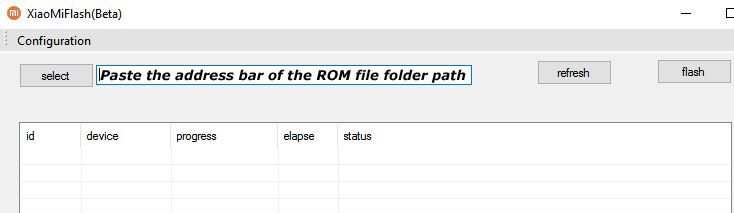
Mi Flash

7) First, click on the ‘Refresh‘ button (It will automatically recognize your device) and then click on the ‘Flash‘ button to flash MIUI 12 ROM on your Devices.
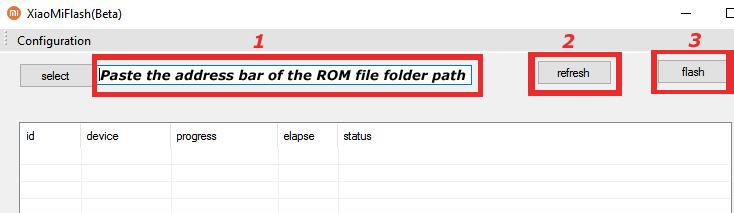
Mi Flash

8) Wait for some time to complete the process.

9) Done. Your device will boot on the latest version.

Wrapping Up:

Download MIUI 12.5.12.0 Global Stable ROM for Redmi Note 10S and flash it to update it manually. Comment below if you have any doubts.

Have any questions? Do let us know that in the comments below. Stay connected with us via Facebook and Twitter to read more such helpful posts.

The latest MIUI 12.5.2.0 update for POCO F2 Pro starts rolling out via OTA. The update brings the July security patch. Follow the below guide to Download MIUI 12.5.2.0 Global Stable ROM for POCO F2 Pro.

MIUI 12.5.2.0 Global Stable ROM for POCO F2 Pro is a stable version and can be flashed via Recovery or via Fastboot. You can wait for the OTA or download MIUI 12.5.2.0 for POCO F2 Pro from below.

You can Download POCO F2 Pro MIUI 12.5.2.0.RJXMIXM ROM from below and also manually check for the update by going to Settings -> About Phone -> System updates -> Check for update. Download MIUI 12.5.2.0 ROM for POCO F2 Pro from below.

Changelog

[System]

  • Optimization: Updated Android Security Patch to July 2021. Increased system security.

Note:-

  • This Firmware file is only for POCO F2 Pro. Don’t try this on any other device.
  • Follow the steps correctly otherwise you may brick your device. We are not responsible for any damage to your phone.
  • It may erase your data, so it is advisable to take a complete backup of your phone for a safer side.
  • Ensure that your phone has at least 50-60% charged to prevent the accidental shutdown in-between the process.

Download MIUI 12.5.2.0 Global Stable ROM for POCO F2 Pro

  • MIUI 12.5.2.0 OTA for POCO F2 Pro  – Download
  • MIUI 12.5.2.0 Recovery ROM for POCO F2 Pro – Download
  • MIUI 12.5.2.0 Fastboot ROM for POCO F2 Pro – Download

How to Install MIUI 12.5.2.0 Global Stable ROM on POCO F2 Pro –

To install MIUI 12.5.2.0 update for POCO F2 Pro download either Recovery ROM or Fastboot ROM from above and use the below method to install this on your device.

Method 1 – Recovery Mode

Recovery Mode

  1. Download Android 11 Recovery ROM for POCO F2 Pro from above and save it on your device.
  2. Now launch the ‘Updater‘ app on your device.
  3. Click on the three-dot menu (‘…’ icon) at the top-right corner, and select the ‘choose update package‘.
  4. Browse through the files and select the package ending with .zip extension.
  5. Done. Your device will reboot on the latest version.

Method 2 – Fastboot Mode

1) First, Download Mi Flash Tool, extract it, and install it on your PC.

2) Now download MIUI 12.5 fastboot ROM for POCO F2 Pro for your device.

3) Now boot your device into Fastboot mode by pressing the ‘Volume Down + Power‘ button.

4) Connect your device to the PC via a micro USB cable.

5) Now extract the Fastboot ROM and copy its path on the PC.

6) Now open MI Flash Tool and Paste the address bar of the ROM file folder path copied from above.

Mi Flash

7) First, click on the ‘Refresh‘ button (It will automatically recognize your device) and then click on the ‘Flash‘ button to flash MIUI 12 ROM on your Devices.

Mi Flash

8) Wait for some time to complete the process.

9) Done. Your device will boot on the latest version.

Wrapping Up:

Download MIUI 12.5.2.0 Global Stable ROM for POCO F2 Pro and flash it to update it manually. Comment below if you have any doubts.

Have any questions? Do let us know that in the comments below. Stay connected with us via Facebook and Twitter to read more such helpful posts.

The latest MIUI 12.5 update for Redmi 8 series starts rolling out via OTA. The update brings lots of new features, improvements, and July 2021 Security patches. Follow the below guide to Download MIUI 12.5.1.0 Global Stable ROM for Redmi 8/8A/8A Dual.

MIUI 12.5.1.0 Global Stable ROM for Redmi 8/8A/8A Dual is a stable version and can be flashed via Recovery or via Fastboot. You can download MIUI 12.5.1.0 for Redmi 8/8A/8A Dual from below.

You can Download Redmi 8 series MIUI 12.5 ROM from below and also manually check for the update by going to Settings -> About Phone -> System updates -> Check for update. Download MIUI 12.5.1.0 Stable ROM for Redmi 8/8A/8A Dual from below.

Changelogs:

[System]

  • New: Response to gestures is now instant.
  • New: With 20 times more rendering power, there are now few limits to what you can see on your screen.
  • New: With custom device model adjustments, any phone becomes faster after the upgrade.
  • Optimization: MIUI became lighter, faster, and more durable.
  • Updated Android Security Patch to July 2021. Increased system security.

[Notes]

  • New: Compose mind maps with complex structures.
  • New: New tools for doodling and sketching.
  • New: Press and hold a sketch to adjust the strokes automatically.
  • New: A gesture shortcut now allows you to create notes, tasks, and excerpts anywhere.
  • New: Excerpts save text, URLs, and images to Notes in a few simple taps.
  • New: Dynamic layouts bring the typography in Notes to a new level.
  • All-new Notes.

Note:-

  • This Firmware file is only for Redmi 8/8A/8A Dual. Don’t try this on any other device.
  • Follow the steps correctly otherwise you may brick your device. We are not responsible for any damage to your phone.
  • It may erase your data, so it is advisable to take a complete backup of your phone for a safer side.
  • Ensure that your phone has at least 50-60% charged to prevent the accidental shutdown in-between the process.

Download MIUI 12.5.1.0 Global Stable ROM for Redmi 8/8A/8A Dual

  • MIUI 12.5.1.0 OTA update for Redmi 8 – Download
  • MIUI 12.5.1.0 Recovery ROM for Redmi 8 – Download
  • MIUI 12.5.1.0 OTA update for Redmi 8A – Download
  • MIUI 12.5.1.0 Recovery ROM for Redmi 8A – Download
  • MIUI 12.5.1.0 OTA update for Redmi 8A Dual – Download
  • MIUI 12.5.1.0 Recovery ROM for Redmi 8A Dual – Download

How to Install MIUI 12.5.1.0 Global Stable ROM on Redmi 8/8A/8A Dual –

To install MIUI 12.5.1.0 update for Redmi 8/8A/8A Dual download either Recovery ROM or Fastboot ROM from above and use the below method to install this on your device.

Method 1 – Recovery Mode

Recovery Mode

  1. Download MIUI 12.5 ROM for Redmi 8 series from above and save it on your device.
  2. Now launch the ‘Updater‘ app on your device.
  3. Click on the three-dot menu (‘…’ icon) at the top-right corner, and select the ‘choose update package‘.
  4. Browse through the files and select the package ending with .zip extension.
  5. Done. Your device will reboot on the latest version.

Method 2 – Fastboot Mode

1) First, Download Mi Flash Tool, extract it and install it on your PC.

2) Now download Fastboot ROM for Redmi 8 for your device.

3) Now boot your device into Fastboot mode by pressing the ‘Volume Down + Power‘ button.

4) Connect your device to the PC via a micro USB cable.

5) Now extract the Fastboot ROM and copy its path on the PC.

6) Now open MI Flash Tool and Paste the address bar of the ROM file folder path copied from above.

Mi Flash

7) First, click on the ‘Refresh‘ button (It will automatically recognize your device) and then click on the ‘Flash‘ button to flash MIUI 12 ROM on your Devices.

Mi Flash

8) Wait for some time to complete the process.

9) Done. Your device will boot on the latest version.

Wrapping Up:

Download MIUI 12.5.1.0 Global Stable ROM for Redmi 8/8A/8A Dual and flash it to update it manually. Comment below if you have any doubts.

The latest MIUI 12.5.2.0 update for Mi 10T Lite starts rolling out via OTA. The update brings July 2021 security patch. Follow the below guide to Download MIUI 12.5.2.0 Global Stable ROM for Mi 10T Lite.

MIUI 12.5.2.0 Global Stable ROM for Mi 10T Lite is a stable version and can be flashed via Recovery or via Fastboot. You can wait for the OTA or download MIUI 12.5.2.0 for Mi 10T Lite from below to Update Mi 10T Lite to Android 11 manually.

You can Download Mi 10T Lite MIUI 12.5.2.0.RJSMIXM ROM from below and also manually check for the update by going to Settings -> About Phone -> System updates -> Check for update. Download MIUI 12.5.2.0 ROM for Mi 10T Lite from below.

Changelog:

[System]

  • Optimization: Updated Android Security Patch to July 2021. Increased system security.

Note:-

  • This Firmware file is only for Mi 10T Lite. Don’t try this on any other device.
  • Follow the steps correctly otherwise you may brick your device. We are not responsible for any damage to your phone.
  • It may erase your data, so it is advisable to take a complete backup of your phone for a safer side.
  • Ensure that your phone has at least 50-60% charged to prevent the accidental shutdown in between the process.

Download MIUI 12.5.2.0 Global Stable ROM for Mi 10T Lite

  • MIUI 12.5.2.0 OTA for Mi 10T Lite – Download
  • MIUI 12.5.2.0 Recovery ROM for Mi 10T Lite – Download
  • MIUI 12.5.2.0 Fastboot ROM for Mi 10T Lite – Download

How to Install MIUI 12.5.2.0 Global Stable ROM on Mi 10T Lite –

To install MIUI 12.5.2.0 update for Mi 10T Lite download either Recovery ROM or Fastboot ROM from above and use the below method to install this on your device.

Method 1 – Recovery Mode

Recovery Mode

  1. Download Android 11 ROM for Mi 10T Lite from above and save it on your device.
  2. Now launch the ‘Updater‘ app on your device.
  3. Click on the three-dot menu (‘…’ icon) at the top-right corner, and select the ‘choose update package‘.
  4. Browse through the files and select the package ending with .zip extension.
  5. Done. Your device will reboot on the latest version.

Method 2 – Fastboot Mode

1) First, Download Mi Flash Tool, extract it, and install it on your PC.

2) Now download MIUI 12.5 ROM for Mi 10T Lite for your device.

3) Now boot your device into Fastboot mode by pressing the ‘Volume Down + Power‘ button.

4) Connect your device to the PC via a micro USB cable.

5) Now extract the Fastboot ROM and copy its path on the PC.

6) Now open MI Flash Tool and Paste the address bar of the ROM file folder path copied from above.

Mi Flash

7) First, click on the ‘Refresh‘ button (It will automatically recognize your device) and then click on the ‘Flash‘ button to flash MIUI 12 ROM on your Devices.

Mi Flash

8) Wait for some time to complete the process.

9) Done. Your device will boot on the latest version.

Wrapping Up:

Download MIUI 12.5.2.0 Global Stable ROM for Mi 10T Lite and flash it to update it manually. Comment below if you have any doubts.

Have any questions? Do let us know that in the comments below. Stay connected with us via Facebook and Twitter to read more such helpful posts.

The latest Android 11 update for Redmi Note 9T starts rolling out via OTA. The update brings July 2021 security patch. Follow the below guide to Download MIUI 12.5.4.0 Global Stable ROM for Redmi Note 9T.

MIUI 12.5.4.0 Global Stable ROM for Redmi Note 9T is a stable version and can be flashed via Recovery or via Fastboot. You can wait for the OTA or download MIUI 12.5.4.0 for Redmi Note 9T from below.

You can Download Redmi Note 9T MIUI 12.5.4.0.RJEMIXM ROM from below and also manually check for the update by going to Settings -> About Phone -> System updates -> Check for update. Download MIUI 12.5.4.0 ROM for Redmi Note 9T from below.

Changelog

[System]

  • Optimization: Updated Android Security Patch to July 2021. Increased system security.

Note:-

  • This Firmware file is only for Redmi Note 9T. Don’t try this on any other device.
  • Follow the steps correctly otherwise you may brick your device. We are not responsible for any damage to your phone.
  • It may erase your data, so it is advisable to take a complete backup of your phone for a safer side.
  • Ensure that your phone has at least 50-60% charged to prevent the accidental shutdown in-between the process.

Download MIUI 12.5.4.0 Global Stable ROM for Redmi Note 9T

  • MIUI 12.5.4.0 OTA for Redmi Note 9T – Download
  • MIUI 12.5.4.0 Recovery ROM for Redmi Note 9T – Download
  • MIUI 12.5.4.0 Fastboot ROM for Redmi Note 9T – Download

How to Install MIUI 12.5.4.0 Global Stable ROM on Redmi Note 9T

To install MIUI 12.5.4.0 update for Redmi Note 9T download either Recovery ROM or Fastboot ROM from above and use the below method to install this on your device.

Method 1 – Recovery Mode

Recovery Mode

  1. Download Android 11 Recovery ROM for Redmi Note 9T from above and save it on your device.
  2. Now launch the ‘Updater‘ app on your device.
  3. Click on the three-dot menu (‘…’ icon) at the top-right corner, and select the ‘choose update package‘.
  4. Browse through the files and select the package ending with .zip extension.
  5. Done. Your device will reboot on the latest version.

Method 2 – Fastboot Mode

1) First, Download Mi Flash Tool, extract it, and install it on your PC.

2) Now download MIUI 12.5 Fastboot ROM for Redmi Note 9T for your device.

3) Now boot your device into Fastboot mode by pressing the ‘Volume Down + Power‘ button.

4) Connect your device to the PC via a micro USB cable.

5) Now extract the Fastboot ROM and copy its path on the PC.

6) Now open MI Flash Tool and Paste the address bar of the ROM file folder path copied from above.

Mi Flash

7) First, click on the ‘Refresh‘ button (It will automatically recognize your device) and then click on the ‘Flash‘ button to flash MIUI 12 ROM on your Devices.

Mi Flash

8) Wait for some time to complete the process.

9) Done. Your device will boot on the latest version.

Wrapping Up:

Download MIUI 12.5.4.0 Global Stable ROM for Redmi Note 9T and flash it to update it manually. Comment below if you have any doubts.

Have any questions? Do let us know that in the comments below. Stay connected with us via Facebook and Twitter to read more such helpful posts.

The latest Android 11 based MIUI 12.5.1.0 update for Redmi Note 9 starts rolling out via OTA. The update is based on Android 11 and brings lots of new features, improvements, and July 2021 Security patches. Follow the below guide to Download MIUI 12.5.1.0 Global Stable ROM for Redmi Note 9.

MIUI 12.5.1.0 Global Stable ROM for Redmi Note 9 is a stable version and can be flashed via Recovery or via Fastboot. You can download MIUI 12.5.1.0 for Redmi Note 9 from below.

You can Download Redmi Note 9 MIUI 12.5.1.0.RJOMIXM ROM from below and also manually check for the update by going to Settings -> About Phone -> System updates -> Check for update. Download MIUI 12.5.1.0 Stable ROM for Redmi Note 9 from below.

Changelogs:

[System]

  • New: Response to gestures is now instant.
  • New: With 20 times more rendering power, there are now few limits to what you can see on your screen.
  • New: With custom device model adjustments, any phone becomes faster after the upgrade.
  • Optimization: MIUI became lighter, faster, and more durable.
  • Updated Android Security Patch to July 2021. Increased system security.

[Notes]

  • New: Compose mind maps with complex structures.
  • New: New tools for doodling and sketching.
  • New: Press and hold a sketch to adjust the strokes automatically.
  • New: A gesture shortcut now allows you to create notes, tasks, and excerpts anywhere.
  • New: Excerpts save text, URLs, and images to Notes in a few simple taps.
  • New: Dynamic layouts bring the typography in Notes to a new level.
  • All-new Notes.

Note:-

  • This Firmware file is only for Redmi Note 9. Don’t try this on any other device.
  • Follow the steps correctly otherwise you may brick your device. We are not responsible for any damage to your phone.
  • It may erase your data, so it is advisable to take a complete backup of your phone for a safer side.
  • Ensure that your phone has at least 50-60% charged to prevent the accidental shutdown in-between the process.

Download MIUI 12.5.1.0 Global Stable ROM for Redmi Note 9

  • MIUI 12.5.1.0 OTA update for Redmi Note 9 – Download
  • MIUI 12.5.1.0 Recovery ROM for Redmi Note 9 – Download (Mi Pilot Only)
  • MIUI 12.5.1.0 Fastboot ROM for Redmi Note 9 – Coming Soon

How to Install MIUI 12.5.1.0 Global Stable ROM on Redmi Note 9 –

To install MIUI 12.5.1.0 update for Redmi Note 9 download either Recovery ROM or Fastboot ROM from above and use the below method to install this on your device.

Method 1 – Recovery Mode

Recovery Mode

  1. Download MIUI 12.5 ROM for Redmi Note 9 from above and save it on your device.
  2. Now launch the ‘Updater‘ app on your device.
  3. Click on the three-dot menu (‘…’ icon) at the top-right corner, and select the ‘choose update package‘.
  4. Browse through the files and select the package ending with .zip extension.
  5. Done. Your device will reboot on the latest version.

Method 2 – Fastboot Mode

1) First, Download Mi Flash Tool, extract it and install it on your PC.

2) Now download Fastboot ROM for Redmi Note 9 for your device.

3) Now boot your device into Fastboot mode by pressing the ‘Volume Down + Power‘ button.

4) Connect your device to the PC via a micro USB cable.

5) Now extract the Fastboot ROM and copy its path on the PC.

6) Now open MI Flash Tool and Paste the address bar of the ROM file folder path copied from above.

Mi Flash

7) First, click on the ‘Refresh‘ button (It will automatically recognize your device) and then click on the ‘Flash‘ button to flash MIUI 12 ROM on your Devices.

Mi Flash

8) Wait for some time to complete the process.

9) Done. Your device will boot on the latest version.

Wrapping Up:

Download MIUI 12.5.1.0 Global Stable ROM for Redmi Note 9 and flash it to update it manually. Comment below if you have any doubts.

Good news for Redmi 9 users, the latest MIUI 12.5 update for Redmi 9 starts rolling out via OTA. The update brings lots of new features, improvements, and July Security patches. Follow the below guide to Download MIUI 12.5.1.0 Global Stable ROM for Redmi 9.

MIUI 12.5.1.0 Global Stable ROM for Redmi 9 is a stable version and can be flashed via Recovery or via Fastboot. You can wait for the OTA or download MIUI 12.5.1.0 for Redmi 9 from below.

You can Download Redmi 9 MIUI 12.5.1.0.RJCMIXM ROM from below and also manually check for the update by going to Settings -> About Phone -> System updates -> Check for update. Download MIUI 12.5 ROM for Redmi 9 from below.

Changelogs:

[System]

  • New: Response to gestures is now instant.
  • New: With 20 times more rendering power, there are now few limits to what you can see on your screen.
  • New: With custom device model adjustments, any phone becomes faster after the upgrade.
  • Optimization: MIUI became lighter, faster, and more durable.
  • Updated Android Security Patch to July 2021. Increased system security.

[Notes]

  • New: Compose mind maps with complex structures.
  • New: New tools for doodling and sketching.
  • New: Press and hold a sketch to adjust the strokes automatically.
  • New: A gesture shortcut now allows you to create notes, tasks, and excerpts anywhere.
  • New: Excerpts save text, URLs, and images to Notes in a few simple taps.
  • New: Dynamic layouts bring the typography in Notes to a new level.
  • All-new Notes.

Note:-

  • This Firmware file is only for Redmi 9. Don’t try this on any other device.
  • Follow the steps correctly otherwise you may brick your device. We are not responsible for any damage to your phone.
  • It may erase your data, so it is advisable to take a complete backup of your phone for a safer side.
  • Ensure that your phone has at least 50-60% charged to prevent the accidental shutdown in-between the process.

Download MIUI 12.5.1.0 Global Stable ROM for Redmi 9

  • MIUI 12.5.1.0 OTA for Redmi 9 – Download
  • MIUI 12.5.1.0 Recovery ROM for Redmi 9 – Download (Mi Pilot Only)
  • MIUI 12.5.1.0 Fastboot ROM for Redmi 9 – Download

How to Install MIUI 12.5.1.0 Global Stable ROM on Redmi 9 –

To install MIUI 12.5.1.0 update for Redmi 9 download either Recovery ROM or Fastboot ROM from above and use the below method to install this on your device.

Method 1 – Recovery Mode

Recovery Mode

  1. Download MIUI 12.5 Recovery for Redmi 9 from above and save it on your device.
  2. Now launch the ‘Updater‘ app on your device.
  3. Click on the three-dot menu (‘…’ icon) at the top-right corner, and select the ‘choose update package‘.
  4. Browse through the files and select the package ending with .zip extension.
  5. Done. Your device will reboot on the latest version.

Method 2 – Fastboot Mode

1) First, Download Mi Flash Tool, extract it and install it on your PC.

2) Now download MIUI 12.5 ROM for Redmi 9 for your device.

3) Now boot your device into Fastboot mode by pressing the ‘Volume Down + Power‘ button.

4) Connect your device to the PC via a micro USB cable.

5) Now extract the Fastboot ROM and copy its path on the PC.

6) Now open MI Flash Tool and Paste the address bar of the ROM file folder path copied from above.

Mi Flash

7) First, click on the ‘Refresh‘ button (It will automatically recognize your device) and then click on the ‘Flash‘ button to flash MIUI 12 ROM on your Devices.

Mi Flash

8) Wait for some time to complete the process.

9) Done. Your device will boot on the latest version.

Wrapping Up:

Download MIUI 12.5.1.0 Global Stable ROM for Redmi 9 and flash it to update it manually. Comment below if you have any doubts.

Have any questions? Do let us know that in the comments below. Stay connected with us via Facebook and Twitter to read more such helpful posts.

The latest MIUI 12.5 update for Redmi Note 10 starts rolling out via OTA. The update brings lots of new features and improvements. Follow the below guide to Download MIUI 12.5.2.0 Global Stable ROM for Redmi Note 10.

MIUI 12.5.2.0 Global Stable ROM for Redmi Note 10 is a stable version and can be flashed via Recovery or via Fastboot. You can wait for the OTA or download MIUI 12.5.2.0 for Redmi Note 10 from below.

You can Download Redmi Note 10 MIUI 12.5.2.0.RKGMIXM ROM from below and also manually check for the update by going to Settings -> About Phone -> System updates -> Check for update. Download MIUI 12.5.2.0 ROM for Redmi Note 10 from below.

Changelog:

[System]

  • New: Response to gestures is now instant.
  • New: With 20 times more rendering power, there are now few limits to what you can see on your screen.
  • New: With custom device model adjustments, any phone becomes faster after the upgrade.
  • Optimization: MIUI became lighter, faster, and more durable.
  • Updated Android Security Patch to July 2021. Increased system security.

[Notes]

  • New: Compose mind maps with complex structures.
  • New: New tools for doodling and sketching.
  • New: Press and hold a sketch to adjust the strokes automatically.
  • New: A gesture shortcut now allows you to create notes, tasks, and excerpts anywhere.
  • New: Excerpts save text, URLs, and images to Notes in a few simple taps.
  • New: Dynamic layouts bring the typography in Notes to a new level.
  • All-new Notes.

Note:-

  • This Firmware file is only for Redmi Note 10. Don’t try this on any other device.
  • Follow the steps correctly otherwise you may brick your device. We are not responsible for any damage to your phone.
  • It may erase your data, so it is advisable to take a complete backup of your phone for a safer side.
  • Ensure that your phone has at least 50-60% charged to prevent the accidental shutdown in-between the process.

Download MIUI 12.5.2.0 Global Stable ROM for Redmi Note 10

  • MIUI 12.5.2.0 OTA for Redmi Note 10  – Download
  • MIUI 12.5.2.0 Recovery ROM for Redmi Note 10 – Download
  • MIUI 12.5.2.0 Fastboot ROM for Redmi Note 10  – Download

How to Install MIUI 12.5.2.0 Global Stable ROM on Redmi Note 10 –

To install MIUI 12.5.2.0 update for Redmi Note 10 download either Recovery ROM or Fastboot ROM from above and use the below method to install this on your device.

Method 1 – Recovery Mode

Recovery Mode

  1. Download Android 11 recovery ROM for Redmi Note 10 from above and save it on your device.
  2. Now launch the ‘Updater‘ app on your device.
  3. Click on the three-dot menu (‘…’ icon) at the top-right corner, and select the ‘choose update package‘.
  4. Browse through the files and select the package ending with .zip extension.
  5. Done. Your device will reboot on the latest version.

Method 2 – Fastboot Mode

1) First, Download Mi Flash Tool, extract it, and install it on your PC.

2) Now download MIUI 12.5 fastboot ROM for Redmi Note 10 for your device.

3) Now boot your device into Fastboot mode by pressing the ‘Volume Down + Power‘ button.

4) Connect your device to the PC via a micro USB cable.

5) Now extract the Fastboot ROM and copy its path on the PC.

6) Now open MI Flash Tool and Paste the address bar of the ROM file folder path copied from above.

Mi Flash

7) First, click on the ‘Refresh‘ button (It will automatically recognize your device) and then click on the ‘Flash‘ button to flash MIUI 12 ROM on your Devices.

Mi Flash

8) Wait for some time to complete the process.

9) Done. Your device will boot on the latest version.

Wrapping Up:

Download MIUI 12.5.2.0 Global Stable ROM for Redmi Note 10 and flash it to update it manually. Comment below if you have any doubts.

Have any questions? Do let us know that in the comments below. Stay connected with us via Facebook and Twitter to read more such helpful posts.

You wouldn’t normally think of your gaming console as a security risk, but here we are. If you’re not careful with it, your personal data can end up in the hands of hackers. Or cybercriminals can take over your gaming accounts and delete all your data. That doesn’t sounds like much until you realize you’ll lose dozens of hours of hard work!
It’s scary, we know. But there are plenty of ways to secure your console, so don’t worry – we’ll help you out! In this article, we’ll show you the best ways to protect your gaming console and data.

Tweak Your Console’s Privacy Settings

Most gaming consoles let you edit all sorts of privacy settings. We recommend configuring most of them to protect your privacy.

For example, it’s better if you don’t display your full name. Cross-platform harassment is still alive and kicking, and it doesn’t seem like it’s going away any time soon. If a toxic player sees your real name inside a match or on a forum, they can easily track down your social media profiles. From there, it won’t take long until they start spamming you with hate speech.

It’s also a good idea to not allow people to see your online status and what you’re playing. It gives you more peace of mind, and it gives harassers less information to use against you. You can (and should) also make your gaming history private.

At the same time, you should block all toxic players that are sending you annoying, hurtful, or threatening messages. There’s no reason to let them keep doing that. And while you’re at it, you should also report them.

There are plenty of other things to be discussed about this. We suggest following the link we left in the intro to learn more about that. It’ll take you to an article written by GamerGirl, a privacy-focused blog that covers topics like VPNs and how to stay safe online.

Don’t Fall for Phishing Scams

Scammers love targeting console users with phishing messages. They usually send emails claiming to represent someone from Sony, Microsoft, or other companies. They try to trick you into revealing login credentials or accessing malicious links. They could also claim you can win a free console by installing a file (which is malware-infected) or sharing your credit card numbers or other sensitive information.

Alternatively, the scammers could message you directly on the console’s network. They might claim they represent an official representative, and say they need access to your account to solve an issue. Obviously, if you hand over
access to your account, you’ll lose it for good.

Luckily, spotting phishing messages is pretty simple:

# They always try to pressure you – they claim you have to take action right then and there otherwise your account will be deactivated or you’ll be banned.

# The messages are full of spelling errors.

# The messages come from unofficial email addresses. For example, instead of [email protected] you see something like [email protected].

# You’re asked to share sensitive information or make a payment (especially using cryptocurrencies).

And always keep in mind – no official representative will ever ask you for your password, credit card numbers, or any other similarly sensitive information.

Use a Powerful Password and Change It Often

Weak passwords put your accounts in serious danger. Research shows that hackers can easily crack weak passwords in minutes if not faster! So make sure you use a strong password. If you don’t know how to come up with one, here are some tips:

# Make the password very long. Eight characters are a good start, but not enough. We recommend a minimum of 15 or 16 characters.

# Don’t use a basic password like 1111 or 1234. Those are the easiest to crack. Instead make the password complex by using numbers, special characters, and uppercase and lowercase letters.

# If the platform lets you, add space characters into your password.

If you’re having a hard time coming up with such a password, you have two options:

1. Come up with a passphrase and use the first letter or number from each word. Take You travel to the UK every 2 years to visit Marie, your childhood friend since you were 7. A password derived from that would be YtttUe2ytvM,yfsyw7.

2. Use a good password generator. Many password managers (online tools that secure your passwords) have free password generators. And some good VPNs (online tools that encrypt your traffic) have password generators too (like ExpressVPN’s password generator).

And remember to change your password on a regular basis – like every month or two-three months. Also, if you have heard that the company whose game you’re playing suffered a data breach, we recommend logging into your account as soon as possible and changing your password.

Secure Your Home Network

If you leave your network unsecured (no password), hackers could connect to it or eavesdrop on your unencrypted traffic. Unfortunately, securing it with WPA2 or WPA3 encryption is still not enough. WPA2 is vulnerable to a cyber attack, and WPA3 has numerous security issues as well.

The best way to secure your network is to use a VPN. It encrypts your traffic (nobody can spy on it) and also hides your IP (nobody can use it to determine your geo-location). VPNs don’t natively work on gaming consoles, but you can set them up on your router. That way, your console will use a VPN connection when it goes online.

Besides securing your traffic, a VPN will also protect you from DDoS attacks. Hackers won’t be able to use your IP address to target your network with DDoS attacks (which happens quite often on console networks like the PlayStation Network, for example).

How Do You Secure Your Console?

Please let us know what security measures you take to keep your data and accounts safe. Tell us about them in the comments, and don’t forget to mention which tip you think is the most effective and why.

The latest MIUI 12.5.6.0 update for Redmi Note 10 Pro starts rolling out via OTA. The update brings July 2021 security patch. Follow the below guide to Download MIUI 12.5.6.0 Global Stable ROM for Redmi Note 10 Pro.

MIUI 12.5.6.0 Global Stable ROM for Redmi Note 10 Pro is a stable version and can be flashed via Recovery or via Fastboot.

You can Download Redmi Note 10 Pro MIUI 12.5.6.0.RKFMIXM ROM from below and also manually check for the update by going to Settings -> About Phone -> System updates -> Check for update. Download MIUI 12.5.6.0 Stable ROM for Redmi Note 10 Pro from below.

Changelog:

[System]

  • Optimization: Updated Android Security Patch to July 2021. Increased system security.

Note:-

  • This Firmware file is only for Redmi Note 10 Pro. Don’t try this on any other device.
  • Follow the steps correctly otherwise you may brick your device. We are not responsible for any damage to your phone.
  • It may erase your data, so it is advisable to take a complete backup of your phone for a safer side.
  • Ensure that your phone has at least 50-60% charged to prevent the accidental shutdown in-between the process.

Download MIUI 12.5.6.0 Global Stable ROM for Redmi Note 10 Pro

  • Redmi Note 10 Pro MIUI 12.5.6.0 OTA – Download
  • MIUI 12.5.6.0 Recovery ROM for Redmi Note 10 Pro – Download
  • MIUI 12.5.6.0 Fastboot ROM for Redmi Note 10 Pro – Download

How to Install MIUI 12.5.6.0 Global Stable ROM on Redmi Note 10 Pro –

To install MIUI 12.5.6.0 update for Redmi Note 10 Pro download either Recovery ROM or Fastboot ROM from above and use the below method to install this on your device.

Method 1 – Recovery Mode

Recovery Mode

  1. Download MIUI 12.5 Recovery ROM for Redmi Note 10 Pro from above and save it on your device.
  2. Now launch the ‘Updater‘ app on your device.
  3. Click on the three-dot menu (‘…’ icon) at the top-right corner, and select the ‘choose update package‘.
  4. Browse through the files and select the package ending with .zip extension.
  5. Done. Your device will reboot on the latest version.

Method 2 – Fastboot Mode

1) First, Download Mi Flash Tool, extract it, and install it on your PC.

2) Now download MIUI 12.5 Fastboot ROM for Redmi Note 10 Pro for your device.

3) Now boot your device into Fastboot mode by pressing the ‘Volume Down + Power‘ button.

4) Connect your device to the PC via a micro USB cable.

5) Now extract the Fastboot ROM and copy its path on the PC.

6) Now open MI Flash Tool and Paste the address bar of the ROM file folder path copied from above.

Mi Flash

7) First, click on the ‘Refresh‘ button (It will automatically recognize your device) and then click on the ‘Flash‘ button to flash MIUI 12 ROM on your Devices.

Mi Flash

8) Wait for some time to complete the process.

9) Done. Your device will boot on the latest version.

Wrapping Up:

Download MIUI 12.5.6.0 Global Stable ROM for Redmi Note 10 Pro and flash it to update it manually. Comment below if you have any doubts.

Have any questions? Do let us know that in the comments below. Stay connected with us via Facebook and Twitter to read more such helpful posts.