Author

Sumit Bahl

Browsing

The latest OxygenOS 11.0.2.1 for the OnePlus 7/7 pro starts rolling out. The new OxygenOS 11.0.2.1 update for the OnePlus 7 series brings the June 2021 security patch and optimizes certain UI elements and default apps. Download OxygenOS 11.0.2.1 for OnePlus 7/7 pro from below.

The OxygenOS 11.0.2.1 for OnePlus 7/7 pro is rolling out via OTA (over-the-air) in a phase-wise manner and many users already getting the update. You can wait for the OTA updates, or you can Update Oneplus 7 to OxygenOS 11.0.2.1 manually with the below method.

The new OxygenOS 11.0.2.1 update for the OnePlus 7/7 pro brings many changes (Check the complete changelogs from below). We provide you the OxygenOS 11.0.2.1 OTA file which you can flash on your device. So if you want to update your OnePlus to the latest version then Download OxygenOS 11.0.2.1 for the OnePlus 7/7 pro from below. Check below what’s new in OxygenOS 11.0.2.1.

OxygenOS 11.0.2.1 Features and Changelogs –

  • System
    • Reduced power consumption
    • Improved overheating control management
    • Fixed the issue of not being able to play HD videos on some video platforms
    • Upgraded Android Security Patch to 2021.06
  • File Manager
    • Fixed the crash issue of the application
  • Camera
    • Fixed the issue that the camera is blurred when shooting on full-screen size
    • Improved the stability
  • Phone
    • Optimized the dial pad UI

Note:-

  • This method is only for the OnePlus 7/7 pro.
  • Full ROM can be flashed via TWRP as well.
  • Follow the steps correctly otherwise, you may brick your device. We Guidegeekz.com is not responsible for any damage to your phone.
  • Charge your device to 60- 70% to prevent it from accidental shutdown.
  • Take a complete backup of everything important.

Download OxygenOS 11.0.2.1 for OnePlus 7/7 pro

  • OxygenOS 11.0.2.1 update for OnePlus 7 – OTAFull ROM (Global/India)
  • OxygenOS 11.0.2.1 ROM for OnePlus 7 pro – OTAFull ROM (Global/India)

How to Install OxygenOS 11.0.2.1 Update on OnePlus 7/7 pro

For Non-Rooted Users

Method 1

  1. First, enable the USB debugging option from the setting ->developer option. To enable Developer Options, go to About phone and tap the Build Number 7 times.
  2. Download ADB and Fastboot and install them on your PC.
  3. Download OxygenOS 11.0.2.1 OTA from above Copy ROM to a folder where adb installed.
  4. Now Turn Off your phone and boot into recovery mode.
  5. Choose Apply update from ADB
  6. Now Connect your phone to your Laptop/PC
  7. On ROM folder press shift+right click and click on the open command here.
  8. Now check your connection status by typing the below command
    adb devices
    if your device is listed, you’re ready to flash the ROM
  9. Now Install OxygenOS 11.0.2.1 OTA on the OnePlus 7 series by typing the below command
    adb sideload File-Name.zip 
  10. Now, wait until the process completes, and then Reboot the phone.
  11. Done!

Method 2

  1. Download OxygenOS 11.0.2.1 OTA zip file from above and save it on your internal phone memory.
  2. Now Switch off your device and boot into the Recovery mode.
  3. To boot the OnePlus 7 into recovery mode press and hold ‘Power + Volume Down’ button.
  4. Now your phone boot into the Stock recovery.
  5. Now Select ‘Apply Update’ and select ‘Choose from Internal Storage
  6. Browse the OTA zip file which you download and save on your phone before.
  7. Select the zip file, and it will Install OxygenOS 11.0.2.1 OTA update file on your OnePlus 7.
  8. Now wait until the process complete and then reboot your device.
  9. Done.

For Rooted Users

  1. First Unlock your device bootloader and Install TWRP on your Device. Skip this step if already installed TWRP.
  2. Reboot your device into Recovery mode and create a Nandroid backup (Recommended) of your device for the safer side, if anything goes wrong.
  3. Now wipe your cache files from Goto Wipe>Advanced Wipe>Select Wipe cache and Dalvik cache and swipe to confirm it.
  4. Now, Go to Install and locate the OOS 11.0.2.1 Full Rom Zip & swipe to Install the ROM file
  5. Now Flash the Magisk again to maintain the root (Optional).
  6. Wipe Dalvik & Cache again.
  7. Done! Reboot System and Enjoy.

Wrapping Up:

That’s all this is the complete guide to Download OxygenOS 11.0.2.1 for OnePlus 7/7 pro (OTA + Full ROM). Have any questions? Do let us know that in the comments below. Stay connected with us via Facebook and Twitter to read more such helpful posts.

The latest Android 11 based OxygenOS 11 update for OnePlus Nord N10 5G starts rolling out. The new OxygenOS 11 update for OnePlus Nord N10 5G brings several new features and improvements along with the latest June 2021 security patches. Download OxygenOS 11 for OnePlus Nord N10 5G from below.

The OxygenOS 11 for OnePlus Nord N10 5G is rolling out via OTA (over-the-air) in a phase-wise manner and many users already getting the update. You can wait for the OTA updates, or you can Update OnePlus Nord N10 to Android 11 manually with the below method.

The new Android 11 update for the OnePlus Nord N10 5G brings many changes (Check the complete changelogs from below). We provide you the OxygenOS 11 OTA file which you can flash on your device. So if you want to update your OnePlus to the latest version then Download OxygenOS 11 for the OnePlus Nord N10 5G from below. Check below what’s new in OxygenOS 11.

Changelogs –

  • System
    • Updated to OxygenOS 11 version
    • Fresh new UI visual design brings you a more comfortable experience with various optimizations of details
    • Since this is a big Android update with multiple new features, the upgrade process might be a little longer, please be more patient
    • Updated Android security patch to 2021.06
  • Camera
    • Updated the camera UI and optimized some of the function paths to offer more convenient operation
    • Newly added HEVC codec to reduce video storage size seamlessly, capture and shoot more without compromising on quality
    • Newly added access to a third-party app to share the picture by pressing and holding it in preview
    • Newly added the quick access to recording mode by pressing and holding the shutter button and by sliding the button, you can easily zoom in or zoom out
    • Newly added the playback display in Time-lapse mode to show the actual filming time
  • Ambient Display
    • Newly added Insight clock style, a joint creation with Parsons School of Design. It will change according to the phone usage data (To set: Settings > Customization > Clock on ambient display)
    • Newly added Canvas feature that can automatically draw a wireframe picture based on a lock screen photo on your phone(Path: Settings – Customization – Wallpaper – Canvas – Choose photo preview and it can be generated automatically)
  • Games
    • Newly added Gaming Tools box for convenient switches of Pro Gaming Mode. You can now choose three ways of notifications: text-only, heads up and block just for your immersive gaming experience
    • Newly added quick reply feature in a small window for WhatsApp and INS (Enable it by swiping down from upper right/left corners of the screen in gaming mode)
    • Newly added mis-touch prevention feature. Enable it, swipe down from the top of the screen, click and the notification bar will pop out
  • Dark Mode
    • Added a shortcut for Dark Mode, you can pull down the Quick Settings panel and find it
    • Supported automatically enable by time range (path: Settings – Display – Dark Mode – Turn on automatically – Automatically enable from sunset to sunrise / Custom time range)

Note:-

  • This method is only for the OnePlus Nord N10 5G.
  • Full ROM can be flashed via TWRP as well.
  • Follow the steps correctly otherwise, you may brick your device. We Guidegeekz.com is not responsible for any damage to your phone.
  • Charge your device to 60- 70% to prevent it from accidental shutdown.
  • Take a complete backup of everything important.

Download OxygenOS 11 for OnePlus Nord N10 5G

  • OxygenOS 11 OTA update for OnePlus Nord N10 5G – Download
  • OxygenOS 11 Full ROM for OnePlus Nord N10 5G– Download

How to Install OxygenOS 11 Update on OnePlus Nord N10 5G

For Non-Rooted Users

Method 1

  1. First, enable the USB debugging option from the setting ->developer option. To enable Developer Options, go to About phone and tap the Build Number 7 times.
  2. Download ADB and Fastboot and install them on your PC.
  3. Download Android 11 OTA for Oneplus Nord N10 from above Copy ROM to a folder where adb installed.
  4. Now Turn Off your phone and boot into the recovery mode.
  5. Choose Apply update from ADB
  6. Now Connect your phone to your Laptop/PC
  7. On ROM folder press shift+right click and click on the open command here.
  8. Now check your connection status by typing the below command
    adb devices
    if your device is listed, you’re ready to flash the ROM
  9. Now Install OxygenOS 11 OTA on the OnePlus Nord N10 5G by typing the below command
    adb sideload File-Name.zip 
  10. Now, wait until the process completes, and then Reboot the phone.
  11. Done!

Method 2

  1. Download OxygenOS 11 OTA zip file from above and save it on your internal phone memory.
  2. Now Switch off your device and boot into the Recovery mode.
  3. To boot the OnePlus Nord N10 into recovery mode press and hold ‘Power + Volume Down’ button.
  4. Now your phone boot into the Stock recovery.
  5. Now Select ‘Apply Update’ and select ‘Choose from Internal Storage
  6. Browse the OTA zip file which you download and save on your phone before.
  7. Select the zip file, and it will Install OxygenOS 11 OTA update file on your device.
  8. Now wait until the process complete and then reboot your device.
  9. Done.

For Rooted Users

  1. First Unlock your device bootloader and Install TWRP on your Device. Skip this step if already installed TWRP.
  2. Reboot your device into Recovery mode and create a Nandroid backup (Recommended) of your device for the safer side, if anything goes wrong.
  3. Now wipe your cache files from Goto Wipe>Advanced Wipe>Select Wipe cache and Dalvik cache and swipe to confirm it.
  4. Now, Go to Install and locate the OOS 11 Full Rom Zip & swipe to Install the ROM file
  5. Now Flash the Magisk again to maintain the root (Optional).
  6. Wipe Dalvik & Cache again.
  7. Done! Reboot System and Enjoy.

Wrapping Up:

That’s all this is the complete guide to Download OxygenOS 11 for OnePlus Nord N10 5G (OTA + Full ROM). Have any questions? Do let us know that in the comments below. Stay connected with us via Facebook and Twitter to read more such helpful posts.

The latest MIUI 12.5.4.0 update for POCO F3 GT starts rolling out via OTA. The update brings July 2021 security patch. Follow the below guide to Download MIUI 12.5.4.0 India Stable ROM for POCO F3 GT.

MIUI 12.5.4.0 India Stable ROM for POCO F3 GT is a stable version and can be flashed via Recovery or via Fastboot. You can wait for the OTA or download MIUI 12.5.4.0 for POCO F3 GT from below.

You can Download POCO F3 GT MIUI 12.5.4.0.RKJIXIM ROM from below and also manually check for the update by going to Settings -> About Phone -> System updates -> Check for update. Download MIUI 12.5.4.0 ROM for POCO F3 GT from below.

Changelog –

[System]

  • Updated Android Security Patch to July 2021. Increased system security.

Note:-

  • This Firmware file is only for POCO F3 GT. Don’t try this on any other device.
  • Follow the steps correctly otherwise you may brick your device. We are not responsible for any damage to your phone.
  • It may erase your data, so it is advisable to take a complete backup of your phone for a safer side.
  • Ensure that your phone has at least 50-60% charged to prevent the accidental shutdown in-between the process.

Download MIUI 12.5.4.0 India Stable ROM for POCO F3 GT

  • MIUI 12.5.4.0 OTA for POCO F3 GT – Download
  • MIUI 12.5.4.0 Recovery ROM for POCO F3 GT – Download
  • MIUI 12.5.4.0 Fastboot ROM for POCO F3 GT – Download

How to Install MIUI 12.5.4.0 India Stable ROM on POCO F3 GT –

To install MIUI 12.5.4.0 update for POCO F3 GT download either Recovery ROM or Fastboot ROM from above and use the below method to install this on your device.

Method 1 – Recovery Mode

Recovery Mode

  1. Download MIUI 12.5 Recovery ROM for POCO F3 GT from above and save it on your device.
  2. Now launch the ‘Updater‘ app on your device.
  3. Click on the three-dot menu (‘…’ icon) at the top-right corner, and select the ‘choose update package‘.
  4. Browse through the files and select the package ending with .zip extension.
  5. Done. Your device will reboot on the latest version.

Method 2 – Fastboot Mode

1) First, Download Mi Flash Tool, extract it and install it on your PC.

2) Now download MIUI 12.5 fastboot ROM for POCO F3 GT for your device.

3) Now boot your device into Fastboot mode by pressing the ‘Volume Down + Power‘ button.

4) Connect your device to the PC via a micro USB cable.

5) Now extract the Fastboot ROM and copy its path on the PC.

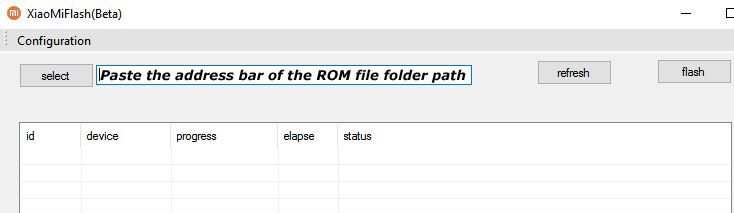
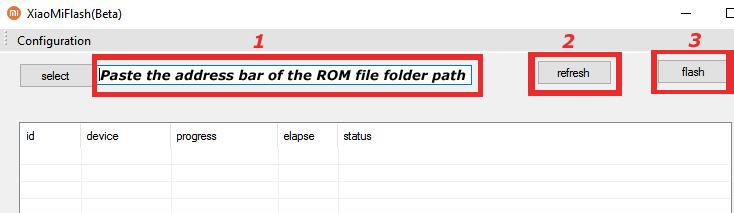
6) Now open MI Flash Tool and Paste the address bar of the ROM file folder path copied from above.

Mi Flash

7) First, click on the ‘Refresh‘ button (It will automatically recognize your device) and then click on the ‘Flash‘ button to flash MIUI 12 ROM on your Devices.

Mi Flash

8) Wait for some time to complete the process.

9) Done. Your device will boot on the latest version.

Wrapping Up:

Download MIUI 12.5.4.0 India Stable ROM for POCO F3 GT and flash it to update it manually. Comment below if you have any doubts.

Have any questions? Do let us know that in the comments below. Stay connected with us via Facebook and Twitter to read more such helpful posts.

The latest MIUI 12.5.2.0 update for Mi 10 starts rolling out via OTA. The update is based on Android 11 and brings lots of new features and improvements. Follow the below guide to Download MIUI 12.5.2.0 Global Stable ROM for Mi 10.

MIUI 12.5.2.0 Global Stable ROM for Mi 10 is a stable version and can be flashed via Recovery or via Fastboot. You can wait for the OTA or download MIUI 12.5.2.0 for Mi 10 from below.

You can Download Mi 10 MIUI 12.5.2.0.RJBMIXM ROM from below and also manually check for the update by going to Settings -> About Phone -> System updates -> Check for update. Download MIUI 12.5.2.0 ROM for Mi 10 from below.

Changelog:

[System]

  • Updated Android Security Patch to June 2021. Increased system security.

[Status bar, Notification shade]

  • Fix: Notification badges weren’t updated for incoming notifications on a locked device
  • Fix: Floating notifications weren’t displayed correctly in landscape mode
  • Fix: Notifications flashed in some cases
  • Fix: Lock screen notification animations froze after the device was unlocked using face data

[Camera]

  • New: Calls and notifications can be silenced during video recording

Note:-

  • This Firmware file is only for Mi 10. Don’t try this on any other device.
  • Follow the steps correctly otherwise you may brick your device. We are not responsible for any damage to your phone.
  • It may erase your data, so it is advisable to take a complete backup of your phone for a safer side.
  • Ensure that your phone has at least 50-60% charged to prevent the accidental shutdown in-between the process.

Download MIUI 12.5.2.0 Global Stable ROM for Mi 10

  • MIUI 12.5.2.0 OTA for Mi 10  – Download
  • MIUI 12.5.2.0 Recovery ROM for Mi 10 – Download
  • MIUI 12.5.2.0 Fastboot ROM for Mi 10  – Download

How to Install MIUI 12.5.2.0 Global Stable ROM on Mi 10 –

To install MIUI 12.5.2.0 update for Mi 10 download either Recovery ROM or Fastboot ROM from above and use the below method to install this on your device.

Method 1 – Recovery Mode

Recovery Mode

  1. Download Android 11 recovery ROM for Mi 10 from above and save it on your device.
  2. Now launch the ‘Updater‘ app on your device.
  3. Click on the three-dot menu (‘…’ icon) at the top-right corner, and select the ‘choose update package‘.
  4. Browse through the files and select the package ending with .zip extension.
  5. Done. Your device will reboot on the latest version.

Method 2 – Fastboot Mode

1) First, Download Mi Flash Tool, extract it, and install it on your PC.

2) Now download MIUI 12.5 fastboot ROM for Mi 10 for your device.

3) Now boot your device into Fastboot mode by pressing the ‘Volume Down + Power‘ button.

4) Connect your device to the PC via a micro USB cable.

5) Now extract the Fastboot ROM and copy its path on the PC.

6) Now open MI Flash Tool and Paste the address bar of the ROM file folder path copied from above.

Mi Flash

7) First, click on the ‘Refresh‘ button (It will automatically recognize your device) and then click on the ‘Flash‘ button to flash MIUI 12 ROM on your Devices.

Mi Flash

8) Wait for some time to complete the process.

9) Done. Your device will boot on the latest version.

Wrapping Up:

Download MIUI 12.5.2.0 Global Stable ROM for Mi 10 and flash it to update it manually. Comment below if you have any doubts.

Have any questions? Do let us know that in the comments below. Stay connected with us via Facebook and Twitter to read more such helpful posts.
The latest MIUI 12.5 update for POCO X3 NFC starts rolling out via OTA. The update is based on Android 11 and brings lots of new features. Follow the below guide to Download MIUI 12.5.1.0 Global Stable ROM for POCO X3 NFC.

MIUI 12.5.1.0 Global Stable ROM for POCO X3 NFC is a stable version and can be flashed via Recovery or via Fastboot. You can wait for the OTA or download MIUI 12.5.1.0 for POCO X3 NFC from below.

You can Download POCO X3 NFC MIUI 12.5.1.0.RJGMIXM ROM from below and also manually check for the update by going to Settings -> About Phone -> System updates -> Check for update. Download MIUI 12.5 ROM for POCO X3 NFC from below.

Changelog:

[System]

  • New: Response to gestures is now instant.
  • New: With 20 times more rendering power, there are now few limits to what you can see on your screen.
  • New: With custom device model adjustments, any phone becomes faster after the upgrade.
  • Optimization: MIUI became lighter, faster, and more durable.
  • Updated Android Security Patch to July 2021. Increased system security.

[Notes]

  • New: Compose mind maps with complex structures.
  • New: New tools for doodling and sketching.
  • New: Press and hold a sketch to adjust the strokes automatically.
  • New: A gesture shortcut now allows you to create notes, tasks, and excerpts anywhere.
  • New: Excerpts save text, URLs, and images to Notes in a few simple taps.
  • New: Dynamic layouts bring the typography in Notes to a new level.
  • All-new Notes.

Note:-

  • This Firmware file is only for POCO X3 NFC. Don’t try this on any other device.
  • Follow the steps correctly otherwise you may brick your device. We are not responsible for any damage to your phone.
  • It may erase your data, so it is advisable to take a complete backup of your phone for a safer side.
  • Ensure that your phone has at least 50-60% charged to prevent the accidental shutdown in-between the process.

Download MIUI 12.5.1.0 Global Stable ROM for POCO X3 NFC

  • MIUI 12.5.1.0 OTA for POCO X3 NFC – Download
  • MIUI 12.5.1.0 Recovery ROM for POCO X3 NFC – Download
  • MIUI 12.5.1.0 Fastboot ROM for POCO X3 NFC – Download

How to Install MIUI 12.5.1.0 Global Stable ROM on POCO X3 NFC –

To install MIUI 12.5.1.0 update for POCO X3 NFC download either Recovery ROM or Fastboot ROM from above and use the below method to install this on your device.

Method 1 – Recovery Mode

Recovery Mode

  1. Download Android 11 ROM for POCO X3 NFC from above and save it on your device.
  2. Now launch the ‘Updater‘ app on your device.
  3. Click on the three-dot menu (‘…’ icon) at the top-right corner, and select the ‘choose update package‘.
  4. Browse through the files and select the package ending with .zip extension.
  5. Done. Your device will reboot on the latest version.

Method 2 – Fastboot Mode

1) First, Download Mi Flash Tool, extract it and install it on your PC.

2) Now download MIUI 12.5 ROM for POCO X3 NFC for your device.

3) Now boot your device into Fastboot mode by pressing the ‘Volume Down + Power‘ button.

4) Connect your device to the PC via a micro USB cable.

5) Now extract the Fastboot ROM and copy its path on the PC.

6) Now open MI Flash Tool and Paste the address bar of the ROM file folder path copied from above.

Mi Flash

7) First, click on the ‘Refresh‘ button (It will automatically recognize your device) and then click on the ‘Flash‘ button to flash MIUI 12 ROM on your Devices.

Mi Flash

8) Wait for some time to complete the process.

9) Done. Your device will boot on the latest version.

Wrapping Up:

Download MIUI 12.5.1.0 Global Stable ROM for POCO X3 NFC and flash it to update it manually. Comment below if you have any doubts.

Have any questions? Do let us know that in the comments below. Stay connected with us via Facebook and Twitter to read more such helpful posts.
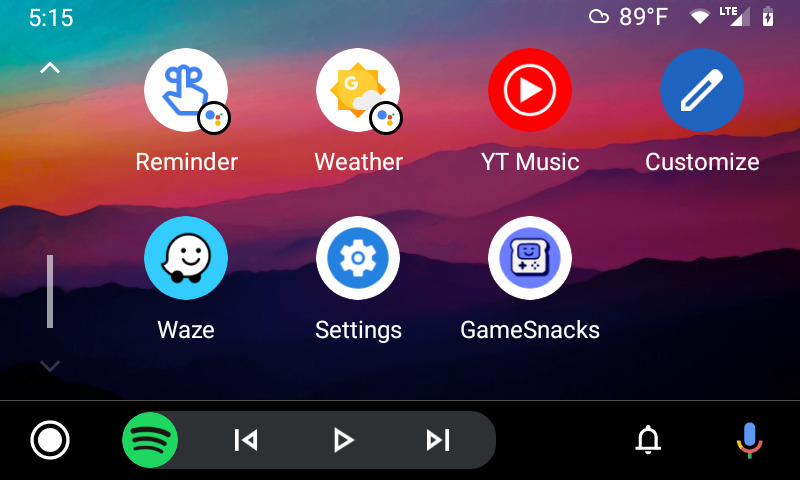
The latest Android Auto update, version 6.7, includes the HTML5 games collection to cars’ infotainment systems. You’ll find a new GameSnacks shortcut in the launcher, and when you tap it, you can notice a collection of simple games developed by Google’s Area 120. You can Play Mini Games on Android Auto with simple taps of the screen.

Each of these games can be playable as long as the car is stopped and has a touchscreen. The vehicles with touchscreen-enabled head units will be allowed to play. For sake of safety, Google doesn’t allow users to play GameSnacks games on Android Auto while you’re driving.

GameSnacks creates bite-sized HTML5 games that you can play from any web-capable device, whether it’s touch, keyboard, or mouse input. Earlier Google integrating these games into Google products like Chrome, Google Pay, Google Assistant, and Google Discover.

How to Play Mini Games on Android Auto

To Get GameSnacks Games on Android Auto, you need beta version 6.7. The update is rolling out slowly on the Play Store. However, if you want it right now, download Android Auto beta version 6.7 apk from below.

  1. Download Android Auto beta version 6.7 apk from APK Mirror.
  2. Install Android Auto and connect your phone to your car.
  3. Open Android Auto launcher.
  4. You’ll find a new GameSnacks shortcut in the launcher.Play Mini Games on Android Auto
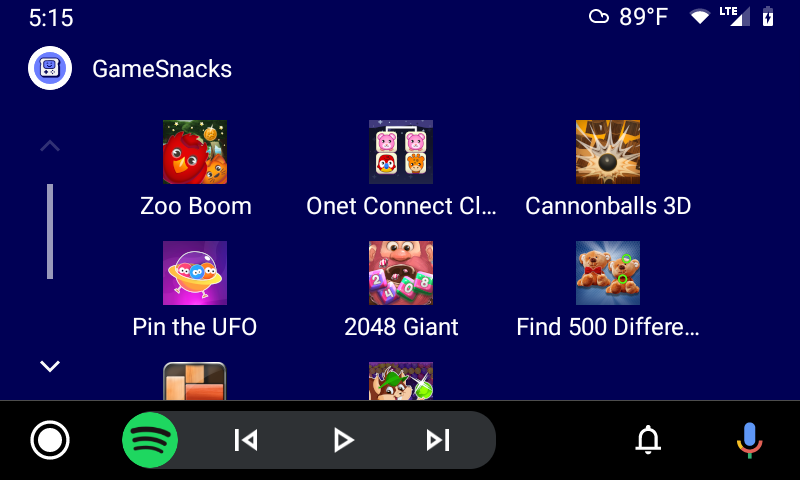
  5. Tap on the icon and choose the game that you want to play.
  6. Tap on the game to Play Mini Games on Android Auto.Play Mini Games on Android Auto

Wrapping Up: Get GameSnacks Games on Android Auto

You can found games like Zoo Boom, Cannonballs 3D, Pin the UFO, 2048 Giant, Unblock That, Find 500 Differences, and Bubble Woods. All games load up quickly, and controls are responsive. Install GameSnacks on Android auto right now and start playing.

Have any questions? Do let us know that in the comments below. Stay connected with us via Facebook and Twitter to read more such helpful posts.

Your home is a reflection of your personality. It can be the most valuable thing you own, or it could just be another living space that you’re sick of looking at. But whatever home means to you, certain home exterior upgrades will not only make your home more livable but also increase its resale value.

These five home exterior upgrades are worth considering if you want to get the most out of your home and have an easier time selling it.

1. Solar Panels

Electrical bills are a home owner’s worst enemy. By installing solar panels, you’ll be able to provide electricity for your home at no cost to you in the long run. This will also help make your home environmentally friendly and give it those all-important resale values that other homeowners envy.

Not only that but having the ability to use cleaner energy means being able to go green and reduce your home’s carbon footprint as well.

Check out the prices of solar panels here blueravensolar.com/blog/price-of-solar-panels/.

2. Roof Replacement

Your home’s roof is an integral part of its structural integrity. A home without a sound roof isn’t worth much when it comes to resale value. Installing solar panels can help reduce home energy costs, but they won’t do anything for your home’s resale value or longevity without a new roof covering it.

Replacing the old roof with a new one will improve your home’s curb appeal and increase its longevity.

3. Adding a Privacy Fence

Does your home have an outdoor space, perhaps a deck or patio? Adding a privacy fence will allow you to enjoy this space without worrying about your neighbors keeping an eye on what you’re doing.

Adding a privacy fence also adds real value to your home by providing the homeowner with more privacy when they need it most.

4. Replacing Your Gutters and Downspouts

Your roof is very important for protecting your home from wind damage, rain damage, snow damage, and many other types of weather-related issues. If there are gaps or cracks in the gutters or downspouts, you’ll have water damage in your home sooner rather than later.

Taking the time to repair or replace these home exterior components properly will enhance the value of any home. Homebuyers are always looking for homes with minimal maintenance needs, and they’ll be able to find that at your home if it has new gutters and downspouts.

5. Adding Some Landscaping Appeal With a Fire Pit

The exterior of your home is only as good as its landscaping. Be sure that some trees and bushes surround your home so that it looks natural rather than as an afterthought. Other ways you can add more appeal include putting in a pond or adding fire pits around the home.

Home Exterior Upgrades That Add Value

These home exterior upgrades will help you maximize the value of your home and make it easier for you to sell when that time comes. But more importantly, they can help your home feel like a home rather than just a pile of bricks.

Home should be about living life well rather than just collecting rooms in which to live it. Take care of these items on this list, and your home will thank you for it with years of happy memories.

Are you looking for more interesting content? We have it ready for you. Keep exploring our website.

The latest OxygenOS 11.0.9.9 for the OnePlus 8T starts rolling out. The new OxygenOS 11.0.9.9 update for OnePlus 8T fixes for region-specific issues that affect the European and North American software builds. Download OxygenOS 11.0.9.9 for OnePlus 8T from below.

The update is rolling out via OTA (over-the-air) and many users already getting OxygenOS 11.0.9.9 for OnePlus 8T. The update is incremental and rolls out in a phase-wise manner. You can wait for the OTA updates or update Oneplus 8T to OxygenOS 11.0.9.9 manually with the below method.

The new OxygenOS 11.0.9.9 for OnePlus 8T brings many changes (Check the complete changelogs from below). We provide you the OxygenOS 11.0.9.9 OTA file which you can flash on your device. So if you want to update your OnePlus to the latest version then Download OxygenOS 11.0.9.9 for OnePlus 8T from below. Check below what’s new in OxygenOS 11.0.9.9

OxygenOS 11.0.9.9 Features and Changelogs –

  • System
    • Improve stability and fixed known issues
  • Camera
    • Fixed the issue that the screen may flash when shooting in NIGHTSCAPE mode
  • OnePlus Store
    • An intuitive and convenient way to manage your OnePlus account, get easy-to-access support, discover exciting members-only benefits, and shop for OnePlus products. (Please note that it can be uninstalled)

Note:-

  • This method is only for the OnePlus 8T.
  • Full ROM can be flashed via TWRP as well.
  • Follow the steps correctly otherwise, you may brick your device. We Guidegeekz.com is not responsible for any damage to your phone.
  • Charge your device to 60- 70% to prevent it from accidental shutdown.
  • Take a complete backup of everything important.

Download OxygenOS 11.0.9.9 for OnePlus 8T

  • OxygenOS 11.0.9.9 update for OnePlus 8T OTA link – Download (KB05A)
  • OxygenOS 11.0.9.9 Full ROM for OnePlus 8T – Coming Soon

How to Install OxygenOS 11.0.9.9 Update on OnePlus 8T

For Non-Rooted Users

Method 1

  1. First, enable the USB debugging option from the setting ->developer option. To enable Developer Options, go to About phone and tap the Build Number 7 times.
  2. Download ADB and Fastboot and install them on your PC.
  3. Download OxygenOS 11.0.9.9 OTA from above Copy ROM to a folder where adb installed.
  4. Now Turn Off your phone and boot into recovery mode.
  5. Choose Apply update from ADB
  6. Now Connect your phone to your Laptop/PC
  7. On ROM folder press shift+right click and click on the open command here.
  8. Now check your connection status by typing the below command
    adb devices
    if your device is listed, you’re ready to flash the ROM
  9. Now Install OxygenOS 11.0.9.9 OTA on OnePlus 8Tby typing the below command
    adb sideload File-Name.zip 
  10. Now, wait until the process completes and then Reboot the phone.
  11. Done!

Method 2

  1. Download OxygenOS 11.0.9.9 OTA zip file from above and save it on your internal phone memory.
  2. Now Switch off your device and boot into the Recovery mode.
  3. To boot the OnePlus 8T into recovery mode press and hold the ‘Power + Volume Down button.
  4. Now your phone boot into the Stock recovery.
  5. Now Select ‘Apply Update’ and select ‘Choose from Internal Storage
  6. Browse the OTA zip file which you download and save on your phone before.
  7. Select the zip file, and it will Install OxygenOS 11.0.9.9 OTA update file on your OnePlus 8T.
  8. Now wait until the process complete and then reboot your device.
  9. Done.

For Rooted Users

  1. First Unlock your device bootloader and Install TWRP on your Device. Skip this step if already installed TWRP.
  2. Reboot your device into Recovery mode and create a Nandroid backup (Recommended) of your device for the safer side, if anything goes wrong.
  3. Now wipe your cache files from Goto Wipe>Advanced Wipe>Select Wipe cache and Dalvik cache and swipe to confirm it.
  4. Now, Go to Install and locate the OOS 11.0.9.9 Full Rom Zip & swipe to Install the ROM file
  5. Now Flash the Magisk again to maintain the root (Optional).
  6. Wipe Dalvik & Cache again.
  7. Done! Reboot System and Enjoy.

Wrapping Up:

That’s all this is the complete guide to Download OxygenOS 11.0.9.9 for OnePlus 8T (OTA + Full ROM). Have any questions? Do let us know that in the comments below. Stay connected with us via Facebook and Twitter to read more such helpful posts.

The latest MIUI 12.0.2.0 update for POCO X3 starts rolling out via OTA. The update is based on Android 11 and brings a few improvements and fixes bugs along with July 2021 security patch. Follow the below guide to Download MIUI 12.0.2.0 India Stable ROM for POCO X3.

MIUI 12.0.2.0 India Stable ROM for POCO X3 is a stable version and can be flashed via Recovery or via Fastboot. You can download MIUI 12.0.2.0 for POCO X3 from below.

You can Download POCO X3 MIUI 12.0.2.0.RJGINXM ROM from below and also manually check for the update by going to Settings -> About Phone -> System updates -> Check for update. Download MIUI 12.0.2.0 Stable ROM for POCO X3 from below.

Changelog:

[System]

  • Stable MIUI based on Android 11
  • Updated Android Security Patch to July 2021. Increased system security.

[Control center]

  • New: Swipe down from the upper left corner to open Notification shade and from the upper right corner to open Control center
  • New: When Notification shade is open, swipe down from the upper right corner to open Control center
  • Optimization: MIUI 11 custom toggle order is preserved after updating to MIUI 12
  • Optimization: Press and hold redirection options

[Status bar, Notification shade]

  • New: Screen lights up with an animation now
  • New: Status bar color gradient animation
  • Optimization: Readjusted sensitive areas for the dots in the unlock pattern
  • Optimization: GPS icon in the status bar
  • Optimization: The UI for renaming fingerprints

Note:-

  • This Firmware file is only for POCO X3. Don’t try this on any other device.
  • Follow the steps correctly otherwise you may brick your device. We are not responsible for any damage to your phone.
  • It may erase your data, so it is advisable to take a complete backup of your phone for a safer side.
  • Ensure that your phone has at least 50-60% charged to prevent the accidental shutdown in-between the process.

Download MIUI 12.0.2.0 India Stable ROM for POCO X3

  • MIUI 12.0.2.0 OTA for POCO X3 – Download
  • MIUI 12.0.2.0 Recovery ROM for POCO X3 – Download (Mi Pilot Only)
  • MIUI 12.0.2.0 Fastboot ROM for POCO X3 – Coming Soon

How to Install MIUI 12.0.2.0 India Stable ROM on POCO X3 –

To install MIUI 12.0.2.0 update for POCO X3 download either Recovery ROM or Fastboot ROM from above and use the below method to install this on your device.

Method 1 – Recovery Mode

Recovery Mode

  1. Download Android 11 recovery ROM for POCO X3 from above and save it on your device.
  2. Now launch the ‘Updater‘ app on your device.
  3. Click on the three-dot menu (‘…’ icon) at the top-right corner, and select the ‘choose update package‘.
  4. Browse through the files and select the package ending with .zip extension.
  5. Done. Your device will reboot on the latest version.

Method 2 – Fastboot Mode

1) First, Download Mi Flash Tool, extract it and install it on your PC.

2) Now download Android 11 fastboot for POCO X3 for your device.

3) Now boot your device into Fastboot mode by pressing the ‘Volume Down + Power‘ button.

4) Connect your device to the PC via a micro USB cable.

5) Now extract the Fastboot ROM and copy its path on the PC.

6) Now open MI Flash Tool and Paste the address bar of the ROM file folder path copied from above.

Mi Flash

7) First, click on the ‘Refresh‘ button (It will automatically recognize your device) and then click on the ‘Flash‘ button to flash MIUI 12 ROM on your Devices.

Mi Flash

8) Wait for some time to complete the process.

9) Done. Your device will boot on the latest version.

Wrapping Up:

Download MIUI 12.0.2.0 India Stable ROM for POCO X3 and flash it to update it manually. Comment below if you have any doubts.

The latest MIUI 12.5.2.0 update for Mi 9 Lite starts rolling out via OTA. The update is based on Android 11 and brings a lot of new features and bugs fixes. Follow the below guide to Download MIUI 12.5.2.0 Global Stable ROM for Mi 9 Lite.

MIUI 12.5.2.0 Global Stable ROM for Mi 9 Lite is a stable version and can be flashed via Recovery or via Fastboot. You can wait for the OTA or download MIUI 12.5.2.0 for Mi 9 Lite from below.

You can Download Mi 9 Lite MIUI 12.5.2.0.RFCMIXM ROM from below and also manually check for the update by going to Settings -> About Phone -> System updates -> Check for update. Download MIUI 12.5.2.0 Stable ROM for Mi 9 Lite from below.

Changelogs

(System)

  • New: Response to gestures is now instant.
  • New: With 20 times more rendering power, there are now few limits to what you can see on your screen.
  • New: With custom device model adjustments, any phone becomes faster after the upgrade.
  • Optimization: MIUI became lighter, faster, and more durable.
  • Stable MIUI based on Android 11
  • Updated Android Security Patch to June 2021. Increased system security.

(Notes)

  • New: Dynamic layouts bring the typography in Notes to a new level.
  • New: Compose mind maps with complex structures.
  • New: New tools for doodling and sketching.
  • New: Press and hold a sketch to adjust the strokes automatically.
  • New: A gesture shortcut now allows you to create notes, tasks, and excerpts anywhere.
  • New: Excerpts save text, URLs, and images to Notes in a few simple taps.
  • All-new Notes.

Note:-

  • This Firmware file is only for Mi 9 Lite. Don’t try this on any other device.
  • Follow the steps correctly otherwise you may brick your device. We are not responsible for any damage to your phone.
  • It may erase your data, so it is advisable to take a complete backup of your phone for a safer side.
  • Ensure that your phone has at least 50-60% charged to prevent the accidental shutdown in-between the process.

Download MIUI 12.5.2.0 Global Stable ROM for Mi 9 Lite

  • Mi 9 Lite MIUI 12.5.2.0 OTA – Download
  • MIUI 12.5.2.0 Recovery ROM for Mi 9 Lite – Download
  • MIUI 12.5.2.0 Fastboot ROM for Mi 9 Lite – Download

How to Install MIUI 12.5.2.0 Global Stable ROM on Mi 9 Lite –

To install MIUI 12.5.2.0 update for Mi 9 Lite download either Recovery ROM or Fastboot ROM from above and use the below method to install this on your device.

Method 1 – Recovery Mode

Recovery Mode

  1. Download MIUI 12.5.2.0 Recovery ROM for Mi 9 Lite from above and save it on your device.
  2. Now launch the ‘Updater‘ app on your device.
  3. Click on the three-dot menu (‘…’ icon) at the top-right corner, and select the ‘choose update package‘.
  4. Browse through the files and select the package ending with .zip extension.
  5. Done. Your device will reboot on the latest version.

Method 2 – Fastboot Mode

1) First, Download Mi Flash Tool, extract it and install it on your PC.

2) Now download MIUI 12.5.2.0 Fastboot ROM for Mi 9 Lite for your device.

3) Now boot your device into Fastboot mode by pressing the ‘Volume Down + Power‘ button.

4) Connect your device to the PC via a micro USB cable.

5) Now extract the Fastboot ROM and copy its path on the PC.

6) Now open MI Flash Tool and Paste the address bar of the ROM file folder path copied from above.

Mi Flash

7) First, click on the ‘Refresh‘ button (It will automatically recognize your device) and then click on the ‘Flash‘ button to flash MIUI 12 ROM on your Devices.

Mi Flash

8) Wait for some time to complete the process.

9) Done. Your device will boot on the latest version.

Wrapping Up:

Download MIUI 12.5.2.0 Global Stable ROM for Mi 9 Lite and flash it to update it manually. Comment below if you have any doubts.

Have any questions? Do let us know that in the comments below. Stay connected with us via Facebook and Twitter to read more such helpful posts.