
Author

Sumit Bahl

Browsing

Here we share a direct link to Download Android SDK Platform Tools for Windows, Linux, and Mac from Google servers. Platform Tools are a part of the Android SDK Manager and Android Studio and are used in the development, analysis, and debugging of Android applications APK

It also includes tools that interface with the Android platform, such as adb, fastboot, and systrace. Previously, you need to download the entire Android SDK to get the required tools. But now, you can download Android SDK platform-tools zip separately.

These tools are not required only for developing Android apps, but also used to run ADB and Fastboot commands to unlock your device bootloader, flashing boot, recovery, or new system image. They might also need to capture error logs and perform other activities. Download Android SDK Platform Tools for Windows, Linux, and Mac from below.

Download Android SDK Platform Tools for Windows, Linux, and Mac

Earlier, either user had to download Android SDK or Studio, which is around 1GB or rely on 3rd-party tools to grab the ADB and Fastboot drivers. The problem with 3rd party tools is they are not reliable and these may install the outdated ADB and Fastboot binaries. Now you can get rid of the mediators and get the latest tools straight from Google. The latest SDK Platform Tools is only 4MB in size and available for Windows, Mac, and Linux users.

  • adb
    • Support forwarding to vsock on Linux.
    • Fix bug in adb track-devices where devices over wireless debugging wouldn’t immediately receive updates.
    • Implement preliminary support for mDNS device discovery without a separately installed mDNS service. This is currently disabled by default and can be enabled by setting the environment variable ADB_MDNS_OPENSCREEN to 1 when starting the adb server.
  • fastboot
    • Don’t fail when unable to get boot partition size.
    • Derive device locked state from the property instead of parsing the kernel command line.

What is the Need for Android SDK Platform Tools?

The most important question is what is the need for Android SDK Platform Tools and who can use them. These tools can be used to develop apps, mod Android devices, flash recovery, ROM, or custom kernel on Android or to debug Android devices.

  • Developer: A developer can use the Android SDK Platform-Tools to developing Android apps or test their new app by connecting their device to their computer.
  • Android Geek – A nerd who wants to mod their phone by unlocking the bootloader, flashing custom kernel, flashing boot or recovery image, or the full factory images.
  • Debugger: To capture error logs and perform systrace to collect and inspect timing information across all processes running on your device at the system level.
  • Other: You can use it to reboot an Android device, Move a file from a local system to an Android phone’s location, moves a file from Android to your PC, or take backup.

How to Install and Use Android SDK Platform Tools?

You have to extract the Zip file after you have downloaded the relevant Platform-Tools. Open the extracted folder, and launch a command window inside the ‘platform-tools folder and execute the desired ADB and Fastboot commands. You must enable USB debugging on your device to use ADB and Fastboot commands.

You can enter commands on your PC in one of two ways: at the Command prompt or using Windows Power Shell. Let’s have a look at both ways.

Using Command Prompt

  1. Open the platform-tools folder.
  2. Type CMD in the address bar of that folder and press Enter.
  3. This will launch the Command Prompt.
  4. Done, you can now execute your desired ADB or Fastboot commands

Using PowerShell Window

  1. Open the platform-tools folder.
  2. Press Shift + Right Click on the blank space inside the platform-tools folder.
  3. Select the option Open Command Window/power shell window Here
  4. Done

Using Terminal (Mac)

  1. Open the ‘Terminal’ app
  2. Browse the platform-tools folder using this command cd /path/to/extracted/folder/ for example: cd /Users/Sumit/Desktop/platform-tools/
  3. Done.

Remember to allow USB debugging and authorize ADB on your Android device when prompted.

Wrapping Up: Android SDK Platform Tools Download

Here we share the Android SDK Platform Tools download links and the installation steps. Have any questions? Do let us know that in the comments below. Stay connected with us via Facebook and Twitter to read more such helpful posts.

The latest Android 10 based MIUI 12.0.12.0 update for POCO C3 starts rolling out via OTA. The update brings June 2021 security patch to the device. Follow the below guide to Download MIUI 12.0.12.0 India Stable ROM for POCO C3.

MIUI 12.0.12.0 India Stable ROM for POCO C3 is a stable version and can be flashed via Recovery or via Fastboot. You can download MIUI 12.0.12.0 for POCO C3 from below.

You can Download POCO C3 MIUI 12.0.12.0.QCRINXM ROM from below and also manually check for the update by going to Settings -> About Phone -> System updates -> Check for update. Download MIUI 12.0.12.0 Stable ROM for POCO C3 from below.

Changelog:

[System]

  • Updated Android Security Patch to June 2021. Increased system security.

Note:-

  • This Firmware file is only for POCO C3. Don’t try this on any other device.
  • Follow the steps correctly otherwise you may brick your device. We are not responsible for any damage to your phone.
  • It may erase your data, so it is advisable to take a complete backup of your phone for a safer side.
  • Ensure that your phone has at least 50-60% charged to prevent the accidental shutdown in-between the process.

Download MIUI 12.0.12.0 India Stable ROM for POCO C3

  • MIUI 12.0.12.0 OTA for POCO C3 – Download
  • MIUI 12.0.12.0 Recovery ROM for POCO C3 – Download
  • MIUI 12.0.12.0 Fastboot ROM for POCO C3 – Coming Soon

How to Install MIUI 12.0.12.0 India Stable ROM on POCO C3 –

To install MIUI 12.0.12.0 update for POCO C3 download either Recovery ROM or Fastboot ROM from above and use the below method to install this on your device.

Method 1 – Recovery Mode

Recovery Mode

  1. Download MIUI 12.0.12.0 ROM for POCO C3 from above and save it on your device.
  2. Now launch the ‘Updater‘ app on your device.
  3. Click on the three-dot menu (‘…’ icon) at the top-right corner, and select the ‘choose update package‘.
  4. Browse through the files and select the package ending with .zip extension.
  5. Done. Your device will reboot on the latest version.

Method 2 – Fastboot Mode

1) First, Download Mi Flash Tool, extract it and install it on your PC.

2) Now download MIUI 12.0.12.0 fastboot for POCO C3 for your device.

3) Now boot your device into Fastboot mode by pressing the ‘Volume Down + Power‘ button.

4) Connect your device to the PC via a micro USB cable.

5) Now extract the Fastboot ROM and copy its path on the PC.

6) Now open MI Flash Tool and Paste the address bar of the ROM file folder path copied from above.

Mi Flash

7) First, click on the ‘Refresh‘ button (It will automatically recognize your device) and then click on the ‘Flash‘ button to flash MIUI 12 ROM on your Devices.

Mi Flash

8) Wait for some time to complete the process.

9) Done. Your device will boot on the latest version.

Wrapping Up:

Download MIUI 12.0.12.0 India Stable ROM for POCO C3 and flash it to update it manually. Comment below if you have any doubts.

The latest Android 11 based MIUI 12.1.4.0 update for Redmi K20 starts rolling out via OTA. The update brings the June 2021 security patch to the device. Follow the below guide to Download MIUI 12.1.4.0 India Stable ROM for Redmi K20.

MIUI 12.1.4.0 India Stable ROM for Redmi K20 is a stable version and can be flashed via Recovery or via Fastboot. You can download MIUI 12.1.4.0 for Redmi K20 from below.

You can Download Redmi K20 MIUI 12.1.4.0.RFJINXM ROM from below and also manually check for the update by going to Settings -> About Phone -> System updates -> Check for update. Download MIUI 12.1.4.0 Stable ROM for Redmi K20 from below.

Changelogs:

[System]

  • Updated Android Security Patch to June 2021. Increased system security.

Note:-

  • This Firmware file is only for Redmi K20. Don’t try this on any other device.
  • Follow the steps correctly otherwise you may brick your device. We are not responsible for any damage to your phone.
  • It may erase your data, so it is advisable to take a complete backup of your phone for a safer side.
  • Ensure that your phone has at least 50-60% charged to prevent the accidental shutdown in-between the process.

Download MIUI 12.1.4.0 India Stable ROM for Redmi K20

  • MIUI 12.1.4.0 OTA for Redmi K20 – Download
  • MIUI 12.1.4.0 Recovery ROM for Redmi K20 – Download (Mi Pilot only)
  • MIUI 12.1.4.0 Fastboot ROM for Redmi K20 – Coming Soon

How to Install MIUI 12.1.4.0 India Stable ROM on Redmi K20 –

To install MIUI 12.1.4.0 update for Redmi K20 download either Recovery ROM or Fastboot ROM from above and use the below method to install this on your device.

Method 1 – Recovery Mode

Recovery Mode

  1. Download Android 11 ROM for Redmi K20 from above and save it on your device.
  2. Now launch the ‘Updater‘ app on your device.
  3. Click on the three-dot menu (‘…’ icon) at the top-right corner, and select the ‘choose update package‘.
  4. Browse through the files and select the package ending with .zip extension.
  5. Done. Your device will reboot on the latest version.

Method 2 – Fastboot Mode

1) First, Download Mi Flash Tool, extract it and install it on your PC.

2) Now download Fastboot ROM for Redmi K20 for your device.

3) Now boot your device into Fastboot mode by pressing the ‘Volume Down + Power‘ button.

4) Connect your device to the PC via a micro USB cable.

5) Now extract the Fastboot ROM and copy its path on the PC.

6) Now open MI Flash Tool and Paste the address bar of the ROM file folder path copied from above.

Mi Flash

7) First, click on the ‘Refresh‘ button (It will automatically recognize your device) and then click on the ‘Flash‘ button to flash MIUI 12 ROM on your Devices.

Mi Flash

8) Wait for some time to complete the process.

9) Done. Your device will boot on the latest version.

Wrapping Up:

Download MIUI 12.1.4.0 India Stable ROM for Redmi K20 and flash it to update it manually. Comment below if you have any doubts.

The latest MIUI 12.5 update for POCO X2 starts rolling out via OTA. The update brings lots of new improvements to the device along with the June 2021 security patch. Follow the below guide to Download MIUI 12.5.1.0 India Stable ROM for POCO X2.

MIUI 12.5.1.0 India Stable ROM for POCO X2 is a stable version and can be flashed via Recovery or via Fastboot. You can download MIUI 12.5.1.0 for POCO X2 from below.

You can Download POCO X2 MIUI 12.5.1.0.RGHINXM ROM from below and also manually check for the update by going to Settings -> About Phone -> System updates -> Check for update. Download MIUI 12.5.1.0 Stable ROM for POCO X2 from below.

Changelogs:

[System]

  • New: With custom device model adjustments, any phone becomes faster after the upgrade.
  • New: Response to gestures is now instant.
  • New: With 20 times more rendering power, there are now few limits to what you can see on your screen.
  • Optimization: MIUI became lighter, faster, and more durable.
  • Updated Android Security Patch to June 2021. Increased system security.

[Notes]

  • New: Compose mind maps with complex structures.
  • New: New tools for doodling and sketching.
  • New: Press and hold a sketch to adjust the strokes automatically.
  • New: A gesture shortcut now allows you to create notes, tasks, and excerpts anywhere.
  • New: Excerpts save text, URLs, and images to Notes in a few simple taps.
  • New: Dynamic layouts bring the typography in Notes to a new level.
  • All-new Notes.

Note:-

  • This Firmware file is only for POCO X2. Don’t try this on any other device.
  • Follow the steps correctly otherwise you may brick your device. We are not responsible for any damage to your phone.
  • It may erase your data, so it is advisable to take a complete backup of your phone for a safer side.
  • Ensure that your phone has at least 50-60% charged to prevent the accidental shutdown in-between the process.

Download MIUI 12.5.1.0 India Stable ROM for POCO X2

  • POCO X2 MIUI 12.5.1.0 OTA update – Download
  • MIUI 12.5.1.0 Recovery ROM for POCO X2 – Download (Mi Pilot Only)
  • MIUI 12.5.1.0 Fastboot ROM for POCO X2 – Coming Soon

How to Install MIUI 12.5.1.0 India Stable ROM on POCO X2 –

To install MIUI 12.5.1.0 update for POCO X2 download either Recovery ROM or Fastboot ROM from above and use the below method to install this on your device.

Method 1 – Recovery Mode

Recovery Mode

  1. Download MIUI 12.5 ROM for POCO X2 from above and save it on your device.
  2. Now launch the ‘Updater‘ app on your device.
  3. Click on the three-dot menu (‘…’ icon) at the top-right corner, and select the ‘choose update package‘.
  4. Browse through the files and select the package ending with .zip extension.
  5. Done. Your device will reboot on the latest version.

Method 2 – Fastboot Mode

1) First, Download Mi Flash Tool, extract it and install it on your PC.

2) Now download Fastboot ROM for POCO X2 for your device.

3) Now boot your device into Fastboot mode by pressing the ‘Volume Down + Power‘ button.

4) Connect your device to the PC via a micro USB cable.

5) Now extract the Fastboot ROM and copy its path on the PC.

6) Now open MI Flash Tool and Paste the address bar of the ROM file folder path copied from above.

Mi Flash

7) First, click on the ‘Refresh‘ button (It will automatically recognize your device) and then click on the ‘Flash‘ button to flash MIUI 12 ROM on your Devices.

Mi Flash

8) Wait for some time to complete the process.

9) Done. Your device will boot on the latest version.

Wrapping Up:

Download MIUI 12.5.1.0 India Stable ROM for POCO X2 and flash it to update it manually. Comment below if you have any doubts.

The latest MIUI 12.5.2.0 update for Mi 10 starts rolling out via OTA. The update is based on Android 11 and brings lots of new features and improvements. Follow the below guide to Download MIUI 12.5.2.0 India Stable ROM for Mi 10.

MIUI 12.5.2.0 India Stable ROM for Mi 10 is a stable version and can be flashed via Recovery or via Fastboot. You can wait for the OTA or download MIUI 12.5.2.0 for Mi 10  from below to Update Mi 10 to Android 11 manually.

You can Download Mi 10 MIUI 12.5.2.0.RJBINXM ROM from below and also manually check for the update by going to Settings -> About Phone -> System updates -> Check for update. Download MIUI 12.5 ROM for Mi 10 from below.

Note:-

  • This Firmware file is only for Mi 10. Don’t try this on any other device.
  • Follow the steps correctly otherwise you may brick your device. We are not responsible for any damage to your phone.
  • It may erase your data, so it is advisable to take a complete backup of your phone for a safer side.
  • Ensure that your phone has at least 50-60% charged to prevent the accidental shutdown in-between the process.

Download MIUI 12.5.2.0 India Stable ROM for Mi 10

  • MIUI 12.5.2.0 OTA for Mi 10  – Download
  • MIUI 12.5.2.0 Recovery ROM for Mi 10 – Download
  • MIUI 12.5.2.0 Fastboot ROM for Mi 10  – Download

How to Install MIUI 12.5.2.0 India Stable ROM on Mi 10 –

To install MIUI 12.5.2.0 update for Mi 10 download either Recovery ROM or Fastboot ROM from above and use the below method to install this on your device.

Method 1 – Recovery Mode

Recovery Mode

  1. Download Android 11 ROM for Mi 10from above and save it on your device.
  2. Now launch the ‘Updater‘ app on your device.
  3. Click on the three-dot menu (‘…’ icon) at the top-right corner, and select the ‘choose update package‘.
  4. Browse through the files and select the package ending with .zip extension.
  5. Done. Your device will reboot on the latest version.

Method 2 – Fastboot Mode

1) First, Download Mi Flash Tool, extract it and install it on your PC.

2) Now download MIUI 12.5 ROM for Mi 10 for your device.

3) Now boot your device into Fastboot mode by pressing the ‘Volume Down + Power‘ button.

4) Connect your device to the PC via a micro USB cable.

5) Now extract the Fastboot ROM and copy its path on the PC.

6) Now open MI Flash Tool and Paste the address bar of the ROM file folder path copied from above.

Mi Flash

7) First, click on the ‘Refresh‘ button (It will automatically recognize your device) and then click on the ‘Flash‘ button to flash MIUI 12 ROM on your Devices.

Mi Flash

8) Wait for some time to complete the process.

9) Done. Your device will boot on the latest version.

Wrapping Up:

Download MIUI 12.5.2.0 India Stable ROM for Mi 10 and flash it to update it manually. Comment below if you have any doubts.

Have any questions? Do let us know that in the comments below. Stay connected with us via Facebook and Twitter to read more such helpful posts.

The latest MIUI 12.0.17.0 update for Redmi 9A starts rolling out via OTA. The update brings the June 2021 security patch. Follow the below guide to Download MIUI 12.0.17.0 India Stable ROM for Redmi 9A.

MIUI 12.0.17.0 India Stable ROM for Redmi 9A is a stable version and can be flashed via Recovery or via Fastboot. You can wait for the OTA or download MIUI 12.0.17.0 for Redmi 9A from below.

You can Download Redmi 9A MIUI 12.0.17.0.QCDMIXM ROM from below and also manually check for the update by going to Settings -> About Phone -> System updates -> Check for update. Download MIUI 12.0.17.0 Stable ROM for Redmi 9A from below.

Changelog

[System]

  • Updated Android Security Patch to June 2021. Increased system security.

Note:-

  • This Firmware file is only for Redmi 9A. Don’t try this on any other device.
  • Follow the steps correctly otherwise you may brick your device. We are not responsible for any damage to your phone.
  • It may erase your data, so it is advisable to take a complete backup of your phone for a safer side.
  • Ensure that your phone has at least 50-60% charged to prevent the accidental shutdown in-between the process.

Download MIUI 12.0.17.0 India Stable ROM for Redmi 9A

  • MIUI 12.0.17.0 OTA for Redmi 9A – Download
  • MIUI 12.0.17.0 Recovery ROM for Redmi 9A – Download
  • MIUI 12.0.17.0 Fastboot ROM for Redmi 9A – Coming Soon

How to Install MIUI 12.0.17.0 India Stable ROM on Redmi 9A –

To install MIUI 12.0.17.0 update for Redmi 9A download either Recovery ROM or Fastboot ROM from above and use the below method to install this on your device.

Method 1 – Recovery Mode

Recovery Mode

  1. Download MIUI 12 Recovery ROM for Redmi 9A from above and save it on your device.
  2. Now launch the ‘Updater‘ app on your device.
  3. Click on the three-dot menu (‘…’ icon) at the top-right corner, and select the ‘choose update package‘.
  4. Browse through the files and select the package ending with .zip extension.
  5. Done. Your device will reboot on the latest version.

Method 2 – Fastboot Mode

1) First, Download Mi Flash Tool, extract it and install it on your PC.

2) Now download MIUI 12 Fastboot ROM for Redmi 9A for your device.

3) Now boot your device into Fastboot mode by pressing the ‘Volume Down + Power‘ button.

4) Connect your device to PC via micro USB cable.

5) Now extract the Fastboot ROM and copy its path on the PC.

6) Now open MI Flash Tool and Paste the address bar of the ROM file folder path copied from above.

Mi Flash

7) First, click on the ‘Refresh‘ button (It will automatically recognize your device) and then click on the ‘Flash‘ button to flash MIUI 12 ROM on your Devices.

Mi Flash

8) Wait for some time to complete the process.

9) Done. Your device will boot on the latest version.

Wrapping Up:

Download MIUI 12.0.17.0 India Stable ROM for Redmi 9A and flash it to update it manually. Comment below if you have any doubts.

The latest MIUI 12.5 update for POCO X3 GT starts rolling out via OTA. The update is based on Android 11 and brings lots of new features. Follow the below guide to Download MIUI 12.5.1.0 Global Stable ROM for POCO X3 GT.

MIUI 12.5.1.0 Global Stable ROM for POCO X3 GT is a stable version and can be flashed via Recovery or via Fastboot. You can wait for the OTA or download MIUI 12.5.1.0 for POCO X3 GT from below.

You can Download POCO X3 GT MIUI 12.5.1.0.RKPMIXM ROM from below and also manually check for the update by going to Settings -> About Phone -> System updates -> Check for update. Download MIUI 12.5 ROM for POCO X3 GT from below.

Note:-

  • This Firmware file is only for POCO X3 GT. Don’t try this on any other device.
  • Follow the steps correctly otherwise you may brick your device. We are not responsible for any damage to your phone.
  • It may erase your data, so it is advisable to take a complete backup of your phone for a safer side.
  • Ensure that your phone has at least 50-60% charged to prevent the accidental shutdown in-between the process.

Download MIUI 12.5.1.0 Global Stable ROM for POCO X3 GT

  • MIUI 12.5.1.0 OTA for POCO X3 GT – Download
  • MIUI 12.5.1.0 Recovery ROM for POCO X3 GT – Download
  • MIUI 12.5.1.0 Fastboot ROM for POCO X3 GT – Download

How to Install MIUI 12.5.1.0 Global Stable ROM on POCO X3 GT –

To install MIUI 12.5.1.0 update for POCO X3 GT download either Recovery ROM or Fastboot ROM from above and use the below method to install this on your device.

Method 1 – Recovery Mode

Recovery Mode

  1. Download Android 11 ROM for POCO X3 GT from above and save it on your device.
  2. Now launch the ‘Updater‘ app on your device.
  3. Click on the three-dot menu (‘…’ icon) at the top-right corner, and select the ‘choose update package‘.
  4. Browse through the files and select the package ending with .zip extension.
  5. Done. Your device will reboot on the latest version.

Method 2 – Fastboot Mode

1) First, Download Mi Flash Tool, extract it and install it on your PC.

2) Now download MIUI 12.5 ROM for POCO X3 GT for your device.

3) Now boot your device into Fastboot mode by pressing the ‘Volume Down + Power‘ button.

4) Connect your device to the PC via a micro USB cable.

5) Now extract the Fastboot ROM and copy its path on the PC.

6) Now open MI Flash Tool and Paste the address bar of the ROM file folder path copied from above.

Mi Flash

7) First, click on the ‘Refresh‘ button (It will automatically recognize your device) and then click on the ‘Flash‘ button to flash MIUI 12 ROM on your Devices.

Mi Flash

8) Wait for some time to complete the process.

9) Done. Your device will boot on the latest version.

Wrapping Up:

Download MIUI 12.5.1.0 Global Stable ROM for POCO X3 GT and flash it to update it manually. Comment below if you have any doubts.

Have any questions? Do let us know that in the comments below. Stay connected with us via Facebook and Twitter to read more such helpful posts.
The latest MIUI 12.5.3.0 update for Mi Note 10 starts rolling out via OTA. The update is based on Android 11 and brings lots of new features and improvements along with the June security patch. Follow the below guide to Download MIUI 12.5.3.0 Global Stable ROM for Mi Note 10.

MIUI 12.5.3.0 Global Stable ROM for Mi Note 10 is a stable version and can be flashed via Recovery or via Fastboot. You can wait for the OTA or download MIUI 12.5.3.0 for Mi Note 10 from below.

You can Download Mi Note 10 MIUI 12.5.3.0.RFDMIXM ROM from below and also manually check for the update by going to Settings -> About Phone -> System updates -> Check for update. Download MIUI 12.5.3.0 ROM for Mi Note 10 from below.

Mi Note 10 MIUI 12.5.3.0 Changelog

(System)

  • New: Response to gestures is now instant.
  • New: With 20 times more rendering power, there are now few limits to what you can see on your screen.
  • New: With custom device model adjustments, any phone becomes faster after the upgrade.
  • Optimization: MIUI became lighter, faster, and more durable.
  • Updated Android Security Patch to June 2021. Increased system security.

(Notes)

  • New: A gesture shortcut now allows you to create notes, tasks, and excerpts anywhere.
  • New: Excerpts save text, URLs, and images to Notes in a few simple taps.
  • New: Dynamic layouts bring the typography in Notes to a new level.
  • New: Compose mind maps with complex structures.
  • New: New tools for doodling and sketching.
  • New: Press and hold a sketch to adjust the strokes automatically.
  • All-new Notes.

Note:-

  • This Firmware file is only for Mi Note 10. Don’t try this on any other device.
  • Follow the steps correctly otherwise you may brick your device. We are not responsible for any damage to your phone.
  • It may erase your data, so it is advisable to take a complete backup of your phone for a safer side.
  • Ensure that your phone has at least 50-60% charged to prevent the accidental shutdown in-between the process.

Download MIUI 12.5.3.0 Global Stable ROM for Mi Note 10

  • MIUI 12.5.3.0 OTA for Mi Note 10  – Download
  • MIUI 12.5.3.0 Recovery ROM for Mi Note 10 – Download
  • MIUI 12.5.3.0 Fastboot ROM for Mi Note 10  – Download

How to Install MIUI 12.5.3.0 Global Stable ROM on Mi Note 10 –

To install MIUI 12.5.3.0 update for Mi Note 10 download either Recovery ROM or Fastboot ROM from above and use the below method to install this on your device.

Method 1 – Recovery Mode

Recovery Mode

  1. Download Android 11 Recovery ROM for Mi Note 10 from above and save it on your device.
  2. Now launch the ‘Updater‘ app on your device.
  3. Click on the three-dot menu (‘…’ icon) at the top-right corner, and select the ‘choose update package‘.
  4. Browse through the files and select the package ending with .zip extension.
  5. Done. Your device will reboot on the latest version.

Method 2 – Fastboot Mode

1) First, Download Mi Flash Tool, extract it, and install it on your PC.

2) Now download MIUI 12.5 fastboot ROM for Mi Note 10 for your device.

3) Now boot your device into Fastboot mode by pressing the ‘Volume Down + Power‘ button.

4) Connect your device to the PC via a micro USB cable.

5) Now extract the Fastboot ROM and copy its path on the PC.

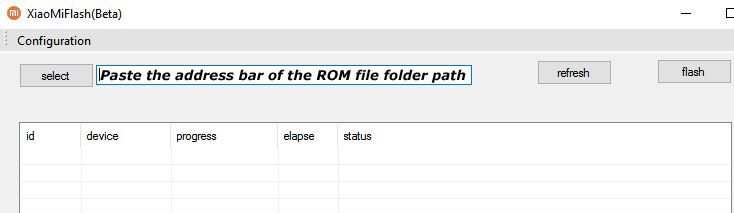
6) Now open MI Flash Tool and Paste the address bar of the ROM file folder path copied from above.

Mi Flash

7) First, click on the ‘Refresh‘ button (It will automatically recognize your device) and then click on the ‘Flash‘ button to flash MIUI 12 ROM on your Devices.

Mi Flash

8) Wait for some time to complete the process.

9) Done. Your device will boot on the latest version.

Wrapping Up:

Download MIUI 12.5.3.0 Global Stable ROM for Mi Note 10 and flash it to update it manually. Comment below if you have any doubts.

Have any questions? Do let us know that in the comments below. Stay connected with us via Facebook and Twitter to read more such helpful posts.
The latest May security patch update for Mi A2 starts rolling out via OTA. The update is based on Android 10 and brings a few improvements and fixes bugs. Follow the below guide to Download Mi A2 Global Stable V11.0.28.0 ROM.

The update is a stable version and can be flashed via Recovery or via Fastboot. You can wait for the OTA or download Mi A2 v11.0.28 from below to update it manually.

You can Download Mi A2 11.0.28.0.QDIMIXM ROM from below and also manually check for the update by going to Settings -> About Phone -> System updates -> Check for update. Download Mi A2 Global Stable V11.0.28.0 ROM from below.

Note:-

  • This Firmware file is only for Mi A2. Don’t try this on any other device.
  • Follow the steps correctly otherwise you may brick your device. We are not responsible for any damage to your phone.
  • It may erase your data, so it is advisable to take a complete backup of your phone for a safer side.
  • Ensure that your phone has at least 50-60% charged to prevent the accidental shutdown in-between the process.

Download Mi A2 Global Stable V11.0.28.0 ROM

  • Download Mi A2 V11.0.28.0 Recovery ROM – Download
  • Download Mi A2 V11.0.28.0 Fastboot ROM – Download

How to Install Download Mi A2 Global Stable V11.0.28.0 ROM –

To install the May security patch update on Mi A2 download either Recovery ROM or Fastboot ROM from above and use the below method to install this on your device.

Method 1 – Recovery Mode

Recovery Mode

  1. Download recovery ROM from above and save it on your device.
  2. Now launch the ‘Updater‘ app on your device.
  3. Click on the three-dot menu (‘…’ icon) at the top-right corner, and select the ‘choose update package‘.
  4. Browse through the files and select the package ending with .zip extension.
  5. Done. Your device will reboot on the latest version.

Method 2 – Fastboot Mode

1) First, Download Mi Flash Tool, extract it, and install it on your PC.

2) Now download Fastboot ROM for your device.

3) Now boot your device into Fastboot mode by pressing the ‘Volume Down + Power‘ button.

4) Connect your device to the PC via a micro USB cable.

5) Now extract the Fastboot ROM and copy its path on the PC.

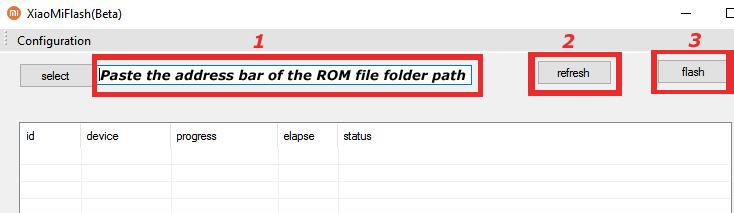
6) Now open MI Flash Tool and Paste the address bar of the ROM file folder path copied from above.

Mi Flash

7) First, click on the ‘Refresh‘ button (It will automatically recognize your device) and then click on the ‘Flash‘ button to flash the ROM on your Devices.

Mi Flash

8) Wait for some time to complete the process.

9) Done. Your device will boot on the latest version.

Wrapping Up:

Download Mi A2 Global Stable V11.0.28.0 ROM and flash it to update it manually. Comment below if you have any doubts. Stay connected with us via Facebook and Twitter to read more such helpful posts.

The latest Android 11 based MIUI 12.0.1.2 update for POCO X3 starts rolling out via OTA. The update brings a few improvements and fixes bugs. Follow the below guide to Download MIUI 12.0.1.2 India Stable ROM for POCO X3.

MIUI 12.0.1.2 India Stable ROM for POCO X3 is a stable version and can be flashed via Recovery or via Fastboot. You can download MIUI 12.0.1.2 for POCO X3 from below to Update POCO X3 to Android 11 manually.

You can Download POCO X3 MIUI 12.0.1.2.RJGINXM ROM from below and also manually check for the update by going to Settings -> About Phone -> System updates -> Check for update. Download MIUI 12.0.1.2 Stable ROM for POCO X3 from below.

Note:-

  • This Firmware file is only for POCO X3. Don’t try this on any other device.
  • Follow the steps correctly otherwise you may brick your device. We are not responsible for any damage to your phone.
  • It may erase your data, so it is advisable to take a complete backup of your phone for a safer side.
  • Ensure that your phone has at least 50-60% charged to prevent the accidental shutdown in between the process.

Download MIUI 12.0.1.2 India Stable ROM for POCO X3

  • MIUI 12.0.1.2 OTA for POCO X3 – Download
  • MIUI 12.0.1.2 Recovery ROM for POCO X3 – Download
  • MIUI 12.0.1.2 Fastboot ROM for POCO X3 – Coming Soon

How to Install MIUI 12.0.1.2 India Stable ROM on POCO X3 –

To install MIUI 12.0.1.2 update for POCO X3 download either Recovery ROM or Fastboot ROM from above and use the below method to install this on your device.

Method 1 – Recovery Mode

Recovery Mode

  1. Download Android 11 ROM for POCO X3 from above and save it on your device.
  2. Now launch the ‘Updater‘ app on your device.
  3. Click on the three-dot menu (‘…’ icon) at the top-right corner, and select the ‘choose update package‘.
  4. Browse through the files and select the package ending with .zip extension.
  5. Done. Your device will reboot on the latest version.

Method 2 – Fastboot Mode

1) First, Download Mi Flash Tool, extract it and install it on your PC.

2) Now download Android 11 for POCO X3 for your device.

3) Now boot your device into Fastboot mode by pressing the ‘Volume Down + Power‘ button.

4) Connect your device to the PC via a micro USB cable.

5) Now extract the Fastboot ROM and copy its path on the PC.

6) Now open MI Flash Tool and Paste the address bar of the ROM file folder path copied from above.

Mi Flash

7) First, click on the ‘Refresh‘ button (It will automatically recognize your device) and then click on the ‘Flash‘ button to flash MIUI 12 ROM on your Devices.

Mi Flash

8) Wait for some time to complete the process.

9) Done. Your device will boot on the latest version.

Wrapping Up:

Download MIUI 12.0.1.2 India Stable ROM for POCO X3 and flash it to update it manually. Comment below if you have any doubts.