Author

Sumit Bahl

Browsing

Cryptocurrency started with Bitcoin back in 2009. In the following 10 years, Bitcoin would become more than 2500 times as valuable as it was when it was first created!  In other words, if you owned $10 of Bitcoin when it was first created, you would have $25,000 worth of it today! 

And that is only the first cryptocurrency. There are many others providing many powerful tools to users. Cryptocurrency is transforming the landscape of finance.

But what do you need to know about cryptocurrency? And what is the state of it today? Read on through our brief cryptocurrencies guide to learn what you need to know!

What Is Cryptocurrency? 

Cryptocurrency is an electronic, data-based form of money that does not have government backing or control. The worth of cryptocurrency is not guaranteed by a nation but rather is based purely on the demand that exists for it.  In other words, if people stopped wanting cryptocurrency so much, it would lose all of its value instantly.

This might make it sound risky to some people, but there is no denying that many people have made themselves rich by investing in cryptocurrency. On top of that, cryptocurrency has many practical benefits that attract people to it.

You can make cryptocurrency transactions without having to convert between normal currencies. That means you can make your transactions no matter where you are in the world, and no matter where the other person in the transaction is, either.

Additionally, cryptocurrencies allow for smart financial tools like smart contracts which allow people to trust that their transactions will occur fairly even if they don’t know the reputation of the other party of the transaction.

How to Buy Cryptocurrency 

Buying cryptocurrency is simple. Simply sign up for coinbase, finance, blockfi, crypto.com, or any other of the common cryptocurrency websites. You will probably have to attach a bank or debit card to the account to access purchasing power.

Common Cryptocurrencies

Bitcoin is the original cryptocurrency, but that doesn’t mean it is the most useful. In fact, it is one of the lowest-tech cryptocurrencies. The main reason that Bitcoin is the biggest cryptocurrency is simply that it was first.

The second-biggest cryptocurrency is ethereum. Ethereum is expensive to use but has many financial tools like smart contracts that attract people to it.

Other common cryptocurrencies include stable coins like Tether or USD coin. These cryptocurrencies are not for investing, they are for changing one cryptocurrency to another. They are always worth exactly $1, because they track the United States dollar. 

You can learn more about the history and future of bitcoin and cryptocurrency at Bytefederal.com.

Understand This New Technology With This Cryptocurrencies Guide

We hope that you were able to learn something helpful from this brief cryptocurrencies guide. This new technology is changing the world, and the faster that people understand it, the better prepared they will be to navigate the new world of currency.

To keep up-to-date on the latest developments in technology, stay tuned to our blog.

If you’ve been subbed to Netflix for a long while, you’ve probably gotten bored of the usual catalog in your region. You need something new and fresh, but how are you supposed to watch shows and movies only available abroad? Well, check out StreamCatcher Netflix tool by clicking the link, and get ready to make movie night more interesting.

Don’t know where your favorite show is currently streaming? Understandable – movie and TV studios constantly adjust their licensing deals with Netflix. This often leads to shows changing streaming regions (like The Office) or disappearing from the platform altogether in some cases. Fortunately, finding these shows doesn’t have to be confusing anymore.

Here’s what you need to know.

What StreamCatcher Can Do for Your Netflix Experience

When you look up the content you want to watch, the tool will show you a list of locations that stream it. Of course, that’s not always enough. While you can stream certain titles in multiple countries, some locations may not offer TV shows in full.

Take “Arrow”, for instance. Despite the fact that its 8 seasons have been out for some time now, only 7 seasons are available in countries like Japan, Germany, or Sweden. Then there are shows like “Family Guy” that are only partially released on Netflix (10 seasons, currently). The Griffins’ misadventures are further fragmented region by region, with only Canadian citizens being able to access seasons 9 to 11. 

You can find out all this info on individual StreamCatcher pages. Simply hover over the season you’re looking for and the page will highlight all the countries it’s available in. Other neat features include the ability to filter by audio and subtitles, in case you want to watch a show in your native language.

Of course, all of this info wouldn’t be complete without a way to actually unblock the shows. As such, each page recommends various VPN providers that can help you bypass Netflix geo-blocks and enjoy their full library.

Why Do You Need a VPN to Watch Netflix?

While it’s not completely necessary, you’re getting a pretty limited library if you stick with the content in your region. For example, European users pay more for Netflix than the rest of the world, despite having smaller catalogs in most cases. Using a VPN simply lets you level the playing field and net you more content than usual.

How? Easy – simply sign up with a decent VPN provider, download and install their app, and connect to a country of your choice. This will change your real IP address to reflect the country you’re connected to, and uncover previously hidden shows and movies on Netflix.

On top of that, VPNs will encrypt (scramble) your network traffic – keeping it safe from hackers on unsecure networks, as well as ISPs that want to sell your browsing habits. Since your ISP can’t see what you do online with a VPN, they won’t be able to slow down your streaming either.

Yes, that’s a thing that ISPs do post-net neutrality, despite promises to the contrary. In fact, the same research shows that ISPs throttle streaming traffic even when there isn’t a need to do so (e.g. to ease network congestion).

In any case, VPNs and StreamCatcher create the perfect combo to unlock the full potential of your Netflix account. And with most VPNs nowadays offering 30 day money-back guarantees nowadays, there’s no risk in trying them out for yourself.

The latest Android 11 update for Redmi Note 8 starts rolling out via OTA. The update is based on Android 11 and brings new features along with July 2021 security patch. Follow the below guide to Download MIUI 12.0.1.0 Global Stable ROM for Redmi Note 8.

MIUI 12.0.1.0 Global Stable ROM for Redmi Note 8 is a stable version and can be flashed via Recovery or via Fastboot. You can wait for the OTA or download MIUI 12.0.1.0 for Redmi Note 8 from below.

You can Download Redmi Note 8 MIUI 12.0.1.0.RCOMIXM ROM from below and also manually check for the update by going to Settings -> About Phone -> System updates -> Check for update. Download Android 11 ROM for Redmi Note 8 from below.

Redmi Note 8 MIUI 12.0.1.0 Changelog –

[System]

  • Stable MIUI based on Android 11
  • Updated Android Security Patch to July 2021. Increased system security.

Note:-

  • This Firmware file is only for Redmi Note 8. Don’t try this on any other device.
  • Follow the steps correctly otherwise you may brick your device. We are not responsible for any damage to your phone.
  • It may erase your data, so it is advisable to take a complete backup of your phone for a safer side.
  • Ensure that your phone has at least 50-60% charged to prevent the accidental shutdown in-between the process.

Download MIUI 12.0.1.0 Global Stable ROM for Redmi Note 8

  • MIUI 12.0.1.0 OTA for Redmi Note 8 – Download
  • MIUI 12.0.1.0 Recovery ROM for Redmi Note 8 – Download (Mi Pilot Only)
  • MIUI 12.0.1.0 Fastboot ROM for Redmi Note 8 – Download

How to Install MIUI 12.0.1.0 Global Stable ROM on Redmi Note 8 –

To install MIUI 12.0.1.0 update for Redmi Note 8 download either Recovery ROM or Fastboot ROM from above and use the below method to install this on your device.

Method 1 – Recovery Mode

Recovery Mode

  1. Download Android 11 ROM for Redmi Note 8 from above and save it on your device.
  2. Now launch the ‘Updater‘ app on your device.
  3. Click on the three-dot menu (‘…’ icon) at the top-right corner, and select the ‘choose update package‘.
  4. Browse through the files and select the package ending with .zip extension.
  5. Done. Your device will reboot on the latest version.

Method 2 – Fastboot Mode

1) First, Download Mi Flash Tool, extract it and install it on your PC.

2) Now download fastboot ROM for Redmi Note 8 for your device.

3) Now boot your device into Fastboot mode by pressing the ‘Volume Down + Power‘ button.

4) Connect your device to the PC via a micro USB cable.

5) Now extract the Fastboot ROM and copy its path on the PC.

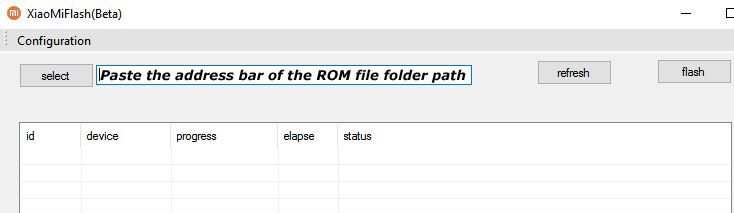
6) Now open MI Flash Tool and Paste the address bar of the ROM file folder path copied from above.

Mi Flash

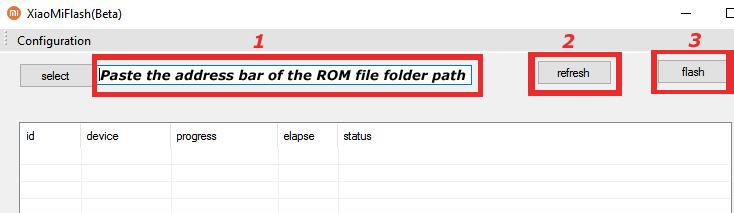
7) First, click on the ‘Refresh‘ button (It will automatically recognize your device) and then click on the ‘Flash‘ button to flash MIUI 12 ROM on your Devices.

Mi Flash

8) Wait for some time to complete the process.

9) Done. Your device will boot on the latest version.

Wrapping Up:

If you want to update Redmi Note 8 to Android 11, then you can follow the above process. Download MIUI 12.0.1.0 Global Stable ROM for Redmi Note 8 and flash it to update it manually. Comment below if you have any doubts.

Have any questions? Do let us know that in the comments below. Stay connected with us via Facebook and Twitter to read more such helpful posts.

The latest MIUI 12.5.5.0 update for Redmi Note 8 (2021) starts rolling out via OTA. The update brings June 2021 security patch. Follow the below guide to Download MIUI 12.5.5.0 Global Stable ROM for Redmi Note 8 (2021).

MIUI 12.5.5.0 Global Stable ROM for Redmi Note 8 (2021) is a stable version and can be flashed via Recovery or via Fastboot. You can wait for the OTA or download MIUI 12.5.5.0 for Redmi Note 8 (2021) from below.

You can Download Redmi Note 8 (2021) MIUI 12.5.5.0.RCUMIXM ROM from below and also manually check for the update by going to Settings -> About Phone -> System updates -> Check for update. Download MIUI 12.5.5.0 ROM for Redmi Note 8 (2021) from below.

Note:-

  • This Firmware file is only for Redmi Note 8 (2021). Don’t try this on any other device.
  • Follow the steps correctly otherwise you may brick your device. We are not responsible for any damage to your phone.
  • It may erase your data, so it is advisable to take a complete backup of your phone for a safer side.
  • Ensure that your phone has at least 50-60% charged to prevent the accidental shutdown in-between the process.

Download MIUI 12.5.5.0 Global Stable ROM for Redmi Note 8 (2021)

  • MIUI 12.5.5.0 OTA for Redmi Note 8 (2021) – Download
  • MIUI 12.5.5.0 Recovery ROM for Redmi Note 8 (2021) – Download
  • MIUI 12.5.5.0 Fastboot ROM for Redmi Note 8 (2021) – Download

How to Install MIUI 12.5.5.0 Global Stable ROM on Redmi Note 8 (2021) –

To install MIUI 12.5.5.0 update for Redmi Note 8 (2021) download either Recovery ROM or Fastboot ROM from above and use the below method to install this on your device.

Method 1 – Recovery Mode

Recovery Mode

  1. Download MIUI 12.5 Recovery ROM for Redmi Note 8 (2021) from above and save it on your device.
  2. Now launch the ‘Updater‘ app on your device.
  3. Click on the three-dot menu (‘…’ icon) at the top-right corner, and select the ‘choose update package‘.
  4. Browse through the files and select the package ending with .zip extension.
  5. Done. Your device will reboot on the latest version.

Method 2 – Fastboot Mode

1) First, Download Mi Flash Tool, extract it, and install it on your PC.

2) Now download MIUI 12.5 Fastboot ROM for Redmi Note 8 (2021) for your device.

3) Now boot your device into Fastboot mode by pressing the ‘Volume Down + Power‘ button.

4) Connect your device to the PC via a micro USB cable.

5) Now extract the Fastboot ROM and copy its path on the PC.

6) Now open MI Flash Tool and Paste the address bar of the ROM file folder path copied from above.

Mi Flash

7) First, click on the ‘Refresh‘ button (It will automatically recognize your device) and then click on the ‘Flash‘ button to flash MIUI 12 ROM on your Devices.

Mi Flash

8) Wait for some time to complete the process.

9) Done. Your device will boot on the latest version.

Wrapping Up:

Download MIUI 12.5.5.0 Global Stable ROM for Redmi Note 8 (2021) and flash it to update it manually. Comment below if you have any doubts.

Have any questions? Do let us know that in the comments below. Stay connected with us via Facebook and Twitter to read more such helpful posts.

The latest OxygenOS 10.3.12 starts rolling out for the OnePlus 6/6T. The new OxygenOS 10.3.12 update for OnePlus 6/6T improves the system stability, fixes known bugs, and brings the July 2021 security patch level. Download OxygenOS 10.3.12 for OnePlus 6/6T from below.

The OxygenOS 10.3.12 for OnePlus 6/6T is rolling out via OTA (over-the-air) in a phase-wise manner and many users already getting the update. You can wait for the OTA updates, or you can Update Oneplus 6T to OxygenOS 10.3.12 manually with the below method.

The new OxygenOS 10.3.12 update for the OnePlus 6T brings a few improvements to the device. We provide you the OxygenOS 10.3.12 OTA file which you can flash on your device. So if you want to update your OnePlus to the latest version then Download OxygenOS 10.3.12 for the OnePlus 6/6T from below. Check below what’s new in OxygenOS 10.3.12.

OxygenOS 10.3.12 Features and Changelogs –

  • System
    • Improved system stability
    • Upgraded Android Security Patch to 2021.07
    • Fixed some known issues

Note:-

  • This method is only for Oneplus 6/6T.
  • Full ROM can be flashed via TWRP as well.
  • Follow the steps correctly otherwise, you may brick your device. We Guidegeekz.com is not responsible for any damage to your phone.
  • Charge your device to 60- 70% to prevent it from accidental shutdown.
  • Take a complete backup of everything important.

Download OxygenOS 10.3.12 for OnePlus 6/6T

  • OxygenOS 10.3.12 update for OnePlus 6 – OTA, Full ROM
  • Download OxygenOS 10.3.12 OTA for OnePlus 6T – OTA, Full ROM

How to Install OxygenOS 10.3.12 Update on OnePlus 6/6T

For Non-Rooted Users

Method 1

  1. First, enable the USB debugging option from the setting ->developer option. To enable Developer Options, go to About phone and tap the Build Number 7 times.
  2. Download ADB and Fastboot and install them on your PC.
  3. Download OxygenOS 10.3.12 OTA from above Copy ROM to a folder where adb installed.
  4. Now Turn Off your phone and boot into the recovery mode.
  5. Choose Apply update from ADB
  6. Now Connect your phone to your Laptop/PC
  7. On ROM folder press shift+right click and click on the open command here.
  8. Now check your connection status by typing the below command
    adb devices
    if your device is listed, you’re ready to flash the ROM
  9. Now Install OxygenOS 10.3.12 OTA on the OnePlus 6T by typing the below command
    adb sideload File-Name.zip 
  10. Now, wait until the process completes, and then Reboot the phone.
  11. Done!

Method 2

  1. Download OxygenOS 10.3.12 OTA zip file from above and save it on your internal phone memory.
  2. Now Switch off your device and boot into the Recovery mode.
  3. To boot the OnePlus 6T into recovery mode press and hold ‘Power + Volume Down’ button.
  4. Now your phone boot into the Stock recovery.
  5. Now Select ‘Apply Update’ and select ‘Choose from Internal Storage
  6. Browse the OTA zip file which you download and save on your phone before.
  7. Select the zip file, and it will Install OxygenOS 10.3.12 OTA update file on your OnePlus 6T.
  8. Now wait until the process complete and then reboot your device.
  9. Done.

For Rooted Users

  1. First Unlock your device bootloader and Install TWRP on your Device. Skip this step if already installed TWRP.
  2. Reboot your device into Recovery mode and create a Nandroid backup (Recommended) of your device for the safer side, if anything goes wrong.
  3. Now wipe your cache files from Goto Wipe>Advanced Wipe>Select Wipe cache and Dalvik cache and swipe to confirm it.
  4. Now, Go to Install and locate the Full Rom Zip & swipe to Install the ROM file
  5. Now Flash the Magisk again to maintain the root (Optional).
  6. Wipe Dalvik & Cache again.
  7. Done! Reboot System and Enjoy.

Wrapping Up:

That’s all this is the complete guide to Download OxygenOS 10.3.12 for the OnePlus 6/6T. Have any questions? Do let us know that in the comments below. Stay connected with us via Facebook and Twitter to read more such helpful posts.

The latest OxygenOS 11.2.8.8 for the OnePlus 9/9 pro starts rolling out. The new OxygenOS 11.2.8.8 update for the OnePlus 9 series brings Bitmoji AOD and July 2021 security patches. Download OxygenOS 11.2.8.8 for OnePlus 9/9 pro from below.

The OxygenOS 11.2.8.8 for OnePlus 9/9 pro is rolling out via OTA (over-the-air) in a phase-wise manner and many users already getting the update. You can wait for the OTA updates, or you can Update Oneplus 9 to OxygenOS 11.2.8.8 manually with the below method.

The new OxygenOS 11.2.8.8 update for the OnePlus 9/9 pro brings many changes (Check the complete changelogs from below). We provide you the OxygenOS 11.2.8.8 OTA file which you can flash on your device. So if you want to update your OnePlus to the latest version then Download OxygenOS 11.2.8.8 for the OnePlus 9/9 pro from below. Check below what’s new in OxygenOS 11.2.8.8.

OxygenOS 11.2.8.8 Features and Changelogs –

  • System
    • Updated Android security patch to 2021.07
    • Fixed known issues and improved stability
  • Ambient Display
    • Newly added Bitmoji AOD, co-designed by Snapchat & Bitmoji, which will liven up the ambient display with your personal Bitmoji avatar. Your avatar will update throughout the day based on your activity and things happening around you ( Path: Settings – Customization – Clock on ambient display – Bitmoji )
  • OnePlus Store
    • An intuitive and convenient way to manage your OnePlus account, get easy-to-access support, discover exciting members-only benefits, and shop for OnePlus products.

Note:-

  • This method is only for the OnePlus 9/9 pro.
  • Full ROM can be flashed via TWRP as well.
  • Follow the steps correctly otherwise, you may brick your device. We Guidegeekz.com is not responsible for any damage to your phone.
  • Charge your device to 60- 70% to prevent it from accidental shutdown.
  • Take a complete backup of everything important.

Download OxygenOS 11.2.8.8 for OnePlus 9/9 pro

  • OxygenOS 11.2.8.8 update for OnePlus 9 – OTAFull ROM (India)
  • OxygenOS 11.2.8.8 ROM for OnePlus 9 pro – OTAFull ROM (India)

How to Install OxygenOS 11.2.8.8 Update on OnePlus 9/9 pro

For Non-Rooted Users

Method 1

  1. First, enable the USB debugging option from the setting ->developer option. To enable Developer Options, go to About phone and tap the Build Number 7 times.
  2. Download ADB and Fastboot and install them on your PC.
  3. Download OxygenOS 11.2.8.8 OTA from above Copy ROM to a folder where adb installed.
  4. Now Turn Off your phone and boot into recovery mode.
  5. Choose Apply update from ADB
  6. Now Connect your phone to your Laptop/PC
  7. On ROM folder press shift+right click and click on the open command here.
  8. Now check your connection status by typing the below command
    adb devices
    if your device is listed, you’re ready to flash the ROM
  9. Now Install OxygenOS 11.2.8.8 OTA on the OnePlus 9 series by typing the below command
    adb sideload File-Name.zip 
  10. Now, wait until the process completes, and then Reboot the phone.
  11. Done!

Method 2

  1. Download OxygenOS 11.2.8.8 OTA zip file from above and save it on your internal phone memory.
  2. Now Switch off your device and boot into the Recovery mode.
  3. To boot the OnePlus 9 into recovery mode press and hold ‘Power + Volume Down’ button.
  4. Now your phone boot into the Stock recovery.
  5. Now Select ‘Apply Update’ and select ‘Choose from Internal Storage
  6. Browse the OTA zip file which you download and save on your phone before.
  7. Select the zip file, and it will Install OxygenOS 11.2.8.8 OTA update file on your OnePlus 9.
  8. Now wait until the process complete and then reboot your device.
  9. Done.

For Rooted Users

  1. First Unlock your device bootloader and Install TWRP on your Device. Skip this step if already installed TWRP.
  2. Reboot your device into Recovery mode and create a Nandroid backup (Recommended) of your device for the safer side, if anything goes wrong.
  3. Now wipe your cache files from Goto Wipe>Advanced Wipe>Select Wipe cache and Dalvik cache and swipe to confirm it.
  4. Now, Go to Install and locate the OOS 11.2.8.8 Full Rom Zip & swipe to Install the ROM file
  5. Now Flash the Magisk again to maintain the root (Optional).
  6. Wipe Dalvik & Cache again.
  7. Done! Reboot System and Enjoy.

Wrapping Up:

That’s all this is the complete guide to Download OxygenOS 11.2.8.8 for OnePlus 9/9 pro (OTA + Full ROM). Have any questions? Do let us know that in the comments below. Stay connected with us via Facebook and Twitter to read more such helpful posts.

The latest MIUI 12.0.12.0 update for Redmi 9 starts rolling out via OTA. The update brings the latest June 2021 security patch to the device. Follow the below guide to Download MIUI 12.0.12.0 India Stable ROM for Redmi 9.

MIUI 12.0.12.0 India Stable ROM for Redmi 9 is a stable version and can be flashed via Recovery or via Fastboot. You can download MIUI 12.0.12.0 for Redmi 9 from below.

You can Download Redmi 9 MIUI 12.0.12.0.QCTINXM ROM from below and also manually check for the update by going to Settings -> About Phone -> System updates -> Check for update. Download MIUI 12.0.12.0 Stable ROM for Redmi 9 from below.

Changelog

– [System]

  • Updated Android Security Patch to June 2021. Increased system security.

Note:-

  • This Firmware file is only for Redmi 9. Don’t try this on any other device.
  • Follow the steps correctly otherwise you may brick your device. We are not responsible for any damage to your phone.
  • It may erase your data, so it is advisable to take a complete backup of your phone for a safer side.
  • Ensure that your phone has at least 50-60% charged to prevent the accidental shutdown in-between the process.

Download MIUI 12.0.12.0 India Stable ROM for Redmi 9

  • Redmi 9 MIUI 12.0.12.0 OTA update – Download
  • MIUI 12.0.12.0 Recovery ROM for Redmi 9 – Download
  • MIUI 12.0.12.0 Fastboot ROM for Redmi 9 – Coming Soon

How to Install MIUI 12.0.12.0 India Stable ROM on Redmi 9 –

To install MIUI 12.0.12.0 update for Redmi 9 download either Recovery ROM or Fastboot ROM from above and use the below method to install this on your device.

Method 1 – Recovery Mode

Recovery Mode

  1. Download Recovery ROM for Redmi 9 from above and save it on your device.
  2. Now launch the ‘Updater‘ app on your device.
  3. Click on the three-dot menu (‘…’ icon) at the top-right corner, and select the ‘choose update package‘.
  4. Browse through the files and select the package ending with .zip extension.
  5. Done. Your device will reboot on the latest version.

Method 2 – Fastboot Mode

1) First, Download Mi Flash Tool, extract it and install it on your PC.

2) Now download Fastboot ROM for Redmi 9 for your device.

3) Now boot your device into Fastboot mode by pressing the ‘Volume Down + Power‘ button.

4) Connect your device to the PC via a micro USB cable.

5) Now extract the Fastboot ROM and copy its path on the PC.

6) Now open MI Flash Tool and Paste the address bar of the ROM file folder path copied from above.

Mi Flash

7) First, click on the ‘Refresh‘ button (It will automatically recognize your device) and then click on the ‘Flash‘ button to flash MIUI 12 ROM on your Devices.

Mi Flash

8) Wait for some time to complete the process.

9) Done. Your device will boot on the latest version.

Wrapping Up:

Download MIUI 12.0.12.0 India Stable ROM for Redmi 9 and flash it to update it manually. Comment below if you have any doubts.

Good news for Redmi Note 7 users, the latest MIUI 12.5 update for Redmi Note 7 starts rolling out via OTA. The update brings lots of new features, improvements, and June Security patches. Follow the below guide to Download MIUI 12.5.1.0 Global Stable ROM for Redmi Note 7.

MIUI 12.5.1.0 Global Stable ROM for Redmi Note 7 is a stable version and can be flashed via Recovery or via Fastboot. You can wait for the OTA or download MIUI 12.5.1.0 for Redmi Note 7 from below.

You can Download Redmi Note 7 MIUI 12.5.1.0.QFGMIXM ROM from below and also manually check for the update by going to Settings -> About Phone -> System updates -> Check for update. Download MIUI 12.5 ROM for Redmi Note 7 from below.

Changelogs:

[System]

  • New: Response to gestures is now instant.
  • New: With 20 times more rendering power, there are now few limits to what you can see on your screen.
  • New: With custom device model adjustments, any phone becomes faster after the upgrade.
  • Optimization: MIUI became lighter, faster, and more durable.
  • Updated Android Security Patch to June 2021. Increased system security.

[Notes]

  • New: Compose mind maps with complex structures.
  • New: New tools for doodling and sketching.
  • New: Press and hold a sketch to adjust the strokes automatically.
  • New: A gesture shortcut now allows you to create notes, tasks, and excerpts anywhere.
  • New: Excerpts save text, URLs, and images to Notes in a few simple taps.
  • New: Dynamic layouts bring the typography in Notes to a new level.
  • All-new Notes.

Note:-

  • This Firmware file is only for Redmi Note 7. Don’t try this on any other device.
  • Follow the steps correctly otherwise you may brick your device. We are not responsible for any damage to your phone.
  • It may erase your data, so it is advisable to take a complete backup of your phone for a safer side.
  • Ensure that your phone has at least 50-60% charged to prevent the accidental shutdown in-between the process.

Download MIUI 12.5.1.0 Global Stable ROM for Redmi Note 7

  • MIUI 12.5.1.0 OTA for Redmi Note 7 – Download
  • MIUI 12.5.1.0 Recovery ROM for Redmi Note 7 – Download
  • MIUI 12.5.1.0 Fastboot ROM for Redmi Note 7 – Download

How to Install MIUI 12.5.1.0 Global Stable ROM on Redmi Note 7 –

To install MIUI 12.5.1.0 update for Redmi Note 7 download either Recovery ROM or Fastboot ROM from above and use the below method to install this on your device.

Method 1 – Recovery Mode

Recovery Mode

  1. Download MIUI 12.5 Recovery for Redmi Note 7 from above and save it on your device.
  2. Now launch the ‘Updater‘ app on your device.
  3. Click on the three-dot menu (‘…’ icon) at the top-right corner, and select the ‘choose update package‘.
  4. Browse through the files and select the package ending with .zip extension.
  5. Done. Your device will reboot on the latest version.

Method 2 – Fastboot Mode

1) First, Download Mi Flash Tool, extract it and install it on your PC.

2) Now download MIUI 12.5 ROM for Redmi Note 7 for your device.

3) Now boot your device into Fastboot mode by pressing the ‘Volume Down + Power‘ button.

4) Connect your device to the PC via a micro USB cable.

5) Now extract the Fastboot ROM and copy its path on the PC.

6) Now open MI Flash Tool and Paste the address bar of the ROM file folder path copied from above.

Mi Flash

7) First, click on the ‘Refresh‘ button (It will automatically recognize your device) and then click on the ‘Flash‘ button to flash MIUI 12 ROM on your Devices.

Mi Flash

8) Wait for some time to complete the process.

9) Done. Your device will boot on the latest version.

Wrapping Up:

Download MIUI 12.5.1.0 Global Stable ROM for Redmi Note 7 and flash it to update it manually. Comment below if you have any doubts.

Have any questions? Do let us know that in the comments below. Stay connected with us via Facebook and Twitter to read more such helpful posts.

The latest June Security Patch update for Realme 7 starts rolling out. The latest Realme 7 A.91 update is based on Realme UI 1.0 and brings tons of new features and optimizations. You can Download Realme 7 A.91 OTA Update OTA from below.

The Realme 7 June update has the software version RMX2151PU_11.A.91. The update is rolling out via OTA in a phase-wise manner. However, if you don’t want to wait, you could just go to Settings and manually check for the update or simply follow the below guide. Download Realme 7 A.91 update file from below.

The new A91 update for Realme 7 brings enhancements to the system functions for increased user experience and June 2021 Security Patch. You can manually update Realme 7 to June 2021 Security Patch by downloading the OTA file below.

Changelogs:

  • Security
    ● Android security patch: June, 2021
  • System
    ● Optimized the system performance
    ● Optimized the system stability

Before You Begin

  • This method is only for Realme 7. Don’t try this on any other device.
  • Follow the steps correctly otherwise, you may brick your device. We Guidegeekz.com is not responsible for any damage to your phone.
  • Charge your device to 60- 70% to prevent it from accidental shutdown.
  • Take a complete backup of everything important.

Download Realme 7 A.91 OTA Update

  • Download Realme 7 A.91 update – India

How to Install A91 Update on Realme 7 –

Method 1 –

  1. Download Realme 7 RMX2151PU_11.A.91 Zip from above and save it to internal memory.
  2. Reboot Realme 7 to Recovery mode by using the below steps.
    • Turn Off your device
    • Press and hold the ‘Vol down+Power’ button.
  3. Choose the language you want.
  4. In recovery mode select Install from storage device.
  5. Choose the zip file from phone storage or From the SD card and wait.
  6. Done! Reboot your phone after the process complete.

Method 2 –

  1. Download the Realme 7 A91 OTA ozip file from above and save it on your device.
  2. Go to the download folder and rename the file to update.zip
  3. Place it in the root directory of internal storage.
  4. Click the firmware to start the update.
  5. Wait for the update to finish and restart when prompted.

Wrapping Up:

If you want to update your device to the latest version then Download Realme 7 A.91 OTA Update from above and install it manually. If you have any questions related to this post, feel free to leave that in the comment section.

The latest MIUI 12.5.5.0 update for Mi 11 starts rolling out via OTA. The update fixes knuckle double-tap stopped working after Game Turbo had been turned off and June 2021 security patch. Follow the below guide to Download MIUI 12.5.53.0 Global Stable ROM for Mi 11.

MIUI 12.5.5.0 Global Stable ROM for Mi 11 is a stable version and can be flashed via Recovery or via Fastboot. You can also try Android 12 on Mi 11 which is currently in the beta stage.

You can Download Mi 11 MIUI 12.5.5.0.RKBMIXM ROM from below and also manually check for the update by going to Settings -> About Phone -> System updates -> Check for update. Download MIUI 12.5.5.0 Stable ROM for Mi 11 from below.

Changelogs:

[System]

  • Updated Android Security Patch to June 2021. Increased system security.

[Other]

  • Fix: Knuckle double tap stopped working after Game Turbo had been turned off

Note:-

  • This Firmware file is only for Mi 11. Don’t try this on any other device.
  • Follow the steps correctly otherwise you may brick your device. We are not responsible for any damage to your phone.
  • It may erase your data, so it is advisable to take a complete backup of your phone for a safer side.
  • Ensure that your phone has at least 50-60% charged to prevent the accidental shutdown in-between the process.

Download MIUI 12.5.5.0 Global Stable ROM for Mi 11

  • MIUI 12.5.5.0 OTA for Mi 11 – Download
  • MIUI 12.5.5.0 Recovery ROM for Mi 11 – Download
  • MIUI 12.5.5.0 Fastboot ROM for Mi 11 – Download

How to Install MIUI 12.5.5.0 Global Stable ROM on Mi 11 –

To install MIUI 12.5.5.0 update for Mi 11 download either Recovery ROM or Fastboot ROM from above and use the below method to install this on your device.

Method 1 – Recovery Mode

Recovery Mode

  1. Download MIUI 12.5 Recovery ROM for Mi 11 from above and save it on your device.
  2. Now launch the ‘Updater‘ app on your device.
  3. Click on the three-dot menu (‘…’ icon) at the top-right corner, and select the ‘choose update package‘.
  4. Browse through the files and select the package ending with .zip extension.
  5. Done. Your device will reboot on the latest version.

Method 2 – Fastboot Mode

1) First, Download Mi Flash Tool, extract it and install it on your PC.

2) Now download MIUI 12.5 Fastboot ROM for Mi 11 for your device.

3) Now boot your device into Fastboot mode by pressing the ‘Volume Down + Power‘ button.

4) Connect your device to the PC via a micro USB cable.

5) Now extract the Fastboot ROM and copy its path on the PC.

6) Now open MI Flash Tool and Paste the address bar of the ROM file folder path copied from above.

Mi Flash

7) First, click on the ‘Refresh‘ button (It will automatically recognize your device) and then click on the ‘Flash‘ button to flash MIUI 12 ROM on your Devices.

Mi Flash

8) Wait for some time to complete the process.

9) Done. Your device will boot on the latest version.

Wrapping Up:

Download MIUI 12.5.5.0 Global Stable ROM for Mi 11 and flash it to update it manually. Comment below if you have any doubts.

Have any questions? Do let us know that in the comments below. Stay connected with us via Facebook and Twitter to read more such helpful posts.