Author

Sumit Bahl

Browsing

The latest June Security Patch update for Realme X2 Pro starts rolling out. The latest Realme X2 Pro C.38 update is based on Realme UI 1.0 and brings tons of new features and optimizations. You can Download Realme X2 Pro C.38 OTA Update OTA from below.

The Realme X2 Pro June update has the software version RMX1931EX_11_C.38. The update is rolling out via OTA in a phase-wise manner. However, if you don’t want to wait, you could just go to Settings and manually check for the update or simply follow the below guide. Download Realme X2 Pro C.38 update file from below.

The new C38 update for Realme X2 Pro brings enhancements to the system functions for increased user experience and June 2021 Security Patch. You can manually update Realme X2 Pro to June 2021 Security Patch by downloading the OTA file below. The Realme UI 2.0 based Android 11 update for Realme X2 Pro also rolling out and will be available for users soon.

Changelogs:

  • Security
    ● Android security patch: June, 2021
  • System
    ● Optimized the system performance
    ● Optimized the system stability

Before You Begin

  • This method is only for Realme X2 Pro. Don’t try this on any other device.
  • Follow the steps correctly otherwise, you may brick your device. We Guidegeekz.com is not responsible for any damage to your phone.
  • Charge your device to 60- 70% to prevent it from accidental shutdown.
  • Take a complete backup of everything important.

Download Realme X2 Pro C.38 OTA Update

How to Install C38 Update on Realme X2 Pro –

Method 1 –

  1. Download Realme X2 Pro RMX1931EX_11_C.38 Zip from above and save it to internal memory.
  2. Reboot Realme X2 Pro to Recovery mode by using the below steps.
    • Turn Off your device
    • Press and hold the ‘Vol down+Power’ button.
  3. Choose the language you want.
  4. In recovery mode select Install from storage device.
  5. Choose the zip file from phone storage or From the SD card and wait.
  6. Done! Reboot your phone after the process complete.

Method 2 –

  1. Download the Realme X2 Pro C38 OTA ozip file from above and save it on your device.
  2. Go to the download folder and rename the file to update.zip
  3. Place it in the root directory of internal storage.
  4. Click the firmware to start the update.
  5. Wait for the update to finish and restart when prompted.

Wrapping Up:

If you want to update your device to the latest version then Download Realme X2 Pro C.38 OTA Update from above and install it manually. If you have any questions related to this post, feel free to leave that in the comment section.

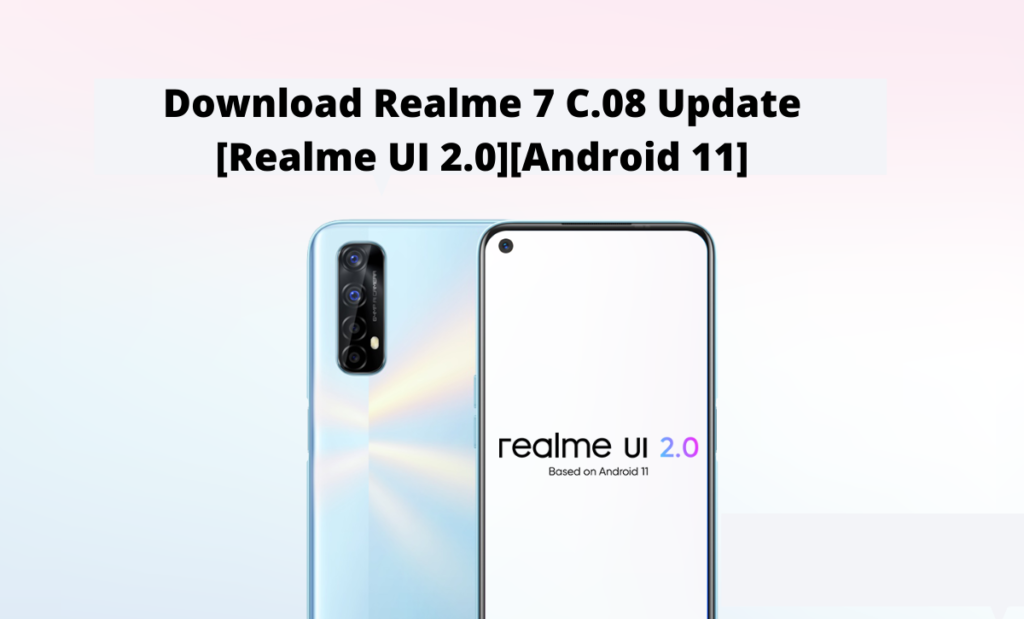
The latest Realme UI 2.0 based Android 11 update for Realme 7 starts rolling out. The latest Realme 7 Android 11 update is based on Realme UI 2.0 and brings tons of new features and optimizations. You can Download Realme 7 C.08 Update OTA Zip from below to Update Realme 7 to Android 11.

The Realme 7 Realme UI 2.0 update has the software version RMX2151_11_C.08 and weighs 349 MB. The update is rolling out in a phase-wise manner, so you have to wait a little longer for the turn to reach your device. If you don’t want to wait, you could just go to Settings, check the update manually, or follow the guide below. Download Realme 7 C.08 OTA zip file from below.

The new Realme UI 2.0 Update for Realme 7 brings several exciting features, including improved Dark Mode, Parental Controls, Digital Wellbeing, new lock screen customization options, and more. You can check the complete changelog of Realme 7 Realme UI 2.0 from below.

Download Realme 7 C.08 Update


Changelogs of Realme 7 Android 11 update:

[Security]
• Android Security Patch: May and June 2021

[Camera]
• Fixed probabilistic screen flash issue in camera’s portrait mode
• Fixed probabilistic issue of unable to focus Call
• Fixed probabilistic noise issue when calling

[Third-party]
• Fixed probabilistic screen flash issue when video calling on WhatsApp

[System]
• Optimized performance of the system, improve its stability

Before You Begin

  • This method is only for Realme 7. Don’t try this on any other device.
  • Follow the steps correctly otherwise, you may brick your device. We Guidegeekz.com is not responsible for any damage to your phone.
  • Charge your device to 60- 70% to prevent it from accidental shutdown.
  • Take a complete backup of everything important.

Download Realme 7 C.08 Update

  • Realme 7 RMX2151_11_C.08 OTA – Coming Soon (Download link added soon)

How to Install Android 11 Update on Realme 7 –

Method 1 –

  1. Download Realme 7 C.08 Zip from above and save it to internal memory.
  2. Reboot Realme 7 to Recovery mode by using the below steps.
    • Turn Off your device
    • Press and hold the ‘Vol down+Power’ button.
  3. Choose the language you want.
  4. In recovery mode select Install from storage device.
  5. Choose the zip file from phone storage or the SD card and wait.
  6. Done! Reboot your phone after the process complete.

Method 2 –

  1. Download the Realme 7 C08 OTA zip file from above and save it on your device.
  2. Go to the download folder and rename the file to update.zip
  3. Place it in the root directory of internal storage.
  4. Click the firmware to start the update.
  5. Wait for the update to finish and restart when prompted.

Wrapping Up:

If you want to update your device to the latest version then Download Android 11 based Realme UI 2.0 Update for Realme 7 from above and install it manually. If you have any questions related to this post, feel free to leave that in the comment section.

The latest Realme UI 2.0 based Android 11 update for Realme X2 Pro starts rolling out. The latest Realme X2 Pro Android 11 update is based on Realme UI 2.0 and brings tons of new features and optimizations. You can Download Realme X2 Pro F.11 Update OTA Zip from below to Update Realme X2 Pro to Android 11.

The Realme X2 Pro Realme UI 2.0 update has the software version RMX1931_11_F.11 and weighs 349 MB. The update is rolling out in a phase-wise manner, so you have to wait a little longer for the turn to reach your device. If you don’t want to wait, you could just go to Settings, check the update manually, or follow the guide below. Download Realme X2 Pro F.11 OTA zip file from below.

The new Realme UI 2.0 Update for Realme X2 Pro brings several exciting features, including improved customization, new privacy controls, a refreshed user interface, chat bubbles, a screen recorder, one-time permissions, notification history, and more. You can check the complete changelog of Realme X2 Pro Realme UI 2.0 from below.

Download Realme X2 Pro F.11 Update

Changelogs of Realme X2 Pro Android 11 update:

Personalizations

Personalize the user interface to make it your own

  • You can now create your own wallpaper by picking colors from your photos.
  • Third-party icons for apps on the home screen are now supported.
  • Three Dark mode styles are available: Enhanced, medium, and gentle; wallpapers and icons can be adjusted to Dark mode, and the display contrast can be adjusted automatically to ambient light.

High Efficiency

  • You can now drag text, images, or files out of a floating window or from one app to another app in Split-screen mode.
  • Optimized the editing page of Smart Sidebar: Two tabs are displayed and the order of items can be customized.

System

  • Added “Tone tunes”: Consecutive notification tones will be linked to form a single melody.
  • Added weather animations to provide you with a more interesting experience.
  • Optimized vibration effects for text input and gameplay.
  • Optimized “Auto brightness”.

Launcher

  • You can now remove a folder or combine it with another one.
  • Added filters for “Drawer mode”: You can now filter apps by letters, install time, or usage frequency to quickly find an app.

Security and Privacy

  • You can now turn “App lock” on or off in Quick Settings.
  • Added “Low battery message”: When your phone battery is lower than 15%, you can quickly send a message to share your location with specified people.
  • More powerful SOS functions Emergency info: You can quickly display your personal emergency info to first responders. The information can be shown even when your screen is locked.
  • Optimized “Permission manager”: You can now choose “Allow only once” for sensitive permissions to better protect your privacy.

Games

  • Added Immersive mode which reduces disturbances while gaming so you can stay focused.
  • You can change the way to summon Game Assistant.

Communications

  • You can share your personal hotspot with others via a QR code.

Photos

  • Optimized the photo editing feature with upgraded algorithms and more markup effects and filters.

HeyTap Cloud

  • You can back up your photos, documents, system settings, WeChat data, and more, and easily migrate to a new phone.
  • You can select the types of data to be backed up or restored.

Camera

  • Added shortcuts to instantly share and edit photos or videos you just took.
  • Added the inertial zoom feature which makes zooming smoother during video shooting.
  • Added the level and grid feature to help you compose videos.

realme Lab

  • Added Sleep Capsule for you to restrict your phone use for better rest and sleep.

Accessibility

  • Added “Sound amplifier”: You can amplify faint sounds in the environment and soften loud sounds when wearing earphones.

Before You Begin

  • This method is only for Realme X2 Pro. Don’t try this on any other device.
  • Follow the steps correctly otherwise, you may brick your device. We Guidegeekz.com is not responsible for any damage to your phone.
  • Charge your device to 60- 70% to prevent it from accidental shutdown.
  • Take a complete backup of everything important.

Download Realme X2 Pro F.11 Update

  • Realme X2 Pro RMX1931_11_F.11 OTA – Coming Soon (Download link added soon)

How to Install Android 11 Update on Realme X2 Pro –

Method 1 –

  1. Download Realme X2 Pro F.11 Zip from above and save it to internal memory.
  2. Reboot Realme X2 Pro to Recovery mode by using the below steps.
    • Turn Off your device
    • Press and hold the ‘Vol down+Power’ button.
  3. Choose the language you want.
  4. In recovery mode select Install from storage device.
  5. Choose the zip file from phone storage or the SD card and wait.
  6. Done! Reboot your phone after the process complete.

Method 2 –

  1. Download the Realme X2 Pro F11 OTA zip file from above and save it on your device.
  2. Go to the download folder and rename the file to update.zip
  3. Place it in the root directory of internal storage.
  4. Click the firmware to start the update.
  5. Wait for the update to finish and restart when prompted.

Wrapping Up:

If you want to update your device to the latest version then Download Android 11 based Realme UI 2.0 Update for Realme X2 Pro from above and install it manually. If you have any questions related to this post, feel free to leave that in the comment section.
Good news for Mi 10 Pro users, the latest MIUI 12.5 update for Mi 10 Pro starts rolling out via OTA. The update is based on Android 11 and brings lots of new features and improvements. Follow the below guide to Download MIUI 12.5.1.0 Global Stable ROM for Mi 10 Pro.

MIUI 12.5.1.0 Global Stable ROM for Mi 10 Pro is a stable version and can be flashed via Recovery or via Fastboot. You can wait for the OTA or download MIUI 12.5.1.0 for Mi 10  Pro from below.

You can Download Mi 10 Pro MIUI 12.5.1.0.RJAMIXM ROM from below and also manually check for the update by going to Settings -> About Phone -> System updates -> Check for update. Download MIUI 12.5 ROM for Mi 10 Pro from below.

Changelogs:

[System]

  • New: Response to gestures is now instant.
  • New: With 20 times more rendering power, there are now few limits to what you can see on your screen.
  • New: With custom device model adjustments, any phone becomes faster after the upgrade.
  • Optimization: MIUI became lighter, faster, and more durable.

[Notes]

  • New: A gesture shortcut now allows you to create notes, tasks, and excerpts anywhere.
  • New: Excerpts save text, URLs, and images to Notes in a few simple taps.
  • New: Dynamic layouts bring the typography in Notes to a new level.
  • New: Compose mind maps with complex structures.
  • New: New tools for doodling and sketching.
  • New: Press and hold a sketch to adjust the strokes automatically.
  • All-new Notes.

Note:-

  • This Firmware file is only for Mi 10 Pro. Don’t try this on any other device.
  • Follow the steps correctly otherwise you may brick your device. We are not responsible for any damage to your phone.
  • It may erase your data, so it is advisable to take a complete backup of your phone for a safer side.
  • Ensure that your phone has at least 50-60% charged to prevent the accidental shutdown in-between the process.

Download MIUI 12.5.1.0 Global Stable ROM for Mi 10 Pro

  • MIUI 12.5.1.0 OTA for Mi 10 Pro – Download
  • MIUI 12.5.1.0 Recovery ROM for Mi 10 Pro – Download
  • MIUI 12.5.1.0 Fastboot ROM for Mi 10 Pro – Download

How to Install MIUI 12.5.1.0 Global Stable ROM on Mi 10 Pro –

To install MIUI 12.5.1.0 update for Mi 10 Pro download either Recovery ROM or Fastboot ROM from above and use the below method to install this on your device.

Method 1 – Recovery Mode

Recovery Mode

  1. Download Android 11 ROM for Mi 10 Pro from above and save it on your device.
  2. Now launch the ‘Updater‘ app on your device.
  3. Click on the three-dot menu (‘…’ icon) at the top-right corner, and select the ‘choose update package‘.
  4. Browse through the files and select the package ending with .zip extension.
  5. Done. Your device will reboot on the latest version.

Method 2 – Fastboot Mode

1) First, Download Mi Flash Tool, extract it, and install it on your PC.

2) Now download MIUI 12.5 ROM for Mi 10 Pro for your device.

3) Now boot your device into Fastboot mode by pressing the ‘Volume Down + Power‘ button.

4) Connect your device to the PC via a micro USB cable.

5) Now extract the Fastboot ROM and copy its path on the PC.

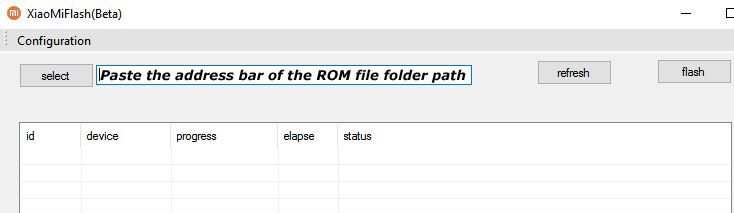
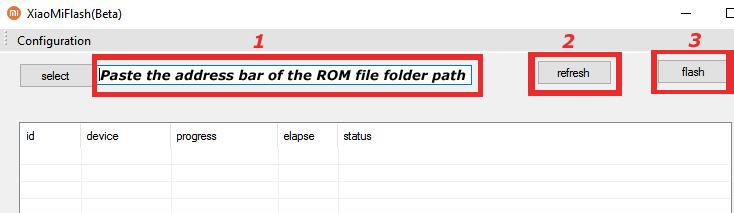
6) Now open MI Flash Tool and Paste the address bar of the ROM file folder path copied from above.

Mi Flash

7) First, click on the ‘Refresh‘ button (It will automatically recognize your device) and then click on the ‘Flash‘ button to flash MIUI 12 ROM on your Devices.

Mi Flash

8) Wait for some time to complete the process.

9) Done. Your device will boot on the latest version.

Wrapping Up:

Download MIUI 12.5.1.0 Global Stable ROM for Mi 10 Pro and flash it to update it manually. Comment below if you have any doubts.

Have any questions? Do let us know that in the comments below. Stay connected with us via Facebook and Twitter to read more such helpful posts.

The latest MIUI 12.0.11.0 update for Redmi 9T starts rolling out via OTA. The update brings a few improvements and fixes bugs. Follow the below guide to Download MIUI 12.0.11.0 Global Stable ROM for Redmi 9T.

MIUI 12.0.11.0 Global Stable ROM for Redmi 9T is a stable version and can be flashed via Recovery or via Fastboot. You can download MIUI 12.0.11.0 for Redmi 9T from below.

You can Download Redmi 9T MIUI 12.0.11.0.QJQMIXM ROM from below and also manually check for the update by going to Settings -> About Phone -> System updates -> Check for update. Download MIUI 12.0.11.0 Stable ROM for Redmi 9T from below.

Changelog:

[Other]

  • Optimization: Increased system stability
  • Optimization: Reduced system lag

Note:-

  • This Firmware file is only for Redmi 9T. Don’t try this on any other device.
  • Follow the steps correctly otherwise you may brick your device. We are not responsible for any damage to your phone.
  • It may erase your data, so it is advisable to take a complete backup of your phone for a safer side.
  • Ensure that your phone has at least 50-60% charged to prevent the accidental shutdown in between the process.

Download MIUI 12.0.11.0 Global Stable ROM for Redmi 9T

  • Redmi 9T MIUI 12.0.11.0 OTA update – Download
  • MIUI 12.0.11.0 Recovery ROM for Redmi 9T – Download
  • MIUI 12.0.11.0 Fastboot ROM for Redmi 9T – Download

How to Install MIUI 12.0.11.0 Global Stable ROM on Redmi 9T –

To install MIUI 12.0.11.0 update for Redmi 9T download either Recovery ROM or Fastboot ROM from above and use the below method to install this on your device.

Method 1 – Recovery Mode

Recovery Mode

  1. Download Recovery ROM for Redmi 9T from above and save it on your device.
  2. Now launch the ‘Updater‘ app on your device.
  3. Click on the three-dot menu (‘…’ icon) at the top-right corner, and select the ‘choose update package‘.
  4. Browse through the files and select the package ending with .zip extension.
  5. Done. Your device will reboot on the latest version.

Method 2 – Fastboot Mode

1) First, Download Mi Flash Tool, extract it and install it on your PC.

2) Now download Fastboot ROM for Redmi 9T for your device.

3) Now boot your device into Fastboot mode by pressing the ‘Volume Down + Power‘ button.

4) Connect your device to the PC via a micro USB cable.

5) Now extract the Fastboot ROM and copy its path on the PC.

6) Now open MI Flash Tool and Paste the address bar of the ROM file folder path copied from above.

Mi Flash

7) First, click on the ‘Refresh‘ button (It will automatically recognize your device) and then click on the ‘Flash‘ button to flash MIUI 12 ROM on your Devices.

Mi Flash

8) Wait for some time to complete the process.

9) Done. Your device will boot on the latest version.

Wrapping Up:

Download MIUI 12.0.11.0 Global Stable ROM for Redmi 9T and flash it to update it manually. Comment below if you have any doubts.

The latest MIUI 12.5 update for POCO F2 Pro starts rolling out via OTA. The update is based on Android 11 and brings lots of new features and improvements along with June security patch. Follow the below guide to Download MIUI 12.5.1.0 Global Stable ROM for POCO F2 Pro.

MIUI 12.5.1.0 Global Stable ROM for POCO F2 Pro is a stable version and can be flashed via Recovery or via Fastboot. You can wait for the OTA or download MIUI 12.5.1.0 for POCO F2 Pro from below.

You can Download POCO F2 Pro MIUI 12.5.1.0.RJXMIXM ROM from below and also manually check for the update by going to Settings -> About Phone -> System updates -> Check for update. Download MIUI 12.5.1.0 ROM for POCO F2 Pro from below.

POCO F2 Pro MIUI 12.5.1.0 Changelog

[System]

  • New: Response to gestures is now instant.
  • New: With 20 times more rendering power, there are now few limits to what you can see on your screen.
  • New: With custom device model adjustments, any phone becomes faster after the upgrade.
  • Optimization: MIUI became lighter, faster, and more durable.
  • Stable MIUI based on Android 11
  • Updated Android Security Patch to June 2021. Increased system security.

[Notes]

  • New: Compose mind maps with complex structures.
  • New: New tools for doodling and sketching.
  • New: Press and hold a sketch to adjust the strokes automatically.
  • New: A gesture shortcut now allows you to create notes, tasks, and excerpts anywhere.
  • New: Excerpts save text, URLs, and images to Notes in a few simple taps.
  • New: Dynamic layouts bring the typography in Notes to a new level.
  • All-new Notes.

[Xiaomi Cloud]

  • New: Location info can be now reported automatically before the device is powered off

[Status bar, Notification shade]

  • Fix: Lock screen notification animations froze after the device was unlocked using face data
  • Fix: Notifications flashed in some cases
  • Fix: Floating notifications weren’t displayed correctly in landscape mode
  • Fix: Notification badges weren’t updated for incoming notifications on a locked device

Note:-

  • This Firmware file is only for POCO F2 Pro. Don’t try this on any other device.
  • Follow the steps correctly otherwise you may brick your device. We are not responsible for any damage to your phone.
  • It may erase your data, so it is advisable to take a complete backup of your phone for a safer side.
  • Ensure that your phone has at least 50-60% charged to prevent the accidental shutdown in between the process.

Download MIUI 12.5.1.0 Global Stable ROM for POCO F2 Pro

  • MIUI 12.5.1.0 OTA for POCO F2 Pro  – Download
  • MIUI 12.5.1.0 Recovery ROM for POCO F2 Pro – Download
  • MIUI 12.5.1.0 Fastboot ROM for POCO F2 Pro – Download

How to Install MIUI 12.5.1.0 Global Stable ROM on POCO F2 Pro –

To install MIUI 12.5.1.0 update for POCO F2 Pro download either Recovery ROM or Fastboot ROM from above and use the below method to install this on your device.

Method 1 – Recovery Mode

Recovery Mode

  1. Download Android 11 Recovery ROM for POCO F2 Pro from above and save it on your device.
  2. Now launch the ‘Updater‘ app on your device.
  3. Click on the three-dot menu (‘…’ icon) at the top-right corner, and select the ‘choose update package‘.
  4. Browse through the files and select the package ending with .zip extension.
  5. Done. Your device will reboot on the latest version.

Method 2 – Fastboot Mode

1) First, Download Mi Flash Tool, extract it, and install it on your PC.

2) Now download MIUI 12.5 fastboot ROM for POCO F2 Pro for your device.

3) Now boot your device into Fastboot mode by pressing the ‘Volume Down + Power‘ button.

4) Connect your device to the PC via a micro USB cable.

5) Now extract the Fastboot ROM and copy its path on the PC.

6) Now open MI Flash Tool and Paste the address bar of the ROM file folder path copied from above.

Mi Flash

7) First, click on the ‘Refresh‘ button (It will automatically recognize your device) and then click on the ‘Flash‘ button to flash MIUI 12 ROM on your Devices.

Mi Flash

8) Wait for some time to complete the process.

9) Done. Your device will boot on the latest version.

Wrapping Up:

Download MIUI 12.5.1.0 Global Stable ROM for POCO F2 Pro and flash it to update it manually. Comment below if you have any doubts.

Have any questions? Do let us know that in the comments below. Stay connected with us via Facebook and Twitter to read more such helpful posts.

The latest June Security Patch update for Realme 6 and 6i starts rolling out. The latest Realme 6/6i B.63 update is based on Realme UI 1.0 and brings tons of new features and optimizations. You can Download Realme 6/6i B.63 Update OTA Zip from below.

The Realme 6 June update has the software version RMX2001_11.B.63. The update is rolling out via OTA in a phase-wise manner. However, if you don’t want to wait, you could just go to Settings and manually check for the update or simply follow the below guide. Download Realme 6/6i B.63 update file from below.

The new B63 update for Realme 6 and 6i brings enhancements to the system functions for increased user experience. and June 2021 Security Patch. You can manually update Realme 6 to June 2021 Security Patch by downloading the OTA file below.

Changelogs:

  • Security
    ● Android security patch: June, 2021
  • System
    ● Optimized the system performance
    ● Optimized the system stability

Before You Begin

  • This method is only for Realme 6/6i. Don’t try this on any other device.
  • Follow the steps correctly otherwise, you may brick your device. We Guidegeekz.com is not responsible for any damage to your phone.
  • Charge your device to 60- 70% to prevent it from accidental shutdown.
  • Take a complete backup of everything important.

Download Realme 6/6i B.63 Update

  • Download Realme 6 B.63 OTA update – Download
  • Download Realme 6i B.63 OTA update – Download

How to Install B63 Update on Realme 6/6i –

Method 1 –

  1. Download Realme 6/6i RMX2001_11.B.63 Zip from above and save it to internal memory.
  2. Reboot Realme 6/6i to Recovery mode by using the below steps.
    • Turn Off your device
    • Press and hold the ‘Vol down+Power’ button.
  3. Choose the language you want.
  4. In recovery mode select Install from storage device.
  5. Choose the zip file from phone storage or From the SD card and wait.
  6. Done! Reboot your phone after the process complete.

Method 2 –

  1. Download the Realme 6/6i B63 OTA zip file from above and save it on your device.
  2. Go to the download folder and rename the file to update.zip
  3. Place it in the root directory of internal storage.
  4. Click the firmware to start the update.
  5. Wait for the update to finish and restart when prompted.

Wrapping Up:

If you want to update your device to the latest version then Download Realme 6/6i B.63 Update from above and install it manually. If you have any questions related to this post, feel free to leave that in the comment section.

The latest MIUI 12.5.4.0 update for Redmi Note 10 Pro starts rolling out via OTA. The update is based on Android 11 and brings few improvements. Follow the below guide to Download MIUI 12.5.4.0 Global Stable ROM for Redmi Note 10 Pro.

MIUI 12.5.4.0 Global Stable ROM for Redmi Note 10 Pro is a stable version and can be flashed via Recovery or via Fastboot.

You can Download Redmi Note 10 Pro MIUI 12.5.4.0.RKFMIXM ROM from below and also manually check for the update by going to Settings -> About Phone -> System updates -> Check for update. Download MIUI 12.5.4.0 Stable ROM for Redmi Note 10 Pro from below.

Changelog:

[Status bar, Notfication shade]

  • Fix: Lock screen notification animations froze after the device was unlocked using face data 
  • Fix: Notifications flashed in some cases
  • Fix: Floating notifications weren’t displayed correctly in landscape mode
  • Fix: Notification badges weren’t updated for incoming notifications on a locked device

Note:-

  • This Firmware file is only for Redmi Note 10 Pro. Don’t try this on any other device.
  • Follow the steps correctly otherwise you may brick your device. We are not responsible for any damage to your phone.
  • It may erase your data, so it is advisable to take a complete backup of your phone for a safer side.
  • Ensure that your phone has at least 50-60% charged to prevent the accidental shutdown in-between the process.

Download MIUI 12.5.4.0 Global Stable ROM for Redmi Note 10 Pro

  • Redmi Note 10 Pro MIUI 12.5.4.0 OTA – Download (Mi Pilot Only)
  • MIUI 12.5.4.0 Recovery ROM for Redmi Note 10 Pro – Download
  • MIUI 12.5.4.0 Fastboot ROM for Redmi Note 10 Pro – Download

How to Install MIUI 12.5.4.0 Global Stable ROM on Redmi Note 10 Pro –

To install MIUI 12.5.4.0 update for Redmi Note 10 Pro download either Recovery ROM or Fastboot ROM from above and use the below method to install this on your device.

Method 1 – Recovery Mode

Recovery Mode

  1. Download MIUI 12.5 Recovery ROM for Redmi Note 10 Pro from above and save it on your device.
  2. Now launch the ‘Updater‘ app on your device.
  3. Click on the three-dot menu (‘…’ icon) at the top-right corner, and select the ‘choose update package‘.
  4. Browse through the files and select the package ending with .zip extension.
  5. Done. Your device will reboot on the latest version.

Method 2 – Fastboot Mode

1) First, Download Mi Flash Tool, extract it, and install it on your PC.

2) Now download MIUI 12.5 Fastboot ROM for Redmi Note 10 Pro for your device.

3) Now boot your device into Fastboot mode by pressing the ‘Volume Down + Power‘ button.

4) Connect your device to the PC via a micro USB cable.

5) Now extract the Fastboot ROM and copy its path on the PC.

6) Now open MI Flash Tool and Paste the address bar of the ROM file folder path copied from above.

Mi Flash

7) First, click on the ‘Refresh‘ button (It will automatically recognize your device) and then click on the ‘Flash‘ button to flash MIUI 12 ROM on your Devices.

Mi Flash

8) Wait for some time to complete the process.

9) Done. Your device will boot on the latest version.

Wrapping Up:

Download MIUI 12.5.4.0 Global Stable ROM for Redmi Note 10 Pro and flash it to update it manually. Comment below if you have any doubts.

Have any questions? Do let us know that in the comments below. Stay connected with us via Facebook and Twitter to read more such helpful posts.

The latest MIUI 12.0.6.0 update for Redmi K20 Pro starts rolling out via OTA. The update brings the latest June security patch to the device. Follow the below guide to Download MIUI 12.0.6.0 India Stable ROM for Redmi K20 Pro.

MIUI 12.0.6.0 India Stable ROM for Redmi K20 Pro is a stable version and can be flashed via Recovery or via Fastboot. You can download MIUI 12.0.6.0 for Redmi K20 Pro from below.

You can Download Redmi K20 Pro MIUI 12.0.6.0.QFKINXM ROM from below and also manually check for the update by going to Settings -> About Phone -> System updates -> Check for update. Download MIUI 12.0.6.0 Stable ROM for Redmi K20 Pro from below.

Changelog:

[System]

  • Updated Android Security Patch to June 2021. Increased system security.

Note:-

  • This Firmware file is only for Redmi K20 Pro. Don’t try this on any other device.
  • Follow the steps correctly otherwise you may brick your device. We are not responsible for any damage to your phone.
  • It may erase your data, so it is advisable to take a complete backup of your phone for a safer side.
  • Ensure that your phone has at least 50-60% charged to prevent the accidental shutdown in-between the process.

Download MIUI 12.0.6.0 India Stable ROM for Redmi K20 Pro

  • Redmi K20 Pro MIUI 12.0.6.0 OTA update – Download
  • MIUI 12.0.6.0 Recovery ROM for Redmi K20 Pro – Download
  • MIUI 12.0.6.0 Fastboot ROM for Redmi K20 Pro – Download

How to Install MIUI 12.0.6.0 India Stable ROM on Redmi K20 Pro –

To install MIUI 12.0.6.0 update for Redmi K20 Pro download either Recovery ROM or Fastboot ROM from above and use the below method to install this on your device.

Method 1 – Recovery Mode

Recovery Mode

  1. Download Recovery ROM for Redmi K20 Pro from above and save it on your device.
  2. Now launch the ‘Updater‘ app on your device.
  3. Click on the three-dot menu (‘…’ icon) at the top-right corner, and select the ‘choose update package‘.
  4. Browse through the files and select the package ending with .zip extension.
  5. Done. Your device will reboot on the latest version.

Method 2 – Fastboot Mode

1) First, Download Mi Flash Tool, extract it and install it on your PC.

2) Now download Fastboot ROM for Redmi K20 Pro for your device.

3) Now boot your device into Fastboot mode by pressing the ‘Volume Down + Power‘ button.

4) Connect your device to the PC via a micro USB cable.

5) Now extract the Fastboot ROM and copy its path on the PC.

6) Now open MI Flash Tool and Paste the address bar of the ROM file folder path copied from above.

Mi Flash

7) First, click on the ‘Refresh‘ button (It will automatically recognize your device) and then click on the ‘Flash‘ button to flash MIUI 12 ROM on your Devices.

Mi Flash

8) Wait for some time to complete the process.

9) Done. Your device will boot on the latest version.

Wrapping Up:

Download MIUI 12.0.6.0 India Stable ROM for Redmi K20 Pro and flash it to update it manually. Comment below if you have any doubts.

The latest Android 11 update for Mi 9T Pro starts rolling out via OTA. The update is based on Android 11 and brings lots of new features and improvements. Follow the below guide to Download MIUI 12.5.1.0 Global Stable ROM for Mi 9T Pro.

MIUI 12.5.1.0 Global Stable ROM for Mi 9T Pro is a stable version and can be flashed via Recovery or via Fastboot. You can wait for the OTA or download MIUI 12.5.1.0 for Mi 9T Pro from below to Update Mi 9T Pro to Android 11 manually.

You can Download Mi 9T Pro MIUI 12.5.1.0.RFKMIMX ROM from below and also manually check for the update by going to Settings -> About Phone -> System updates -> Check for update. Download MIUI 12.5 ROM for Mi 9T Pro from below.

Mi 9T Pro MIUI 12.5.1.0 Changelog:

[System]

  • New: Response to gestures is now instant.
  • New: With 20 times more rendering power, there are now few limits to what you can see on your screen.
  • New: With custom device model adjustments, any phone becomes faster after the upgrade.
  • Optimization: MIUI became lighter, faster, and more durable.
  • Updated Android Security Patch to May 2021. Increased system security.
  • Stable MIUI based on Android 11

[Notes]

  • New: Dynamic layouts bring the typography in Notes to a new level.
  • New: Compose mind maps with complex structures.
  • New: New tools for doodling and sketching.
  • New: Press and hold a sketch to adjust the strokes automatically.
  • New: A gesture shortcut now allows you to create notes, tasks, and excerpts anywhere.
  • New: Excerpts save text, URLs, and images to Notes in a few simple taps.
  • All-new Notes.

[Xiaomi Cloud]

  • New: Location info can be now reported automatically before the device is powered off

Note:-

  • This Firmware file is only for Mi 9T Pro. Don’t try this on any other device.
  • Follow the steps correctly otherwise you may brick your device. We are not responsible for any damage to your phone.
  • It may erase your data, so it is advisable to take a complete backup of your phone for a safer side.
  • Ensure that your phone has at least 50-60% charged to prevent the accidental shutdown in between the process.

Download MIUI 12.5.1.0 Global Stable ROM for Mi 9T Pro

  • MIUI 12.5.1.0 Recovery ROM for Mi 9T Pro – Download
  • MIUI 12.5.1.0 Fastboot ROM for Mi 9T Pro – Download

How to Install MIUI 12.5.1.0 Global Stable ROM on Mi 9T Pro –

To install MIUI 12.5.1.0 update for Mi 9T Pro download either Recovery ROM or Fastboot ROM from above and use the below method to install this on your device.

Method 1 – Recovery Mode

Recovery Mode

  1. Download MIUI 12.5 ROM for Mi 9T Pro from above and save it on your device.
  2. Now launch the ‘Updater‘ app on your device.
  3. Click on the three-dot menu (‘…’ icon) at the top-right corner, and select the ‘choose update package‘.
  4. Browse through the files and select the package ending with .zip extension.
  5. Done. Your device will reboot on the latest version.

Method 2 – Fastboot Mode

1) First, Download Mi Flash Tool, extract it and install it on your PC.

2) Now download MIUI 12.5 ROM for Mi 9T Pro for your device.

3) Now boot your device into Fastboot mode by pressing the ‘Volume Down + Power‘ button.

4) Connect your device to the PC via a micro USB cable.

5) Now extract the Fastboot ROM and copy its path on the PC.

6) Now open MI Flash Tool and Paste the address bar of the ROM file folder path copied from above.

Mi Flash

7) First, click on the ‘Refresh‘ button (It will automatically recognize your device) and then click on the ‘Flash‘ button to flash MIUI 12 ROM on your Devices.

Mi Flash

8) Wait for some time to complete the process.

9) Done. Your device will boot on the latest version.

Wrapping Up:

If you want to update Mi 9T Pro to Android 11, then you can follow the above process. Download MIUI 12.5.1.0 Global Stable ROM for Mi 9T Pro and flash it to update it manually. Comment below if you have any doubts.

Have any questions? Do let us know that in the comments below. Stay connected with us via Facebook and Twitter to read more such helpful posts.