Author

Sumit Bahl

Browsing

The latest MIUI 12.0.4.0 update for Redmi 8A Dual starts rolling out via OTA. The update brings the fixes issue and improvement to the device. Follow the below guide to Download MIUI 12.0.4.0 India Stable ROM for Redmi 8A Dual.

MIUI 12.0.4.0 India Stable ROM for Redmi 8A Dual is a stable version and can be flashed via Recovery or via Fastboot. You can download MIUI 12.0.4.0 for Redmi 8A Dual from below.

You can Download Redmi 8A Dual MIUI 12.0.4.0.QCQINXM ROM from below and also manually check for the update by going to Settings -> About Phone -> System updates -> Check for update. Download MIUI 12.0.4.0 Stable ROM for Redmi 8A Dual from below.

Changelogs:

(Other)

  • Optimized system performance
  • Improved system security and stability

Note:-

  • This Firmware file is only for Redmi 8A Dual. Don’t try this on any other device.
  • Follow the steps correctly otherwise you may brick your device. We are not responsible for any damage to your phone.
  • It may erase your data, so it is advisable to take a complete backup of your phone for a safer side.
  • Ensure that your phone has at least 50-60% charged to prevent the accidental shutdown in between the process.

Download MIUI 12.0.4.0 India Stable ROM for Redmi 8A Dual

  • Redmi 8A Dual MIUI 12.0.4.0 OTA update – Download
  • MIUI 12.0.4.0 Recovery ROM for Redmi 8A Dual – Download
  • MIUI 12.0.4.0 Fastboot ROM for Redmi 8A Dual – Download

How to Install MIUI 12.0.4.0 India Stable ROM on Redmi 8A Dual –

To install MIUI 12.0.4.0 update for Redmi 8A Dual download either Recovery ROM or Fastboot ROM from above and use the below method to install this on your device.

Method 1 – Recovery Mode

Recovery Mode

  1. Download Recovery ROM for Redmi 8A Dual from above and save it on your device.
  2. Now launch the ‘Updater‘ app on your device.
  3. Click on the three-dot menu (‘…’ icon) at the top-right corner, and select the ‘choose update package‘.
  4. Browse through the files and select the package ending with .zip extension.
  5. Done. Your device will reboot on the latest version.

Method 2 – Fastboot Mode

1) First, Download Mi Flash Tool, extract it and install it on your PC.

2) Now download Fastboot ROM for Redmi 8A Dual for your device.

3) Now boot your device into Fastboot mode by pressing the ‘Volume Down + Power‘ button.

4) Connect your device to the PC via a micro USB cable.

5) Now extract the Fastboot ROM and copy its path on the PC.

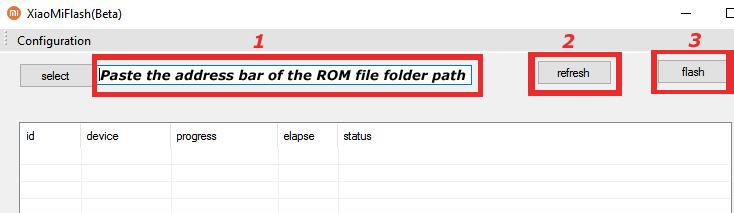
6) Now open MI Flash Tool and Paste the address bar of the ROM file folder path copied from above.
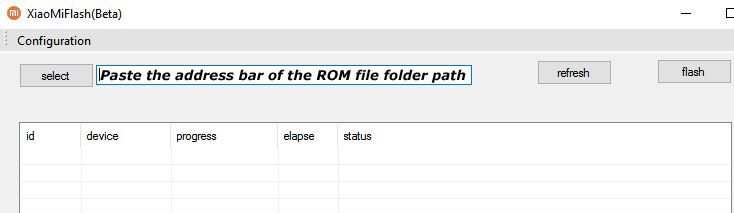
Mi Flash

7) First, click on the ‘Refresh‘ button (It will automatically recognize your device) and then click on the ‘Flash‘ button to flash MIUI 12 ROM on your Devices.
Mi Flash

8) Wait for some time to complete the process.

9) Done. Your device will boot on the latest version.

Wrapping Up:

Download MIUI 12.0.4.0 India Stable ROM for Redmi 8A Dual and flash it to update it manually. Comment below if you have any doubts.

The latest MIUI 12.0.4.0 update for Poco M2 starts rolling out via OTA. The update brings the June security patch to the device. Follow the below guide to Download MIUI 12.0.4.0 India Stable ROM for Poco M2.

MIUI 12.0.4.0 India Stable ROM for Poco M2 is a stable version and can be flashed via Recovery or via Fastboot. You can download MIUI 12.0.4.0 for Poco M2 from below.

You can Download Poco M2 MIUI 12.0.4.0.QJRINXM ROM from below and also manually check for the update by going to Settings -> About Phone -> System updates -> Check for update. Download MIUI 12.0.4.0 Stable ROM for Poco M2 from below.

Changelogs:

[System]

  • Updated Android Security Patch to June 2021. Increased system security.

Note:-

  • This Firmware file is only for Poco M2. Don’t try this on any other device.
  • Follow the steps correctly otherwise you may brick your device. We are not responsible for any damage to your phone.
  • It may erase your data, so it is advisable to take a complete backup of your phone for a safer side.
  • Ensure that your phone has at least 50-60% charged to prevent the accidental shutdown in between the process.

Download MIUI 12.0.4.0 India Stable ROM for Poco M2

  • Poco M2 MIUI 12.0.4.0 OTA update – Download
  • MIUI 12.0.4.0 Recovery ROM for Poco M2 – Download
  • MIUI 12.0.4.0 Fastboot ROM for Poco M2 – Coming Soon

How to Install MIUI 12.0.4.0 India Stable ROM on Poco M2 –

To install MIUI 12.0.4.0 update for Poco M2 download either Recovery ROM or Fastboot ROM from above and use the below method to install this on your device.

Method 1 – Recovery Mode

Recovery Mode

  1. Download Recovery ROM for Poco M2 from above and save it on your device.
  2. Now launch the ‘Updater‘ app on your device.
  3. Click on the three-dot menu (‘…’ icon) at the top-right corner, and select the ‘choose update package‘.
  4. Browse through the files and select the package ending with .zip extension.
  5. Done. Your device will reboot on the latest version.

Method 2 – Fastboot Mode

1) First, Download Mi Flash Tool, extract it and install it on your PC.

2) Now download Fastboot ROM for Poco M2 for your device.

3) Now boot your device into Fastboot mode by pressing the ‘Volume Down + Power‘ button.

4) Connect your device to the PC via a micro USB cable.

5) Now extract the Fastboot ROM and copy its path on the PC.

6) Now open MI Flash Tool and Paste the address bar of the ROM file folder path copied from above.

Mi Flash

7) First, click on the ‘Refresh‘ button (It will automatically recognize your device) and then click on the ‘Flash‘ button to flash MIUI 12 ROM on your Devices.

Mi Flash

8) Wait for some time to complete the process.

9) Done. Your device will boot on the latest version.

Wrapping Up:

Download MIUI 12.0.4.0 India Stable ROM for Poco M2 and flash it to update it manually. Comment below if you have any doubts.

Good news for Redmi Note 10S users, the latest MIUI 12.5.11.0 update for Redmi Note 10S starts rolling out via OTA. The update is based on Android 11 and brings a May security patch. Follow the below guide to Download MIUI 12.5.11.0 Global Stable ROM for Redmi Note 10S.

MIUI 12.5.11.0 Global Stable ROM for Redmi Note 10S is a stable version and can be flashed via Recovery or via Fastboot. You can wait for the OTA or download MIUI 12.5.11.0 for Redmi Note 10S from below.

You can Download Redmi Note 10S MIUI 12.5.11.0.RKLMIXM ROM from below and also manually check for the update by going to Settings -> About Phone -> System updates -> Check for update. Download MIUI 12.5.11.0 ROM for Redmi Note 10S from below.

Note:-

  • This Firmware file is only for Redmi Note 10S. Don’t try this on any other device.
  • Follow the steps correctly otherwise you may brick your device. We are not responsible for any damage to your phone.
  • It may erase your data, so it is advisable to take a complete backup of your phone for a safer side.
  • Ensure that your phone has at least 50-60% charged to prevent the accidental shutdown in between the process.

Download MIUI 12.5.11.0 Global Stable ROM for Redmi Note 10S

  • MIUI 12.5.11.0 OTA for Redmi Note 10S – Download
  • MIUI 12.5.11.0 Recovery Redmi Note 10S – Download
  • MIUI 12.5.11.0 Fastboot ROM for Redmi Note 10S – Download

How to Install MIUI 12.5.11.0 Global Stable ROM on Redmi Note 10S –

To install MIUI 12.5.11.0 update for Redmi Note 10S download either Recovery ROM or Fastboot ROM from above and use the below method to install this on your device.

Method 1 – Recovery Mode

Recovery Mode

  1. Download Android 11 ROM for Redmi Note 10S from above and save it on your device.
  2. Now launch the ‘Updater‘ app on your device.
  3. Click on the three-dot menu (‘…’ icon) at the top-right corner, and select the ‘choose update package‘.
  4. Browse through the files and select the package ending with .zip extension.
  5. Done. Your device will reboot on the latest version.

Method 2 – Fastboot Mode

1) First, Download Mi Flash Tool, extract it and install it on your PC.

2) Now download MIUI 12.5.11.0 Fastboot ROM for Redmi Note 10S for your device.

3) Now boot your device into Fastboot mode by pressing the ‘Volume Down + Power‘ button.

4) Connect your device to the PC via a micro USB cable.

5) Now extract the Fastboot ROM and copy its path on the PC.

6) Now open MI Flash Tool and Paste the address bar of the ROM file folder path copied from above.

Mi Flash

7) First, click on the ‘Refresh‘ button (It will automatically recognize your device) and then click on the ‘Flash‘ button to flash MIUI 12 ROM on your Devices.

Mi Flash

8) Wait for some time to complete the process.

9) Done. Your device will boot on the latest version.

Wrapping Up:

Download MIUI 12.5.11.0 Global Stable ROM for Redmi Note 10S and flash it to update it manually. Comment below if you have any doubts.

Have any questions? Do let us know that in the comments below. Stay connected with us via Facebook and Twitter to read more such helpful posts.

The latest Android 11 based MIUI 12.0.1.1 update for POCO X3 starts rolling out via OTA. The update is based on Android 11 and brings a few improvements and fixes bugs. Follow the below guide to Download MIUI 12.0.1.1 India Stable ROM for POCO X3.

MIUI 12.0.1.1 India Stable ROM for POCO X3 is a stable version and can be flashed via Recovery or via Fastboot. You can download MIUI 12.0.1.1 for POCO X3 from below to Update POCO X3 to Android 11 manually.

You can Download POCO X3 MIUI 12.0.1.1.RJGINXM ROM from below and also manually check for the update by going to Settings -> About Phone -> System updates -> Check for update. Download MIUI 12.0.1.1 Stable ROM for POCO X3 from below.

Note:-

  • This Firmware file is only for POCO X3. Don’t try this on any other device.
  • Follow the steps correctly otherwise you may brick your device. We are not responsible for any damage to your phone.
  • It may erase your data, so it is advisable to take a complete backup of your phone for a safer side.
  • Ensure that your phone has at least 50-60% charged to prevent the accidental shutdown in between the process.

Download MIUI 12.0.1.1 India Stable ROM for POCO X3

  • MIUI 12.0.1.1 OTA for POCO X3 – Download
  • MIUI 12.0.1.1 Recovery ROM for POCO X3 – Download
  • MIUI 12.0.1.1 Fastboot ROM for POCO X3 – Coming Soon

How to Install MIUI 12.0.1.1 India Stable ROM on POCO X3 –

To install MIUI 12.0.1.1 update for POCO X3 download either Recovery ROM or Fastboot ROM from above and use the below method to install this on your device.

Method 1 – Recovery Mode

Recovery Mode

  1. Download Android 11 ROM for POCO X3 from above and save it on your device.
  2. Now launch the ‘Updater‘ app on your device.
  3. Click on the three-dot menu (‘…’ icon) at the top-right corner, and select the ‘choose update package‘.
  4. Browse through the files and select the package ending with .zip extension.
  5. Done. Your device will reboot on the latest version.

Method 2 – Fastboot Mode

1) First, Download Mi Flash Tool, extract it and install it on your PC.

2) Now download Android 11 for POCO X3 for your device.

3) Now boot your device into Fastboot mode by pressing the ‘Volume Down + Power‘ button.

4) Connect your device to the PC via a micro USB cable.

5) Now extract the Fastboot ROM and copy its path on the PC.

6) Now open MI Flash Tool and Paste the address bar of the ROM file folder path copied from above.

Mi Flash

7) First, click on the ‘Refresh‘ button (It will automatically recognize your device) and then click on the ‘Flash‘ button to flash MIUI 12 ROM on your Devices.

Mi Flash

8) Wait for some time to complete the process.

9) Done. Your device will boot on the latest version.

Wrapping Up:

If you want to update POCO X3 to Android 11, then you can follow the above process. Download MIUI 12.0.1.1 India Stable ROM for POCO X3 and flash it to update it manually. Comment below if you have any doubts.

The latest MIUI 12.5.3.0 update for Mi 11 Lite starts rolling out via OTA. The update is based on Android 11 and brings lots of new features and improvements. Follow the below guide to Download MIUI 12.5.3.0 Global Stable ROM for Mi 11 Lite.

MIUI 12.5.3.0 Global Stable ROM for Mi 11 Lite is a stable version and can be flashed via Recovery or via Fastboot. You can also try Android 12 on Mi 11 which is currently in the beta stage.

You can Download Mi 11 Lite MIUI 12.5.3.0.RKQMIXM ROM from below and also manually check for the update by going to Settings -> About Phone -> System updates -> Check for update. Download MIUI 12.5.3.0 Stable ROM for Mi 11 Lite from below.

Changelog:

[System]

  • New: Response to gestures is now instant.
  • New: With 20 times more rendering power, there are now few limits to what you can see on your screen.
  • New: With custom device model adjustments, any phone becomes faster after the upgrade.
  • Optimization: Removed unnecessary sound notifications for DND mode
  • Optimization: Full screen gestures are now ignored on the Lock screen alarm page
  • Optimization: MIUI became lighter, faster, and more durable.

[System animations]

  • Optimization: Animations in selected scenes

[Notes]

  • New: A gesture shortcut now allows you to create notes, tasks, and excerpts anywhere.
  • New: Excerpts save text, URLs, and images to Notes in a few simple taps.
  • New: Dynamic layouts bring the typography in Notes to a new level.
  • New: Compose mind maps with complex structures.
  • New: New tools for doodling and sketching.
  • New: Press and hold a sketch to adjust the strokes automatically.
  • All-new Notes.

[Control center]

  • New: Swipe down from the upper left corner to open Notification shade and from the upper right corner to open Control center
  • Optimization: MIUI 11 custom toggle order is preserved after updating to MIUI 12
  • Optimization: Press and hold redirection options

[Status bar, Notification shade]

  • Optimization: Readjusted sensitive areas for the dots in the unlock pattern
  • Optimization: GPS icon in the status bar
  • Optimization: The UI for renaming fingerprints
  • Fix: Notifications flashed in some cases

Note:-

  • This Firmware file is only for Mi 11 Lite. Don’t try this on any other device.
  • Follow the steps correctly otherwise you may brick your device. We are not responsible for any damage to your phone.
  • It may erase your data, so it is advisable to take a complete backup of your phone for a safer side.
  • Ensure that your phone has at least 50-60% charged to prevent the accidental shutdown in-between the process.

Download MIUI 12.5.3.0 Global Stable ROM for Mi 11 Lite

  • MIUI 12.5.3.0 OTA for Mi 11 Lite – Download
  • MIUI 12.5.3.0 Recovery ROM for Mi 11 Lite – Download
  • MIUI 12.5.3.0 Fastboot ROM for Mi 11 Lite – Download

How to Install MIUI 12.5.3.0 Global Stable ROM on Mi 11 Lite –

To install MIUI 12.5.3.0 update for Mi 11 Lite download either Recovery ROM or Fastboot ROM from above and use the below method to install this on your device.

Method 1 – Recovery Mode

Recovery Mode

  1. Download MIUI 12.5 Recovery ROM for Mi 11 Lite from above and save it on your device.
  2. Now launch the ‘Updater‘ app on your device.
  3. Click on the three-dot menu (‘…’ icon) at the top-right corner, and select the ‘choose update package‘.
  4. Browse through the files and select the package ending with .zip extension.
  5. Done. Your device will reboot on the latest version.

Method 2 – Fastboot Mode

1) First, Download Mi Flash Tool, extract it, and install it on your PC.

2) Now download MIUI 12.5 Fastboot ROM for Mi 11 Lite for your device.

3) Now boot your device into Fastboot mode by pressing the ‘Volume Down + Power‘ button.

4) Connect your device to the PC via a micro USB cable.

5) Now extract the Fastboot ROM and copy its path on the PC.

6) Now open MI Flash Tool and Paste the address bar of the ROM file folder path copied from above.

Mi Flash

7) First, click on the ‘Refresh‘ button (It will automatically recognize your device) and then click on the ‘Flash‘ button to flash MIUI 12 ROM on your Devices.

Mi Flash

8) Wait for some time to complete the process.

9) Done. Your device will boot on the latest version.

Wrapping Up:

Download MIUI 12.5.3.0 Global Stable ROM for Mi 11 Lite and flash it to update it manually. Comment below if you have any doubts.

Have any questions? Do let us know that in the comments below. Stay connected with us via Facebook and Twitter to read more such helpful posts.

The latest Android 11 based MIUI 12.0.1.0 update for Redmi Note 9 Pro Max starts rolling out via OTA. The update is based on Android 11 and brings a few improvements and fixes bugs. Follow the below guide to Download MIUI 12.0.1.0 India Stable ROM for Redmi Note 9 Pro Max.

Redmi Note 9 Pro Max Android 11 update is a stable version and can be flashed via Recovery or via Fastboot. Xiaomi pushed the update to all users and you can download MIUI 12.0.1.0 for Redmi Note 9 Pro Max from below to Update Redmi Note 9 Pro Max to Android 11 manually.

You can Download Redmi Note 9 Pro Max MIUI 12.0.1.0.RJXINXM ROM from below and also manually check for the update by going to Settings -> About Phone -> System updates -> Check for update. Download MIUI 12.0.1.0 Stable ROM for Redmi Note 9 Pro Max from below.

Changelogs:

[System]

  • Optimization: Removed unnecessary sound notifications for DND mode
  • Optimization: Full screen gestures are now ignored on the Lock screen alarm page
  • Stable MIUI based on Android 11
  • Updated Android Security Patch to June 2021. Increased system security.

[System animations]

  • Optimization: Animations in selected scenes

[Xiaomi Cloud]

  • New: Location info can be now reported automatically before the device is powered off

[Control center]

  • New: Swipe down from the upper left corner to open Notification shade and from the upper right corner to open Control center
  • Optimization: MIUI 11 custom toggle order is preserved after updating to MIUI 12
  • Optimization: Press and hold redirection options

[Status bar, Notification shade]

  • New: Screen lights up with an animation now
  • New: Status bar color gradient animation
  • Optimization: Readjusted sensitive areas for the dots in the unlock pattern
  • Optimization: GPS icon in the status bar
  • Optimization: The UI for renaming fingerprints

Note:-

  • This Firmware file is only for Redmi Note 9 Pro Max. Don’t try this on any other device.
  • Follow the steps correctly otherwise you may brick your device. We are not responsible for any damage to your phone.
  • It may erase your data, so it is advisable to take a complete backup of your phone for a safer side.
  • Ensure that your phone has at least 50-60% charged to prevent the accidental shutdown in-between the process.

Download MIUI 12.0.1.0 India Stable ROM for Redmi Note 9 Pro Max

Update [03/07/2021]: The stable version of Redmi Note 9 Pro Max starts rolling out. The update also brings June 2021 security patch. Download Redmi Note 9 Pro Max Android 11 update from below.

  • MIUI 12.0.1.0 Recovery ROM for Redmi Note 9 Pro Max – Download
  • MIUI 12.0.1.0 Fastboot ROM for Redmi Note 9 Pro Max – Coming Soon

How to Install MIUI 12.0.1.0 India Stable ROM on Redmi Note 9 Pro Max –

To install MIUI 12.0.1.0 update for Redmi Note 9 Pro Max download either Recovery ROM or Fastboot ROM from above and use the below method to install this on your device.

Method 1 – Recovery Mode

Recovery Mode

  1. Download Android 11 ROM for Redmi Note 9 Pro Max from above and save it on your device.
  2. Now launch the ‘Updater‘ app on your device.
  3. Click on the three-dot menu (‘…’ icon) at the top-right corner, and select the ‘choose update package‘.
  4. Browse through the files and select the package ending with .zip extension.
  5. Done. Your device will reboot on the latest version.

Method 2 – Fastboot Mode

1) First, Download Mi Flash Tool, extract it and install it on your PC.

2) Now download Android 11 for Redmi Note 9 Pro Max for your device.

3) Now boot your device into Fastboot mode by pressing the ‘Volume Down + Power‘ button.

4) Connect your device to the PC via a micro USB cable.

5) Now extract the Fastboot ROM and copy its path on the PC.

6) Now open MI Flash Tool and Paste the address bar of the ROM file folder path copied from above.

Mi Flash

7) First, click on the ‘Refresh‘ button (It will automatically recognize your device) and then click on the ‘Flash‘ button to flash MIUI 12 ROM on your Devices.

Mi Flash

8) Wait for some time to complete the process.

9) Done. Your device will boot on the latest version.

Wrapping Up:

If you want to update Redmi Note 9 Max to Android 11, then you can follow the above process. Download MIUI 12.0.1.0 India Stable ROM for Redmi Note 9 Pro Max and flash it to update it manually. Comment below if you have any doubts.

The latest Android 11 based MIUI 12.5.1.0 update for Mi 11X Pro starts rolling out via OTA. The update brings a few improvements to the device. Follow the below guide to Download MIUI 12.5.1.0 India Stable ROM for Mi 11X Pro.

MIUI 12.5.1.0 India Stable ROM for Mi 11X Pro is a stable version and can be flashed via Recovery or via Fastboot. You can download MIUI 12.5.1.0 for Mi 11X Pro from below.

You can Download Mi 11X Pro MIUI 12.5.1.0.RKKINXM ROM from below and also manually check for the update by going to Settings -> About Phone -> System updates -> Check for update. Download MIUI 12.5.1.0 Stable ROM for Mi 11X Pro from below.

Mi 11X Pro MIUI 12.5.1.0 Changelogs:

[System]

  • New: With custom device model adjustments, any phone becomes faster after the upgrade.
  • New: Response to gestures is now instant.
  • New: With 20 times more rendering power, there are now few limits to what you can see on your screen.
  • Optimization: MIUI became lighter, faster, and more durable.
  • Updated Android Security Patch to June 2021. Increased system security.

[Notes]

  • New: Compose mind maps with complex structures.
  • New: New tools for doodling and sketching.
  • New: Press and hold a sketch to adjust the strokes automatically.
  • New: A gesture shortcut now allows you to create notes, tasks, and excerpts anywhere.
  • New: Excerpts save text, URLs, and images to Notes in a few simple taps.
  • New: Dynamic layouts bring the typography in Notes to a new level.
  • All-new Notes.

Note:-

  • This Firmware file is only for Mi 11X Pro. Don’t try this on any other device.
  • Follow the steps correctly otherwise you may brick your device. We are not responsible for any damage to your phone.
  • It may erase your data, so it is advisable to take a complete backup of your phone for a safer side.
  • Ensure that your phone has at least 50-60% charged to prevent the accidental shutdown in between the process.

Download MIUI 12.5.1.0 India Stable ROM for Mi 11X Pro

  • Mi 11X Pro MIUI 12.5.1.0 OTA update – Download
  • MIUI 12.5.1.0 Recovery ROM for Mi 11X Pro – Download (Mi Pilot Only)
  • MIUI 12.5.1.0 Fastboot ROM for Mi 11X Pro – Coming Soon

How to Install MIUI 12.5.1.0 India Stable ROM on Mi 11X Pro –

To install MIUI 12.5.1.0 update for Mi 11X Pro download either Recovery ROM or Fastboot ROM from above and use the below method to install this on your device.

Method 1 – Recovery Mode

Recovery Mode

  1. Download Android 11 ROM for Mi 11X Pro from above and save it on your device.
  2. Now launch the ‘Updater‘ app on your device.
  3. Click on the three-dot menu (‘…’ icon) at the top-right corner, and select the ‘choose update package‘.
  4. Browse through the files and select the package ending with .zip extension.
  5. Done. Your device will reboot on the latest version.

Method 2 – Fastboot Mode

1) First, Download Mi Flash Tool, extract it and install it on your PC.

2) Now download Fastboot ROM for Mi 11X Pro for your device.

3) Now boot your device into Fastboot mode by pressing the ‘Volume Down + Power‘ button.

4) Connect your device to the PC via a micro USB cable.

5) Now extract the Fastboot ROM and copy its path on the PC.

6) Now open MI Flash Tool and Paste the address bar of the ROM file folder path copied from above.

Mi Flash

7) First, click on the ‘Refresh‘ button (It will automatically recognize your device) and then click on the ‘Flash‘ button to flash MIUI 12 ROM on your Devices.

Mi Flash

8) Wait for some time to complete the process.

9) Done. Your device will boot on the latest version.

Wrapping Up:

Download MIUI 12.5.1.0 India Stable ROM for Mi 11X Pro and flash it to update it manually. Comment below if you have any doubts.

The latest MIUI 12.0.9.0 update for Mi 9T starts rolling out via OTA. The update improved system stability. Follow the below guide to Download MIUI 12.0.9.0 Global Stable ROM for Mi 9T.

MIUI 12.0.9.0 Global Stable ROM for Mi 9T is a stable version and can be flashed via Recovery or via Fastboot. You can download MIUI 12.0.9.0 for Mi 9T from below.

You can Download Mi 9T MIUI 12.0.9.0.QFJMIXM ROM from below and also manually check for the update by going to Settings -> About Phone -> System updates -> Check for update. Download MIUI 12.0.9.0 Stable ROM for Mi 9T from below.

Mi 9T MIUI 12.0.9.0 Changelog:

[System]

  • Updated Android Security Patch to May 2021. Increased system security.

Note:-

  • This Firmware file is only for Mi 9T. Don’t try this on any other device.
  • Follow the steps correctly otherwise you may brick your device. We are not responsible for any damage to your phone.
  • It may erase your data, so it is advisable to take a complete backup of your phone for a safer side.
  • Ensure that your phone has at least 50-60% charged to prevent the accidental shutdown in between the process.

Download MIUI 12.0.9.0 Global Stable ROM for Mi 9T

  • Mi 9T MIUI 12.0.9.0 OTA update – Download
  • MIUI 12.0.9.0 Recovery ROM for Mi 9T – Download
  • MIUI 12.0.9.0 Fastboot ROM for Mi 9T – Coming Soon

How to Install MIUI 12.0.9.0 Global Stable ROM on Mi 9T –

To install MIUI 12.0.9.0 update for Mi 9T download either Recovery ROM or Fastboot ROM from above and use the below method to install this on your device.

Method 1 – Recovery Mode

Recovery Mode

  1. Download Recovery ROM for Mi 9T from above and save it on your device.
  2. Now launch the ‘Updater‘ app on your device.
  3. Click on the three-dot menu (‘…’ icon) at the top-right corner, and select the ‘choose update package‘.
  4. Browse through the files and select the package ending with .zip extension.
  5. Done. Your device will reboot on the latest version.

Method 2 – Fastboot Mode

1) First, Download Mi Flash Tool, extract it and install it on your PC.

2) Now download Fastboot ROM for Mi 9T for your device.

3) Now boot your device into Fastboot mode by pressing the ‘Volume Down + Power‘ button.

4) Connect your device to the PC via a micro USB cable.

5) Now extract the Fastboot ROM and copy its path on the PC.

6) Now open MI Flash Tool and Paste the address bar of the ROM file folder path copied from above.

Mi Flash

7) First, click on the ‘Refresh‘ button (It will automatically recognize your device) and then click on the ‘Flash‘ button to flash MIUI 12 ROM on your Devices.

Mi Flash

8) Wait for some time to complete the process.

9) Done. Your device will boot on the latest version.

Wrapping Up:

Download MIUI 12.0.9.0 Global Stable ROM for Mi 9T and flash it to update it manually. Comment below if you have any doubts.

Good news for Mi 10T Lite users, the latest MIUI 12.5 update for Mi 10T Lite starts rolling out via OTA. The update is based on Android 11 and brings lots of new features and improvements. Follow the below guide to Download MIUI 12.5.1.0 Global Stable ROM for Mi 10T Lite.

MIUI 12.5.1.0 Global Stable ROM for Mi 10T Lite is a stable version and can be flashed via Recovery or via Fastboot. You can wait for the OTA or download MIUI 12.5.1.0 for Mi 10T Lite from below to Update Mi 10T Lite to Android 11 manually.

You can Download Mi 10T Lite MIUI 12.5 ROM from below and also manually check for the update by going to Settings -> About Phone -> System updates -> Check for update. Download MIUI 12.5 ROM for Mi 10T Lite from below.

Mi 10T Lite MIUI 12.5.1.0.RJSMIXM Changelog:

[System]

  • New: With custom device model adjustments, any phone becomes faster after the upgrade.
  • New: Response to gestures is now instant.
  • New: With 20 times more rendering power, there are now few limits to what you can see on your screen.
  • Optimization: MIUI became lighter, faster, and more durable.
  • Updated Android Security Patch to May 2021. Increased system security.

[Notes]

  • New: Compose mind maps with complex structures.
  • New: New tools for doodling and sketching.
  • New: Press and hold a sketch to adjust the strokes automatically.
  • New: A gesture shortcut now allows you to create notes, tasks, and excerpts anywhere.
  • New: Excerpts save text, URLs, and images to Notes in a few simple taps.
  • New: Dynamic layouts bring the typography in Notes to a new level.
  • All-new Notes.

[Xiaomi Cloud]

  • New: Location info can be now reported automatically before the device is powered off

Note:-

  • This Firmware file is only for Mi 10T Lite. Don’t try this on any other device.
  • Follow the steps correctly otherwise you may brick your device. We are not responsible for any damage to your phone.
  • It may erase your data, so it is advisable to take a complete backup of your phone for a safer side.
  • Ensure that your phone has at least 50-60% charged to prevent the accidental shutdown in between the process.

Download MIUI 12.5.1.0 Global Stable ROM for Mi 10T Lite

  • MIUI 12.5.1.0 OTA for Mi 10T Lite – Download
  • MIUI 12.5.1.0 Recovery ROM for Mi 10T Lite – Download
  • MIUI 12.5.1.0 Fastboot ROM for Mi 10T Lite – Download

How to Install MIUI 12.5.1.0 Global Stable ROM on Mi 10T Lite –

To install MIUI 12.5.1.0 update for Mi 10T Lite download either Recovery ROM or Fastboot ROM from above and use the below method to install this on your device.

Method 1 – Recovery Mode

Recovery Mode

  1. Download Android 11 ROM for Mi 10T Lite from above and save it on your device.
  2. Now launch the ‘Updater‘ app on your device.
  3. Click on the three-dot menu (‘…’ icon) at the top-right corner, and select the ‘choose update package‘.
  4. Browse through the files and select the package ending with .zip extension.
  5. Done. Your device will reboot on the latest version.

Method 2 – Fastboot Mode

1) First, Download Mi Flash Tool, extract it, and install it on your PC.

2) Now download MIUI 12.5 ROM for Mi 10T Lite for your device.

3) Now boot your device into Fastboot mode by pressing the ‘Volume Down + Power‘ button.

4) Connect your device to the PC via a micro USB cable.

5) Now extract the Fastboot ROM and copy its path on the PC.

6) Now open MI Flash Tool and Paste the address bar of the ROM file folder path copied from above.

Mi Flash

7) First, click on the ‘Refresh‘ button (It will automatically recognize your device) and then click on the ‘Flash‘ button to flash MIUI 12 ROM on your Devices.

Mi Flash

8) Wait for some time to complete the process.

9) Done. Your device will boot on the latest version.

Wrapping Up:

If you want to update Mi 10T Lite to MIUI 12.5, then you can follow the above process. Download MIUI 12.5.1.0 Global Stable ROM for Mi 10T Lite and flash it to update it manually. Comment below if you have any doubts.
Have any questions? Do let us know that in the comments below. Stay connected with us via Facebook and Twitter to read more such helpful posts.

If you have Google Cast enabled devices on your WiFi network, you will most likely notice a large Cast button in the top left corner while watching a video in Chrome’s video player. Chromecast is an excellent media streaming device. However, seeing a big cast button is not something that everyone desires. It can be inconvenient and cause problems. If you don’t want to see the Cast button, follow the steps in this guide to Hide Google Cast Button in Chrome for Android.

Till now the only way to hide the Cast button from appearing is to switch to cellular data instead of your WiFi. However, a newer version of Google Play Services includes a new Cast Settings that allows you to disable Cast device detection, preventing your smartphone from streaming to other devices. Follow the below steps to hide the Google Cast button from showing up in Chrome for Android.

How to Hide Google Cast Button in Chrome for Android

If you follow these instructions, the Google Cast icon will not appear in Google Chrome even if there are Cast devices on your WiFi network. By disabling Cast device detection in your phone’s settings, you can instantly hide the Google cast button. Check below the steps to hide the Google cast button in Google Chrome for Android.

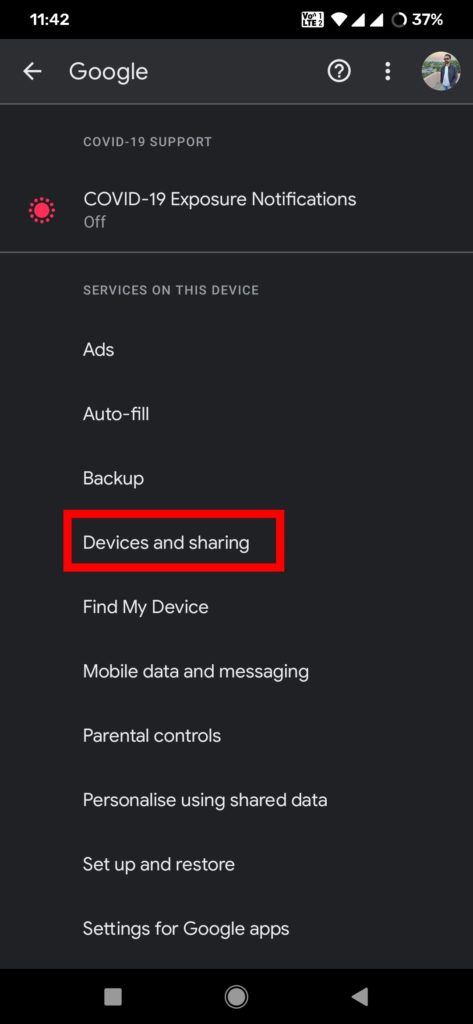
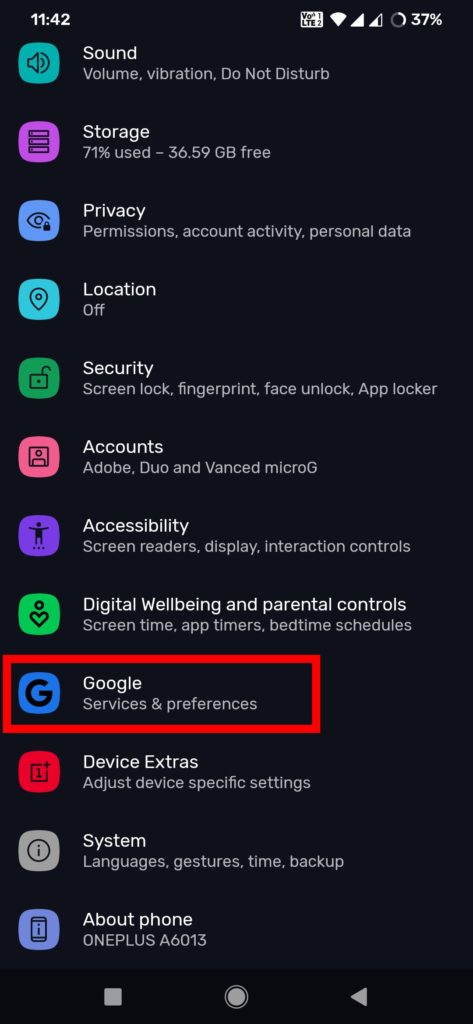
  1. Go to your phone settings.
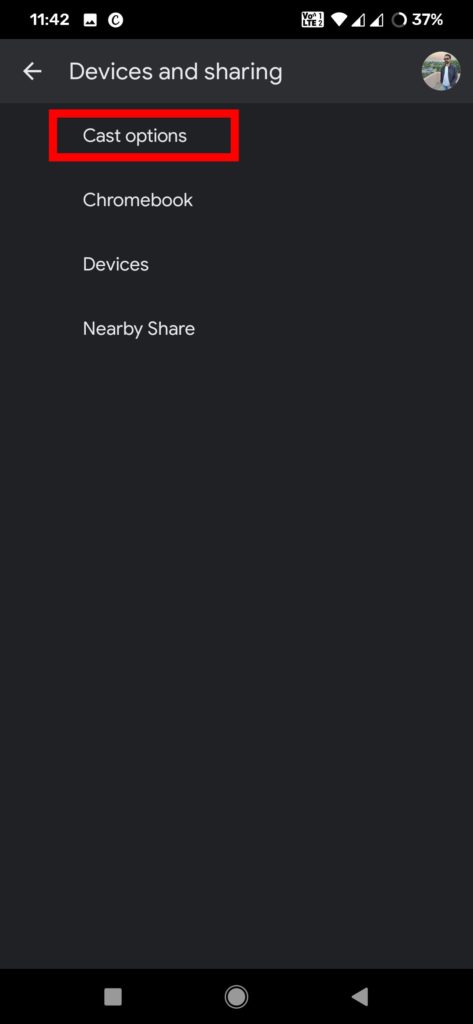
  2. Tap on ‘Google’ and select ‘Devices and sharing’.
  3. Click on ‘Cast options’
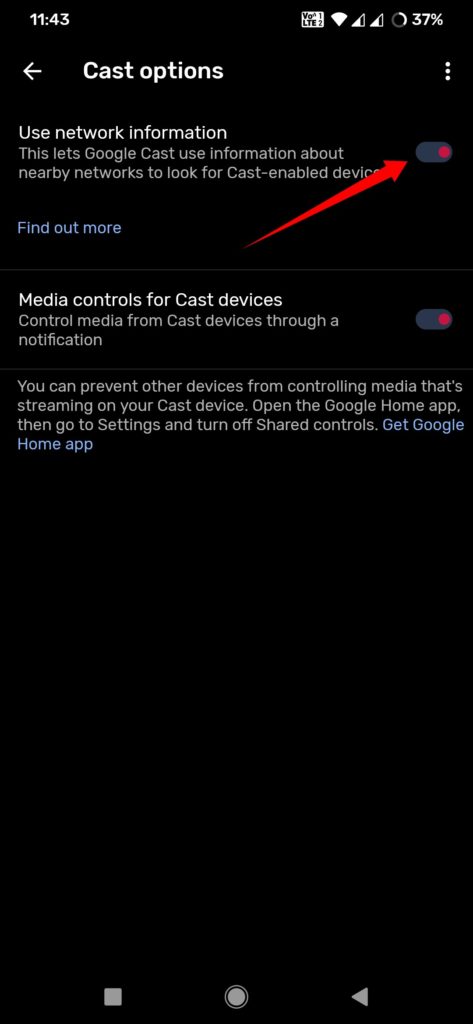
  4. Turn off the toggle ‘Use network information’.
  5. You will see a dialog warning you that turning this off will disable Cast device discovery, click ‘turn off.’
  6. Done, the Cast button won’t show up in Chrome.

Wrapping Up: Hide Google Cast Button on Android

While sending videos to a Chromecast-enabled device can be useful, it is not for everyone. If you don’t want the button too then follow the above steps to Hide Google Cast Button in Chrome for Android.

Have any questions? Do let us know that in the comments below. Stay connected with us via Facebook and Twitter to read more such helpful posts.