Author

Sumit Bahl

Browsing

The latest Android 11 based MIUI 12.0.4.0 update for Redmi Note 10 starts rolling out via OTA. The update brings a few improvements and fixes bugs. Follow the below guide to Download MIUI 12.0.4.0 India Stable ROM for Redmi Note 10.

MIUI 12.0.4.0 India Stable ROM for Redmi Note 10 is a stable version and can be flashed via Recovery or via Fastboot. You can download MIUI 12.0.4.0 for Redmi Note 10 from below.

You can Download Redmi Note 10 MIUI 12.0.4.0.RKGINXM ROM from below and also manually check for the update by going to Settings -> About Phone -> System updates -> Check for update. Download MIUI 12.0.4.0 Stable ROM for Redmi Note 10 from below.

Note:-

  • This Firmware file is only for Redmi Note 10. Don’t try this on any other device.
  • Follow the steps correctly otherwise you may brick your device. We are not responsible for any damage to your phone.
  • It may erase your data, so it is advisable to take a complete backup of your phone for a safer side.
  • Ensure that your phone has at least 50-60% charged to prevent the accidental shutdown in between the process.

Download MIUI 12.0.4.0 India Stable ROM for Redmi Note 10

  • Redmi Note 10 OTA update – Download
  • MIUI 12.0.4.0 Recovery ROM for Redmi Note 10 – Download
  • MIUI 12.0.4.0 Fastboot ROM for Redmi Note 10 – Coming Soon

How to Install MIUI 12.0.4.0 India Stable ROM on Redmi Note 10 –

To install MIUI 12.0.4.0 update for Redmi Note 10 download either Recovery ROM or Fastboot ROM from above and use the below method to install this on your device.

Method 1 – Recovery Mode

Recovery Mode

  1. Download Recovery ROM for Redmi Note 10 from above and save it on your device.
  2. Now launch the ‘Updater‘ app on your device.
  3. Click on the three-dot menu (‘…’ icon) at the top-right corner, and select the ‘choose update package‘.
  4. Browse through the files and select the package ending with .zip extension.
  5. Done. Your device will reboot on the latest version.

Method 2 – Fastboot Mode

1) First, Download Mi Flash Tool, extract it, and install it on your PC.

2) Now download Fastboot ROM for Redmi Note 10 for your device.

3) Now boot your device into Fastboot mode by pressing the ‘Volume Down + Power‘ button.

4) Connect your device to the PC via a micro USB cable.

5) Now extract the Fastboot ROM and copy its path on the PC.

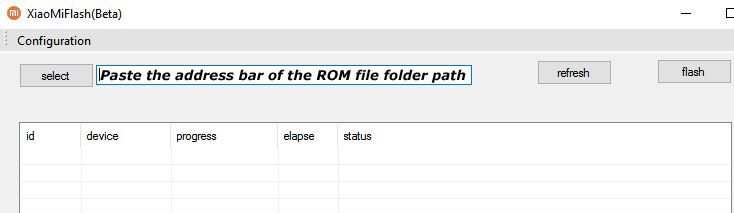
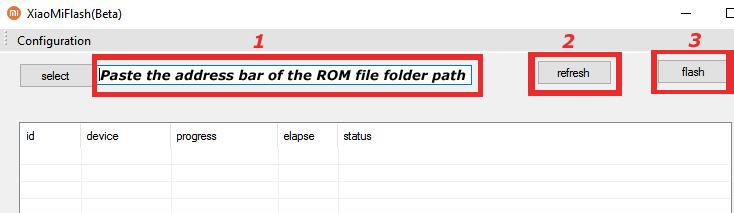
6) Now open MI Flash Tool and Paste the address bar of the ROM file folder path copied from above.

Mi Flash

7) First, click on the ‘Refresh‘ button (It will automatically recognize your device) and then click on the ‘Flash‘ button to flash MIUI 12 ROM on your Devices.

Mi Flash

8) Wait for some time to complete the process.

9) Done. Your device will boot on the latest version.

Wrapping Up:

Download MIUI 12.0.4.0 India Stable ROM for Redmi Note 10 and flash it to update it manually. Comment below if you have any doubts.

The latest MIUI 12.0.3.0 update for Redmi 8A starts rolling out via OTA. The update is based on Android 10 and brings a few improvements and fixes bugs. Follow the below guide to Download MIUI 12.0.3.0 Global Stable ROM for Redmi 8A.

MIUI 12.0.3.0 Global Stable ROM for Redmi 8A is a stable version and can be flashed via Recovery or via Fastboot. You can download MIUI 12.0.3.0 for Redmi 8A from below.

You can Download Redmi 8A MIUI 12.0.3.0.QCPMIXM ROM from below and also manually check for the update by going to Settings -> About Phone -> System updates -> Check for update. Download MIUI 12.0.3.0 Stable ROM for Redmi 8A from below.

Note:-

  • This Firmware file is only for Redmi 8A. Don’t try this on any other device.
  • Follow the steps correctly otherwise you may brick your device. We are not responsible for any damage to your phone.
  • It may erase your data, so it is advisable to take a complete backup of your phone for a safer side.
  • Ensure that your phone has at least 50-60% charged to prevent the accidental shutdown in between the process.

Download MIUI 12.0.3.0 Global Stable ROM for Redmi 8A

  • Redmi 8A OTA update – Download
  • MIUI 12.0.3.0 Recovery ROM for Redmi 8A – Download
  • MIUI 12.0.3.0 Fastboot ROM for Redmi 8A – Coming Soon

How to Install MIUI 12.0.3.0 Global Stable ROM on Redmi 8A –

To install MIUI 12.0.3.0 update for Redmi 8A download either Recovery ROM or Fastboot ROM from above and use the below method to install this on your device.

Method 1 – Recovery Mode

Recovery Mode

  1. Download Recovery ROM for Redmi 8A from above and save it on your device.
  2. Now launch the ‘Updater‘ app on your device.
  3. Click on the three-dot menu (‘…’ icon) at the top-right corner, and select the ‘choose update package‘.
  4. Browse through the files and select the package ending with .zip extension.
  5. Done. Your device will reboot on the latest version.

Method 2 – Fastboot Mode

1) First, Download Mi Flash Tool, extract it, and install it on your PC.

2) Now download Fastboot ROM for Redmi 8A for your device.

3) Now boot your device into Fastboot mode by pressing the ‘Volume Down + Power‘ button.

4) Connect your device to the PC via a micro USB cable.

5) Now extract the Fastboot ROM and copy its path on the PC.

6) Now open MI Flash Tool and Paste the address bar of the ROM file folder path copied from above.

Mi Flash

7) First, click on the ‘Refresh‘ button (It will automatically recognize your device) and then click on the ‘Flash‘ button to flash MIUI 12 ROM on your Devices.

Mi Flash

8) Wait for some time to complete the process.

9) Done. Your device will boot on the latest version.

Wrapping Up:

Download MIUI 12.0.3.0 Global Stable ROM for Redmi 8A and flash it to update it manually. Comment below if you have any doubts.

The latest MIUI 12.0.3.0 update for Redmi 7A starts rolling out via OTA. The update is based on Android 10 and brings a few improvements and fixes bugs. Follow the below guide to Download MIUI 12.0.3.0 Global Stable ROM for Redmi 7A.

MIUI 12.0.3.0 Global Stable ROM for Redmi 7A is a stable version and can be flashed via Recovery or via Fastboot. You can download MIUI 12.0.3.0 for Redmi 7A from below.

You can Download Redmi 7A MIUI 12.0.3.0.QCMMIXM ROM from below and also manually check for the update by going to Settings -> About Phone -> System updates -> Check for update. Download MIUI 12.0.3.0 Stable ROM for Redmi 7A from below.

Note:-

  • This Firmware file is only for Redmi 7A. Don’t try this on any other device.
  • Follow the steps correctly otherwise you may brick your device. We are not responsible for any damage to your phone.
  • It may erase your data, so it is advisable to take a complete backup of your phone for a safer side.
  • Ensure that your phone has at least 50-60% charged to prevent the accidental shutdown in between the process.

Download MIUI 12.0.3.0 Global Stable ROM for Redmi 7A

  • Redmi 7A OTA update – Download
  • MIUI 12.0.3.0 Recovery ROM for Redmi 7A – Download
  • MIUI 12.0.3.0 Fastboot ROM for Redmi 7A – Coming Soon

How to Install MIUI 12.0.3.0 Global Stable ROM on Redmi 7A –

To install MIUI 12.0.3.0 update for Redmi 7A download either Recovery ROM or Fastboot ROM from above and use the below method to install this on your device.

Method 1 – Recovery Mode

Recovery Mode

  1. Download Recovery ROM for Redmi 7A from above and save it on your device.
  2. Now launch the ‘Updater‘ app on your device.
  3. Click on the three-dot menu (‘…’ icon) at the top-right corner, and select the ‘choose update package‘.
  4. Browse through the files and select the package ending with .zip extension.
  5. Done. Your device will reboot on the latest version.

Method 2 – Fastboot Mode

1) First, Download Mi Flash Tool, extract it, and install it on your PC.

2) Now download Fastboot ROM for Redmi 7A for your device.

3) Now boot your device into Fastboot mode by pressing the ‘Volume Down + Power‘ button.

4) Connect your device to the PC via a micro USB cable.

5) Now extract the Fastboot ROM and copy its path on the PC.

6) Now open MI Flash Tool and Paste the address bar of the ROM file folder path copied from above.

Mi Flash

7) First, click on the ‘Refresh‘ button (It will automatically recognize your device) and then click on the ‘Flash‘ button to flash MIUI 12 ROM on your Devices.

Mi Flash

8) Wait for some time to complete the process.

9) Done. Your device will boot on the latest version.

Wrapping Up:

Download MIUI 12.0.3.0 Global Stable ROM for Redmi 7A and flash it to update it manually. Comment below if you have any doubts.

The latest MIUI 12.0.3.0 update for Redmi Note 9 Pro Max starts rolling out via OTA. The update is based on Android 10 and brings a few improvements and fixes bugs. Follow the below guide to Download MIUI 12.0.3.0 India Stable ROM for Redmi Note 9 Pro Max.

MIUI 12.0.3.0 India Stable ROM for Redmi Note 9 Pro Max is a stable version and can be flashed via Recovery or via Fastboot. You can download MIUI 12.0.3.0 for Redmi Note 9 Pro Max from below.

You can Download Redmi Note 9 Pro Max MIUI 12.0.3.0.QJXINXM ROM from below and also manually check for the update by going to Settings -> About Phone -> System updates -> Check for update. Download MIUI 12.0.3.0 Stable ROM for Redmi Note 9 Pro Max from below.

Note:-

  • This Firmware file is only for Redmi Note 9 Pro Max. Don’t try this on any other device.
  • Follow the steps correctly otherwise you may brick your device. We are not responsible for any damage to your phone.
  • It may erase your data, so it is advisable to take a complete backup of your phone for a safer side.
  • Ensure that your phone has at least 50-60% charged to prevent the accidental shutdown in between the process.

Download MIUI 12.0.3.0 India Stable ROM for Redmi Note 9 Pro Max

  • Redmi Note 9 Pro Max OTA update – Download
  • MIUI 12.0.3.0 Recovery ROM for Redmi Note 9 Pro Max – Download
  • MIUI 12.0.3.0 Fastboot ROM for Redmi Note 9 Pro Max – Coming Soon

How to Install MIUI 12.0.3.0 India Stable ROM on Redmi Note 9 Pro Max –

To install MIUI 12.0.3.0 update for Redmi Note 9 Pro Max download either Recovery ROM or Fastboot ROM from above and use the below method to install this on your device.

Method 1 – Recovery Mode

Recovery Mode

  1. Download Recovery ROM for Redmi Note 9 Pro Max from above and save it on your device.
  2. Now launch the ‘Updater‘ app on your device.
  3. Click on the three-dot menu (‘…’ icon) at the top-right corner, and select the ‘choose update package‘.
  4. Browse through the files and select the package ending with .zip extension.
  5. Done. Your device will reboot on the latest version.

Method 2 – Fastboot Mode

1) First, Download Mi Flash Tool, extract it, and install it on your PC.

2) Now download Fastboot ROM for Redmi Note 9 Pro Max for your device.

3) Now boot your device into Fastboot mode by pressing the ‘Volume Down + Power‘ button.

4) Connect your device to the PC via a micro USB cable.

5) Now extract the Fastboot ROM and copy its path on the PC.

6) Now open MI Flash Tool and Paste the address bar of the ROM file folder path copied from above.

Mi Flash

7) First, click on the ‘Refresh‘ button (It will automatically recognize your device) and then click on the ‘Flash‘ button to flash MIUI 12 ROM on your Devices.

Mi Flash

8) Wait for some time to complete the process.

9) Done. Your device will boot on the latest version.

Wrapping Up:

Download MIUI 12.0.3.0 India Stable ROM for Redmi Note 9 Pro Max and flash it to update it manually. Comment below if you have any doubts.

The latest MIUI 12.5.3.0 update for Mi 11 starts rolling out via OTA. The update is based on Android 11 and brings lots of new features and improvements. Follow the below guide to Download MIUI 12.5.3.0 Global Stable ROM for Mi 11.

MIUI 12.5.3.0 Global Stable ROM for Mi 11 is a stable version and can be flashed via Recovery or via Fastboot. You can also try Android 12 on Mi 11 which is currently in the beta stage.

You can Download Mi 11 MIUI 12.5.3.0.RXBMIXM ROM from below and also manually check for the update by going to Settings -> About Phone -> System updates -> Check for update. Download MIUI 12.5.3.0 Stable ROM for Mi 11 from below.

Note:-

  • This Firmware file is only for Mi 11. Don’t try this on any other device.
  • Follow the steps correctly otherwise you may brick your device. We are not responsible for any damage to your phone.
  • It may erase your data, so it is advisable to take a complete backup of your phone for a safer side.
  • Ensure that your phone has at least 50-60% charged to prevent the accidental shutdown in-between the process.

Download MIUI 12.5.3.0 Global Stable ROM for Mi 11

  • MIUI 12.5.3.0 Recovery ROM for Mi 11 – Download
  • MIUI 12.5.3.0 Fastboot ROM for Mi 11 – Download

How to Install MIUI 12.5.3.0 Global Stable ROM on Mi 11 –

To install MIUI 12.5.3.0 update for Mi 11 download either Recovery ROM or Fastboot ROM from above and use the below method to install this on your device.

Method 1 – Recovery Mode

Recovery Mode

  1. Download MIUI 12.5 Recovery ROM for Mi 11 from above and save it on your device.
  2. Now launch the ‘Updater‘ app on your device.
  3. Click on the three-dot menu (‘…’ icon) at the top-right corner, and select the ‘choose update package‘.
  4. Browse through the files and select the package ending with .zip extension.
  5. Done. Your device will reboot on the latest version.

Method 2 – Fastboot Mode

1) First, Download Mi Flash Tool, extract it, and install it on your PC.

2) Now download MIUI 12.5 Fastboot ROM for Mi 11 for your device.

3) Now boot your device into Fastboot mode by pressing the ‘Volume Down + Power‘ button.

4) Connect your device to the PC via a micro USB cable.

5) Now extract the Fastboot ROM and copy its path on the PC.

6) Now open MI Flash Tool and Paste the address bar of the ROM file folder path copied from above.

Mi Flash

7) First, click on the ‘Refresh‘ button (It will automatically recognize your device) and then click on the ‘Flash‘ button to flash MIUI 12 ROM on your Devices.

Mi Flash

8) Wait for some time to complete the process.

9) Done. Your device will boot on the latest version.

Wrapping Up:

Download MIUI 12.5.3.0 Global Stable ROM for Mi 11 and flash it to update it manually. Comment below if you have any doubts.

Have any questions? Do let us know that in the comments below. Stay connected with us via Facebook and Twitter to read more such helpful posts.

The latest May security patch update for Mi A2 starts rolling out via OTA. The update is based on Android 10 and brings a few improvements and fixes bugs. Follow the below guide to Download Mi A2 Global Stable V11.0.26.0 ROM.

The update is a stable version and can be flashed via Recovery or via Fastboot. You can wait for the OTA or download Mi A2 v11.0.26 from below to update it manually.

You can Download Mi A2 11.0.26.0.QDIMIXM ROM from below and also manually check for the update by going to Settings -> About Phone -> System updates -> Check for update. Download Mi A2 Global Stable V11.0.26.0 ROM from below.

Note:-

  • This Firmware file is only for Mi A2. Don’t try this on any other device.
  • Follow the steps correctly otherwise you may brick your device. We are not responsible for any damage to your phone.
  • It may erase your data, so it is advisable to take a complete backup of your phone for a safer side.
  • Ensure that your phone has at least 50-60% charged to prevent the accidental shutdown in-between the process.

Download Mi A2 Global Stable V11.0.26.0 ROM

  • Download Mi A2 V11.0.26.0 Recovery ROM – Download
  • Download Mi A2 V11.0.26.0 Fastboot ROM – Download

How to Install Download Mi A2 Global Stable V11.0.26.0 ROM –

To install the May security patch update on Mi A2 download either Recovery ROM or Fastboot ROM from above and use the below method to install this on your device.

Method 1 – Recovery Mode

Recovery Mode

  1. Download recovery ROM from above and save it on your device.
  2. Now launch the ‘Updater‘ app on your device.
  3. Click on the three-dot menu (‘…’ icon) at the top-right corner, and select the ‘choose update package‘.
  4. Browse through the files and select the package ending with .zip extension.
  5. Done. Your device will reboot on the latest version.

Method 2 – Fastboot Mode

1) First, Download Mi Flash Tool, extract it, and install it on your PC.

2) Now download Fastboot ROM for your device.

3) Now boot your device into Fastboot mode by pressing the ‘Volume Down + Power‘ button.

4) Connect your device to the PC via a micro USB cable.

5) Now extract the Fastboot ROM and copy its path on the PC.

6) Now open MI Flash Tool and Paste the address bar of the ROM file folder path copied from above.

Mi Flash

7) First, click on the ‘Refresh‘ button (It will automatically recognize your device) and then click on the ‘Flash‘ button to flash the ROM on your Devices.

Mi Flash

8) Wait for some time to complete the process.

9) Done. Your device will boot on the latest version.

Wrapping Up:

Download Mi A2 Global Stable V11.0.26.0 ROM and flash it to update it manually. Comment below if you have any doubts. Stay connected with us via Facebook and Twitter to read more such helpful posts.

The latest MIUI 12.5 update for Redmi Note 8 (2021) starts rolling out via OTA. The update is based on Android 11 and brings lots of new features and improvements. Follow the below guide to Download MIUI 12.5.2.0 Global Stable ROM for Redmi Note 8 (2021).

MIUI 12.5.2.0 Global Stable ROM for Redmi Note 8 (2021) is a stable version and can be flashed via Recovery or via Fastboot. You can wait for the OTA or download MIUI 12.5.2.0 for Redmi Note 8 (2021) from below.

You can Download Redmi Note 8 (2021) MIUI 12.5.2.0.RCUMIXM ROM from below and also manually check for the update by going to Settings -> About Phone -> System updates -> Check for update. Download MIUI 12.5.2.0 ROM for Redmi Note 8 (2021) from below.

Note:-

  • This Firmware file is only for Redmi Note 8 (2021). Don’t try this on any other device.
  • Follow the steps correctly otherwise you may brick your device. We are not responsible for any damage to your phone.
  • It may erase your data, so it is advisable to take a complete backup of your phone for a safer side.
  • Ensure that your phone has at least 50-60% charged to prevent the accidental shutdown in between the process.

Download MIUI 12.5.2.0 Global Stable ROM for Redmi Note 8 (2021)

  • MIUI 12.5.2.0 Recovery ROM for Redmi Note 8 (2021) – Download
  • MIUI 12.5.2.0 Fastboot ROM for Redmi Note 8 (2021) – Download

How to Install MIUI 12.5.2.0 Global Stable ROM on Redmi Note 8 (2021) –

To install MIUI 12.5.2.0 update for Redmi Note 8 (2021) download either Recovery ROM or Fastboot ROM from above and use the below method to install this on your device.

Method 1 – Recovery Mode

Recovery Mode

  1. Download MIUI 12.5 Recovery ROM for Redmi Note 8 (2021) from above and save it on your device.
  2. Now launch the ‘Updater‘ app on your device.
  3. Click on the three-dot menu (‘…’ icon) at the top-right corner, and select the ‘choose update package‘.
  4. Browse through the files and select the package ending with .zip extension.
  5. Done. Your device will reboot on the latest version.

Method 2 – Fastboot Mode

1) First, Download Mi Flash Tool, extract it, and install it on your PC.

2) Now download MIUI 12.5 Fastboot ROM for Redmi Note 8 (2021) for your device.

3) Now boot your device into Fastboot mode by pressing the ‘Volume Down + Power‘ button.

4) Connect your device to the PC via a micro USB cable.

5) Now extract the Fastboot ROM and copy its path on the PC.

6) Now open MI Flash Tool and Paste the address bar of the ROM file folder path copied from above.

Mi Flash

7) First, click on the ‘Refresh‘ button (It will automatically recognize your device) and then click on the ‘Flash‘ button to flash MIUI 12 ROM on your Devices.

Mi Flash

8) Wait for some time to complete the process.

9) Done. Your device will boot on the latest version.

Wrapping Up:

Download MIUI 12.5.2.0 Global Stable ROM for Redmi Note 8 (2021) and flash it to update it manually. Comment below if you have any doubts.

Have any questions? Do let us know that in the comments below. Stay connected with us via Facebook and Twitter to read more such helpful posts.

Good news for Mi 9 SE users, the latest Android 11 update for Mi 9 SE starts rolling out via OTA for Mi testers. The update is based on Android 11 and brings lots of new features and improvements. Follow the below guide to Download MIUI 12.5.1.0 Global Stable ROM for Mi 9 SE.

MIUI 12.5.1.0 Global Stable ROM for Mi 9 SE is a stable version and can be flashed via Recovery or via Fastboot. You can wait for the OTA or download MIUI 12.5.1.0 for Mi 9 SE from below to Update Mi 9 SE to Android 11 manually.

You can Download Mi 9 SE MIUI 12.5 ROM from below and also manually check for the update by going to Settings -> About Phone -> System updates -> Check for update. Download MIUI 12.5 ROM for Mi 9 SE from below.

Note:-

  • This Firmware file is only for Mi 9 SE (For Mi Pilot only). Don’t try this on any other device.
  • Follow the steps correctly otherwise you may brick your device. We are not responsible for any damage to your phone.
  • It may erase your data, so it is advisable to take a complete backup of your phone for a safer side.
  • Ensure that your phone has at least 50-60% charged to prevent the accidental shutdown in between the process.

Download MIUI 12.5.1.0 Global Stable ROM for Mi 9 SE

  • MIUI 12.5.1.0 Recovery ROM for Mi 9 SE – Download
  • MIUI 12.5.1.0 Fastboot ROM for Mi 9 SE – Download

How to Install MIUI 12.5.1.0 Global Stable ROM on Mi 9 SE –

To install MIUI 12.5.1.0 update for Mi 9 SE download either Recovery ROM or Fastboot ROM from above and use the below method to install this on your device.

Method 1 – Recovery Mode

Recovery Mode

  1. Download Android 11 ROM for Mi 9 SE from above and save it on your device.
  2. Now launch the ‘Updater‘ app on your device.
  3. Click on the three-dot menu (‘…’ icon) at the top-right corner, and select the ‘choose update package‘.
  4. Browse through the files and select the package ending with .zip extension.
  5. Done. Your device will reboot on the latest version.

Method 2 – Fastboot Mode

1) First, Download Mi Flash Tool, extract it, and install it on your PC.

2) Now download MIUI 12.5 ROM for Mi 9 SE for your device.

3) Now boot your device into Fastboot mode by pressing the ‘Volume Down + Power‘ button.

4) Connect your device to the PC via a micro USB cable.

5) Now extract the Fastboot ROM and copy its path on the PC.

6) Now open MI Flash Tool and Paste the address bar of the ROM file folder path copied from above.

Mi Flash

7) First, click on the ‘Refresh‘ button (It will automatically recognize your device) and then click on the ‘Flash‘ button to flash MIUI 12 ROM on your Devices.

Mi Flash

8) Wait for some time to complete the process.

9) Done. Your device will boot on the latest version.

Wrapping Up:

If you want to update Mi 9 SE to Android 11, then you can follow the above process. Download MIUI 12.5.1.0 Global Stable ROM for Mi 9 SE and flash it to update it manually. Comment below if you have any doubts.

Have any questions? Do let us know that in the comments below. Stay connected with us via Facebook and Twitter to read more such helpful posts.

The latest Android 11 based MIUI 12.0.1.0 update for Redmi Note 9 Pro starts rolling out via OTA. The update is based on Android 11 and brings a few improvements and fixes bugs. Follow the below guide to Download MIUI 12.0.1.0 Global Stable ROM for Redmi Note 9 Pro.

MIUI 12.0.1.0 Global Stable ROM for Redmi Note 9 Pro is a stable version and can be flashed via Recovery or via Fastboot. Currently, Xiaomi pushed the update to Mi Pilots for preview but you can download MIUI 12.0.1.0 for Redmi Note 9 Pro from below to Update Redmi Note 9 Pro to Android 11 manually.

You can Download Redmi Note 9 Pro MIUI 12.0.1.0.RJZMIXM ROM from below and also manually check for the update by going to Settings -> About Phone -> System updates -> Check for update. Download MIUI 12.0.1.0 Stable ROM for Redmi Note 9 Pro from below.

Note:-

  • This Firmware file is only for Redmi Note 9 Pro. Don’t try this on any other device.
  • Follow the steps correctly otherwise you may brick your device. We are not responsible for any damage to your phone.
  • It may erase your data, so it is advisable to take a complete backup of your phone for a safer side.
  • Ensure that your phone has at least 50-60% charged to prevent the accidental shutdown in between the process.

Download MIUI 12.0.1.0 Global Stable ROM for Redmi Note 9 Pro

  • MIUI 12.0.1.0 Recovery ROM for Redmi Note 9 Pro – Download (Mi Pilots)
  • MIUI 12.0.1.0 Fastboot ROM for Redmi Note 9 Pro – Coming Soon

How to Install MIUI 12.0.1.0 Global Stable ROM on Redmi Note 9 Pro –

To install MIUI 12.0.1.0 update for Redmi Note 9 Pro download either Recovery ROM or Fastboot ROM from above and use the below method to install this on your device.

Method 1 – Recovery Mode

Recovery Mode

  1. Download Android 11 ROM for Redmi Note 9 Pro from above and save it on your device.
  2. Now launch the ‘Updater‘ app on your device.
  3. Click on the three-dot menu (‘…’ icon) at the top-right corner, and select the ‘choose update package‘.
  4. Browse through the files and select the package ending with .zip extension.
  5. Done. Your device will reboot on the latest version.

Method 2 – Fastboot Mode

1) First, Download Mi Flash Tool, extract it, and install it on your PC.

2) Now download Android 11 for Redmi Note 9 Pro for your device.

3) Now boot your device into Fastboot mode by pressing the ‘Volume Down + Power‘ button.

4) Connect your device to the PC via a micro USB cable.

5) Now extract the Fastboot ROM and copy its path on the PC.

6) Now open MI Flash Tool and Paste the address bar of the ROM file folder path copied from above.

Mi Flash

7) First, click on the ‘Refresh‘ button (It will automatically recognize your device) and then click on the ‘Flash‘ button to flash MIUI 12 ROM on your Devices.

Mi Flash

8) Wait for some time to complete the process.

9) Done. Your device will boot on the latest version.

Wrapping Up:

If you want to update Redmi Note 9 to Android 11, then you can follow the above process. Download MIUI 12.0.1.0 Global Stable ROM for Redmi Note 9 Pro and flash it to update it manually. Comment below if you have any doubts.

Every tech enthusiast wants to tweak their Android device into a hacking device. Our smartphones have advanced to the point that we no longer need access to our computer systems to conduct hacking tasks such as ethical hacking, network exploits, finding potential exploits, hacking games, and performing multiple security checks. Here we’ll go through some Best Hacking Apps For Android that will enable you to hack Android.

Ethical hacking is the fastest-growing area in the tech industry, and every techie wants to learn more about hacking and tools that can penetrate the Android operating system. As a result, various developers have created useful ethical hacking apps for Android. Here are some of the best Android hacking apps you can try.

Best Hacking Apps For Android

Since several Android hacking apps violate Google Play Store rules, the vast majority of them can only be downloaded as APK files. Some of the apps on the list may need root access, but the majority of them should function just fine without it. Let’s check out the best hacking apps for rooted and non-rooted Android devices from below.

1) Fing – Network Tools
Fing – Network Tools

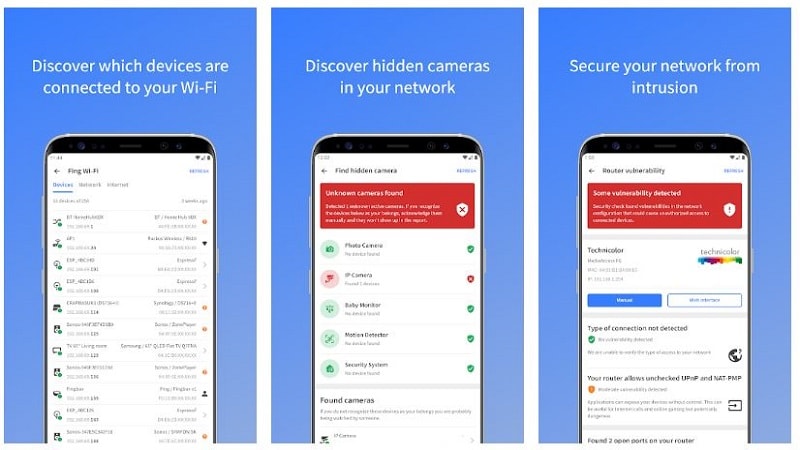
Fing is one of the best network analyzer tools that comes with more than a dozen free network tools to make your job easier. It gives you full control over your WiFi network, allowing you to evaluate its protection, set up your personal network, troubleshoot connection issues, and detect intruders all from the convenience of your Android device.

Fing will monitor the network and show the IP address, MAC address, system name, model, and vendor of all devices connected to it. The app includes tools for troubleshooting networks, such as port scanning, subnet scanning, detecting network intruders, connecting to SSH or FTP ports, and advanced NetBIOS and UPNP exploration.

Download Fing Network Tools App

2) AndroRAT
AndroRAT

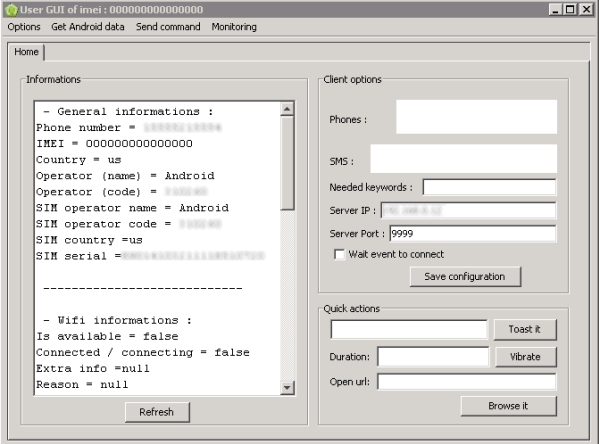
AndroRAT (Android Remote Administrative Tools) is a client-server application that allows users to remotely control Android devices. AndroRAT gathers information from target devices such as call details, contact information, messages, chats, location, and more. With Andro Rat, you can easily target the apks of other systems, as well as their IP addresses, so that you can track the device with other hacking tools whenever you want.

AndroRat allows you to run the service right after boot and remotely monitor the Android device. It can be activated by an SMS or a phone call without the user interacting with the phone. It’s a good way to gather information from an Android phone if you get it installed on a client device. Andro Rat is available for free on the GitHub website.

Download AndroRAT App

3) Hackode

Hackode

Hackode is one of the best hacking tools for android. This app allows you to collect data on other phones. Penetration testers, ethical hackers, IT administrators, and cybersecurity professionals use Hackode to perform various tasks such as monitoring, searching, exploiting, and Security Feed.

Hackode does not need any personal information to function and can detect any network vulnerability. You can use this tool to break into Wi-Fi networks, search for IP addresses, scan ports, check DNS, and much more. Network investigation, Whois, pinging, MX records lookup, and discovering vulnerabilities inside your network are all resources included in the app.

Download Hackode App

4) zANTI

zANTI

zANTI, developed by Zimperium, is one of the most popular hacking apps for Android. The app is primarily used as a toolkit for mobile penetration testing. The app is mostly used by IT administrators to detect network activity and maps the entire network and sniffs the websites being accessed, as well as their cookies.

This toolkit enables IT administrators to simulate a sophisticated hacking environment in order to detect a wide range of malicious techniques. It is capable of automatically creating a network map and revealing all of the linked devices’ potential vulnerabilities. The app can be found on the official website of Zimperium, a company that specializes in hacker apps.

Download zANTI App

5) cSPLOIT

cSPLOIT

cSPLOIT is one of the most popular Android hacking apps available, bringing Backtrack’s strength to your Android phone. It provides functionality such as checking a system’s vulnerability, mapping the local network, cracking passwords, controlling someone’s Wi-Fi signal, and more.

It comes with the Metasploit module pre-installed and can do things like forge TCP and UDP packets, engage in Man-in-the-Middle attacks, and more. cSploit is a free hacking tool that can be found on Github. The only drawback of this app is that you need a rooted device to use this app.

Download cSPLOIT App

6) DroidSheep

DroidSheep

Droidsheep is an open-source android hacking app that can be used as a network sniffer for WiFi networks. This app is basically intended for identifying and analyzing security flaws. Droid sheep can only catch data packets but not read them if a website has an SSL certificate.

DroidSheep can track a wide range of online activities, including social media, web surfing, and more. You’ll need a rooted Android phone and BusyBox to use this app. This is one of the best Android hacking apps available, with a variety of features.

Download DroidSheep App

7) Kali NetHunter

Kali NetHunter

The Kali Linux Nethunter platform is an open-source penetration testing platform created by the popular Kali Linux OS developers. It supports a bunch of functions including Wireless 802.11 frame injection, HID keyboard, 1-click MANA Evil Access Point setups, BadUSB MITM attacks. etc.

NetHunter for Android basically runs as an overlay on your device and picks up Internet traffic. It can be installed as a custom kernel and an add-on Android app. It is one of the most effective and cost-efficient penetration testing tools for Android devices.

Download Kali NetHunter App

8) Wi-Fi Kill

Kali NetHunter

Wi-Fi Kill is a great hacking tool for rooted Android devices that allows you to kill all linked WiFi devices by blocking packets sent to that device over the network. The app allows you to see who is linked to the network along with data transfer speeds and user names. The app is available in both a free and a paid edition, and it can only be used on a rooted smartphone.

Download Wi-Fi Kill App

9) Nmap For Android

Nmap

Nmap (network mapper) is an open-source network scanner app for both rooted and non-rooted Android devices. It can find hosts, protocols, open ports, and utilities on networks, as well as their configuration and vulnerabilities. The app’s purpose is to send and receive special packets to each IP address on the network, then display a map based on the responses.

Download Nmap App

10) SSHDroid

SSHDroid

SSHDroid is an Android SSH server implementation tool that allows you to connect to your computer from a PC and run commands like terminal and ADB shell, as well as edit files using SFTP, WinSCP, Cyberduck, and other programs.

This app provides features such as shared-key authentication, Home screen, and lock screen widget, wifi autostart whitelist, expanded notification control, and Automation with intents support. Although SSHDroid is a free app, upgrading to the SSHDroid pro edition unlocks several additional features.

Download SSHDroid App

Wrapping Up: Best Android Hacking Apps

These are some of the Best Hacking Apps For Android that can change your Android device into a small hacking toolkit. If we missed any hacking apps, tell us about them in the comments. Stay connected with us via Facebook and Twitter to read more such helpful posts.