Author

Sumit Bahl

Browsing

Social media marketing has become a popular way to promote yourself, products or services. It’s important that you understand the benefits and risks of social media marketing and how to get the best results from your ef

forts.

Many business owners are turning to social media marketing to reach their target audience more effectively than with traditional advertising methods such as print ads, radio ads, TV ads, etc. Social media allows instant connection between businesses and customers personally, making people more likely to respond positively when they see an interesting advertisement through it.

This article will give you a better understanding of social media marketing and how it can help grow your business.

Find out how to get the best results from your social media marketing

The following tips will help you get the best results from your social media marketing efforts.

  • Before investing time or money in a campaign, create a plan that includes goals, objectives, and measurable metrics to gauge success.
  • Make sure your content is visually appealing by including images or videos in every post.
  • Use hashtags to find people who are interested in topics similar to yours so they can organically discover you on social media platforms like Twitter, Instagram, Facebook, etc.
  • Ask questions! Social media makes it easy to interact with your audience and invite them to answer questions through polls or other forms.

Facebook marketing

Here we want to show you everything you need to know about the most used social network today, Facebook. We can say that Facebook differs from other social networks because it has enormous business potential. 

On Facebook, it is possible to create company pages, target paid advertisements, engage in dialogue with the public, and contact them directly. This social network, which has more than 1.8 billion users, is the most popular among women and 18-29-year-olds. You’re halfway there if your business has an audience with this profile.

If you don’t have a Facebook profile yet, don’t worry! Despite this stark description of who uses it, billions of different people sign up and use the network almost daily. So think twice before deciding not to create a fan page for your business because you think your audience isn’t there.

Organic Traffic X Paid Traffic

There are two ways to generate traffic on Facebook: paid traffic or, even healthier, organic traffic.

Over the years, the network has received updates to its algorithm, the most significant being in 2011. That year, an incredible tool was launched, which learned from user behavior by analyzing clicks, shared content, likes, and even content that the user ignores.

Since then, Facebook chooses what it shows on people’s timelines based on what interests them.

Now, to get more visits organically, you need to invest in unique and differentiated content to appeal to your target audience, which is the key to success.

As for paid traffic, as the name suggests, it is purchased and is more commonly known as Facebook Ads. These ads can be highly targeted based on gender, age, language, and geography.

However, they follow eight components:

  • A boost to your followers to increase likes and shares.
  • Generate advertisements for the follower base to boost likes.
  • Ads that drive clicks to your site.
  • Create conversion-focused ads to your site.
  • Ads that target engagement with your app.
  • Show ads that encourage users to download your app.
  • Ads to promote an event.
  • Ads that promote an offer.

It is good to remember that the so-called vanity metrics (likes and number of shares) are very good, but they do not help you monetize, that is, to earn money. This is why they cannot be the only indicators to consider when it comes to see if the social network is effective or not for your strategy.

For ads promoting a big deal, consider the four stages of the social media cycle:

  • Listen to the audience
  • Understand their main concerns
  • Form partnerships with relevant authorities
  • Finally, be able to present the product for sale

If you don’t listen to what your audience wants, chances are you won’t present them with an attractive offer.

Use Facebook to promote your business

There are a few best practices to follow on your business page to make it more effective. Take a look at the steps:

  • Add a good resolution profile picture. This can be interesting if you use an image with your logo.
  • Use an attractive cover photo. This promotes your brand and has a positive impact.
  • Complete your profile with all relevant information: site, address, description, mission, telephone, and email. Create a far more appealing and unique Facebook profile video to make your profile stand out above the crowd.
  • Add your partners.
  • Set tone of voice for communication
  • Plan the content you are going to broadcast. Remember to listen to your audience before you start writing.
  • Promote your Page and posts.
  • Measure results, remembering once again that likes and shares don’t pay off.

Tips for better Facebook marketing

Facebook is a pervasive network that allows different types of content. The only thing you need to do is understand your persona to plan the type of content that they will most accept, so you don’t waste time doing poorly targeted work.

You can use written articles, pictures, checklists, videos, e-books, and other information-rich materials. Here are some tips for creating effective partnerships between social media marketing and corporate communication.

Be mobile-friendly

People everywhere are increasingly using smartphones to access websites, browse the internet, read articles, email, and check social media. When creating content for Facebook, make sure it’s suitable for a mobile phone or tablet, as 

Add pictures

Images are essential when thinking about communication via Facebook. They help increase engagement with your audience and showcase what you’re promoting. Use images, but don’t stop measuring and seeing which are most effective in your network.

Define your audience

You can define your audience using the tools offered by the social network. You can set targeting filters such as gender, age, language, education, workplace, among others. Targeting your ads correctly shows that you know your audience and are communicating with them while ensuring that you are investing appropriately. 

Use Facebook reports to measure your success.

They shouldn’t be the only metric, but thanks to Facebook Stories, you’ll be able to see which content is consumed, liked and shared the most. This at least helps you define the topics that are most accepted by your audience.

Ask questions

Engaging with your audience is one of the best ways to generate leads for your business. Ask questions to encourage them to respond and share your updates and announcements.

Do not leave comments unanswered.

Remember we talked earlier about the importance of listening to what people are talking about in order to generate richer and better content? This includes responding to all comments left on your Page so that a current or future customer can see what your business can do for them.

Study the best times to post

With Facebook Insights, you can find out what your Page’s revenue spikes are. This way, you can post at the most interesting times and ensure that the public sees your activity.

To conclude

Facebook marketing has become a popular way to promote products or services. It’s important that you understand the benefits and risks of Facebook marketing, as well as how to get the best results from your efforts.

This blog post gives you a better understanding of what social media marketing is and how it can help grow your business. If you’re not sure where to start with this type of digital strategy for your business, we’d be happy to take the time to share our ideas with you. If you have any questions while reading this article, please let us know.

WhatsApp allows you to customize and change the notification tone as per your personal preference. You can set Custom Message Alerts and Custom Ringtones for both individual contacts and groups. Doing this will help you to identify who messaged you without even unlocking the phone. Check the below steps to set custom notification tone for WhatsApp group or contact.

WhatsApp offers a wide range of notification sounds to pick from. It even allows you to create your own notification sound; all you have to do is modify certain customization settings in WhatsApp. When the chosen contact chats with you on WhatsApp, you will hear a unique notification sound than when you connect with others.

How to Set Custom Notification Tone for WhatsApp Group or Contact

Notification preferences can easily be managed in your WhatsApp settings. Here you can choose different ringtones for messages, group messages, and WhatsApp Calls. Check here the step-by-step guide for WhatsApp users to change the notification tone and per their choice.

How to Set Custom Ringtones for WhatsApp Groups

The steps to set each WhatsApp group their own tone are easy, and you can even add extra tones if you don’t like WhatsApp’s defaults.

  1. Open WhatsApp.
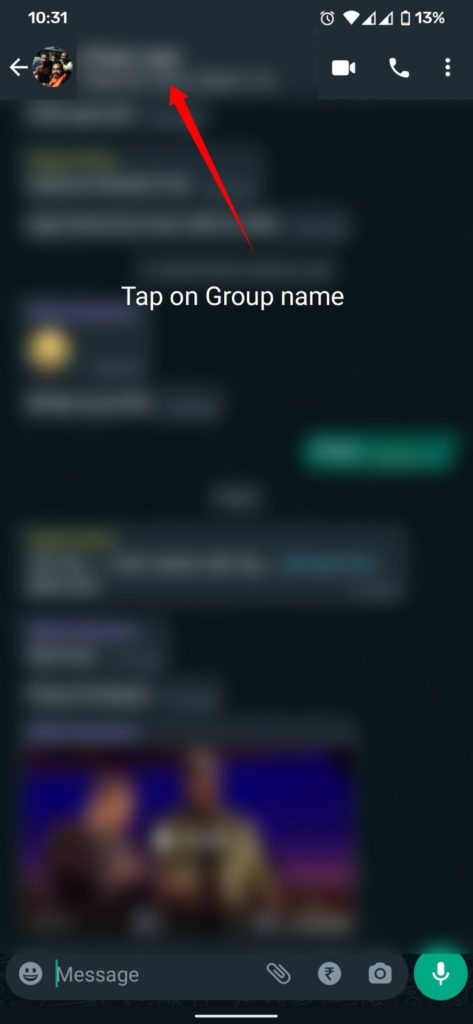
  2. Select the WhatsApp group to which you want to set the new ringtone.
  3. Tap on the group name at the top of the screen.
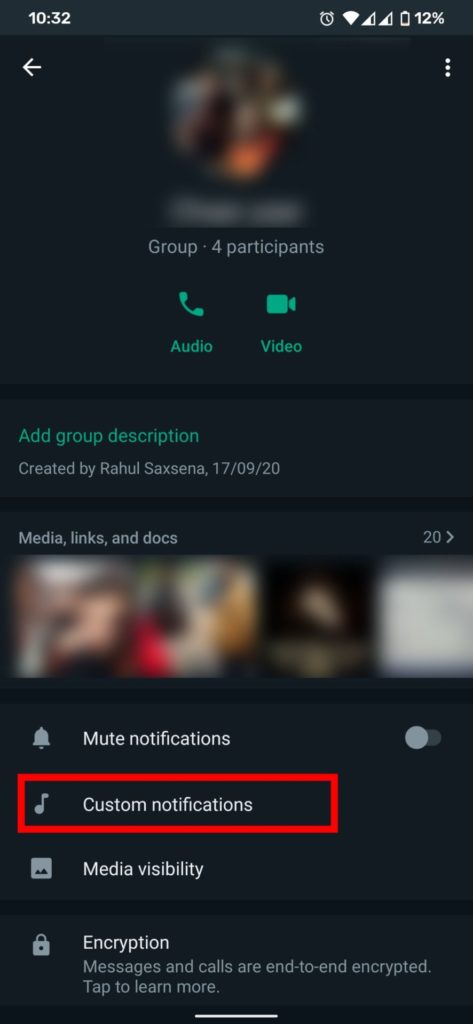
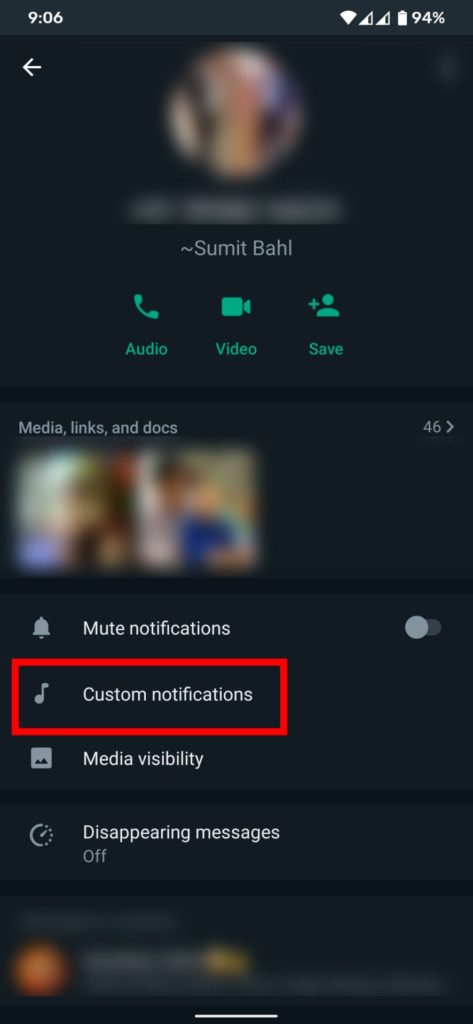
  4. At the profile page, scroll down and tap Custom notifications.
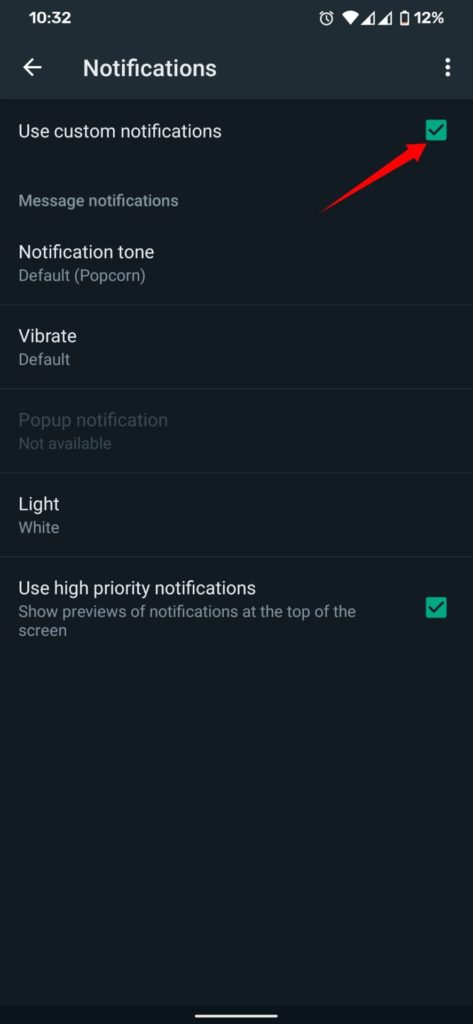
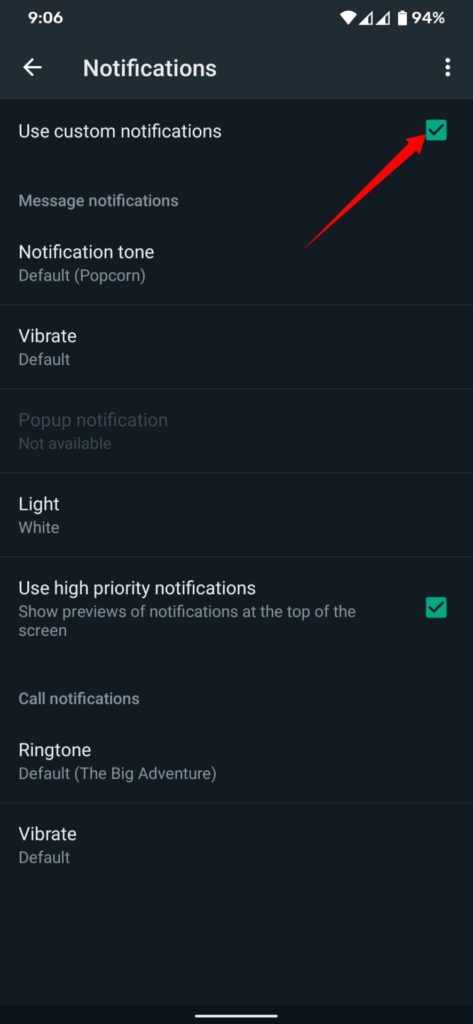
  5. On the next screen, enable the Use Custom Notifications option and select the Ringtone option.

How to Set Custom Ringtones for Individual Contacts

  1. Open WhatsApp.
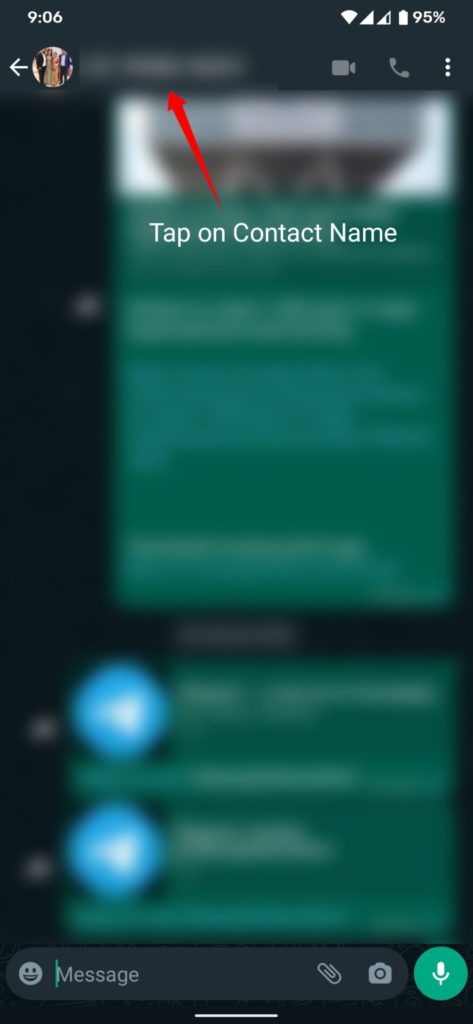
  2. Select the WhatsApp Contact that you want to set the new ringtone.
  3. Tap on the contact name at the top of the screen.
  4. At the profile page, scroll down and tap Custom notifications.
  5. On the next screen, enable the Use Custom Notifications option and select the Ringtone option.

Wrapping Up: Set a Custom Alert Tone for a Specific WhatsApp Group or Contact

You can customize your ringtone for a certain contact who appears to be very important to you and from whom you cannot afford to miss a call or message.

Google is used by almost everyone to search for everything and everything. Recently, you may have noticed that every time you are going to search for something, Google shows a list of recent trending searches. It’s Google’s way of improving customers’ search experiences, along with the new autocomplete feature. Many users will find this useful; however, other people may not be interested in the trending searches. If you’re one of them and don’t find it useful, use the instructions below to Turn Off Trending Searches and Google Autocomplete.

This information may be useful to many people since it helps them to remain up to date on current events throughout the world. While it’s interesting to observe what’s trending most of the time, Google’s Autocomplete tool isn’t always useful. So, if you’re not interested in the trending searches and find them irrelevant, you can easily hide Trending Searches in Chrome.

How to Turn Off Trending Searches and Google Autocomplete

In this guide, we’ll explain how to turn off Google trending searches and Google Autocomplete via a mobile browser, Google app, or on a PC. We’ll also explain how to disable personalized and related search results.

Turn Off Trending Searches in Chrome on Android

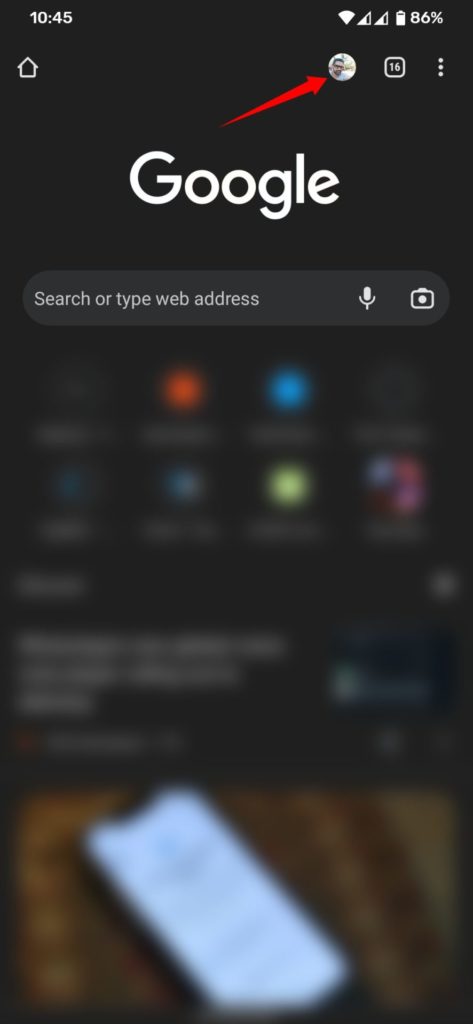
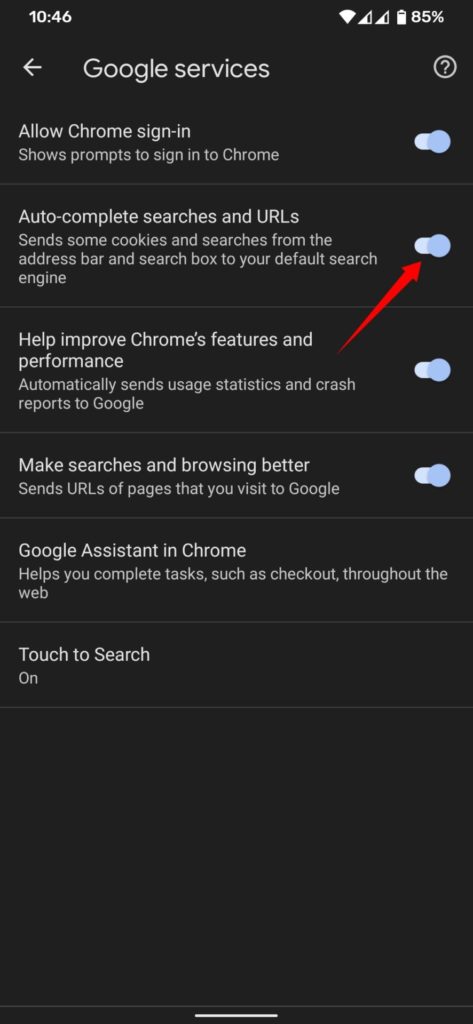
  1. Open Chrome browser and tap on your Profile picture present on the top section of your screen.
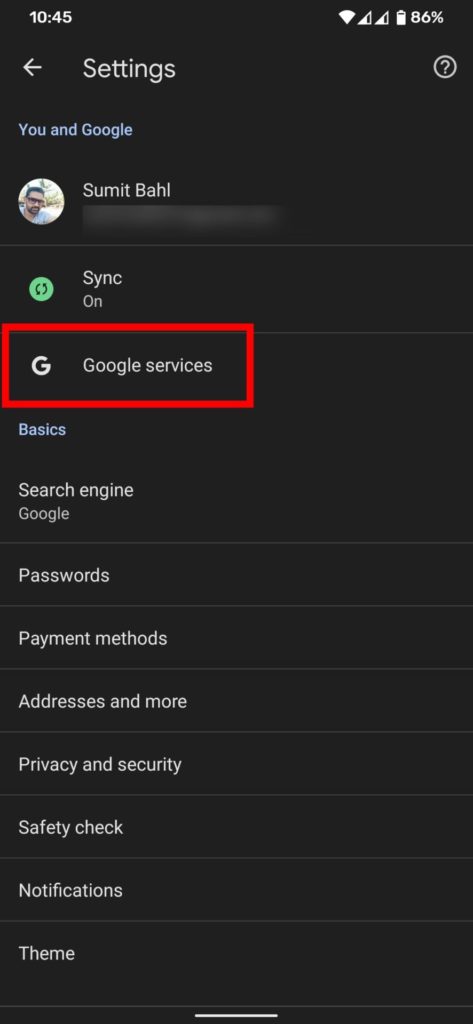
  2. Tap on Google services under the You and Google section.
  3. Now locate the Autocomplete searches and URLs option.
  4. Turn off the toggle to hide Google trending search.

Turn Off Trending Searches in Browsers other than Chrome

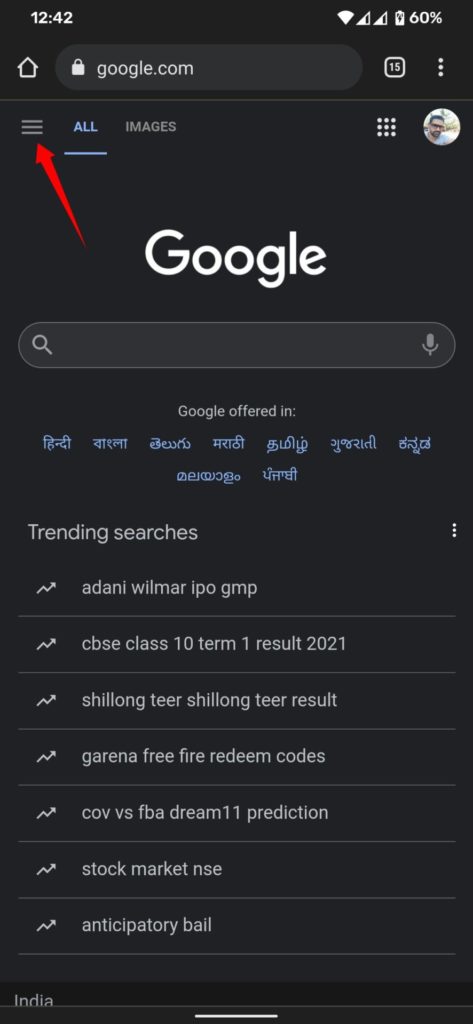
  1. Open a browser on your phone and visit google.com.
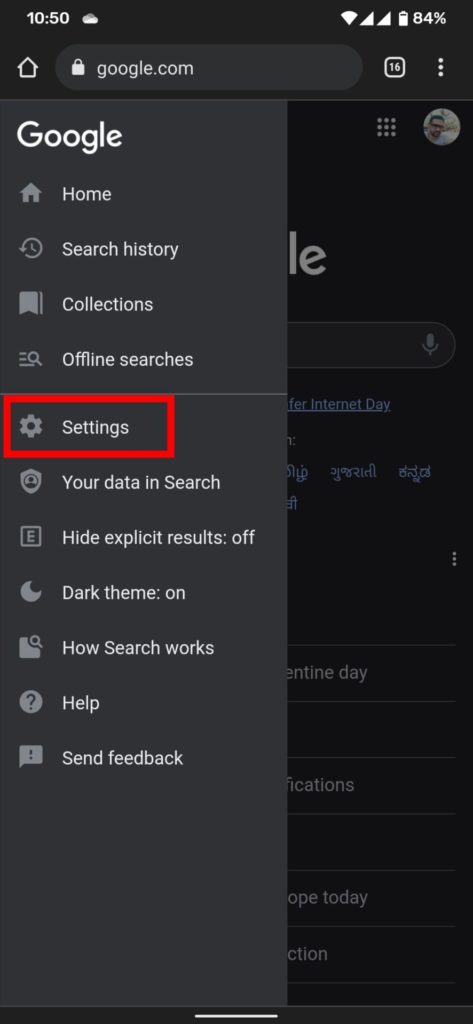
  2. On the top left of the page, tap Menu and select Settings.
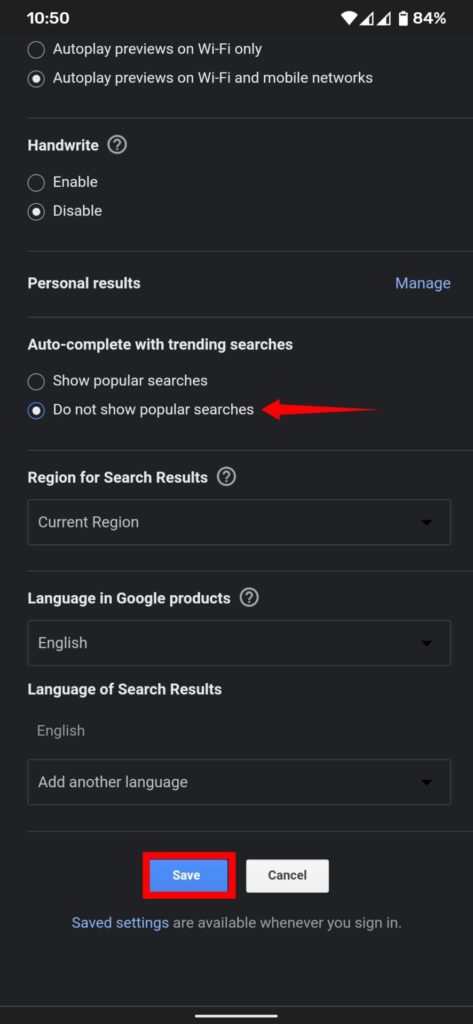
  3. Find Auto-complete with Trending Searches.
  4. Select Do not show popular searches.
  5. Tap Save to turn off Google trending searches.

How to Disable Trending Searches in the Google App

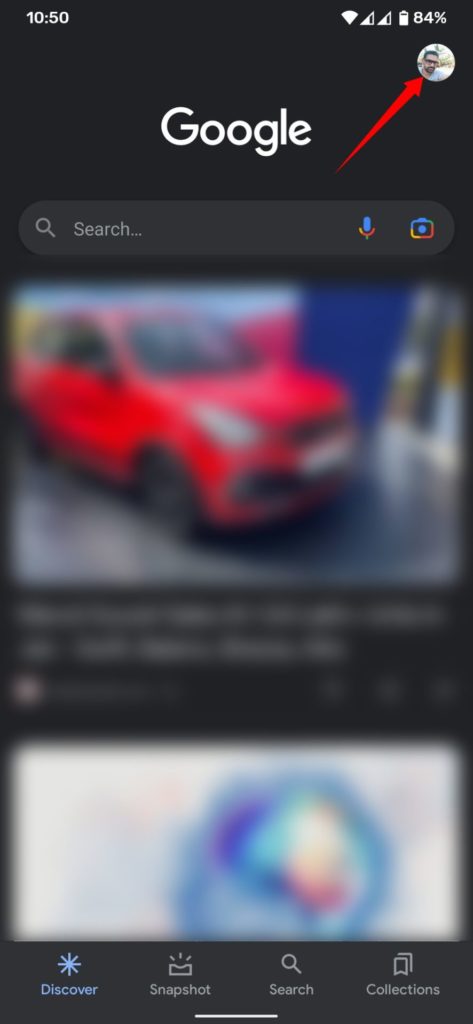
  1. Open Google App and tap on your profile picture present on the top section of your screen.
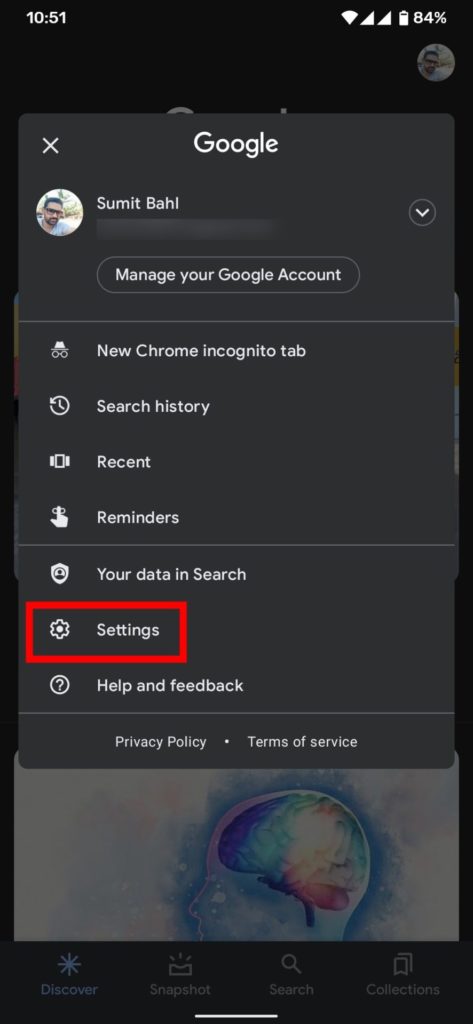
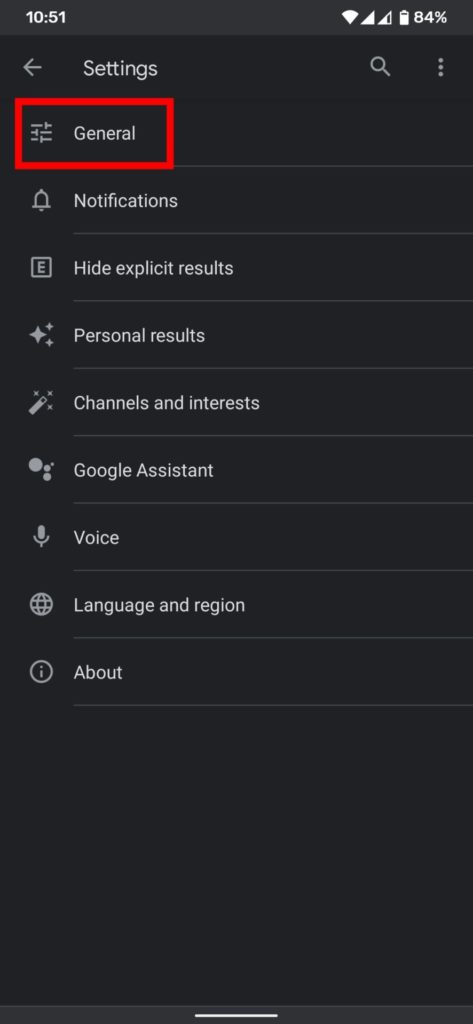
  2. Select Settings and tap on General.
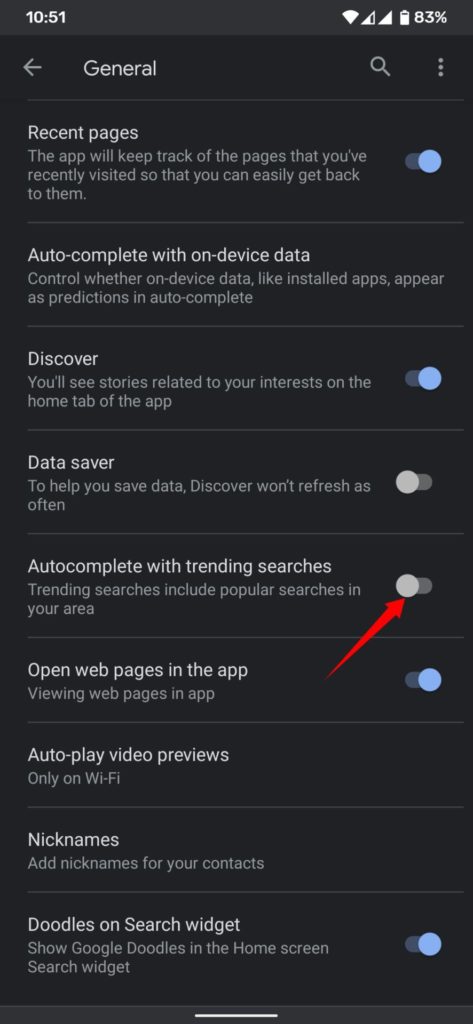
  3. Now locate the Autocomplete searches and URLs option.
  4. Turn off the toggle to hide Google trending search.

How to Turn Off Google Chrome Trending Searches Feature on Desktop

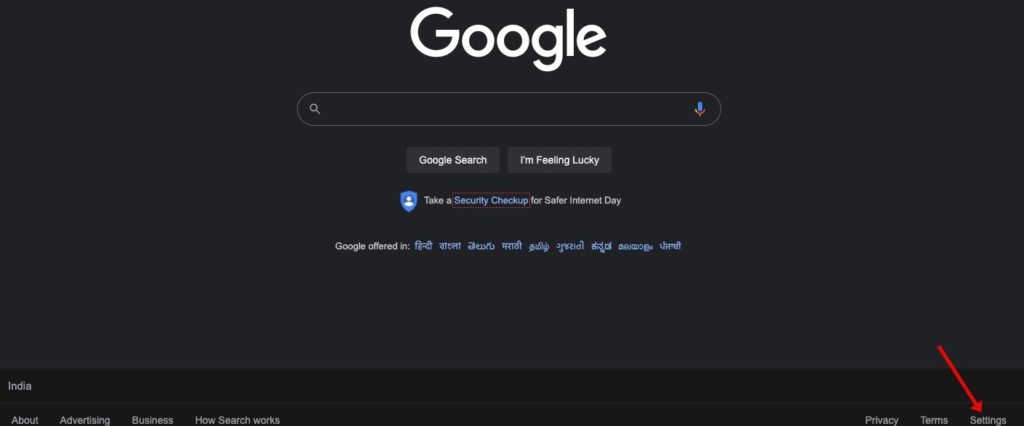
  1. Open the Google Chrome browser on your PC and go to Google.com.
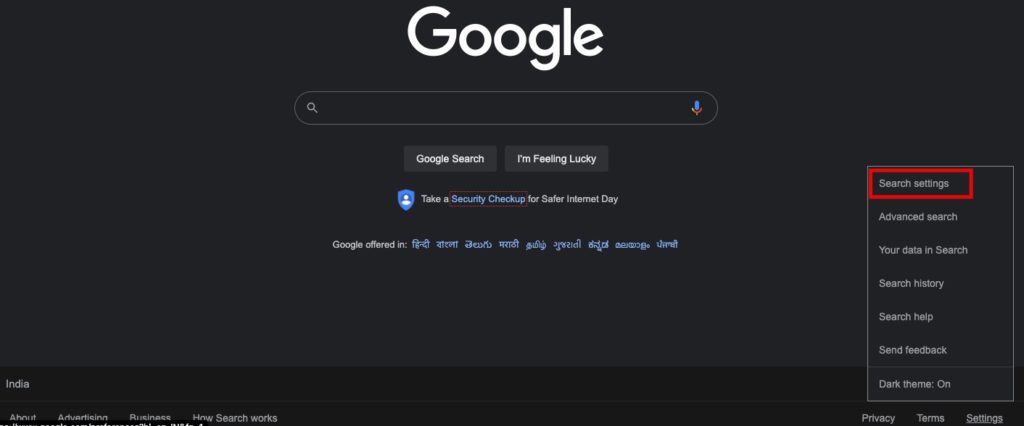
  2. From the bottom right corner, click Settings.
  3. Select Search Settings.
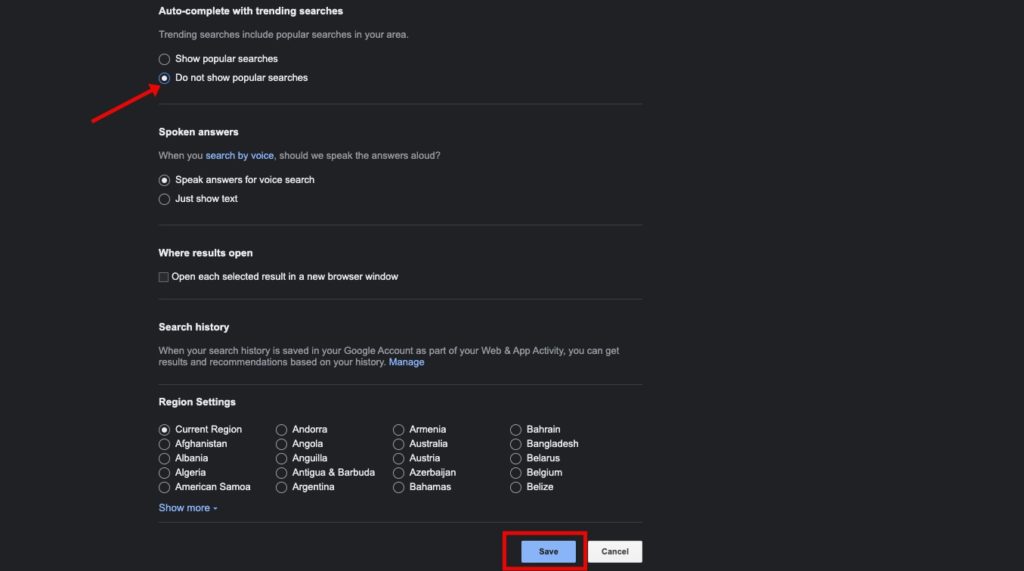
  4. Find Auto-complete with Trending Searches.
  5. Select Do not show popular searches.
  6. Tap Save and restart the browser.

Wrapping up: Turn Off Google Trending Search

With the above-mentioned methods, you can easily turn off trending searches and Google Autocomplete. Now you won’t be annoyed by trending searches that appear when you try to search for anything.

Have any questions? Do let us know that in the comments below. Stay connected with us via Facebook and Twitter to read more such helpful posts.

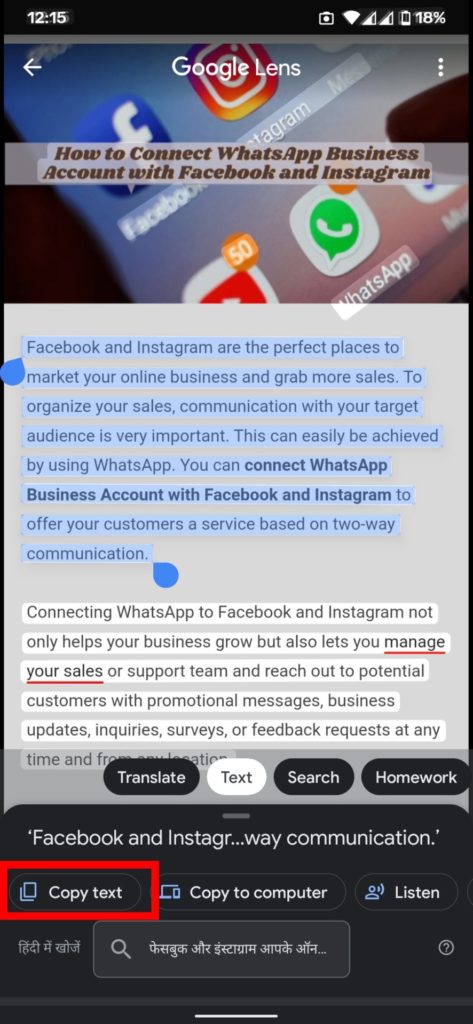
There are times when you need to copy text from images, whether it’s a screenshot or a photo taken with your phone. There’s no need to waste time typing everything down because there are tools that use Optical Character Recognition (OCR) to analyze the letters and words in an image, and then convert them to text. In this guide, We’ll show you how to copy text from a photo with your phone.

Regardless of your situation, this type of feature may be useful; being able to copy text from images can save you a substantial amount of time compared to manually transcribing words and retyping all of the text. Fortunately, converting a picture to text is a simple process. There are apps that analyze letters in an image and convert them so that you can easily transfer and edit the text on your smartphone.

How to Copy Text from a Photo with Your Phone

With Google’s Lens technology, any text in a photo, screenshot, or camera preview can be recognized with the help of OCR. It allows users to extract text out of an image, scanned document, or PDF file and quickly paste it into another document.

Method 1: Copy Text From Image using Google Photos

Google Photos app comes pre-installed on most Android devices. It has a feature to scan for text in an image with great accuracy. The feature to copy and paste text from an image is available on both Google Photos web and the mobile app.

  1. Open Google Photos.
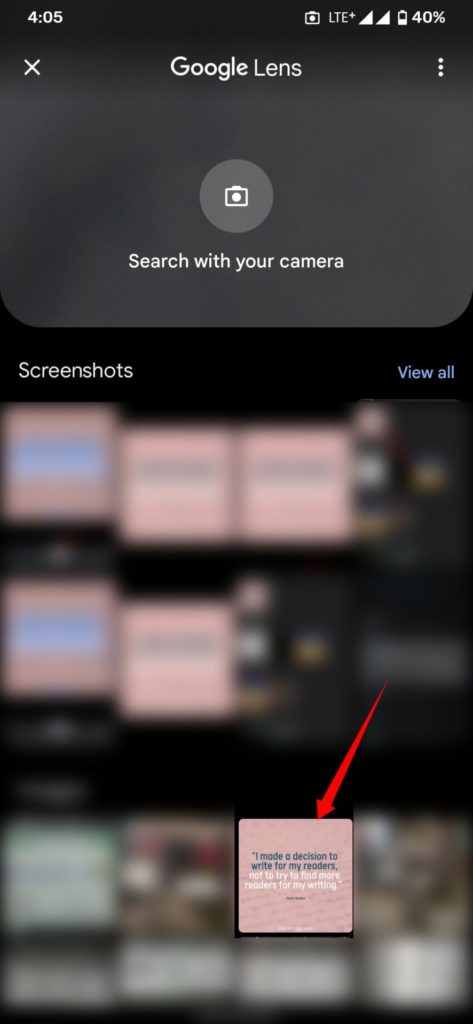
  2. Select the image from photos or the library.
  3. Click on Copy Text from Image at the bottom.
  4. Alternatively, tap on the Google Lens option from the bottom bar and click on Text.
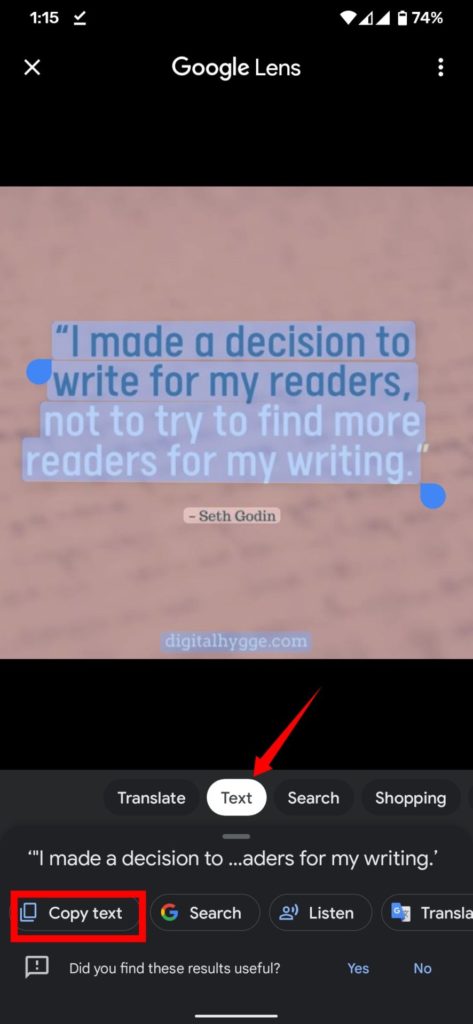
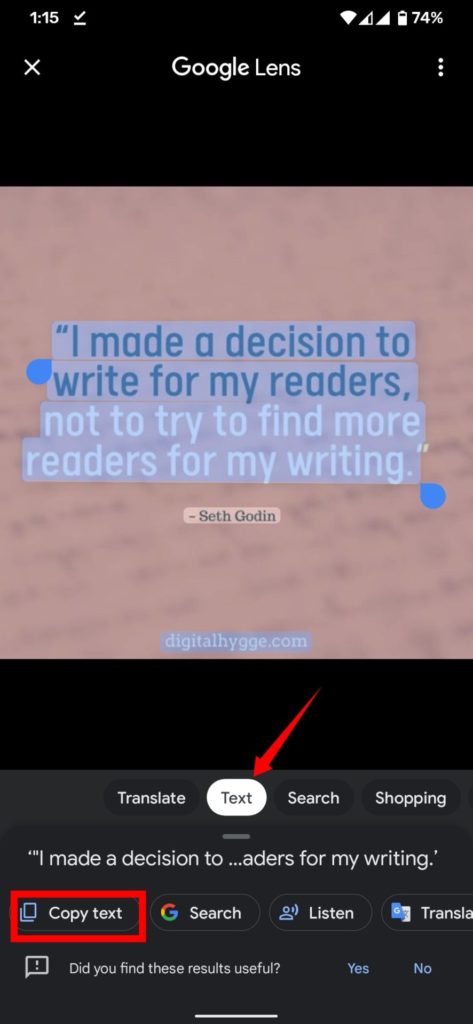
  5. Google Lens will scan the image and highlight any text it detects.
  6. Now, select the text you want to copy and click on Copy Text
  7. Done! The selected text has now been copied to your clipboard.

Method 2: Copy and Paste Image Text using Google Lens

To scan image text with a Google lens, you need a Google lens app. If you don’t have one, you can install it from the Google Play Store. After you’ve installed it, you’ll be able to scan any image that contains the text.

  1. Download and Install Google Lens on your phone.
  2. Open the Google lens app and tap a photo with text.
  3. Google Lens will scan the code and highlight any text it detects.
  4. Now, select the text you want to copy and click on Copy Text.

Other Apps

Google Keep is another useful app to extract text from an image. It can perform OCR easily and conveniently. Apart from Google free apps, there are lots of apps available on the play store that can perform this task easily. One such app which I like the most is Universal Copy. It not only performs the OCR on an image but also lets you copy from an app or website that won’t allow copying.

Wrapping Up: Copy and Paste Text from a Photo with Your Phone

With Google Lens technology and the help of apps like Google Lens, Keep, and Google Photos you can easily copy and paste text from a photo and it works for iPhone and Android.

Have any questions? Do let us know that in the comments below. Stay connected with us via Facebook and Twitter to read more such helpful posts.

One of the especially important aspects of any organizational process is its hiring process. It is an overly critical aspect as you need to hire the right people to move the company in the right direction. Human resource managers are saddled with the responsibility of recruitment. For any open position, they may need to sift through a lot of applications.

What this means is that they will have lots of resumes to go through to select the ideal candidate. Due to this, the entire process can be quite overwhelming, time-consuming, and stressful. This can lead to a rushed decision which can affect the company’s overall performance.

Thankfully, recruitment automation tools were developed to help alleviate these issues. These tools help to ease and simplify the hiring process. Consequently, they allow HR managers to concentrate on other important aspects as they make hiring less time-consuming.

Additionally, it helps to sift out dozens of unqualified applicants leaving only qualified ones. You will find the importance of recruiting right here https://smallbusiness.chron.com/.

What is a Recruitment Automation Tool?

Granted, you cannot take the human touch out of the hiring process. You still need to create the job description, conduct interviews, and communicate outcomes. However, recruitment tools help you to simplify the full process.
A recruitment automation tool is software that was developed to aid the hiring process. This software helps to increase accuracy and productivity and they help to match the ideal candidates to the right jobs. As a result, organizations can achieve faster and better placements. It also enhances the experience for all the parties involved in the process.

Benefits of Recruitment Automation Tools

The benefits of automating recruitment are enormous. Having mentioned some of these above, we consider them and others in depth below.

Enhanced Productivity

The whole essence of automation is to increase productivity and spend less time on a process. A lot of processes involve repetitive tasks and doing this repeatedly is not only time-consuming. It is also tiring, and this will eventually lead to inaccuracy. Additionally, candidates are constantly updating their CVs and without automation, you will have old or inaccurate data.

With an automation tool, you can streamline hiring right from the start; from application to updates, onboarding, and data entry. Consequently, repetitive tasks are handled by the system making the process much faster, more accurate, and up to date. This improves communication and drives better placement.

Furthermore, automation tools help to capture candidate data while ranking and automatically matching them to available jobs. Ultimately, this helps to grow the business. You can see more on this in this article https://builtin.com/.

Higher Quality of Hire

Not only do automation tools help to speed up recruitment, but they also help to select the best candidates. A lot of organizations have the challenge of attracting the high-quality candidates they desire. Unfortunately, after going through several candidates’ profiles and resume, they may not find what they are looking for.

By using a recruiting tool, they can search and get quality candidates from a variety of available sources in a few clicks. With it, they can also post job openings on their website as well as on job boards and career websites. The tool constantly looks for the best candidates that fit whatever positions they may have and make this available to them.

Save On Recruitment Costs

Every hiring process involves some certain level of cost both in time and money. The longer the process, the more costs you will incur. Alas, despite the time spent and the cost, you can still end up without the right candidates.
Recruitment automation tools help to limit your cost by speeding up the process. As alluded to earlier, you also get to find the best candidates for vacant positions. This makes the entire process a worthwhile venture.

Who Can Use Recruitment Automation Tools?

Although recruitment automation tools are used by recruiters, it is not meant for them alone. This software may also be used by applicants, clients, and the entire HR team of an organization. There are a variety of features that cater to each category or type of user.

For instance, a client can have access to the candidate list, resumes as well as video interviews. Candidates on the other hand may be able to access information relating to interviews and onboarding sessions. Additionally, the tool enables users to send, sign, track, and store documents.

There are many automation tools for recruitment with each one having different features that help to enhance recruitment. Some are strictly developed for enterprises while some are designed for agencies. There are also some designed for small businesses.

Conclusion

Hiring the best candidates to fill in roles is crucial to an organization’s success but can be quite demanding in time and resources. However, with recruitment automation tools, the process can be made faster, cheaper, and more efficient.


Facebook is the best social media platform for sharing photos and videos with friends and family. It includes a dedicated videos tab where users can watch, upload, and share videos. Facebook organizes video content really well, but it is difficult to find a video that you have already viewed if you do not recall the exact page or person who posted it. Fortunately, there is an easy way to find Recently Watched Videos on Facebook.

Finding Facebook video history is quick and simple. Facebook stored all the information on every single thing you’ve done and one of them is a record of the videos you’ve viewed. All videos you recently watched on Facebook will appear under activity log in your Facebook profile.

Although you can easily find recently watched videos on Facebook, there is no information available that can help you identify a specific video, such as what and where you saw it, whether it was watched from someone’s timeline or from a group, and so on. Even the video’s title is not displayed here. You only have the option of watching the video or deleting it. Here is how to watch recently watched videos on Facebook again.

How to Find Recently Watched Videos on Facebook 2022

It’s worth noting that it doesn’t matter if you viewed the video for a few seconds or several minutes. All of the videos you’ve recently seen on Facebook will appear in the “recently watched videos history” section of your profile. You can access the recently watched videos on Facebook through your profile. Follow the below steps to find recently watched videos on Facebook on PC.

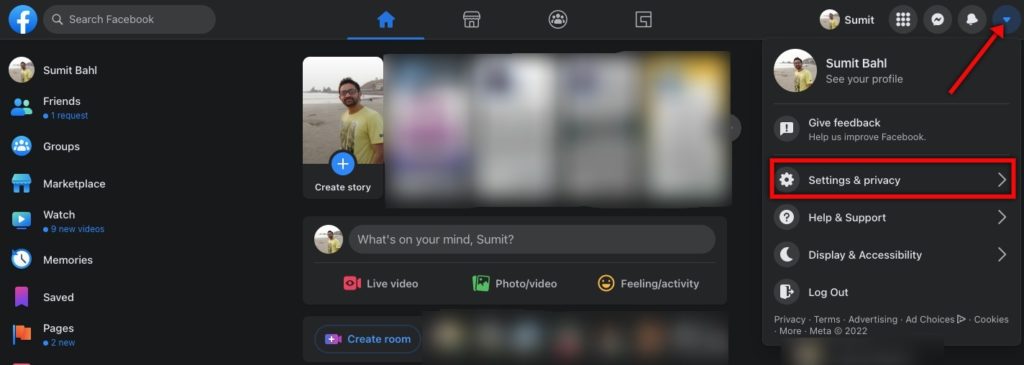
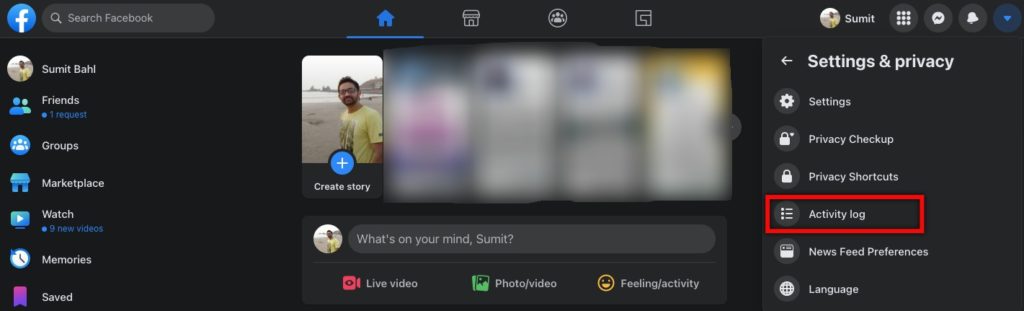
  1. Log in to Facebook and click the down arrow in the top right corner of your screen.
  2. Select Settings and Privacy from the pop-up menu.
  3. Select Activity log under the Settings & Privacy menu.
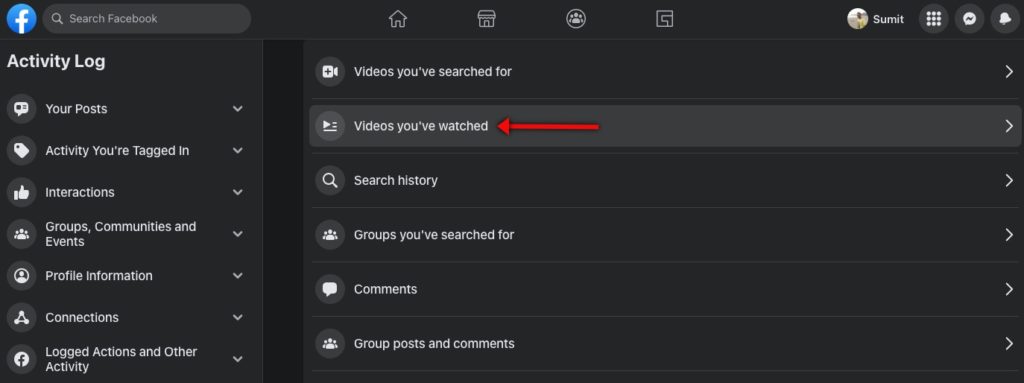
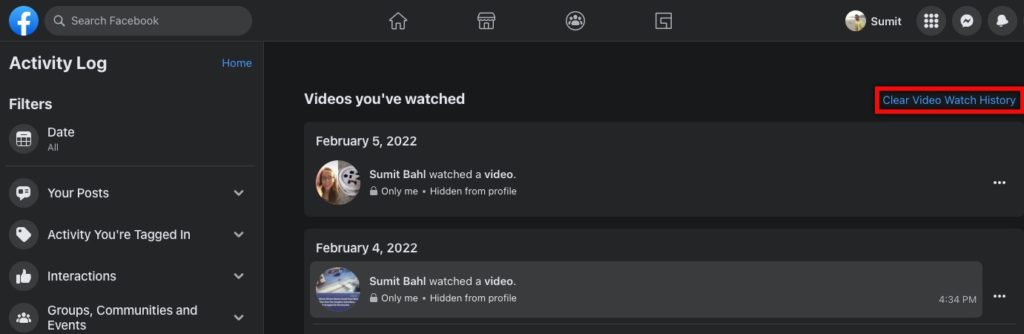
  4. Now, click on Videos You’ve Watched from the list.
  5. Now you can see a list of all videos you’ve recently watched on Facebook.

How to View Recently Watch Video in Facebook App or Mobile 2022

The majority of Facebook users access the site via their mobile phones. So, if you, like many other users, have a smartphone and want to view a video you recently saw again on the Facebook app or mobile, you can with a few simple steps.

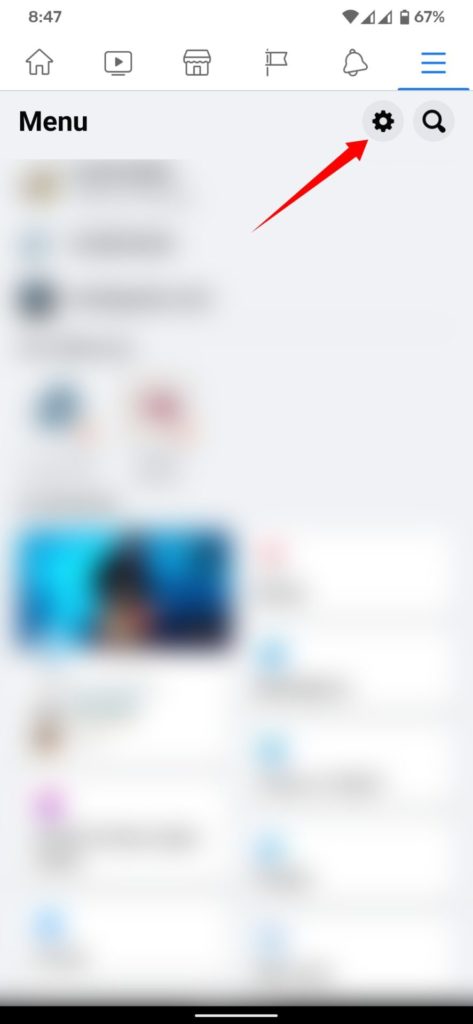
  1. Open the Facebook app and tap the Menu icon (three horizontal lines)) in the upper-right corner.
  2. Tap Settings.
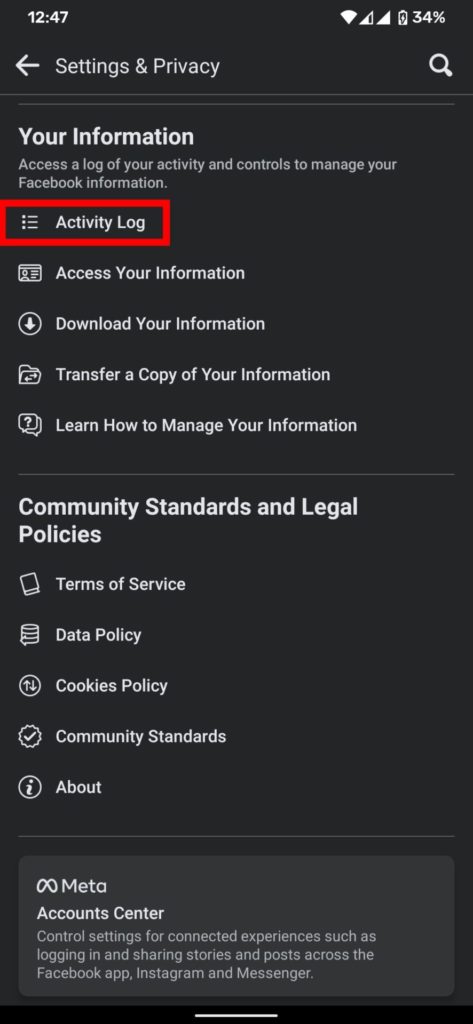
  3. Click on Activity log under Your Information tab.
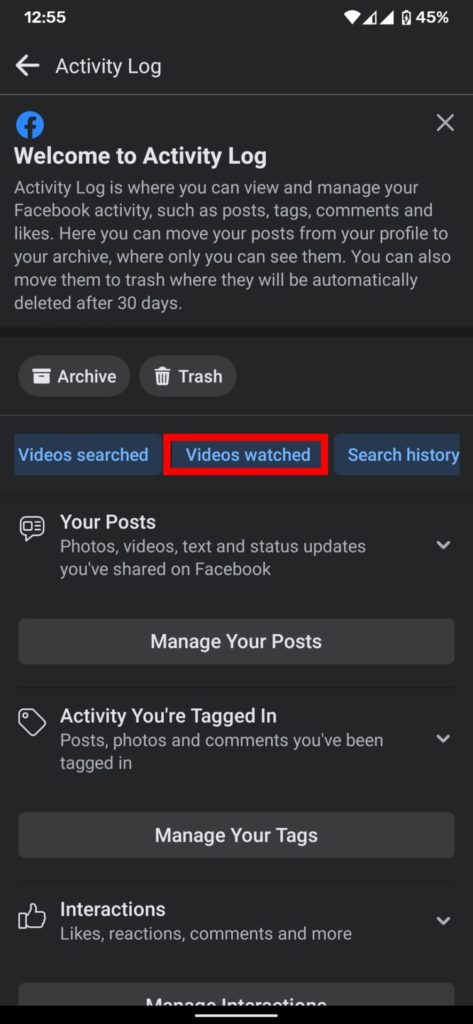
  4. Now you have seen filter shortcuts in blue color. Scroll left and click Videos watched.
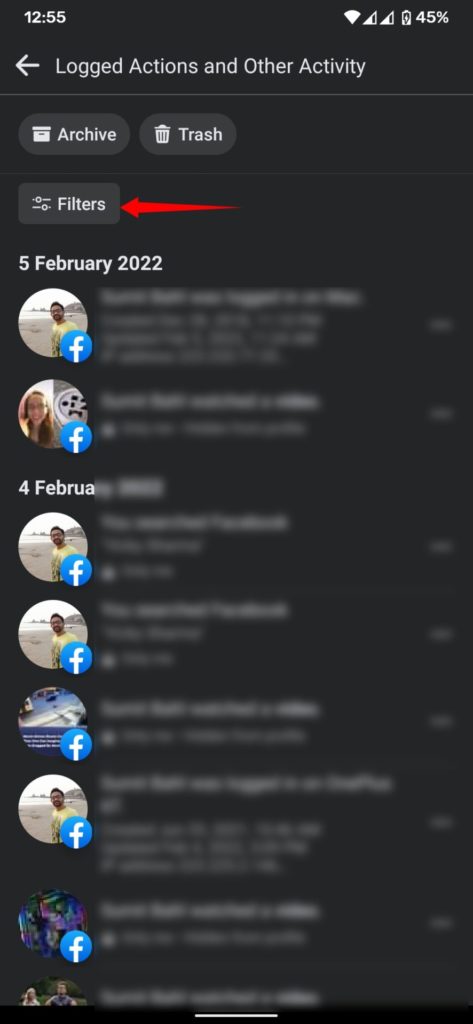
  5. Alternately, in the Activity log, Scroll down to the bottom and tap View Logged Actions.
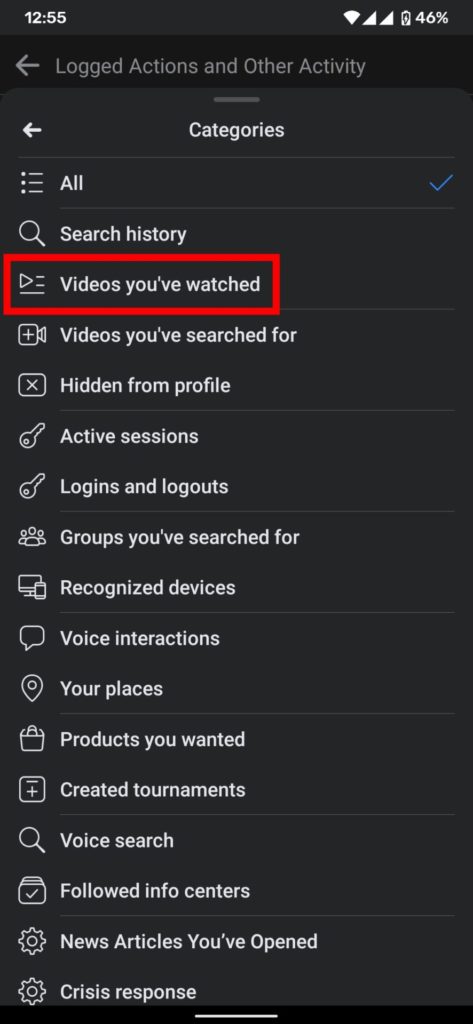
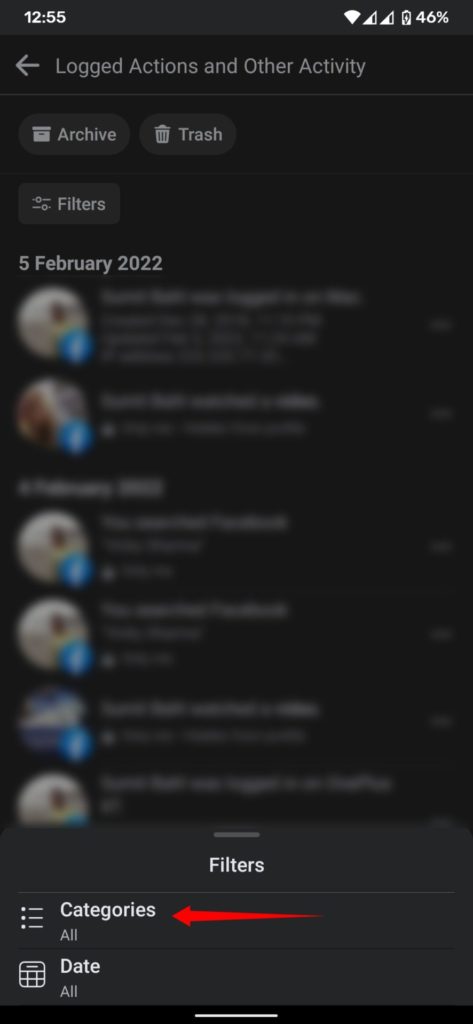
  6. Tap Filters and select the Categories.
  7. Now select Videos You’ve watched from the list.
  8. Done! All of the Facebook videos you have watched previously are shown here.

Note – In the Facebook mobile app, you can find the last played video but there is no option to open it. If you want to watch the video again, you have to use either Facebook lite or try it in the browser. Steps to find recently watched videos on Facebook Lite is also the same as we shared above.

How to Delete Previously Watched Videos on Facebook

Deleting the history of Facebook videos you’ve watched is very simple. It can easily be done using your smartphone or your computer/laptop. You can remove individual watched videos or clear all Facebook video watch history at once. Here is how to delete watched videos on Facebook.

  1. Log in to Facebook and click the down arrow in the top right corner of your screen.
  2. Select Settings and Privacy from the pop-up menu.
  3. Select Activity log under the Settings & Privacy menu.
  4. Now, click on Videos You’ve Watched from the list.
  5. Now you can see a list of all videos you’ve recently watched on Facebook.
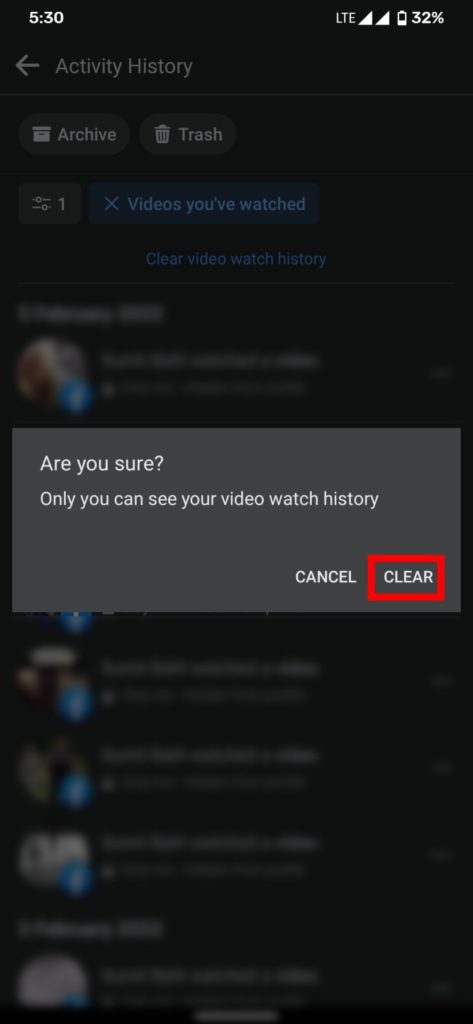
  6. Select the Clear Video Watch History link.
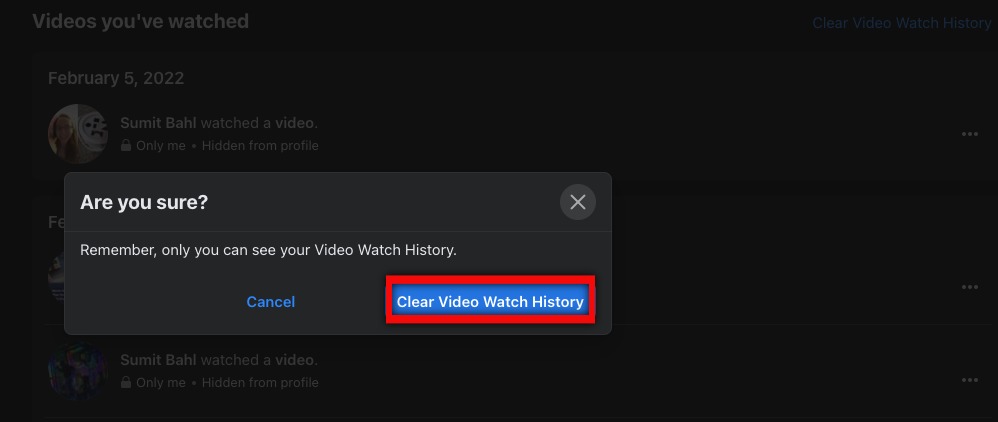
  7. Facebook will ask you to confirm once again. Just click on the Clear Video Watch history button to delete all previously watched Facebook videos.
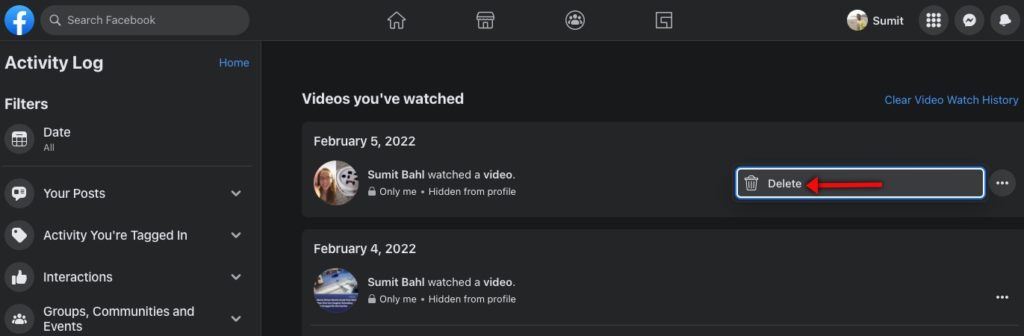
  8. If you don’t want to delete all your history, you can also choose to delete videos you want to go from the list.
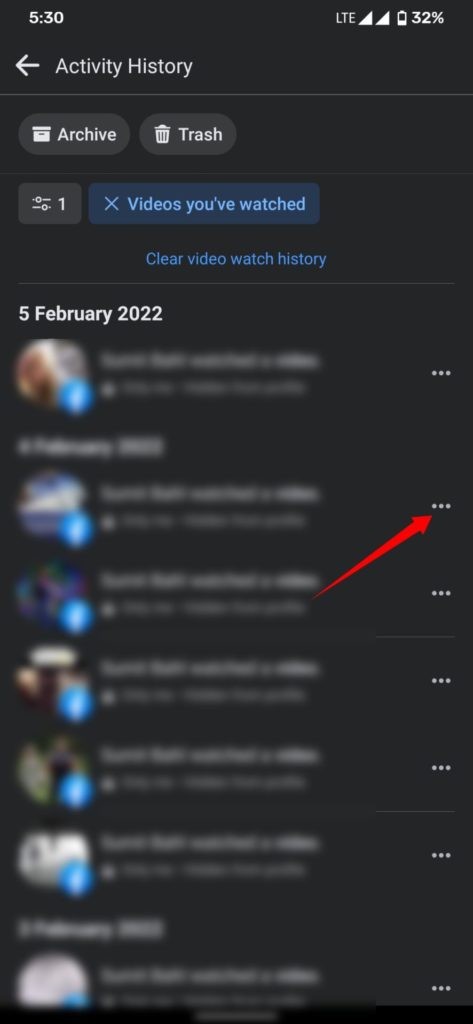
  9. To do so, click on the three-dot icon beside that video. You will get the option to delete that particular video from the list.

How To Delete Facebook Watch History on Mobile

Just like desktop, with a few steps, you can easily delete Facebook video watch history on mobile no matter you are using an iPhone or Android phone. Follow the below steps to delete the watched videos on the Facebook app.

  1. Open the Facebook app and tap the Menu icon (three horizontal lines)) in the upper-right corner.
  2. Tap Settings.
  3. Click on Activity log under Your Information tab.
  4. Now you have seen filter shortcuts in blue color. Scroll left and click Videos watched.
  5. Alternately, in the Activity log, Scroll down to the bottom and tap View Logged Actions.
  6. Tap Filters and select the Categories.
  7. Now select Videos You’ve watched from the list.
  8. All of the Facebook videos you have watched previously are shown here.
  9. Now tap on the three dots next to the video you want to remove from the watch history.
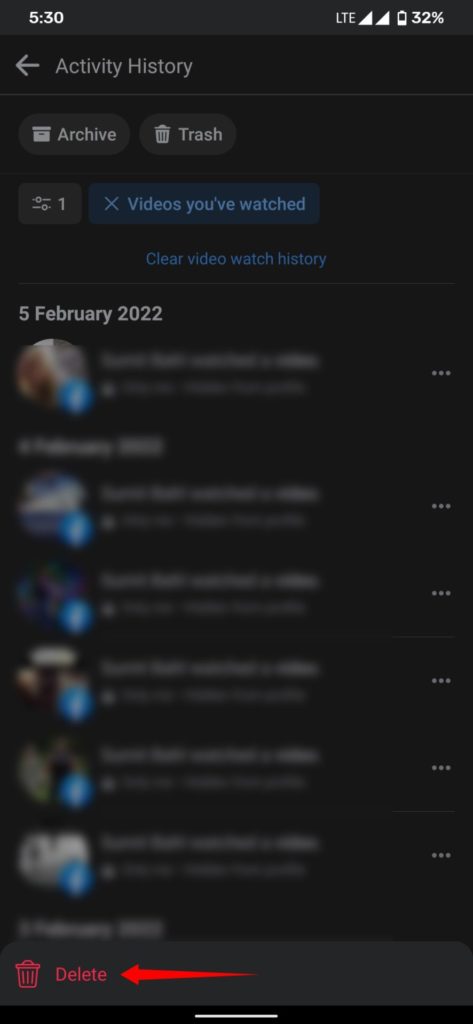
  10. Tap Delete.
  11. If you want to delete all videos, tap clear video watch history, and then tap clear.

Wrapping Up: Easily Find and Delete Previously Watched Videos on Facebook

That’s all! If you are following the above method, you can easily find or delete previously watched videos on Facebook. Have any questions? Do let us know that in the comments below. Stay connected with us via Facebook and Twitter to read more such helpful posts.

Usually, copy and paste is a very simple action that can be performed by anyone, but many website developers have come up with several ways to block the content selection and right-click to avoid copying. But if you want to copy text from a blocked site in Chrome for non-plagiarism or for educational purposes, there are several workarounds. Here are the best ways to copy text from sites that don’t allow it.

The most common way websites use to disable copying and right-click involves the use of CSS and JavaScript, whereas others add a few HTML tags to the webpage’s code. However, this may have an impact on genuine users who want to utilize the right-click feature for other purposes, such as searching for the selected content on Google. If your browser will not allow copy and paste, check the below steps.

How to Copy Text from Sites That Don’t Allow It

There are several methods to copy text from websites trying to prevent it, including using the extension, copying from that PDF, viewing the source of the webpage, disabling JavaScript and CSS, or even taking screenshots and running those through OCR. Below are some of the ways you can copy content from a website that has disabled text selection.

Method 1: Copy Text from Right-click Disabled Website using Chrome extensions

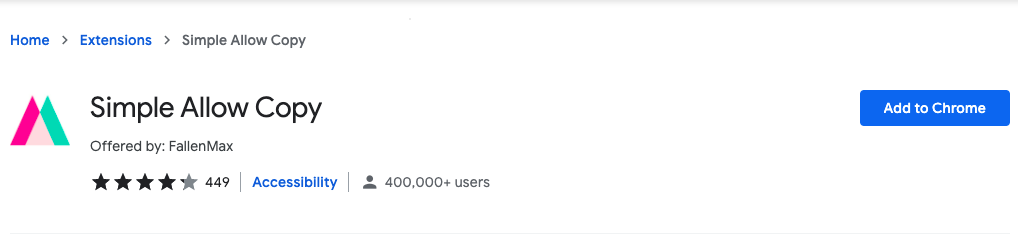
If you are using the Google Chrome browser, the easiest solution to your pasting problems is using the extensions. The extensions we share will disable JavaScript and HTML for a website to copy and paste text on websites that don’t allow it.

  1. First, you need to install Simple Allow Copy or Absolute Enable Right Click & Copy extension by clicking on the “Add to Chrome” button.
  2. After installing, open the website that’s not allowing you to copy.
  3. Click the extension icon in the top right corner next to the Settings icon.
  4. After a popup is opened, click on the extension you installed to copy the content from the webpage with right-click.

Method 2: Copy text from a protected website by disabling Javascript

The majority of websites use JavaScript to disable text selection and right-clicking. If you temporarily disable JavaScript on the site, you will be able to copy the text displayed on it. Once you’ve finished copying, don’t forget to enable JavaScript because some websites rely heavily on it, and blocking it will damage these websites.

  1. Open Settings.
  2. Click on Privacy and security.
  3. Open Site settings 
  4. Click on Javascript and select Don’t allow sites to use Javascript.
  5. You can also achieve that by typing the following line in the address bar:
    chrome://settings/content

Method 3: Copy from the source code

Another option is to display the source code of the website you’re on. Since it is shown in a plain text editor, you can freely copy anything from it.

Copy from the source code

By right-clicking on the website and selecting “View source,” you can see the code. If right-clicking is disabled, use the keyboard shortcut Ctrl + U to access the page source. When you are on the source code, press Ctrl + F to search and find the content you want to copy.

Alternatively, you can use the website source code by typing the following line in the address bar:

view-source:website URL. (example: view-source:https://www.google.com/)

Method 4: By Printing website to PDF

Another useful method to copy text from a blocked site is to print the page to PDF and then access the content. To use this option, use Ctrl + P to bring up the Print Page screen, then select “Save page as PDF” to save the webpage to your device. After that, you’ll be able to copy text from websites that don’t allow it with ease. Later you can convert the PDF to TXT format to copy text from sites that don’t allow it.

By Printing website to PDF

Method 5: Take a Screenshot and use OCR

If your browser won’t let you copy and paste, take a snapshot of the page and use OCR (Optical Character Recognition) to extract the content. Using OCR technology, you may copy all visible text and convert it to editable text.

How to Copy Content from a Website with disabled text selection on Android

If you have an Android device, you can use Google Lens or Universal Copy to copy content from blocked websites. The Universal Copy feature allows users to directly copy text, whereas Google Lens uses OCR technology to extract text from images. Here is how to copy a restricted text on Android.

Using Universal Copy:

  1. Download and Install Universal Copy from the Play Store.
  2. Open the app and allow all permission and enable it from accessibility setting.
  3. Next, go to any app or website from which you want to copy the text.
  4. Now pull down the notification drawer, and select Activate Universal Copy mode.
  5. It will scan everything on the screen. Tap on text, and it’ll be copied to your clipboard.
  6. It also has Scanner mode from that you can even copy text from any pictures or documents.

Using Google Lens:

  1. Download and Install Google Lens from the Play Store.
  2. Take the screenshot of the website from which you want to copy the text.
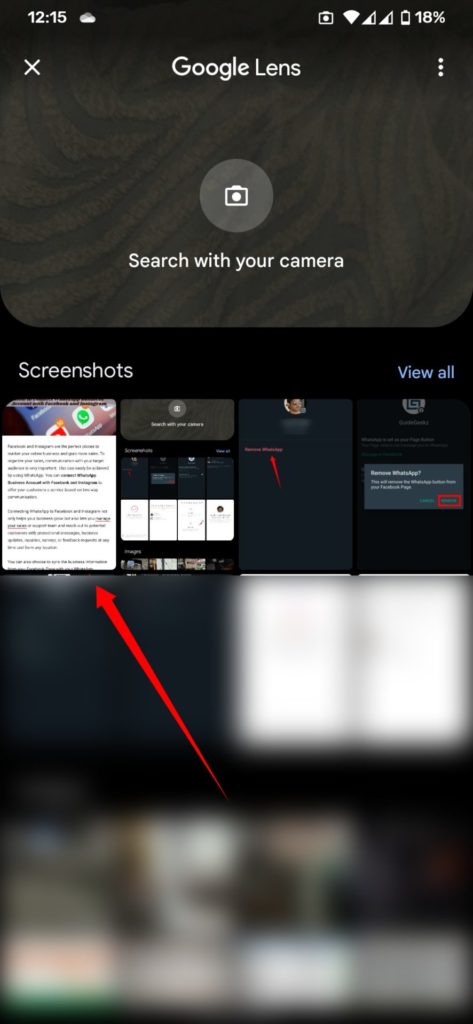
  3. Open Google Lens.
  4. Open the screenshot and wait till Lens scan the desired portions of the text.
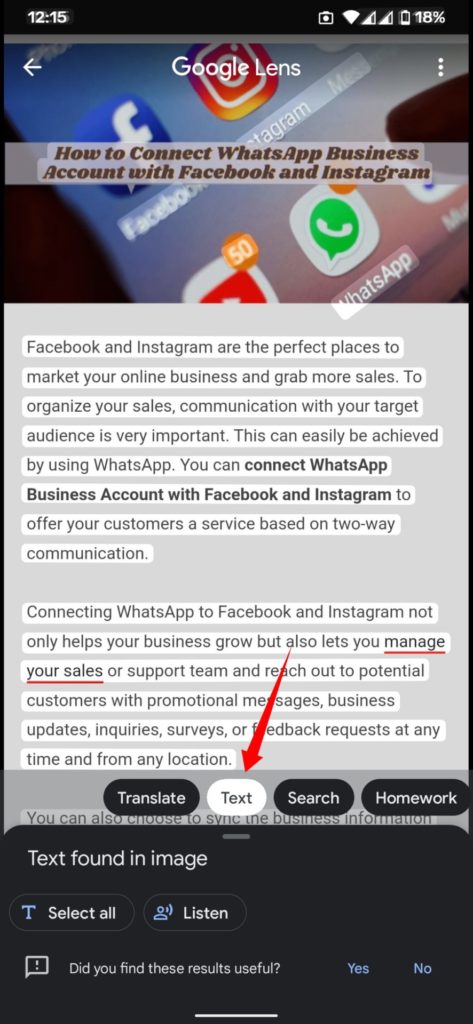
  5. Once the scan is complete, click on the Text tab.
  6. Select the desired content from the website and tap Copy text.

Wrapping Up: Easily Copy Text from a Blocked Site

That’s all. I hope one of these methods helped you copy the content from copy protected websites. It doesn’t matter whether the content is protected by JavaScript or CSS; the different options will always get the job done. However, keep in mind that you should not steal content or use it without authorization.

Have any questions? Do let us know that in the comments below. Stay connected with us via Facebook and Twitter to read more such helpful posts.

Many employees have been forced in a way to work from home, whether they like it or not. They have been used to working in an office, and now they have to get used to working in a different environment. Many companies have tried to find a better way to make their employees work in a safe and yet effective way.

It is still essential to keep the same productivity and efficiency of the company whether something is going on in the world or not. Especially when there are people who are working a full-time job, and they rely on their creativity and communication to make sure that the job will be done.

Design teams are put on a test. They have to show their skills and ensure that now is the time they can create something even better since they have to work together even more. Before, it was a question about how an individual can create something different. Now it is a question about what a team can create together.

Using different platforms can show different results from teams. It all depends on the ideas, will, and tools one team can use.

Which platform is best to use for working together as a team?

One platform that can really make one team stand out with their ideas and creativity is none other than Adobe. You have probably heard about it by now. If not, you are missing out on something that has great potential to make your employees and company move in the right direction.

There are so many tools that Adobe offers, but one that stands out for team activities and tasks is the creative cloud. This is a tool that allows a group of individuals to work together and blend in all of their ideas into one. The results that you can mostly see from this tool are astonishing.

It is all made with the purpose of making it easier for so many people to give all they got and work on something together. Better results have been shown when people tend to work together instead of alone.

And Adobe has done this with great intentions. You won’t catch as many other platforms that like to do something for their users and customers. It is a hassle when you are trying to work on something, and you don’t have the option to do so. Well, we should be grateful that Adobe chose to do something like this.

Check the following link for more on it https://www.theverge.com/2021/2/9/22274936/adobe-invite-edit-collaborate-photoshop-illustrator-fresco.

What are Adobe team projects, and how to use them?

Like we said before, Adobe’s creative cloud has many tools that anyone can use. It is the perfect platform for those creative minds. Someone who loves designing and graphics should not miss out on this.

One of the leading tools from this platform is team projects. It includes video editing software, graphics editor, and so many more. But, without being signed to a creative cloud plan, you won’t be able to use any of these tools. This is something that you shouldn’t miss out on if you are working in a company that relies on teamwork.

When working on a project, you have to be aware that multiple people can’t be working on it at the same time. When one person is working on a project, they have to save it, and then another person can start working on it.

There is an option to create more than one team to work simultaneously. There can be more than one project being worked on at the same time. This will bring the productivity of one company to a higher standard.

It can be challenging once you start using this platform initially, but once you get the hang of it, you won’t see a problem at all. Since there are more people working at the same time, any issues that occur can be fixed in no time. If there is something more that you want to find out about this topic, click on this page for more information.

Summary

There is always a need for something that will create an easy flow of productivity at the workplace. Having something that will maintain and improve the standard of working is a key element of keeping a company running for a long time.
Any kind of company that finds something to keep their business running as long as possible should try to keep in their reach as much as they can. Not all platforms that exist and work are capable of keeping a company running. There is sometimes a platform that will stand out more than others. Not all of them can support the high functionality of one team.

So many departments rely on different things depending on what their task is and what they are all about. Some of them can simply function on the work and progress of individuals, but others can’t. Adobe is one huge part of a system that requires team work. And Adobe Creative Cloud Teams All Apps is something that you should check out.

Collaborating on different projects will make a company rise or fall. If you are not one of those who can collaborate with others, then don’t even think about using any of these tools. But if you are, then feel free to join the rest.

Many aspiring entrepreneurs launch their startups without a business plan. They don’t know how to develop one or believe it will be too much work—but the fact is that having a strategy can assist a lot!

According to an HBR’s six-year research, organizations with a documented and formalized business plan are 16 percent more likely to accomplish their financial viability targets than their non-planning peers.

Writing a business plan can make a huge difference for startups looking for funding.

But if you are really short on time and looking for a solution that requires the least amount of effort, then check out free PowerPoint templates by SlideUpLift!

It entails identifying your target customers, discovering what motivates them, and determining how to reach them through marketing initiatives. A typical business strategy includes the following components:

  • A business executive summary
  • Detailed company description
  • Market research
  • Information of the products and services that they offer
  • Workflow
  • Marketing and sales strategy
  • Financial Budget

In this blog, we will talk about how to write a business plan for your startup to get off to a good start.

What is a Startup Business Plan?

A startup business plan is a written document that details your plans for starting, managing, and establishing your new enterprise.

A well-thought-out business plan can be critical to the success of any entrepreneurial venture. Keep in mind that your business plan will develop as you learn more about your market. Before putting anything down formally, make an overview of the most critical issues you’d like comments on.

An in-depth business plan assists you in establishing success metrics. You can present the strategy to investors who may be concerned about the feasibility of their investment in your firm.

To establish a successful business plan for your startup, include everything in an orderly and easy-to-read manner– marketing strategy, financial predictions, staff profiles, deadlines, and more.

What is the need to create a business plan for your startup?

A business plan for your startup is one of the most significant elements in the process of establishing a company. Aside from assisting you in focusing on corporate goals, it also assists in gathering input from possible partners and keeping the team on the same page.

If you need assistance building or fine-tuning your startup business plan, follow this entrepreneur’s guide to getting started. You’ve created a product and are ready to move forward, but what’s your strategy? 

Firstly, you must have a robust strategy in place for your startup. 

Do you know how much it will cost, or where the money should come from? 

What about marketing techniques for attracting customers?

You’ll also need to discover strategies to maintain them thereafter so they keep coming back (and spending more).

How to write a business plan for your startup?

Use the following entrepreneur’s guide to create or revise a business plan for your startup. You’ll quickly have a clear route to startup success if you follow this simple six-step process.

1) Make Sure Your Startup Has A Clear Vision, Mission, and Values

Understanding the startup itself is the first step in drafting a startup business plan. Once you’ve determined what your startup does, consider why. 

What is the mission of your startup? 

What problem would it assist customers in resolving? 

The startup’s mission statement aids in defining its purpose for being. It is often conveyed in a single sentence, although it can also be written as a brief paragraph.

  • Try to answer the following questions: 
  • What exactly does your startup do? 
  • How will it generate revenue? 
  • How rapidly do you expect it to grow? 
  • Are there any major milestones or deadlines that must be met?

2) Identify and Analyze Your Target Market

Your company isn’t for everyone. Although you may believe that everyone would like your concept, this is not a practical business plan.

One of the initial stages in establishing a successful business is determining your startup’s target market. However, you must perform a market analysis to determine who you will target. This is undoubtedly the most significant aspect of starting a new business. If there is no market for your product or service, the startup will collapse.

Choosing the correct market is critical to the success of your company. A business might offer a variety of products and services, each with its own set of requirements for a successful market fit.

If you select one that does not have a large enough client base or is not profitable enough, your company may end up competing for every sale.

Ascertain if there is a distinct market niche – an ideal group of clients with a need or a pain point that your company can assist in resolving.

3) Outline the Executive Summary of Your Startup

Now that you’ve decided on the mission, vision, and values of your startup, it’s time to compose your startup business plan executive summary.

Keep it short and to the point. Begin by developing a one-sentence startup business plan introduction that highlights the primary client need/pain point and how you intend to address it.

4) Write a Company Description

Answer two essential questions: 

  • Who are you?
  • What are your plans? 

Then, give an overview of why you’re in business. Provide a description of introspective aspirations, elucidating intangible characteristics like values or cultural beliefs. Make sure to include:

  • Structure of the proposed business
  • Business model
  • Industry
  • Your vision and mission statement
  • Staff information

5) Set Up Startup Goals and Milestones

Next, make a list of your startup business plan’s milestones and goals. This is an important stage that many businesses overlook when they first start out.

Do you want to concentrate on acquiring new customers? 

Or achieving a certain sales target? 

It might be difficult to prioritize startup work without defined short-term goals.

6) Write startup marketing plan and startup budget

Your startup business plan is nearly done! All that remains is to develop a startup marketing strategy and budget. Your startup marketing strategy will assist you in determining your company’s target demographic and brand image.

The startup budget is an essential component of every firm since it takes the guessing out of writing expenditures. One of the most typical reasons for startup company failure is a lack of funds. Taking the effort to plan out your budget before you begin can reduce that danger.

Wrapping It Up

A solid business plan is a very effective instrument. It can be a major predictor of future performance, assist you in communicating a business purpose to staff, and remind investors why investing in your company is a smart decision.

Whether you want to start your own business or you already have one, having a well-written and executed startup business plan might be beneficial. Writing a proper business plan can raise your chances of receiving investment and will also improve your prospective growth rate.

The market research required to construct this strategy will also assist you in determining whether this is a feasible company idea to pursue.

If you’ve never developed a business plan before, this blog will help you figure out what you should include. Writing a business plan may appear to be a time-consuming activity right now, but it will keep you organized and save you a lot of difficulties in the long run.