Author

Sumit Bahl

Browsing

Good news for Nokia users, latest stable Android 10 update for Nokia 6.2 starts rolling out. HMD’s head Juho Sarvikas quoting “Nokia 6.2 just got upgraded to Android 10! Step up to more with many brand-new functionalities and fun features!”. via Twitter. You can Download Nokia 6.2 Android 10 OTA Zip from below to Update Nokia 6.2 to Android 10.

The new Android 10 OTA Update for Nokia 6.2 brings all Android 10 features like a system-wide dark theme, Smart reply, full-screen gesture navigation, additional controls for privacy, and location, along with March 2020 security patch. You can manually update Nokia 6.2 to Android 10 by downloading the OTA file from below.

The new Nokia 6.2 Android 10 update has the software version v2.290 and rolling out in a phase-wise manner. Means maybe you will get the update tomorrow or maybe next 1-2 weeks. If you don’t want to wait, you could just go to Settings and manually check or follow the below guide. Download Nokia 6.2 Android 10 OTA zip file from below.

Changelogs of Nokia 6.2 Android 10 update:

  • Dark Mode – Take it easy on your eyes
  • Smart reply – Save more time with recommended actions
  • Gesture navigation – Get around with a swipe and pull
  • Additional controls for privacy and location
  • Google Security Pach (2020-03 / March 2020)

Before You Begin

  • This method is only for Nokia 6.2. Don’t try this on any other device.
  • Follow the steps correctly otherwise, you may brick your device. We Guidegeekz.com is not responsible for any damage to your phone.
  • Charge your device to 60- 70% to prevent it from the accidental shutdown.
  • Take a complete backup of everything important.

Download Android 10 Update for Nokia 6.2

  • Nokia 6.2 Android 10 OTA Zip – Download
  • Nokia 3.2 Android 10 Update – Download
  • Nokia 7.2 Android 10 Update – Download

How to Install Android 10 Update on Nokia 6.2 –

Method 1 –

1) Download Nokia 6.2 Android 10 OTA Zip from above and save it to internal memory.

2) Reboot Nokia 6.2 to Recovery mode by using the command adb reboot bootloader or by using the below steps.

  • Turn Off your device
  • Press and hold the ‘Vol Up+Power’ button. Release the power button upon vibration, but keep the volume key pressed.
  • If you will see no command with dead Android
  • Now press Volume Up + power to enter into recovery mode.

3) In recovery mode select Apply update from SD Card.

4) Choose the zip file and wait.

5) Done! Reboot your phone after the process complete.

Method 2 –

  1. Download the Nokia 6.2 Android 10 OTA zip file from above and save it on your device.
  2. Go to download folder and rename the file to update.zip
  3. Place it to the root directory of internal storage.
  4. Open Phone app and dial *#*#874#*#* to update.
  5. Wait for the update to finish and restart when prompted.

Method 3 – 

  1. First, enable the USB debugging option from setting ->developer option. To enable Developer Options, go to About phone and tap the Build Number 7 times.
  2. Download ADB and Fastboot and install it on your PC.
  3. Download Android 10 OTA zip for Nokia 6.2 from above Copy ROM to a folder where adb installed.
  4. Now Turn Off your phone and boot into the recovery mode.
  5. Choose Apply update from ADB
  6. Now Connect your phone to your Laptop/PC
  7. On ROM folder press shift+right click and click on open command here.
  8. Now check your connection status by typing the below command
    adb devices
    if your device is listed, you’re ready to flash the ROM
  9. Now Install Android 10 OTA on Nokia 6.2 by typing below command
    adb sideload File-Name.zip 
  10. Now, wait until the process completes and then Reboot the phone.
  11. Done!

Wrapping Up:

Nokia 6.2 brings all Android 10 features and will soon be available for all via OTA but if you’re the impatient type then you could follow the above procedure to Download and Install Android 10 Update for Nokia 6.2. If you have any questions related to this post, feel free to leave that in the comment section.

Latest Android 10 based OxygenOS 10.5.5 for OnePlus 8T starts rolling out. The new OxygenOS 10.5.5 update for OnePlus 8T fixes include improved touch sensitivity on the screen edges, improved video smoothness in Motion graphics smoothing, better white balance and autofocus in low-light environments, better mobile data and Wi-Fi transmission stability, and more. Download OxygenOS 10.5.5 for OnePlus 8T from below.

The update is rolling out via OTA (over-the-air) and many users already getting OxygenOS 10.5.5 for OnePlus 8T. The update is incremental and rolls out in a phase-wise manner. You can wait for the OTA updates, or you can Update Oneplus 8T to OxygenOS 10.5.5 manually with the below method. Download OxygenOS 10.5.5 for OnePlus 8T from below.

The new OxygenOS 10.5.5 for OnePlus 8T brings many changes (Check the complete changelogs from below). We provide you the OxygenOS 10.5.5 OTA file which you can flash on your device. So if you want to update your OnePlus to the latest version then Download OxygenOS 10.5.5 for OnePlus 8T from below. Check below what’s new in OxygenOS 10.5.5

OxygenOS 10.5.5 Features and Changelogs –

  • System
    • Optimized touch sensitivity on the screen edges
    • Optimized the display effects
    • Improved video smoothness in Motion graphics smoothing
    • Fixed known issues and improved system stability
  • Battery
    • Simplified interaction experience for Bedtime mode
  • Camera
    • Improved accuracy of white balance and focus in a dark environment
    • Improved the smoothness and stability
  • Network
    • Enhanced the mobile data and Wi-Fi transmission stability

Note:-

  • This method is only for OnePlus 8T.
  • Full ROM can be flashed via TWRP as well.
  • Follow the steps correctly otherwise, you may brick your device. We Guidegeekz.com is not responsible for any damage to your phone.
  • Charge your device to 60- 70% to prevent it from the accidental shutdown.
  • Take a complete backup of everything important.

Download OxygenOS 10.5.5 for OnePlus 8T

How to Install OxygenOS 10.5.5 Update on OnePlus 8T

For Non-Rooted Users

Method 1

  1. First, enable the USB debugging option from setting ->developer option. To enable Developer Options, go to About phone and tap the Build Number 7 times.
  2. Download ADB and Fastboot and install it on your PC.
  3. Download OxygenOS 10.5.5 OTA from above Copy ROM to a folder where adb installed.
  4. Now Turn Off your phone and boot into the recovery mode.
  5. Choose Apply update from ADB
  6. Now Connect your phone to your Laptop/PC
  7. On ROM folder press shift+right click and click on open command here.
  8. Now check your connection status by typing the below command
    adb devices
    if your device is listed, you’re ready to flash the ROM
  9. Now Install OxygenOS 10.5.5 OTA on OnePlus 8Tby typing below command
    adb sideload File-Name.zip 
  10. Now, wait until the process completes and then Reboot the phone.
  11. Done!

Method 2

  1. Download OxygenOS 10.5.5 OTA zip file from above and save it on your internal phone memory.
  2. Now Switch off your device and boot into the Recovery mode.
  3. To boot OnePlus 8T into recovery mode press and hold ‘Power + Volume Down’ button.
  4. Now your phone boot into the Stock recovery.
  5. Now Select ‘Apply Update’ and select ‘Choose from Internal Storage
  6. Browse the OTA zip file which you download and save on your phone before.
  7. Select the zip file, and it will Install OxygenOS 10.5.5 OTA update file on your OnePlus 8T.
  8. Now wait until the process complete and then reboot your device.
  9. Done.

For Rooted Users

  1. First Unlock your device bootloader and Install TWRP on your Device. Skip this step if already installed TWRP.
  2. Reboot your device into Recovery mode and create a Nandroid backup (Recommended) of your device for safer side, if anything goes wrong.
  3. Now wipe your cache files from Goto Wipe>Advanced Wipe>Select Wipe cache and Dalvik cache and swipe to confirm it.
  4. Now, Go to Install and locate the OOS 10.5.5 Full Rom Zip & swipe to Install the ROM file
  5. Now Flash the Magisk again to maintain the root (Optional).
  6. Wipe Dalvik & Cache again.
  7. Done! Reboot System and Enjoy.

Wrapping Up:

That’s all this is the complete guide to Download OxygenOS 10.5.5 for OnePlus 8T (OTA + Full ROM). Have any questions? Do let us know that in the comments below. Stay connected with us via Facebook and Twitter to read more such helpful posts.

Latest Android 10 based OxygenOS 10.5.3 for OnePlus 8 starts rolling out. The new OxygenOS 10.5.3 update for OnePlus 8 fixes include improved touch sensitivity on the screen edges, improved video smoothness in Motion graphics smoothing, better white balance and autofocus in low-light environments, better mobile data and Wi-Fi transmission stability, and more. Download OxygenOS 10.5.3 for OnePlus 8 from below.

The update is rolling out via OTA (over-the-air) and many users already getting OxygenOS 10.5.3 for OnePlus 8. The update is incremental and rolls out in a phase-wise manner. You can wait for the OTA updates, or you can Update Oneplus 8 to OxygenOS 10.5.3 manually with the below method. Download OxygenOS 10.5.3 for OnePlus 8 from below.

The new OxygenOS 10.5.3 for OnePlus 8 brings many changes (Check the complete changelogs from below). We provide you the OxygenOS 10.5.3 OTA file which you can flash on your device. So if you want to update your OnePlus to the latest version then Download OxygenOS 10.5.3 for OnePlus 8 from below. Check below what’s new in OxygenOS 10.5.3

OxygenOS 10.5.3 Features and Changelogs –

  • System
    • Optimized touch sensitivity on the screen edges
    • Optimized the display effects
    • Improved video smoothness in Motion graphics smoothing
    • Fixed known issues and improved system stability
  • Battery
    • Simplified interaction experience for Bedtime mode
  • Camera
    • Improved accuracy of white balance and focus in a dark environment
    • Improved the smoothness and stability
  • Network
    • Enhanced the mobile data and Wi-Fi transmission stability

Note:-

  • This method is only for OnePlus 8.
  • Full ROM can be flashed via TWRP as well.
  • Follow the steps correctly otherwise, you may brick your device. We Guidegeekz.com is not responsible for any damage to your phone.
  • Charge your device to 60- 70% to prevent it from the accidental shutdown.
  • Take a complete backup of everything important.

Download OxygenOS 10.5.3 for OnePlus 8

How to Install OxygenOS 10.5.3 Update on OnePlus 8

For Non-Rooted Users

Method 1

  1. First, enable the USB debugging option from setting ->developer option. To enable Developer Options, go to About phone and tap the Build Number 7 times.
  2. Download ADB and Fastboot and install it on your PC.
  3. Download OxygenOS 10.5.3 OTA from above Copy ROM to a folder where adb installed.
  4. Now Turn Off your phone and boot into the recovery mode.
  5. Choose Apply update from ADB
  6. Now Connect your phone to your Laptop/PC
  7. On ROM folder press shift+right click and click on open command here.
  8. Now check your connection status by typing the below command
    adb devices
    if your device is listed, you’re ready to flash the ROM
  9. Now Install OxygenOS 10.5.3 OTA on OnePlus 8 by typing below command
    adb sideload File-Name.zip 
  10. Now, wait until the process completes and then Reboot the phone.
  11. Done!

Method 2

  1. Download OxygenOS 10.5.3 OTA zip file from above and save it on your internal phone memory.
  2. Now Switch off your device and boot into the Recovery mode.
  3. To boot OnePlus 8 into recovery mode press and hold ‘Power + Volume Down’ button.
  4. Now your phone boot into the Stock recovery.
  5. Now Select ‘Apply Update’ and select ‘Choose from Internal Storage
  6. Browse the OTA zip file which you download and save on your phone before.
  7. Select the zip file, and it will Install OxygenOS 10.5.3 OTA update file on your OnePlus 8.
  8. Now wait until the process complete and then reboot your device.
  9. Done.

For Rooted Users

  1. First Unlock your device bootloader and Install TWRP on your Device. Skip this step if already installed TWRP.
  2. Reboot your device into Recovery mode and create a Nandroid backup (Recommended) of your device for safer side, if anything goes wrong.
  3. Now wipe your cache files from Goto Wipe>Advanced Wipe>Select Wipe cache and Dalvik cache and swipe to confirm it.
  4. Now, Go to Install and locate the OOS 10.5.3 Full Rom Zip & swipe to Install the ROM file
  5. Now Flash the Magisk again to maintain the root (Optional).
  6. Wipe Dalvik & Cache again.
  7. Done! Reboot System and Enjoy.

Wrapping Up:

That’s all this is the complete guide to Download OxygenOS 10.5.3 for OnePlus 8 (OTA + Full ROM). Have any questions? Do let us know that in the comments below. Stay connected with us via Facebook and Twitter to read more such helpful posts.

Latest Android 10 based OxygenOS 10.3.3 for OnePlus 6 and OnePlus 6T starts rolling out. The new OxygenOS 10.3.3 update for OnePlus 6 and OnePlus 6T Fixed the issue with a black screen randomly appearing while playing games, bring updated GMS package to 2020.02, integrated VoWifi support for RJIO in India and April 2020 patches. Download OxygenOS 10.3.3 for OnePlus 6 and OnePlus 6T from below.

The update is rolling out via OTA (over-the-air) and many users already getting OxygenOS 10.3.3 for OnePlus 6T. The update is incremental and rolls out in a phase-wise manner. You can wait for the OTA updates, or you can Update Oneplus 6/6T to OxygenOS 10.3.3 manually with the below method. Download OxygenOS 10.3.3 for OnePlus 6 and OnePlus 6T from below.

The new OxygenOS 10.3.3 for OnePlus 6T and OnePlus 6 bring system stability and April 2020 Security Patch (Check the complete changelogs from below). We provide you the OxygenOS 10.3.3 OTA file which you can flash on your device. So if you want to update your OnePlus to the latest version then Download OxygenOS 10.3.3 for OnePlus 6 and OnePlus 6T from below. Check below what’s new in OxygenOS 10.3.3

OxygenOS 10.3.3 Features and Changelogs –

  • System
    • Fixed the issue with a black screen randomly appearing while playing games
    • Updated GMS package to 2020.02
    • Updated Android Security Patch to 2020.04
    • Improved system stability and fixed general bugs
  • Network updates
    • Integrated VoLTE & VoWifi support for Telenor – Denmark
    • Integrated VoWifi support for RJIO – India
  • Cloud Sync updates [India only]
    • Updated the CloudService to Version 2.0

Note:-

  • This method is only for the OnePlus 6 and OnePlus 6T.
  • Full ROM can be flashed via TWRP as well.
  • Follow the steps correctly otherwise, you may brick your device. We Guidegeekz.com is not responsible for any damage to your phone.
  • Charge your device to 60- 70% to prevent it from the accidental shutdown.
  • Take a complete backup of everything important

Download OxygenOS 10.3.3 for OnePlus 6 and OnePlus 6T

  • OxygenOS 10.3.3 update for OnePlus 6 OTA link – Download (OxygenOS 10.3.2 to OxygenOS 10.3.3)
  • OxygenOS 10.3.3 Full ROM for OnePlus 6 – Download
  • OxygenOS 10.3.3 OTA for OnePlus 6T – Download (OxygenOS 10.3.2 to OxygenOS 10.3.3)
  • OxygenOS 10.3.3 Full ROM for OnePlus 6T – Download

How to Install OxygenOS 10.3.3 Update on OnePlus 6 and OnePlus 6T

For Non-Rooted Users

Method 1

  1. First, enable the USB debugging option from setting ->developer option. To enable Developer Options, go to About phone and tap the Build Number 7 times.
  2. Download ADB and Fastboot and install it on your PC.
  3. Download OxygenOS 10.3.3 OTA from above Copy ROM to a folder where adb installed.
  4. Now Turn Off your phone and boot into the recovery mode.
  5. Choose Apply update from ADB
  6. Now Connect your phone to your Laptop/PC
  7. On ROM folder press shift+right click and click on open command here.
  8. Now check your connection status by typing the below command
    adb devices
    if your device is listed, you’re ready to flash the ROM
  9. Now Install OxygenOS 10.3.3 OTA on OnePlus 6/6T by typing below command
    adb sideload File-Name.zip 
  10. Now, wait until the process completes and then Reboot the phone.
  11. Done!

Method 2

  1. Download OxygenOS 10.3.3 OTA zip file from above and save it on your internal phone memory.
  2. Now Switch off your device and boot into the Recovery mode.
  3. To boot OnePlus 6/6T into recovery mode press and hold ‘Power + Volume Down’ button.
  4. Now your phone boot into the Stock recovery.
  5. Now Select ‘Apply Update’ and select ‘Choose from Internal Storage
  6. Browse the OTA zip file which you download and save on your phone before.
  7. Select the zip file, and it will Install OxygenOS 10.3.3 OTA update file on your OnePlus 6/6T.
  8. Now wait until the process complete and then reboot your device.
  9. Done.

For Rooted Users

  1. First Unlock your device bootloader and Install TWRP on your Device. Skip this step if already installed TWRP.
  2. Reboot your device into Recovery mode and create a Nandroid backup (Recommended) of your device for safer side, if anything goes wrong.
  3. Now wipe your cache files from Goto Wipe>Advanced Wipe>Select Wipe cache and Dalvik cache and swipe to confirm it.
  4. Now, Go to Install and locate the OOS 10.3.3 Full Rom Zip & swipe to Install the ROM file
  5. Now Flash the Magisk again to maintain the root (Optional).
  6. Wipe Dalvik & Cache again.
  7. Done! Reboot System and Enjoy.

Wrapping Up:

That’s all this is the complete guide to Download OxygenOS 10.3.3 for OnePlus 6T and OnePlus 6 (OTA + Full ROM). Have any questions? Do let us know that in the comments below. Stay connected with us via Facebook and Twitter to read more such helpful posts.

Latest A.19 update for Realme 5i starts rolling out. The latest Realme 5i A.19 update is based on Android Pie and brings camera optimizations. You can Download Realme 5i A.19 Update OTA Zip from below to Update Realme 5i to April Security patch.

The Realme 5i A.19 update has the software version RMX2030EX_11_A.19. The update is rolling out in a phase-wise manner, which means maybe you will get the update tomorrow or maybe next 1-2 weeks. If you don’t want to wait, you could just go to Settings and manually check or follow the below guide. Download Realme 5i A.19 OTA zip file from below.

The new A.19 Update for Realme 5i brings camera optimization and April 2020 Security Patch. You can manually update Realme 5i to April 2020 Security Patch by downloading the OTA file from below. You can check the complete changelog of Realme 5i A19 from below.

Changelogs of Realme 5i A.19 update:

  • Security
    • Android security patch: April, 2020
  • Camera
    • Optimized color performance of front camera while using third-party
      applications
    • Optimized clarity of front camera while night environment

Before You Begin

  • This method is only for Realme 5i. Don’t try this on any other device.
  • Follow the steps correctly otherwise, you may brick your device. We Guidegeekz.com is not responsible for any damage to your phone.
  • Charge your device to 60- 70% to prevent it from the accidental shutdown.
  • Take a complete backup of everything important.

Download Realme 5i Pro A.19 Update

  • Realme 5i RMX2030EX_11_A.19 OTA – Download

How to Install A.19 Update on Realme 5i –

Method 1 –

1) Download Realme 5i RMX2030EX_11_A.19 Zip from above and save it to internal memory.

2) Reboot Realme 5i to Recovery mode by using the below steps.

  • Turn Off your device
  • Press and hold the ‘Vol down+Power’ button.

3) Choose the language you want.

4) In recovery mode select Install from storage device.

5) Choose the zip file from phone storage or From the SD card and wait.

6) Done! Reboot your phone after the process complete.

Method 2 –

  1. Download the Realme 5i A.19 OTA zip file from above and save it on your device.
  2. Go to download folder and rename the file to update.zip
  3. Place it to the root directory of internal storage.
  4. Click the firmware to start the update.
  5. Wait for the update to finish and restart when prompted.

Wrapping Up:

Realme 5i brings April 2020 security patch via OTA but if you’re the impatient type then you could follow the above procedure to Download and Install A.19 Update for Realme 5i. If you have any questions related to this post, feel free to leave that in the comment section.

Latest Realme UI 1.0 based Android 10 update for Realme C3 starts rolling out. The latest Realme C3 Android 10 update is based on Realme UI and brings tons of new features and optimizations. You can Download Realme C3 A.21 Update OTA Zip from below to Update Realme C3 to Android 10.

The Realme C3 Android 10 update has the software version RMX2020_11.A.21. The update is rolling out in a phase-wise manner, which means maybe you will get the update tomorrow or maybe next 1-2 weeks. If you don’t want to wait, you could just go to Settings and manually check or follow the below guide. Download Realme C3 Android 10 OTA zip file from below.

The new Android 10 OTA Update for Realme C3 brings Realme UI 1.0 based on Android 10 and brings system and camera optimization and April 2020 Security Patch. You can manually update Realme C3 to April 2020 Security Patch by downloading the OTA file from below. You can check the complete changelog of Realme C3 Realme UI 1.0 from below.

Changelogs of Realme C3 Android 10 update:

  • Security
    • Android security patch: April, 2020
  • Camera
    • Optimized the low ISO noise performance of the front camera and improved the ISO clarity
    • Optimized the front camera issue of indoor AWB redness
    • Improved selfie experience and closer to nature
    • Optimized the contrast of selfies and reduced eye shadows
    • Optimized blurring of photos caused by front camera shaking
    • Optimized the image quality of the rear camera at low ISO clarity
    • Optimized the AWB of the rear camera to improve the greenish problem in some outdoor scenes
  • Known issue fixed
    •  Optimized the fluency of entering and exiting Whatsapp
    • Solved the issue of sliding stuck on Facebook
    • Solved the stuck issue in some scenes during the PUBG
    • Optimized the screen touch experience and solved the touch delay issue in some scenes

Before You Begin

  • This method is only for Realme C3. Don’t try this on any other device.
  • Follow the steps correctly otherwise, you may brick your device. We Guidegeekz.com is not responsible for any damage to your phone.
  • Charge your device to 60- 70% to prevent it from the accidental shutdown.
  • Take a complete backup of everything important.

Download Realme C3 Pro A.21 Update

  • Realme C3 RMX2020_11.A.21 OTA – Download

How to Install Android 10 Update on Realme C3 –

Method 1 –

1) Download Realme C3 RMX2020_11.A.21 Zip from above and save it to internal memory.

2) Reboot Realme C3 to Recovery mode by using the below steps.

  • Turn Off your device
  • Press and hold the ‘Vol down+Power’ button.

3) Choose the language you want.

4) In recovery mode select Install from storage device.

5) Choose the zip file from phone storage or From the SD card and wait.

6) Done! Reboot your phone after the process complete.

Method 2 –

  1. Download the Realme C3 A.21 OTA zip file from above and save it on your device.
  2. Go to download folder and rename the file to update.zip
  3. Place it to the root directory of internal storage.
  4. Click the firmware to start the update.
  5. Wait for the update to finish and restart when prompted.

Wrapping Up:

Realme C3 brings all Android 10 features along with new Realme UI and will soon be available for all via OTA but if you’re the impatient type then you could follow the above procedure to Download and Install Android 10 Update for Realme C3. If you have any questions related to this post, feel free to leave that in the comment section.

Latest Realme UI 1.0 based Android 10 update for Realme 6 Pro starts rolling out. The latest Realme 6 Pro Android 10 update is based on Realme UI and brings tons of new features and optimizations. You can Download Realme 6 Pro A.15 Update OTA Zip from below to Update Realme 6 Pro to Android 10.

The Realme 6 Pro Android 10 update has the software version RMX2061_11_A.15. The update is rolling out in a phase-wise manner, which means maybe you will get the update tomorrow or maybe next 1-2 weeks. If you don’t want to wait, you could just go to Settings and manually check or follow the below guide. Download Realme 6 Pro Android 10 OTA zip file from below.

The new Android 10 OTA Update for Realme 6 Pro brings Realme UI 1.0 based on Android 10 and brings system and camera optimization and April 2020 Security Patch. You can manually update Realme 6 Pro to April 2020 Security Patch by downloading the OTA file from below. You can check the complete changelog of Realme 6 Pro Realme UI 1.0 from below.

Changelogs of Realme 6 Pro Android 10 update:

  • Security
    • Android security patch: April, 2020
  • System
    • Fixed the status bar updates slowly after unlocking
    • Fixed the Bluetooth headset delay in playing PUBG and other games
  • Camera
    • Added the ultra-dark mode of the rear camera
    • Optimized the clarity of 64M and wide-angle camera
    • Solved the issue that without ultra-wide mode prompt when the time-lapse mode is switched to the ultra-wide angle mode
    • Solved the issue that the camera cannot adjust the beauty mode when the system language is Arabic
    • Fixed front camera overexposure under the backlight environment

Before You Begin

  • This method is only for Realme 6 Pro. Don’t try this on any other device.
  • Follow the steps correctly otherwise, you may brick your device. We Guidegeekz.com is not responsible for any damage to your phone.
  • Charge your device to 60- 70% to prevent it from the accidental shutdown.
  • Take a complete backup of everything important.

Download Realme 6 Pro A.15 Update

  • Realme 6 Pro RMX2061_11_A.15 OTA – Download

How to Install Android 10 Update on Realme 6 Pro –

Method 1 –

1) Download Realme 6 Pro RMX2061_11_A.15 Zip from above and save it to internal memory.

2) Reboot Realme 6 Pro to Recovery mode by using the below steps.

  • Turn Off your device
  • Press and hold the ‘Vol down+Power’ button.

3) Choose the language you want.

4) In recovery mode select Install from storage device.

5) Choose the zip file from phone storage or From the SD card and wait.

6) Done! Reboot your phone after the process complete.

Method 2 –

  1. Download the Realme 6 Pro Android 10 OTA zip file from above and save it on your device.
  2. Go to download folder and rename the file to update.zip
  3. Place it to the root directory of internal storage.
  4. Click the firmware to start the update.
  5. Wait for the update to finish and restart when prompted.

Wrapping Up:

Realme 6 Pro brings all Android 10 features along with new Realme UI and will soon be available for all via OTA but if you’re the impatient type then you could follow the above procedure to Download and Install Android 10 Update for Realme 6 Pro. If you have any questions related to this post, feel free to leave that in the comment section.

Here we share a direct link to Download Asus ZenFone Max M2 Android 10 Firmware Update. The new Android 10 update for ZenFone Max M2 is an AOSP-based Android 10 beta update and rolling out via OTA which brings all Android 10 features along with several new features, UI enhancements, and February 2020 Security update. Download Asus ZenFone Max M2 WW-17.2018.2002.29 Firmware Update from below.

The Android 10 update for Asus ZenFone Max M2 is an Incremental update that rolls out in a phase-wise manner. The update is rolling out via OTA (over-the-air) which comes with build number 17.2018.2002.29. You can wait for the OTA updates, or you can Download Asus ZenFone Max M2 17.2018.2002.29 OTA to update it manually with the below method. Download ZenFone Max M2 Android 10 firmware update file from below.

We provide you the Asus ZenFone Max M2 Android 10 OTA zip which you can flash on your device. You can check for the by going to Settings > About > System Update > and check for update. Download Asus ZenFone Max M2 Firmware Update from below.

Note:-

  • This method is only for the Asus ZenFone Max M2 (ZB632KL) For WW SKU only.
  • Follow the steps correctly otherwise, you may brick your device. We Guidegeekz.com is not responsible for any damage to your phone.
  • Charge your device to 60- 70% to prevent it from the accidental shutdown.
  • Take a complete backup of everything important.

Download Asus ZenFone Max M2 Android 10 Firmware Update

  • Download Asus ZenFone Max M2 Android 10 FOTA (Full OTA) – Download

How to Install Android 10 on Asus ZenFone Max M2

Method 1

  1. Download the files from above and rename it to update.zip.
  2. Now Turn Off your phone and boot into recovery mode by pressing Power+Volume UP.
  3. Now in recovery mode choose to apply update from sdcard.
  4. Now select the update.zip file.
  5. Now wait until the process complete and then Reboot the phone.
  6. Done!

Method 2

  1. First, enable the USB debugging option from setting ->developer option. To enable Developer Options, go to About phone and tap the Build Number 7 times.
  2. Download ADB and Fastboot and install it on your PC.
  3. Download ZenFone Max M2 v17.2018.2002.29 FOTA from above Copy ROM to a folder where adb installed.
  4. Now Turn Off your phone and boot into the recovery mode.
  5. Choose Apply update from ADB
  6. Now Connect your phone to your Laptop/PC
  7. On ROM folder press shift+right click and click on open command here.
  8. Now check your connection status by typing the below command
    adb devices
    if your device is listed, you’re ready to flash the ROM
  9. Now Install Android 10 OTA on Asus ZenFone Max M2 by typing below command
    adb sideload File-Name.zip 
  10. Now, wait until the process completes and then Reboot the phone.
  11. Done!

Wrapping Up:

This is the easiest way to Download Asus ZenFone Max M2 Android 10 Firmware Update and flash it manually. If you have any questions, comment below.

Latest Android 10 based MIUI 11.0.4.0 for Mi 8 starts rolling. The MIUI 11.0.4.0 Update for Mi 8 is based on Android 10 and bring all MIUI 11 features like improved UI design, Dynamic Clock on the lock screen, creative always-on display, dynamic video wallpapers, Quick replies, among other things. Follow the below guide to Download MIUI 11.0.4.0 Global Stable ROM for Mi 8.

MIUI 11.0.4.0 Global Stable ROM for Mi 8 is a stable version and can be flashed via Recovery or via Fastboot. You can wait for the OTA or download MIUI 11.0.4.0 for Mi 8 from below to Update Mi 8 to Android 10 manually.

The new update is MIUI 11.0.4.0.QEAMIXM and soon will be released and available for all users. You can Download Mi 8 MIUI 11.0.4.0.QEAMIXM ROM from below and also manually check for the update by going to Settings -> About Phone -> System updates -> Check for update. Download MIUI 11.0.4.0 Stable ROM for Mi 8 from below.

Note:-

  • This Firmware file is only for Mi 8. Don’t try this on any other device.
  • Follow the steps correctly otherwise you may brick your device. We are not responsible for any damage to your phone.
  • It may erase your data, so it is advisable to take a complete backup of your phone for a safer side.
  • Ensure that your phone has at least 50-60% charged to prevent the accidental shutdown in-between the process.

Download MIUI 11.0.4.0 Global Stable ROM for Mi 8

  • MIUI 11.0.4.0 OTA for Mi 8 (MIUI 11.0.3.0 to MIUI 11.0.4.0) – Download
  • MIUI 11.0.4.0 Recovery ROM for Mi 8 – Download
  • MIUI 11.0.4.0 Fastboot ROM for Mi 8 – Download

How to Install MIUI 11.0.4.0 Global Stable ROM on Mi 8 –

To install MIUI 11.0.4.0 update for Mi 8 download either Recovery ROM or Fastboot ROM from above and use the below method to install this on your device.

Method 1 – Recovery Mode

Recovery Mode

  1. Download MIUI 11 Recovery ROM for Mi 8 from above and save it on your device.
  2. Now launch the ‘Updater‘ app on your device.
  3. Click on the three-dot menu (‘…’ icon) at the top-right corner, and select the ‘choose update package‘.
  4. Browse through the files and select the package ending with .zip extension.
  5. Done. Your device will reboot on the latest version.

Method 2 – Fastboot Mode

1) First, Download Mi Flash Tool, extract it, and install it on your PC.

2) Now download MIUI 11 Fastboot ROM for Mi 8 for your device.

3) Now boot your device into Fastboot mode by pressing the ‘Volume Down + Power‘ button.

4) Connect your device to PC via micro USB cable.

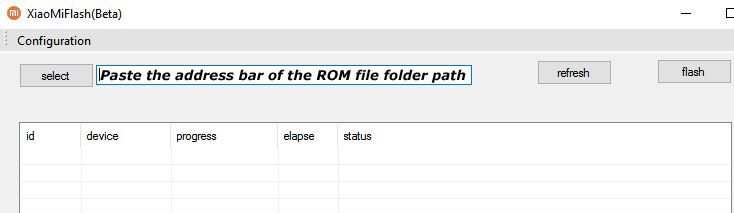
5) Now extract the Fastboot ROM and copy its path on the PC.

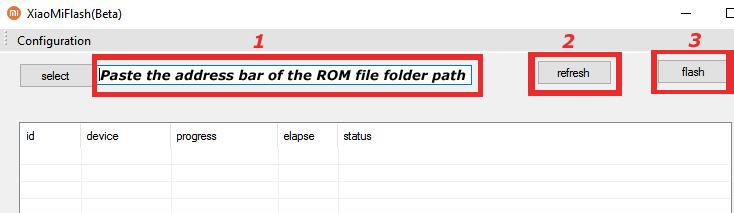
6) Now open MI Flash Tool and Paste the address bar of the ROM file folder path copied from above.

Mi Flash

7) First, click on the ‘Refresh‘ button (It will automatically recognize your device) and then click on the ‘Flash‘ button to flash MIUI 11 ROM on your Devices.

Mi Flash

8) Wait for some time to complete the process.

9) Done. Your device will boot on the latest version.

Wrapping Up:

If you want to update Mi 8 to Android 10 based MIUI 11, then you can follow the above process. Download MIUI 11.0.4.0 Global Stable ROM for Mi 8 and flash it to update it manually. Comment below if you have any doubts.

Recently, Xiaomi developers announced they have officially discontinued the development of MIUI 11 to focus on the MIUI 12. The beta version of MIUI 12 is expecting to arrive soon and probably will be rolled in June or July 2020. The latest Xiaomi devices will definitely get the MIUI 12 update and the concern is about the phones that are getting older. If you want to check if your Phone is Eligible for MIUI 12 or Not then Download MIUI 12 Eligibility Test App from below.

Currently, most of the eligible Xiaomi devices have got the Android 10 based MIUI 11 update. Now the Mi fans are looking forward to the next version of MIUI and want to know whether their Xiaomi phone is eligible for MIUI 12 update or not. There are several lists available over the web that makes it difficult for users to check their Xiaomi device eligibility for MIUI 12. With the MIUI 12 Eligibility Test app, you can easily check your Xiaomi phone for MIUI 12 eligibility.

Download MIUI 12 Eligibility Test App

MIUI 12 Eligibility Test app is available on Google Playstore for free download. The app is created by Alpha Developers Official but we will like to remind you that this is not an official Xiaomi app. Download MIUI 12 Eligibility Test App from below.

[su_button url=”https://play.google.com/store/apps/details?id=com.alphadevelopersofficial.miui12″ target=”blank” style=”soft” background=”#dc5e49″ size=”7″ center=”yes” rel=”nofollow”]Download MIUI 12 Eligibility Test Apk[/su_button]

How to Check if Your Phone is Eligible for MIUI 12 or Not:

MIUI 12 Eligibility Test app aims to help you determine whether your device will support MIUI 12 update or not. To use the MIUI 12 Eligibility Test app, you need to download MIUI 12 Eligibility Test Apk from above and install it on your device. After that, all you need to do is click on the Check button to Know if Your Phone is Eligible for MIUI 12 or Not.

  •  Download and install Download MIUI 12 Eligibility Test App from the above Google Playstore link.
  • Open the app, and if the app detects your device.
  • Click on the Check button.
  • Once, you click on the Check button; the app will tell you whether your device is eligible for MIUI 12 or not.

Wrapping Up:

If you are a Xiaomi user and want to whether your device will get MIUI 12 update or not then you should Download and Install MIUI 12 Eligibility Test App on your device.