Author

Sumit Bahl

Browsing

Here we share a direct link to Download Vivo NEX 3 5G Android 10 Firmware Update. The new Android 10 update for Vivo NEX 3 5G is rolling out via OTA which brings new Funtouch OS 10 and all Android 10 features along with several new features, UI enhancements, and latest Security updates. Download Vivo NEX 3 5G Firmware Update from below.

The Android 10 update for Vivo NEX 3 5G is an Incremental update that rolls out in a phase-wise manner. The update is rolling out via OTA (over-the-air) which comes with Funtouch OS 10 and a build number 6.10.1. You can wait for the OTA updates, or you can Download Vivo NEX 3 5G v6.10.1 OTA to update it manually with the below method. Download Vivo NEX 3 Android 10 firmware update file from below.

We provide you the Vivo NEX 3 5G Android 10 OTA zip which you can flash on your device. You can check for the by going to Settings > About > System Update > and check for update. Download Vivo NEX 3 5G Android 10 Firmware Update from below.

Note:-

  • This method is only for the Vivo NEX 3 5G only.
  • Follow the steps correctly otherwise, you may brick your device. We Guidegeekz.com is not responsible for any damage to your phone.
  • Charge your device to 60- 70% to prevent it from the accidental shutdown.
  • Take a complete backup of everything important.

Download Vivo NEX 3 5G Android 10 Firmware Update

  • Download Vivo NEX 3 5G Android 10 OTA  (PD1924_A_6.10.1) – Download

How to Install Android 10 on Vivo NEX 3 5G

Method 1

  1. Download the files from above and rename it to update.zip.
  2. Now Turn Off your phone and boot into recovery mode by pressing Power+Volume UP.
  3. Now in recovery mode choose to apply update from Local.
  4. Now select the update.zip file.
  5. Now wait until the process complete and then Reboot the phone.
  6. Done!

Method 2

  1. First, enable the USB debugging option from setting ->developer option. To enable Developer Options, go to About phone and tap the Build Number 7 times.
  2. Download ADB and Fastboot and install it on your PC.
  3. Download Vivo NEX 3 Android 10 OTA from above Copy ROM to a folder where adb installed.
  4. Now Turn Off your phone and boot into the recovery mode.
  5. Choose Apply update from ADB
  6. Now Connect your phone to your Laptop/PC
  7. On ROM folder press shift+right click and click on open command here.
  8. Now check your connection status by typing the below command
    adb devices
    if your device is listed, you’re ready to flash the ROM
  9. Now Install Android 10 OTA on Vivo NEX 3 5G by typing below command
    adb sideload File-Name.zip 
  10. Now, wait until the process completes and then Reboot the phone.
  11. Done!

Wrapping Up:

This is the easiest way to Download Vivo NEX 3 5G Android 10 Firmware Update and flash it manually. If you have any questions, comment below.

Latest MIUI 11.0.1.0 for Redmi Note 9 Pro Max starts rolling. The MIUI 11.0.1.0 Update for Redmi Note 9 Pro Max is based on Android 10 and bring all MIUI 11 features like improved UI design, Dynamic Clock on the lock screen, creative always-on display, dynamic video wallpapers, Quick replies, among other things. Follow the below guide to Download MIUI 11.0.1.0 India Stable ROM for Redmi Note 9 Pro Max.

MIUI 11.0.1.0 India Stable ROM for Redmi Note 9 Pro Max is a stable version and can be flashed via Recovery or via Fastboot. You can wait for the OTA or download MIUI 11.0.1.0 for Redmi Note 9 Pro Max from below to Update Redmi Note 9 Pro Max to MIUI 11 manually.

The new update is MIUI 11.0.1.0.QJXINXM and soon will be released and available for all users. You can Download Redmi Note 9 Pro Max MIUI 11.0.1.0.QJXINXM ROM from below and also manually check for the update by going to Settings -> About Phone -> System updates -> Check for update. Download MIUI 11.0.1.0 Stable ROM for Redmi Note 9 Pro Max from below.

Note:-

  • This Firmware file is only for Redmi Note 9 Pro Max. Don’t try this on any other device.
  • Follow the steps correctly otherwise you may brick your device. We are not responsible for any damage to your phone.
  • It may erase your data, so it is advisable to take a complete backup of your phone for a safer side.
  • Ensure that your phone has at least 50-60% charged to prevent the accidental shutdown in-between the process.

Download MIUI 11.0.1.0 India Stable ROM for Redmi Note 9 Pro Max

  • MIUI 11.0.1.0 Recovery ROM for Redmi Note 9 Pro Max – Download
  • MIUI 11.0.1.0 Fastboot ROM for Redmi Note 9 Pro Max – Download

How to Install MIUI 11.0.1.0 India Stable ROM on Redmi Note 9 Pro Max –

To install MIUI 11.0.1.0 update for Redmi Note 9 Pro Max, download either Recovery ROM or Fastboot ROM from above and use the below method to install this on your device.

Method 1 – Recovery Mode

Recovery Mode

  1. Download MIUI 11 Recovery ROM for Redmi Note 9 Pro Max from above and save it on your device.
  2. Now launch the ‘Updater‘ app on your device.
  3. Click on the three-dot menu (‘…’ icon) at the top-right corner, and select the ‘choose update package‘.
  4. Browse through the files and select the package ending with .zip extension.
  5. Done. Your device will reboot on the latest version.

Method 2 – Fastboot Mode

1) First, Download Mi Flash Tool, extract it and install it on your PC.

2) Now download MIUI 11 Fastboot ROM for Redmi Note 9 Pro Max for your device.

3) Now boot your device into Fastboot mode by pressing the ‘Volume Down + Power‘ button.

4) Connect your device to PC via micro USB cable.

5) Now extract the Fastboot ROM and copy its path on the PC.

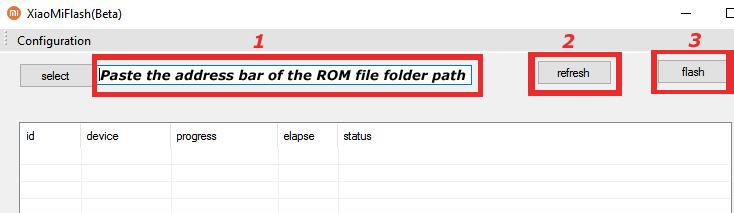
6) Now open MI Flash Tool and Paste the address bar of the ROM file folder path copied from above.

Mi Flash

7) First, click on the ‘Refresh‘ button (It will automatically recognize your device) and then click on the ‘Flash‘ button to flash MIUI 11 ROM on your Devices.

Mi Flash

8) Wait for some time to complete the process.

9) Done. Your device will boot on the latest version.

Wrapping Up:

If you want to update Redmi Note 9 Pro Max to MIUI 11, then you can follow the above process. Download MIUI 11.0.1.0 India Stable ROM for Redmi Note 9 Pro Max and flash it to update it manually. Comment below if you have any doubts.

Latest MIUI 11.0.3.0 for Redmi Note 9S starts rolling. The MIUI 11.0.3.0 Update for Redmi Note 9S is based on Android 10 and bring all MIUI 11 features like improved UI design, Dynamic Clock on the lock screen, creative always-on display, dynamic video wallpapers, Quick replies, among other things. Follow the below guide to Download MIUI 11.0.3.0 Global Stable ROM for Redmi Note 9S.

MIUI 11.0.3.0 Stable ROM for Redmi Note 9S is a Global version and can be flashed via Recovery or via Fastboot. You can wait for the OTA or download MIUI 11.0.3.0 for Redmi Note 9S from below to update Redmi Note 9S to MIUI 11 manually.

The new update is MIUI 11.0.3.0.QJWMIXM and soon will be released and available for all users. You can Download Redmi Note 9S MIUI 11.0.3.0.QJWMIXM ROM from below and also manually check for the update by going to Settings -> About Phone -> System updates -> Check for update. Download MIUI 11.0.3.0 Global Stable ROM for Redmi Note 9S from below.

Note:-

  • This Firmware file is only for Redmi Note 9S. Don’t try this on any other device.
  • Follow the steps correctly otherwise you may brick your device. We are not responsible for any damage to your phone.
  • It may erase your data, so it is advisable to take a complete backup of your phone for a safer side.
  • Ensure that your phone has at least 50-60% charged to prevent the accidental shutdown in-between the process.

Download MIUI 11.0.3.0 Global Stable ROM for Redmi Note 9S

  • MIUI 11.0.3.0 Recovery ROM for Redmi Note 9S – Download
  • MIUI 11.0.3.0 OTA for Redmi Note 9S (MIUI 11.0.1.0 to MIUI 11.0.3.0) – Download

How to Install MIUI 11.0.3.0 Global Stable ROM on Redmi Note 9S –

To install MIUI 11.0.3.0 update for Redmi Note 9S download either Recovery ROM or Fastboot ROM from above and use the below method to install this on your device.

Method 1 – Recovery Mode

Recovery Mode

  1. Download MIUI 11 Recovery ROM for Redmi Note 9S from above and save it on your device.
  2. Now launch the ‘Updater‘ app on your device.
  3. Click on the three-dot menu (‘…’ icon) at the top-right corner, and select the ‘choose update package‘.
  4. Browse through the files and select the package ending with .zip extension.
  5. Done. Your device will reboot on the latest version.

Method 2 – Fastboot Mode

1) First, Download Mi Flash Tool, extract it and install it on your PC.

2) Now download MIUI 11 Fastboot ROM for Redmi Note 9S for your device.

3) Now boot your device into Fastboot mode by pressing the ‘Volume Down + Power‘ button.

4) Connect your device to PC via micro USB cable.

5) Now extract the Fastboot ROM and copy its path on the PC.

6) Now open MI Flash Tool and Paste the address bar of the ROM file folder path copied from above.

Mi Flash

7) First, click on the ‘Refresh‘ button (It will automatically recognize your device) and then click on the ‘Flash‘ button to flash MIUI 11 ROM on your Devices.

Mi Flash

8) Wait for some time to complete the process.

9) Done. Your device will boot on the latest version.

Wrapping Up:

If you want to update Redmi Note 9S to MIUI 11, then you can follow the above process. Download MIUI 11.0.3.0 Global Stable ROM for Redmi Note 9S and flash it to update it manually. Comment below if you have any doubts.

Latest MIUI 11.0.5.0 for Redmi K20 starts rolling. The MIUI 11.0.5.0 Update for Redmi K20/Mi 9T is based on Android 10 and bring all MIUI 11 features like improved UI design, Dynamic Clock on the lock screen, creative always-on display, dynamic video wallpapers, Quick replies, among other things. Follow the below guide to Download MIUI 11.0.5.0 Global Stable ROM for Redmi K20.

MIUI 11.0.5.0 Stable ROM for Redmi K20 is a Global and EU version and can be flashed via Recovery or via Fastboot. You can wait for the OTA or download MIUI 11.0.5.0 for Redmi K20/Mi 9T from below to update Mi 9T to MIUI 11 manually.

The new update is MIUI 11.0.5.0.QFJMIXM / MIUI 11.0.5.0.QFJEUXM and soon will be released and available for all users. You can Download Redmi K20 MIUI 11.0.5.0.QFJMIXM ROM from below and also manually check for the update by going to Settings -> About Phone -> System updates -> Check for update. Download MIUI 11.0.5.0 Global stable ROM for Mi 9TRedmi K20 from below.

Note:-

  • This Firmware file is only for Redmi K20/Mi 9T. Don’t try this on any other device.
  • Follow the steps correctly otherwise you may brick your device. We are not responsible for any damage to your phone.
  • It may erase your data, so it is advisable to take a complete backup of your phone for a safer side.
  • Ensure that your phone has at least 50-60% charged to prevent the accidental shutdown in-between the process.

Download MIUI 11.0.5.0 Global Stable ROM for Redmi K20/Mi 9T

  • MIUI 11.0.5.0 Recovery ROM for Redmi K20 – Download
  • MIUI 11.0.5.0 OTA for Redmi K20 (MIUI 11.0.4.0 to MIUI 11.0.5.0) – Download

Download MIUI 11.0.5.0 EEA Stable ROM for Mi 9T/Redmi K20

  • MIUI 11.0.5.0 Recovery ROM for Mi 9T – Download
  • MIUI 11.0.5.0 OTA for Mi 9T (MIUI 11.0.4.0 to MIUI 11.0.5.0) – Download

How to Install MIUI 11.0.5.0 Global Stable ROM on Redmi K20/Mi 9T –

To install MIUI 11.0.5.0 update for Mi 9T/Redmi K20 download either Recovery ROM or Fastboot ROM from above and use the below method to install this on your device.

Method 1 – Recovery Mode

Recovery Mode

  1. Download MIUI 11 Recovery ROM for Redmi K20 from above and save it on your device.
  2. Now launch the ‘Updater‘ app on your device.
  3. Click on the three-dot menu (‘…’ icon) at the top-right corner, and select the ‘choose update package‘.
  4. Browse through the files and select the package ending with .zip extension.
  5. Done. Your device will reboot on the latest version.

Method 2 – Fastboot Mode

1) First, Download Mi Flash Tool, extract it and install it on your PC.

2) Now download MIUI 11 Fastboot ROM for Redmi K20 for your device.

3) Now boot your device into Fastboot mode by pressing the ‘Volume Down + Power‘ button.

4) Connect your device to PC via micro USB cable.

5) Now extract the Fastboot ROM and copy its path on the PC.

6) Now open MI Flash Tool and Paste the address bar of the ROM file folder path copied from above.

Mi Flash

7) First, click on the ‘Refresh‘ button (It will automatically recognize your device) and then click on the ‘Flash‘ button to flash MIUI 11 ROM on your Devices.

Mi Flash

8) Wait for some time to complete the process.

9) Done. Your device will boot on the latest version.

Wrapping Up:

If you want to update Redmi K20 /Mi 9T to MIUI 11, then you can follow the above process. Download MIUI 11.0.5.0 Global and EEA Stable ROM for Redmi K20/Mi 9T and flash it to update it manually. Comment below if you have any doubts.

Latest Android 10 based MIUI 11.0.4.0 for Mi Mix 2S starts rolling. The MIUI 11.0.4.0 Update for Mi Mix 2S is based on Android 10 and bring all MIUI 11 features like improved UI design, Dynamic Clock on the lock screen, creative always-on display, dynamic video wallpapers, Quick replies, among other things. Follow the below guide to Download MIUI 11.0.4.0 Global Stable ROM for Mi Mix 2S.

MIUI 11.0.4.0 Global Stable ROM for Mi Mix 2S is a stable version and can be flashed via Recovery or via Fastboot. You can wait for the OTA or download MIUI 11.0.4.0 for Mi Mix 2S from below to update Mi Mix 2S to Android 10 manually.

The new update is MIUI 11.0.4.0.QDGMIXM and soon will be released and available for all users. You can Download Mi Mix 2S MIUI 11.0.4.0.QDGMIXM ROM from below and also manually check for the update by going to Settings -> About Phone -> System updates -> Check for update. Download MIUI 11.0.4.0 Stable ROM for Mi Mix 2S from below.

Note:-

  • This Firmware file is only for Mi Mix 2S. Don’t try this on any other device.
  • Follow the steps correctly otherwise you may brick your device. We are not responsible for any damage to your phone.
  • It may erase your data, so it is advisable to take a complete backup of your phone for a safer side.
  • Ensure that your phone has at least 50-60% charged to prevent the accidental shutdown in-between the process.

Download MIUI 11.0.4.0 Global Stable ROM for Mi Mix 2S

  • MIUI 11.0.4.0 Recovery ROM for Mi Mix 2S – Download
  • MIUI 11.0.4.0 Fastboot ROM for Mi Mix 2S – Download

How to Install MIUI 11.0.4.0 Global Stable ROM on Mi Mix 2S –

To install MIUI 11.0.4.0 update for Mi Mix 2S download either Recovery ROM or Fastboot ROM from above and use the below method to install this on your device.

Method 1 – Recovery Mode

Recovery Mode

  1. Download MIUI 11 Recovery ROM for Mi Mix 2S from above and save it on your device.
  2. Now launch the ‘Updater‘ app on your device.
  3. Click on the three-dot menu (‘…’ icon) at the top-right corner, and select the ‘choose update package‘.
  4. Browse through the files and select the package ending with .zip extension.
  5. Done. Your device will reboot on the latest version.

Method 2 – Fastboot Mode

1) First, Download Mi Flash Tool, extract it and install it on your PC.

2) Now download MIUI 11 Fastboot ROM for Mi Mix 2S for your device.

3) Now boot your device into Fastboot mode by pressing the ‘Volume Down + Power‘ button.

4) Connect your device to PC via micro USB cable.

5) Now extract the Fastboot ROM and copy its path on the PC.

6) Now open MI Flash Tool and Paste the address bar of the ROM file folder path copied from above.

Mi Flash

7) First, click on the ‘Refresh‘ button (It will automatically recognize your device) and then click on the ‘Flash‘ button to flash MIUI 11 ROM on your Devices.

Mi Flash

8) Wait for some time to complete the process.

9) Done. Your device will boot on the latest version.

Wrapping Up:

If you want to update Mi Mix 2S to Android 10 based MIUI 11, then you can follow the above process. Download MIUI 11.0.4.0 Global Stable ROM for Mi Mix 2S and flash it to update it manually. Comment below if you have any doubts.

Latest MIUI 11.0.3.0 for Redmi K20 starts rolling. The MIUI 11.0.3.0 Update for Redmi K20 is based on Android 10 and bring all MIUI 11 features like improved UI design, Dynamic Clock on the lock screen, creative always-on display, dynamic video wallpapers, Quick replies, among other things. Follow the below guide to Download MIUI 11.0.3.0 Stable ROM for Redmi K20.

MIUI 11.0.3.0 Stable ROM for Redmi K20 is an Indian version and can be flashed via Recovery or via Fastboot. You can wait for the OTA or download MIUI 11.0.3.0 for Redmi K20 from below to update Redmi K20 to MIUI 11 manually.

The new update is MIUI 11.0.3.0.QFJINXM and soon will be released and available for all users. You can Download Redmi K20 MIUI 11.0.3.0.QFJINXM ROM from below and also manually check for the update by going to Settings -> About Phone -> System updates -> Check for update. Download MIUI 11.0.3.0 Stable ROM for Redmi K20 from below.

Note:-

  • This Firmware file is only for Redmi K20. Don’t try this on any other device.
  • Follow the steps correctly otherwise you may brick your device. We are not responsible for any damage to your phone.
  • It may erase your data, so it is advisable to take a complete backup of your phone for a safer side.
  • Ensure that your phone has at least 50-60% charged to prevent the accidental shutdown in-between the process.

Download MIUI 11.0.3.0 Stable ROM for Redmi K20

  • MIUI 11.0.3.0 Recovery ROM for Redmi K20 – Download
  • MIUI 11.0.3.0 Fastboot ROM for Redmi K20 – Download

How to Install MIUI 11.0.3.0 Stable ROM on Redmi K20 –

To install MIUI 11.0.3.0 update for Redmi K20 download either Recovery ROM or Fastboot ROM from above and use the below method to install this on your device.

Method 1 – Recovery Mode

Recovery Mode

  1. Download MIUI 11 Recovery ROM for Redmi K20 from above and save it on your device.
  2. Now launch the ‘Updater‘ app on your device.
  3. Click on the three-dot menu (‘…’ icon) at the top-right corner, and select the ‘choose update package‘.
  4. Browse through the files and select the package ending with .zip extension.
  5. Done. Your device will reboot on the latest version.

Method 2 – Fastboot Mode

1) First, Download Mi Flash Tool, extract it and install it on your PC.

2) Now download MIUI 11 Fastboot ROM for Redmi K20 for your device.

3) Now boot your device into Fastboot mode by pressing the ‘Volume Down + Power‘ button.

4) Connect your device to PC via micro USB cable.

5) Now extract the Fastboot ROM and copy its path on the PC.

6) Now open MI Flash Tool and Paste the address bar of the ROM file folder path copied from above.

Mi Flash

7) First, click on the ‘Refresh‘ button (It will automatically recognize your device) and then click on the ‘Flash‘ button to flash MIUI 11 ROM on your Devices.

Mi Flash

8) Wait for some time to complete the process.

9) Done. Your device will boot on the latest version.

Wrapping Up:

If you want to update Redmi K20 to MIUI 11, then you can follow the above process. Download MIUI 11.0.3.0 Indian Stable ROM for Redmi K20 and flash it to update it manually. Comment below if you have any doubts.

Here we share a direct link to Download Asus ZenFone Live L1 Android 10 Firmware Update. The new Android 10 update for Asus ZenFone Live L1/Lite L1 is rolling out via OTA which brings all Android 10 features along with several new features, UI enhancements, and latest Security updates. Download Asus ZenFone Live L1 WW-17.07.2003.405 Firmware Update from below.

The Android 10 update for Asus ZenFone Live L1 is an Incremental update that rolls out in a phase-wise manner. The update is rolling out via OTA (over-the-air) which comes with build number 17.07.2003.405. You can wait for the OTA updates, or you can Download Asus ZenFone Live L1 WW-17.07.2003.405 OTA to update it manually with the below method. Download Asus ZenFone Live L1 Android 10 firmware update file from below.

We provide you the Asus ZenFone Live L1 Android 10 OTA zip which you can flash on your device. You can check for the by going to Settings > About > System Update > and check for update. Download Asus ZenFone Live L1 Android 10 Firmware Update from below.

Note:-

  • This method is only for the Asus ZenFone Live L1 (ZA550KL) For WW SKU only.
  • Follow the steps correctly otherwise, you may brick your device. We Guidegeekz.com is not responsible for any damage to your phone.
  • Charge your device to 60- 70% to prevent it from the accidental shutdown.
  • Take a complete backup of everything important.

Download Asus ZenFone Live L1 Android 10 Firmware Update

  • Download Asus ZenFone Live L1 Android 10 FOTA (Full OTA) – Download

How to Install Android 10 on Asus ZenFone Live L1

Method 1

  1. Download the Asus ZenFone Live L1 Android 10 files from above and save it to internal storage.
  2. Now the system will automatically detect new firmware.
  3. Now enter passwords.
  4. After executing the UL pack, the system will reboot once.
  5. Done! the system will be upgraded to Android 10.

Method 2

  1. Download the files from above and rename it to update.zip.
  2. Now Turn Off your phone and boot into recovery mode by pressing Power+Volume UP.
  3. Now in recovery mode choose to apply update from sdcard.
  4. Now select the update.zip file.
  5. Now wait until the process complete and then Reboot the phone.
  6. Done!

Method 3

  1. First, enable the USB debugging option from setting ->developer option. To enable Developer Options, go to About phone and tap the Build Number 7 times.
  2. Download ADB and Fastboot and install it on your PC.
  3. Download Asus ZenFone Live L1 v17.07.2003.405 FOTA from above Copy ROM to a folder where adb installed.
  4. Now Turn Off your phone and boot into the recovery mode.
  5. Choose Apply update from ADB
  6. Now Connect your phone to your Laptop/PC
  7. On ROM folder press shift+right click and click on open command here.
  8. Now check your connection status by typing the below command
    adb devices
    if your device is listed, you’re ready to flash the ROM
  9. Now Install Android 10 OTA on Asus ZenFone Live L1 by typing below command
    adb sideload File-Name.zip 
  10. Now, wait until the process completes and then Reboot the phone.
  11. Done!

Wrapping Up:

This is the easiest way to Download Asus ZenFone Live L1 Android 10 Firmware Update and flash it manually. If you have any questions, comment below.
Good news for Xiaomi Mi A2 Lite users, Xiaomi starts rolling out the Stable Android 10 update for Mi A2 Lite. The update is a stable build and available as version 11.0.4.0 QDLMIXM. The update brings Android 10 to Xiaomi Mi A2 Lite and brings the latest security patch. Follow the below guide to Download Xiaomi Mi A2 Lite Android 10 Firmware.

The Stable Android 10 update for Xiaomi Mi A2 Lite brings all Android 10 features and brings the latest security patch. Download Xiaomi Mi A2 Lite 11.0.4.0 Android 10 Firmware from below to Update Xiaomi Mi A2 Lite to Stable Android 10.

The new update is MIUI 11.0.4.0 QDLMIXM and soon will be released and available for all users. You can Download Xiaomi Mi A2 Lite  v11.0.4.0 QDLMIXM ROM from below and also manually check for the update by going to Settings -> About Phone -> System updates -> Check for update. Download Android 10 Global V11.0.4.0.QDLMIXM for Mi A2 Lite from below.

Note – 

  • This Firmware file is only for Xiaomi Mi A2 Lite. Don’t try this on any other device.
  • Follow the steps correctly otherwise you may brick your device. We are not responsible for any damage to your phone.
  • It may erase your data, so it is advisable to take a complete backup of your phone for a safer side.
  • Ensure that your phone has at least 50-60% charged to prevent the accidental shutdown in-between the process.
  • Your Bootloader must be unlocked.

Download Xiaomi Xiaomi Mi A2 Lite Android 10 Firmware

  • Download Xiaomi Mi A2 Lite Android 10 Global ROM v11.0.4.0 QDLMIXM – Download

How to Install Android 10 on Xiaomi Mi A2 Lite –

Method 1 – Recovery Mode

Recovery Mode

  1. Download MIUI 11 Recovery ROM for Xiaomi Mi A2 Lite from above and save it on your device.
  2. Now launch the ‘Updater‘ app on your device.
  3. Click on the three-dot menu (‘…’ icon) at the top-right corner, and select the ‘choose update package‘.
  4. Browse through the files and select the package ending with .zip extension.
  5. Done. Your device will reboot on the latest version.

Method 2 – Fastboot Mode

1) First, Download Mi Flash Tool, extract it and install it on your PC.

2) Now download MIUI 11 Fastboot ROM for Xiaomi Mi A2 Lite for your device.

3) Now boot your device into Fastboot mode by pressing the ‘Volume Down + Power‘ button.

4) Connect your device to PC via micro USB cable.

5) Now extract the Fastboot ROM and copy its path on the PC.

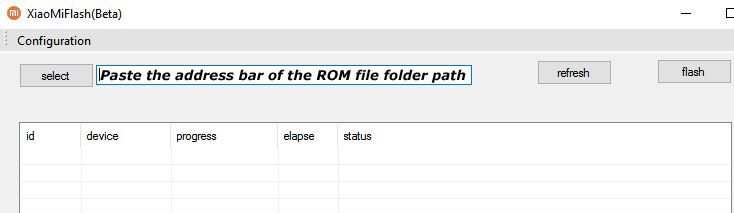
6) Now open MI Flash Tool and Paste the address bar of the ROM file folder path copied from above.

Mi Flash

7) First, click on the ‘Refresh‘ button (It will automatically recognize your device) and then click on the ‘Flash‘ button to flash MIUI 11 ROM on your Devices.

Mi Flash

8) Wait for some time to complete the process.

9) Done. Your device will boot on the latest version.

Wrapping Up:

Xiaomi Mi A2 Lite brings all Android 10 features and will soon be available for all via OTA but if you’re the impatient type then you could follow the above procedure to Download Xiaomi Mi A2 Lite Android 10 Firmware and install manually. If you have any questions related to this post, feel free to leave that in the comment section.

Latest MIUI 11.0.7.0 for Redmi 7A starts rolling. The MIUI 11.0.7.0 Update for Redmi 7A is based on Android 9 and bring all MIUI 11 features like improved UI design, Dynamic Clock on the lock screen, creative always-on display, dynamic video wallpapers, Quick replies, among other things. Follow the below guide to Download MIUI 11.0.7.0 Global Stable ROM for Redmi 7A.

MIUI 11.0.7.0 Global Stable ROM for Redmi 7A is a stable version and can be flashed via Recovery or via Fastboot. You can wait for the OTA or download MIUI 11.0.7.0 for Redmi 7A from below to update Redmi 7A to MIUI 11 manually.

The new update is MIUI 11.0.7.0.PCMMIXM and soon will be released and available for all users. You can Download Redmi 7A MIUI 11.0.7.0.PCMMIXM ROM from below and also manually check for the update by going to Settings -> About Phone -> System updates -> Check for update. Download MIUI 11.0.7.0 Stable ROM for Redmi 7A from below.

Note:-

  • This Firmware file is only for Redmi 7A. Don’t try this on any other device.
  • Follow the steps correctly otherwise you may brick your device. We are not responsible for any damage to your phone.
  • It may erase your data, so it is advisable to take a complete backup of your phone for a safer side.
  • Ensure that your phone has at least 50-60% charged to prevent the accidental shutdown in-between the process.

Download MIUI 11.0.7.0 Global Stable ROM for Redmi 7A

  • MIUI 11.0.7.0 OTA for Redmi 7A (MIUI 11.0.6.0 to MIUI 11.0.7.0) – Download
  • MIUI 11.0.7.0 Recovery ROM for Redmi 7A – Download
  • MIUI 11.0.7.0 Fastboot ROM for Redmi 7A – Coming Soon

How to Install MIUI 11.0.7.0 Global Stable ROM on Redmi 7A –

To install MIUI 11.0.7.0 update for Redmi 7A download either Recovery ROM or Fastboot ROM from above and use the below method to install this on your device.

Method 1 – Recovery Mode

Recovery Mode

  1. Download MIUI 11 Recovery ROM for Redmi 7A from above and save it on your device.
  2. Now launch the ‘Updater‘ app on your device.
  3. Click on the three-dot menu (‘…’ icon) at the top-right corner, and select the ‘choose update package‘.
  4. Browse through the files and select the package ending with .zip extension.
  5. Done. Your device will reboot on the latest version.

Method 2 – Fastboot Mode

1) First, Download Mi Flash Tool, extract it and install it on your PC.

2) Now download MIUI 11 Fastboot ROM for Redmi 7A for your device.

3) Now boot your device into Fastboot mode by pressing the ‘Volume Down + Power‘ button.

4) Connect your device to PC via micro USB cable.

5) Now extract the Fastboot ROM and copy its path on the PC.

6) Now open MI Flash Tool and Paste the address bar of the ROM file folder path copied from above.

Mi Flash

7) First, click on the ‘Refresh‘ button (It will automatically recognize your device) and then click on the ‘Flash‘ button to flash MIUI 11 ROM on your Devices.

Mi Flash

8) Wait for some time to complete the process.

9) Done. Your device will boot on the latest version.

Wrapping Up:

If you want to update Redmi 7A to MIUI 11, then you can follow the above process. Download MIUI 11.0.7.0 Global Stable ROM for Redmi 7A and flash it to update it manually. Comment below if you have any doubts.

Latest MIUI 11.0.9.0 for Mi Note 10 starts rolling. The MIUI 11.0.9.0 Update for Mi Note 10 is based on Android 9 and bring all MIUI 11 features like improved UI design, Dynamic Clock on the lock screen, creative always-on display, dynamic video wallpapers, Quick replies, among other things. Follow the below guide to Download MIUI 11.0.9.0 Global Stable ROM for Mi Note 10.

MIUI 11.0.9.0 Global Stable ROM for Mi Note 10 is a stable version and can be flashed via Recovery or via Fastboot. You can wait for the OTA or download MIUI 11.0.9.0 for Mi Note 10 from below to update Mi Note 10 to MIUI 11 manually.

The new update is MIUI 11.0.9.0.PFDMIXM and soon will be released and available for all users. You can Download Mi Note 10 Dual MIUI 11.0.9.0.PFDMIXM ROM from below and also manually check for the update by going to Settings -> About Phone -> System updates -> Check for update. Download MIUI 11.0.9.0 Stable ROM for Mi Note 10 from below.

Note:-

  • This Firmware file is only for Mi Note 10. Don’t try this on any other device.
  • Follow the steps correctly otherwise you may brick your device. We are not responsible for any damage to your phone.
  • It may erase your data, so it is advisable to take a complete backup of your phone for a safer side.
  • Ensure that your phone has at least 50-60% charged to prevent the accidental shutdown in-between the process.

Download MIUI 11.0.9.0 Global Stable ROM for Mi Note 10

  • MIUI 11.0.9.0 OTA for Mi Note 10 (MIUI 11.0.8.0 to MIUI 11.0.9.0) – Download
  • MIUI 11.0.9.0 Recovery ROM for Mi Note 10 – Download
  • MIUI 11.0.9.0 Fastboot ROM for Mi Note 10 – Coming Soon

How to Install MIUI 11.0.9.0 Global Stable ROM on Mi Note 10 –

To install MIUI 11.0.9.0 update for Mi Note 10 download either Recovery ROM or Fastboot ROM from above and use the below method to install this on your device.

Method 1 – Recovery Mode

Recovery Mode

  1. Download MIUI 11 Recovery ROM for Mi Note 10 from above and save it on your device.
  2. Now launch the ‘Updater‘ app on your device.
  3. Click on the three-dot menu (‘…’ icon) at the top-right corner, and select the ‘choose update package‘.
  4. Browse through the files and select the package ending with .zip extension.
  5. Done. Your device will reboot on the latest version.

Method 2 – Fastboot Mode

1) First, Download Mi Flash Tool, extract it and install it on your PC.

2) Now download MIUI 11 Fastboot ROM for Mi Note 10 for your device.

3) Now boot your device into Fastboot mode by pressing the ‘Volume Down + Power‘ button.

4) Connect your device to PC via micro USB cable.

5) Now extract the Fastboot ROM and copy its path on the PC.

6) Now open MI Flash Tool and Paste the address bar of the ROM file folder path copied from above.

Mi Flash

7) First, click on the ‘Refresh‘ button (It will automatically recognize your device) and then click on the ‘Flash‘ button to flash MIUI 11 ROM on your Devices.

Mi Flash

8) Wait for some time to complete the process.

9) Done. Your device will boot on the latest version.

Wrapping Up:

If you want to update Mi Note 10 to MIUI 11, then you can follow the above process. Download MIUI 11.0.9.0 Global Stable ROM for Mi Note 10 and flash it to update it manually. Comment below if you have any doubts.