Author

Sumit Bahl

Browsing

Latest MIUI 11.0.8.0 for Redmi 8A starts rolling. The MIUI 11.0.8.0 Update for Redmi 8A is based on Android 9 and bring all MIUI 11 features like improved UI design, Dynamic Clock on the lock screen, creative always-on display, dynamic video wallpapers, Quick replies, among other things. Follow the below guide to Download MIUI 11.0.8.0 India Stable ROM for Redmi 8A.

MIUI 11.0.8.0 India Stable ROM for Redmi 8A is a stable version and can be flashed via Recovery or via Fastboot. You can wait for the OTA or download MIUI 11.0.8.0 for Redmi 8A from below to Update Redmi 8A to MIUI 11 manually.

The new update is MIUI 11.0.8.0.PCPINXM and soon will be released and available for all users. You can Download Redmi 8A MIUI 11.0.8.0.PCPINXM ROM from below and also manually check for the update by going to Settings -> About Phone -> System updates -> Check for update. Download MIUI 11.0.8.0 Stable ROM for Redmi 8A from below.

Note:-

  • This Firmware file is only for Redmi 8A. Don’t try this on any other device.
  • Follow the steps correctly otherwise you may brick your device. We are not responsible for any damage to your phone.
  • It may erase your data, so it is advisable to take a complete backup of your phone for a safer side.
  • Ensure that your phone has at least 50-60% charged to prevent the accidental shutdown in-between the process.

Download MIUI 11.0.8.0 India Stable ROM for Redmi 8A

  • MIUI 11.0.8.0 Recovery ROM for Redmi 8A – Download
  • MIUI 11.0.8.0 Fastboot ROM for Redmi 8A – Download

How to Install MIUI 11.0.8.0 India Stable ROM on Redmi 8A –

To install MIUI 11.0.8.0 update for Redmi 8Adownload either Recovery ROM or Fastboot ROM from above and use the below method to install this on your device.

Method 1 – Recovery Mode

Recovery Mode

  1. Download MIUI 11 Recovery ROM for Redmi 8A from above and save it on your device.
  2. Now launch the ‘Updater‘ app on your device.
  3. Click on the three-dot menu (‘…’ icon) at the top-right corner, and select the ‘choose update package‘.
  4. Browse through the files and select the package ending with .zip extension.
  5. Done. Your device will reboot on the latest version.

Method 2 – Fastboot Mode

1) First, Download Mi Flash Tool, extract it and install it on your PC.

2) Now download MIUI 11 Fastboot ROM for Redmi 8A for your device.

3) Now boot your device into Fastboot mode by pressing the ‘Volume Down + Power‘ button.

4) Connect your device to PC via micro USB cable.

5) Now extract the Fastboot ROM and copy its path on the PC.

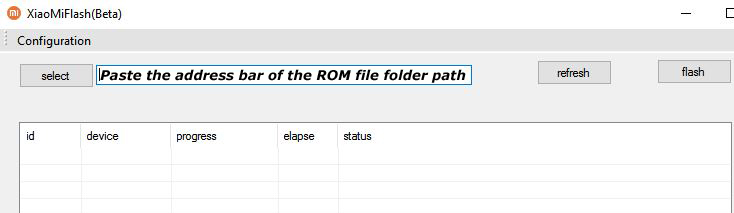
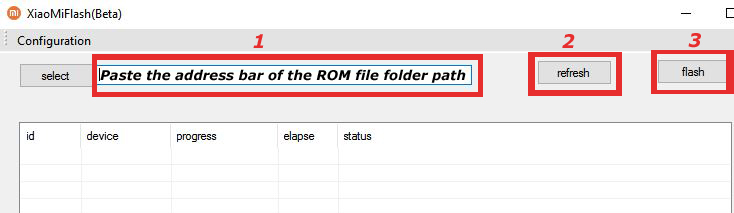
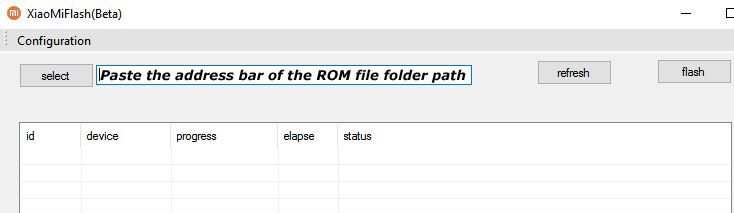
6) Now open MI Flash Tool and Paste the address bar of the ROM file folder path copied from above.
Mi Flash

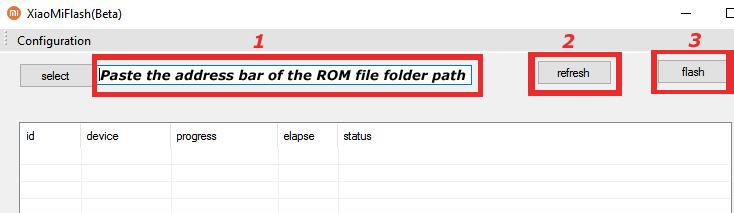
7) First, click on the ‘Refresh‘ button (It will automatically recognize your device) and then click on the ‘Flash‘ button to flash MIUI 11 ROM on your Devices.
Mi Flash

8) Wait for some time to complete the process.

9) Done. Your device will boot on the latest version.

Wrapping Up:

If you want to update Redmi 8A to MIUI 11, then you can follow the above process. Download MIUI 11.0.8.0 India Stable ROM for Redmi 8A and flash it to update it manually. Comment below if you have any doubts.

Good news for Xiaomi Mi A3 users, Xiaomi starts rolling out the Stable Android 10 update for Mi A3. The update is a stable build and available as version 11.0.11.0 QFQMIXM. The update brings Android 10 to Mi A3 and brings latest April 2020 security patch. Follow the below guide to Download Xiaomi Mi A3 11.0.11.0 Android 10 Firmware.

The Stable Android 10 update for Mi A3 brings all Android 10 features and brings April 2020 Security patch. Download Xiaomi Mi A3 11.0.11.0 Android 10 Firmware from below to Update Xiaomi Mi A3 to Stable Android 10.

The new update is MIUI 11.0.11.0 QFQMIXM and soon will be released and available for all users. You can Download Mi A3  v11.0.11.0 QFQMIXM ROM from below and also manually check for the update by going to Settings -> About Phone -> System updates -> Check for update. Download v11.0.11.0 Stable ROM for Mi A3 from below.

Note – 

  • This Firmware file is only for Mi A3. Don’t try this on any other device.
  • Follow the steps correctly otherwise you may brick your device. We are not responsible for any damage to your phone.
  • It may erase your data, so it is advisable to take a complete backup of your phone for a safer side.
  • Ensure that your phone has at least 50-60% charged to prevent the accidental shutdown in-between the process.
  • Your Bootloader must be unlocked.

Download Xiaomi Mi A3 11.0.11.0 Android 10 Firmware

  • Download Xiaomi Mi A3 Android 10 Fastboot ROM v11.0.11.0 QFQMIXM – Download

How to Install Stable Android 10 on Xiaomi Mi A3 –

Method 1 –

  1. First, enable the USB debugging option from setting ->developer option. To enable Developer Options, go to About phone and tap the Build Number 7 times.
  2. Download ADB and Fastboot and install it on your PC.
  3. Download Android 10 OTA for Mi A3 from above Copy ROM to a folder where adb installed.
  4. Unzip the zip file.
  5.  Now run flash_all.bat file and it will install the new update and reboot to the system automatically.

Method 2 – Fastboot Mode

1) First, Download Mi Flash Tool, extract it and install it on your PC.

2) Now download MIUI 11 Fastboot ROM for Mi A3 for your device.

3) Now boot your device into Fastboot mode by pressing the ‘Volume Down + Power‘ button.

4) Connect your device to PC via micro USB cable.

5) Now extract the Fastboot ROM and copy its path on the PC.

6) Now open MI Flash Tool and Paste the address bar of the ROM file folder path copied from above.

Mi Flash

7) First, click on the ‘Refresh‘ button (It will automatically recognize your device) and then click on the ‘Flash‘ button to flash MIUI 11 ROM on your Devices.

Mi Flash

8) Wait for some time to complete the process.

9) Done. Your device will boot on the latest version.

Wrapping Up:

Xiaomi Mi A3 brings all Android 10 features and will soon be available for all via OTA but if you’re the impatient type then you could follow the above procedure to Download Mi A3 11.0.11.0 Android 10 Firmware and install manually. If you have any questions related to this post, feel free to leave that in the comment section.

Latest MIUI 11.0.4.0 for Redmi Note 8 starts rolling. The MIUI 11.0.4.0 Update for Redmi Note 8 is based on Android 9 and bring all MIUI 11 features like improved UI design, Dynamic Clock on the lock screen, creative always-on display, dynamic video wallpapers, Quick replies, among other things. Follow the below guide to Download MIUI 11.0.4.0 India Stable ROM for Redmi Note 8.

MIUI 11.0.4.0 India Stable ROM for Redmi Note 8 is a stable version and can be flashed via Recovery or via Fastboot. You can wait for the OTA or download MIUI 11.0.4.0 for Redmi Note 8 from below to Update Redmi Note 8 to MIUI 11 manually.

The new update is MIUI 11.0.4.0.PCOINXM and soon will be released and available for all users. You can Download Redmi Note 8 MIUI 11.0.4.0.PCOINXM ROM from below and also manually check for the update by going to Settings -> About Phone -> System updates -> Check for update. Download MIUI 11.0.4.0 Stable ROM for Redmi Note 8 from below.

Note:-

  • This Firmware file is only for Redmi Note 8. Don’t try this on any other device.
  • Follow the steps correctly otherwise you may brick your device. We are not responsible for any damage to your phone.
  • It may erase your data, so it is advisable to take a complete backup of your phone for a safer side.
  • Ensure that your phone has at least 50-60% charged to prevent the accidental shutdown in-between the process.

Download MIUI 11.0.4.0 India Stable ROM for Redmi Note 8

  • MIUI 11.0.4.0 Recovery ROM for Redmi Note 8 – Download
  • MIUI 11.0.4.0 Fastboot ROM for Redmi Note 8 – Download

How to Install MIUI 11.0.4.0 India Stable ROM on Redmi Note 8 –

To install MIUI 11.0.4.0 update for Redmi Note 8 download either Recovery ROM or Fastboot ROM from above and use the below method to install this on your device.

Method 1 – Recovery Mode

Recovery Mode

  1. Download MIUI 11 Recovery ROM for Redmi Note 8 from above and save it on your device.
  2. Now launch the ‘Updater‘ app on your device.
  3. Click on the three-dot menu (‘…’ icon) at the top-right corner, and select the ‘choose update package‘.
  4. Browse through the files and select the package ending with .zip extension.
  5. Done. Your device will reboot on the latest version.

Method 2 – Fastboot Mode

1) First, Download Mi Flash Tool, extract it and install it on your PC.

2) Now download MIUI 11 Fastboot ROM for Redmi Note 8 for your device.

3) Now boot your device into Fastboot mode by pressing the ‘Volume Down + Power‘ button.

4) Connect your device to PC via micro USB cable.

5) Now extract the Fastboot ROM and copy its path on the PC.

6) Now open MI Flash Tool and Paste the address bar of the ROM file folder path copied from above.

Mi Flash

7) First, click on the ‘Refresh‘ button (It will automatically recognize your device) and then click on the ‘Flash‘ button to flash MIUI 11 ROM on your Devices.

Mi Flash

8) Wait for some time to complete the process.

9) Done. Your device will boot on the latest version.

Wrapping Up:

If you want to update Redmi Note 8 to MIUI 11, then you can follow the above process. Download MIUI 11.0.4.0 India Stable ROM for Redmi Note 8 and flash it to update it manually. Comment below if you have any doubts.

Good news for Nokia users, latest stable Android 10 update for Nokia 3.2 starts rolling out. HMD’s head Juho Sarvikas quoting “Happy to announce, Android 10 rollout for Nokia 3.2 has started! Check the link for more details and the availability in different countries”. via Twitter. You can Download Nokia 3.2 Android 10 OTA Zip from below to Update Nokia 3.2 to Android 10.

The new Android 10 OTA Update for Nokia 3.2 brings all Android 10 features like a system-wide dark theme, Smart reply, full-screen gesture navigation, additional controls for privacy and location, along with March 2020 security patch. You can manually update Nokia 3.2 to Android 10 by downloading the OTA file from below.

The new Nokia 3.2 Android 10 update has the software version v2.270 and rolling out in a phase-wise manner. Means maybe you will get the update tomorrow or maybe next 1-2 weeks. If you don’t want to wait, you could just go to Settings and manually check or follow the below guide. Download Nokia 3.2 Android 10 OTA zip file from below.

Changelogs of Nokia 3.2 Android 10 update:

  • Dark Mode – Take it easy on your eyes
  • Smart reply – Save more time with recommended actions
  • Gesture navigation – Get around with a swipe and pull
  • Additional controls for privacy and location
  • Google Security Pach (2020-03 / March 2020)

Before You Begin

  • This method is only for Nokia 3.2. Don’t try this on any other device.
  • Follow the steps correctly otherwise, you may brick your device. We Guidegeekz.com is not responsible for any damage to your phone.
  • Charge your device to 60- 70% to prevent it from the accidental shutdown.
  • Take a complete backup of everything important.

Download Android 10 Update for Nokia 3.2

  • Nokia 3.2 Android 10 OTA Zip – Download

How to Install Android 10 Update on Nokia 3.2 –

Method 1 –

1) Download Nokia 3.2 Android 10 OTA Zip from above and save it to internal memory.

2) Reboot Nokia 3.2 to Recovery mode by using the command adb reboot bootloader or by using the below steps.

  • Turn Off your device
  • Press and hold the ‘Vol Up+Power’ button. Release the power button upon vibration, but keep the volume key pressed.
  • If you will see no command with dead Android
  • Now press Volume Up + power to enter into recovery mode.

3) In recovery mode select Apply update from SD Card.

4) Choose the zip file and wait.

5) Done! Reboot your phone after the process complete.

Method 2 –

  1. Download the Nokia 3.2 Android 10 OTA zip file from above and save it on your device.
  2. Go to download folder and rename the file to update.zip
  3. Place it to the root directory of internal storage.
  4. Open Phone app and dial *#*#874#*#* to update.
  5. Wait for the update to finish and restart when prompted.

Method 3 – 

  1. First, enable the USB debugging option from setting ->developer option. To enable Developer Options, go to About phone and tap the Build Number 7 times.
  2. Download ADB and Fastboot and install it on your PC.
  3. Download Android 10 OTA zip for Nokia 3.2 from above Copy ROM to a folder where adb installed.
  4. Now Turn Off your phone and boot into the recovery mode.
  5. Choose Apply update from ADB
  6. Now Connect your phone to your Laptop/PC
  7. On ROM folder press shift+right click and click on open command here.
  8. Now check your connection status by typing the below command
    adb devices
    if your device is listed, you’re ready to flash the ROM
  9. Now Install Android 10 OTA on Nokia 3.2 by typing below command
    adb sideload File-Name.zip 
  10. Now, wait until the process completes and then Reboot the phone.
  11. Done!

Wrapping Up:

Nokia 3.2 brings all Android 10 features and will soon be available for all via OTA but if you’re the impatient type then you could follow the above procedure to Download and Install Android 10 Update for Nokia 3.2. If you have any questions related to this post, feel free to leave that in the comment section.

Latest MIUI 11.0.6.0 for Redmi 8A Dual starts rolling. The MIUI 11.0.6.0 Update for Redmi 8A Dual is based on Android 9 and bring all MIUI 11 features like improved UI design, Dynamic Clock on the lock screen, creative always-on display, dynamic video wallpapers, Quick replies, among other things. Follow the below guide to Download MIUI 11.0.6.0 Global Stable ROM for Redmi 8A Dual.

MIUI 11.0.6.0 Global Stable ROM for Redmi 8A Dual is a stable version and can be flashed via Recovery or via Fastboot. You can wait for the OTA or download MIUI 11.0.6.0 for Redmi 8A Dual from below to update Redmi 8A Dual to MIUI 11 manually.

The new update is MIUI 11.0.6.0.PCQINXM and soon will be released and available for all users. You can Download Redmi 8A Dual MIUI 11.0.6.0.PCQINXM ROM from below and also manually check for the update by going to Settings -> About Phone -> System updates -> Check for update. Download MIUI 11.0.6.0 Stable ROM for Redmi 8A Dual from below.

Note:-

  • This Firmware file is only for Redmi 8A Dual. Don’t try this on any other device.
  • Follow the steps correctly otherwise you may brick your device. We are not responsible for any damage to your phone.
  • It may erase your data, so it is advisable to take a complete backup of your phone for a safer side.
  • Ensure that your phone has at least 50-60% charged to prevent the accidental shutdown in-between the process.

Download MIUI 11.0.6.0 Global Stable ROM for Redmi 8A Dual

  • MIUI 11.0.6.0 Recovery ROM for Redmi 8A Dual – Download
  • MIUI 11.0.6.0 Fastboot ROM for Redmi 8A Dual – Coming Soon

How to Install MIUI 11.0.6.0 Global Stable ROM on Redmi 8A Dual –

To install MIUI 11.0.6.0 update for Redmi 8A Dual download either Recovery ROM or Fastboot ROM from above and use the below method to install this on your device.

Method 1 – Recovery Mode

Recovery Mode

  1. Download MIUI 11 Recovery ROM for Redmi 8A Dual from above and save it on your device.
  2. Now launch the ‘Updater‘ app on your device.
  3. Click on the three-dot menu (‘…’ icon) at the top-right corner, and select the ‘choose update package‘.
  4. Browse through the files and select the package ending with .zip extension.
  5. Done. Your device will reboot on the latest version.

Method 2 – Fastboot Mode

1) First, Download Mi Flash Tool, extract it and install it on your PC.

2) Now download MIUI 11 Fastboot ROM for Redmi 8A Dual for your device.

3) Now boot your device into Fastboot mode by pressing the ‘Volume Down + Power‘ button.

4) Connect your device to PC via micro USB cable.

5) Now extract the Fastboot ROM and copy its path on the PC.

6) Now open MI Flash Tool and Paste the address bar of the ROM file folder path copied from above.

Mi Flash

7) First, click on the ‘Refresh‘ button (It will automatically recognize your device) and then click on the ‘Flash‘ button to flash MIUI 11 ROM on your Devices.

Mi Flash

8) Wait for some time to complete the process.

9) Done. Your device will boot on the latest version.

Wrapping Up:

If you want to update Redmi 8A Dual to MIUI 11, then you can follow the above process. Download MIUI 11.0.6.0 Global Stable ROM for Redmi 8A Dual and flash it to update it manually. Comment below if you have any doubts.

Latest Android 10 based MIUI 11.0.5.0 for Redmi Note 9 Pro starts rolling. The MIUI 11.0.5.0 Update for Redmi Note 9 Pro is based on Android 10 and bring all MIUI 11 features like improved UI design, Dynamic Clock on the lock screen, creative always-on display, dynamic video wallpapers, Quick replies, among other things. Follow the below guide to Download MIUI 11.0.5.0 Global Stable ROM for Redmi Note 9 Pro.

MIUI 11.0.5.0 Global Stable ROM for Redmi Note 9 Pro is a stable version and can be flashed via Recovery or via Fastboot. You can wait for the OTA or download MIUI 11.0.5.0 for Redmi Note 9 Pro from below to Update Redmi Note 9 Pro to Android 10 manually.

The new update is MIUI 11.0.5.0.QJWINXM and soon will be released and available for all users. You can Download Redmi Note 9 Pro MIUI 11.0.5.0.QJWINXM ROM from below and also manually check for the update by going to Settings -> About Phone -> System updates -> Check for update. Download MIUI 11.0.5.0 Stable ROM for Redmi Note 9 Pro from below.

Note:-

  • This Firmware file is only for Redmi Note 9 Pro. Don’t try this on any other device.
  • Follow the steps correctly otherwise you may brick your device. We are not responsible for any damage to your phone.
  • It may erase your data, so it is advisable to take a complete backup of your phone for a safer side.
  • Ensure that your phone has at least 50-60% charged to prevent the accidental shutdown in-between the process.

Download MIUI 11.0.5.0 Global Stable ROM for Redmi Note 9 Pro

  • MIUI 11.0.5.0 OTA for Redmi Note 9 Pro – MIUI 11.0.4.0 to MIUI 11.0.5.0
  • MIUI 11.0.5.0 Recovery ROM for Redmi Note 9 Pro – Download
  • MIUI 11.0.5.0 Fastboot ROM for Redmi Note 9 Pro – Coming Soon

How to Install MIUI 11.0.5.0 Global Stable ROM on Redmi Note 9 Pro –

To install MIUI 11.0.5.0 update for Redmi Note 9 Pro download either Recovery ROM or Fastboot ROM from above and use the below method to install this on your device.

Method 1 – Recovery Mode

Recovery Mode

  1. Download MIUI 11 Recovery ROM for Redmi Note 9 Pro from above and save it on your device.
  2. Now launch the ‘Updater‘ app on your device.
  3. Click on the three-dot menu (‘…’ icon) at the top-right corner, and select the ‘choose update package‘.
  4. Browse through the files and select the package ending with .zip extension.
  5. Done. Your device will reboot on the latest version.

Method 2 – Fastboot Mode

1) First, Download Mi Flash Tool, extract it and install it on your PC.

2) Now download MIUI 11 Fastboot ROM for Redmi Note 9 Pro for your device.

3) Now boot your device into Fastboot mode by pressing the ‘Volume Down + Power‘ button.

4) Connect your device to PC via micro USB cable.

5) Now extract the Fastboot ROM and copy its path on the PC.

6) Now open MI Flash Tool and Paste the address bar of the ROM file folder path copied from above.

Mi Flash

7) First, click on the ‘Refresh‘ button (It will automatically recognize your device) and then click on the ‘Flash‘ button to flash MIUI 11 ROM on your Devices.

Mi Flash

8) Wait for some time to complete the process.

9) Done. Your device will boot on the latest version.

Wrapping Up:

If you want to update Redmi Note 9 Pro to Android 10 based MIUI 11, then you can follow the above process. Download MIUI 11.0.5.0 Global Stable ROM for Redmi Note 9 Pro and flash it to update it manually. Comment below if you have any doubts.

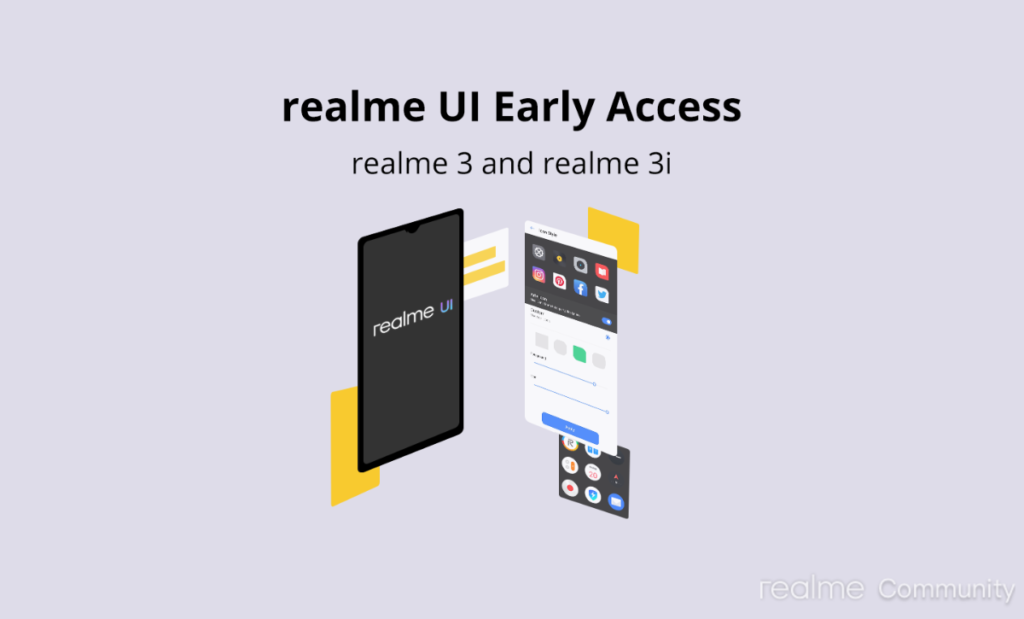
Recently Realme announced Android 10 based Realme UI for Realme X2 and Realme X2 Pro and now the company starts registering users for Early Access of Realme UI for Realme 3 and Realme 3i. Selected users who fill the form get the update with the latest Realme UI and features like Visuals update, smart sidebar, Navigation Gestures 3.0, animated wallpapers, screen-off display, Gaming optimization, battery, and security optimization and many more.

Realme UI update for Realme 3 and Realme 3i is almost ready and will begin the rollout very soon. At first, the Realme UI update will be rolled out to the limited number of users who filled the Google form and got selected. And after a few days, the update will be rolled out for all users. So if you want to Get Early Access of Realme UI for Realme 3 and Realme 3i then follow the below steps.

Note –

  • Once you update Realme 3 to Realme UI, you can’t go back to the current version or any previous version! Please think carefully.
  • Before you proceed, take a complete backup of everything important.
  • The early access version may have bugs and it will impact on your phone. Some functions may not operate properly.
  • There may be some third-party application versions that aren’t compatible with Android 10.
  •  Please ensure that available phone storage is more than 5GB. Otherwise, there will be a risk of update failure.
  • Please make sure your phone is not rooted.
  • Charge your device to 60- 70% to prevent it from the accidental shutdown.

How to Get Early Access of Realme UI for Realme 3 and Realme 3i

Interested users who want early access to the update need to fill a Google form by providing the IMEI number of their device and Realme Community username. After that, the Realme Community team will verify the provided information and will release the A.27 version to the verified users. After updating to A.27 versions, users need to apply again under the Software Update section to get a Realme UI update on their device. Once enrolled, users won’t have an option to exit the early access program.

  1. Fill-up the Google form and share the necessary details – Google Form
  2.  If all the information shared by you is correct and if you are selected for the program, you will get the special version A.27.
  3. Make sure you update your device to the given ROM version.
  4. After updating to the A.27, you can Open settings -> Software Update -> Tap on the Settings icon on the top right corner -> Trial version -> Submit details and Apply now.

Wrapping Up:

If you are a Realme 3/3i user and want to update your device to Realme UI then you should follow the above process. Once you follow the above steps and fill the Google Form, you will Get Early Access of Realme UI for Realme 3 and Realme 3i. If you have any doubts, comment below.

Source

Latest Android 10 based MIUI 11.0.1.0 for Mi 8 Lite starts rolling. The MIUI 11.0.1.0 Update for Mi 8 Lite is based on Android 10 and bring all MIUI 11 features like improved UI design, Dynamic Clock on the lock screen, creative always-on display, dynamic video wallpapers, Quick replies, among other things. Follow the below guide to Download MIUI 11.0.1.0 Global Stable ROM for Mi 8 Lite.

MIUI 11.0.1.0 Global Stable ROM for Mi 8 Lite is a stable version and can be flashed via Recovery or via Fastboot. You can wait for the OTA or download MIUI 11.0.1.0 for Mi 8 Lite from below to update Mi 8 Lite to Android 10 manually.

The new update is MIUI V11.0.1.0.QDTMIXM and soon will be released and available for all users. You can Download Mi 8 Lite MIUI V11.0.1.0.QDTMIXM ROM from below and also manually check for the update by going to Settings -> About Phone -> System updates -> Check for update. Download MIUI 11.0.1.0 Stable ROM for Mi 8 Lite from below.

Note:-

  • This Firmware file is only for Mi 8 Lite. Don’t try this on any other device.
  • Follow the steps correctly otherwise you may brick your device. We are not responsible for any damage to your phone.
  • It may erase your data, so it is advisable to take a complete backup of your phone for a safer side.
  • Ensure that your phone has at least 50-60% charged to prevent the accidental shutdown in-between the process.

Download MIUI 11.0.1.0 Global Stable ROM for Mi 8 Lite

  • MIUI 11.0.1.0 Recovery ROM for Mi 8 Lite – Download
  • MIUI 11.0.1.0 Fastboot ROM for Mi 8 Lite – Download

How to Install MIUI 11.0.1.0 Global Stable ROM on Mi 8 Lite –

To install MIUI 11.0.1.0 update for Mi 8 Lite download either Recovery ROM or Fastboot ROM from above and use the below method to install this on your device.

Method 1 – Recovery Mode

Recovery Mode

  1. Download MIUI 11 Recovery ROM for Mi 8 Lite from above and save it on your device.
  2. Now launch the ‘Updater‘ app on your device.
  3. Click on the three-dot menu (‘…’ icon) at the top-right corner, and select the ‘choose update package‘.
  4. Browse through the files and select the package ending with .zip extension.
  5. Done. Your device will reboot on the latest version.

Method 2 – Fastboot Mode

1) First, Download Mi Flash Tool, extract it and install it on your PC.

2) Now download MIUI 11 Fastboot ROM for Mi 8 Lite for your device.

3) Now boot your device into Fastboot mode by pressing the ‘Volume Down + Power‘ button.

4) Connect your device to PC via micro USB cable.

5) Now extract the Fastboot ROM and copy its path on the PC.

6) Now open MI Flash Tool and Paste the address bar of the ROM file folder path copied from above.

Mi Flash

7) First, click on the ‘Refresh‘ button (It will automatically recognize your device) and then click on the ‘Flash‘ button to flash MIUI 11 ROM on your Devices.

Mi Flash

8) Wait for some time to complete the process.

9) Done. Your device will boot on the latest version.

Wrapping Up:

If you want to update Mi 8 Lite to Android 10 based MIUI 11, then you can follow the above process. Download MIUI 11.0.1.0 Global Stable ROM for Mi 8 Lite and flash it to update it manually. Comment below if you have any doubts.

Latest Android 10 based MIUI 11.0.1.0 for Mi Max 3 starts rolling. The MIUI 11.0.1.0 Update for Mi Max 3 is based on Android 10 and bring all MIUI 11 features like improved UI design, Dynamic Clock on the lock screen, creative always-on display, dynamic video wallpapers, Quick replies, among other things. Follow the below guide to Download MIUI 11.0.1.0 Global Stable ROM for Mi Max 3.

MIUI 11.0.1.0 Global Stable ROM for Mi Max 3 is a stable version and can be flashed via Recovery or via Fastboot. You can wait for the OTA or download MIUI 11.0.1.0 for Mi Max 3 from below to update Mi Max 3 to Android 10 manually.

The new update is MIUI V11.0.1.0.QEDMIXM and soon will be released and available for all users. You can Download Mi Max 3 MIUI V11.0.1.0.QEDMIXM ROM from below and also manually check for the update by going to Settings -> About Phone -> System updates -> Check for update. Download MIUI 11.0.1.0 Stable ROM for Mi Max 3 from below.

Note:-

  • This Firmware file is only for Mi Max 3. Don’t try this on any other device.
  • Follow the steps correctly otherwise you may brick your device. We are not responsible for any damage to your phone.
  • It may erase your data, so it is advisable to take a complete backup of your phone for a safer side.
  • Ensure that your phone has at least 50-60% charged to prevent the accidental shutdown in-between the process.

Download MIUI 11.0.1.0 Global Stable ROM for Mi Max 3

  • MIUI 11.0.1.0 Recovery ROM for Mi Max 3 (Global) – Download
  • MIUI 11.0.1.0 Fastboot ROM for Mi Max 3 (Global) – Download
  • MIUI 11.0.1.0 Recovery ROM for Mi Max 3 (Russia) – Download
  • MIUI 11.0.1.0 Fastboot ROM for Mi Max 3 (Russia) – Download

How to Install MIUI 11.0.1.0 Global Stable ROM on Mi Max 3 –

To install MIUI 11.0.1.0 update for Mi Max 3 download either Recovery ROM or Fastboot ROM from above and use the below method to install this on your device.

Method 1 – Recovery Mode

Recovery Mode

  1. Download MIUI 11 Recovery ROM for Mi Max 3 from above and save it on your device.
  2. Now launch the ‘Updater‘ app on your device.
  3. Click on the three-dot menu (‘…’ icon) at the top-right corner, and select the ‘choose update package‘.
  4. Browse through the files and select the package ending with .zip extension.
  5. Done. Your device will reboot on the latest version.

Method 2 – Fastboot Mode

1) First, Download Mi Flash Tool, extract it and install it on your PC.

2) Now download MIUI 11 Fastboot ROM for Mi Max 3 for your device.

3) Now boot your device into Fastboot mode by pressing the ‘Volume Down + Power‘ button.

4) Connect your device to PC via micro USB cable.

5) Now extract the Fastboot ROM and copy its path on the PC.

6) Now open MI Flash Tool and Paste the address bar of the ROM file folder path copied from above.

Mi Flash

7) First, click on the ‘Refresh‘ button (It will automatically recognize your device) and then click on the ‘Flash‘ button to flash MIUI 11 ROM on your Devices.

Mi Flash

8) Wait for some time to complete the process.

9) Done. Your device will boot on the latest version.

Wrapping Up:

If you want to update mi Max 3 to Android 10 based MIUI 11, then you can follow the above process. Download MIUI 11.0.1.0 Global Stable ROM for Mi Max 3 and flash it to update it manually. Comment below if you have any doubts.
WhatsApp has reduced the limit of Status video from 30 seconds to 15 seconds in India to ease internet stress during the coronavirus lockdown. Now any video you set more than 15 seconds will be trimmed automatically and you see this message “Videos sent to My Status will be trimmed to the first 15 seconds,”.  But there is still a way to Set Long Videos as WhatsApp Status during the lockdown.

WABetaInfo tweeted that “You can no longer send videos to WhatsApp Status if they are longer than 16 seconds: only videos having a duration of 15 seconds will be allowed. This is happening in India and it’s probably an initiative to reduce the traffic on the server infrastructures,”.

Recently many other over-the-top (OTT) content providers like Hotstar, Netflix, Amazon, and Youtube decided to lower the streaming quality to avoid internet congestion. After this length limit, it is a bit hard to share long videos as WhatsApp Status but with third-party apps like WhatsCut, you can easily set more than 15 second video on WhatsApp Status.

How to Set Long Videos as WhatsApp Status

If you want to Set more than 15 seconds Videos as WhatsApp Status then you need to download WhatsCut Android app. This app will trim videos and cut them into small parts so you can set those cuts on WhatsApp status one by one to share the complete video. Here are the steps to Set Long Videos as WhatsApp Status.

How to Set Long Videos as WhatsApp Status

  1. Download WhatsCut app from Playstore and install it on your device – Download
  2. Now open the app and to split video, click on ‘ Video Splitter for Whatsapp Status.
  3.  Select the video which you want to share as Whatsapp status.
  4. Choose the time range of the video.
  5. Click on the ‘Trim and Share on Whatsapp‘ button.
  6. That’s it, the app will trim/split the video into different parts and will let you to share the selected video on Whatsapp as Status.

Wrapping Up:

We tried the WhatsCut app and it works really well. We are able to set around 2 min video as WhatsApp status with this app. You can also try WhatSaga or Video Splitter for WhatsApp Status apps to Set Long Videos as WhatsApp Status. Both of these apps are equally good and both of them are also able to set more than 15 seconds video as WhatsApp status.